In today's article, we will explore how to perform an audit of access permissions for a SharePoint list.
Checking permissions is a relatively easy process when dealing with a limited number of sites via the end-user environment. However, if you are managing a large volume of sites, you will need automated processes, specifically using PowerShell.
Method 1: Using the End-User Environment
To check permissions through the standard interface, follow these steps:
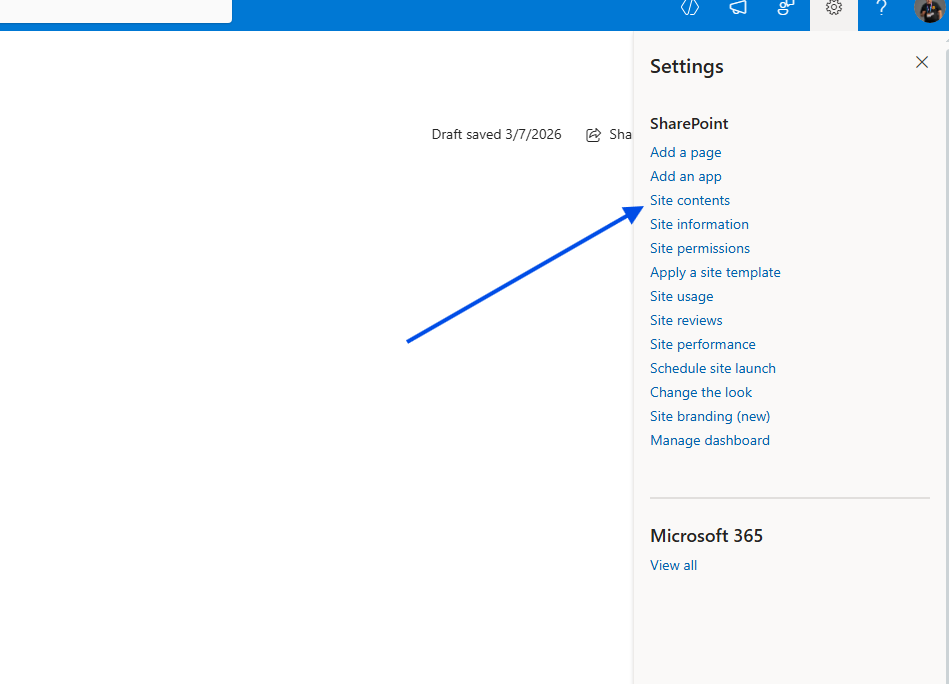
Navigate to Site Contents: Go to the site of your choice. Click the gear icon in the top right and select Site Contents.
Access List Settings: Locate the list you want to audit. Click the gear icon again and select List settings.
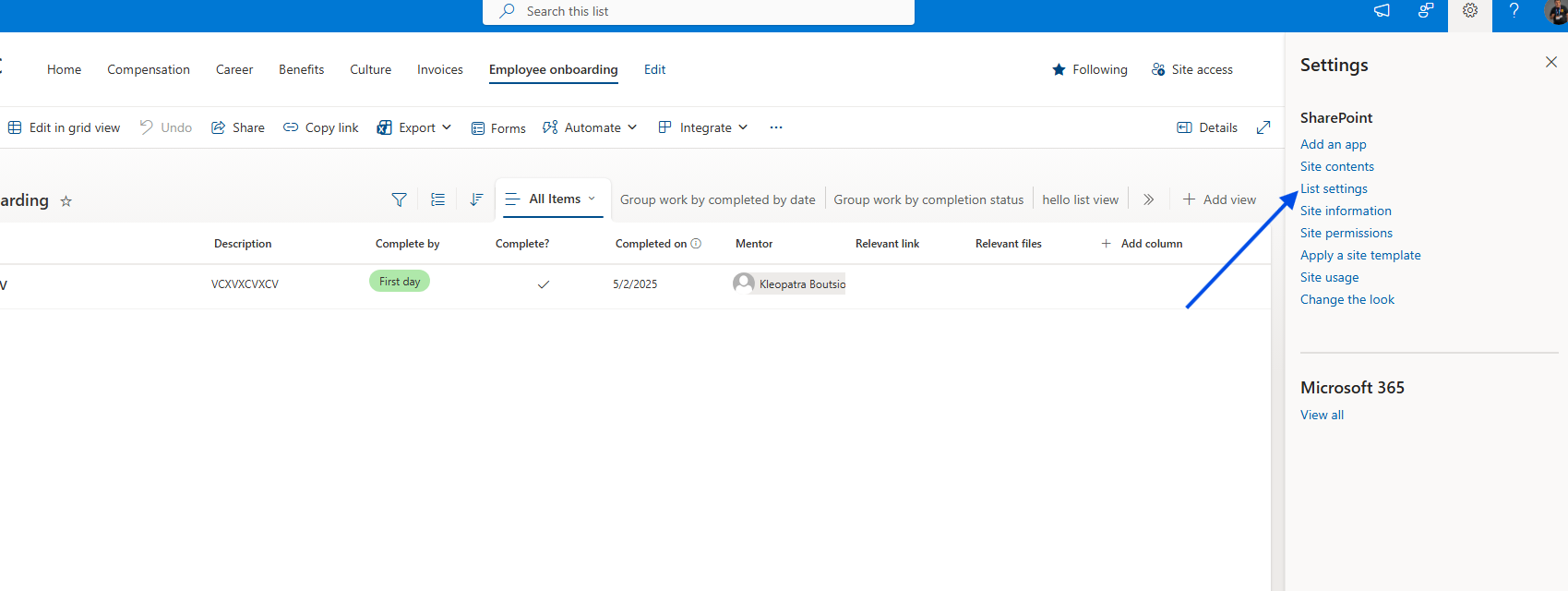
Note: The user must have Administrator privileges to have a complete view of permission management on the site.
Permissions Page: Select Permissions for this list.
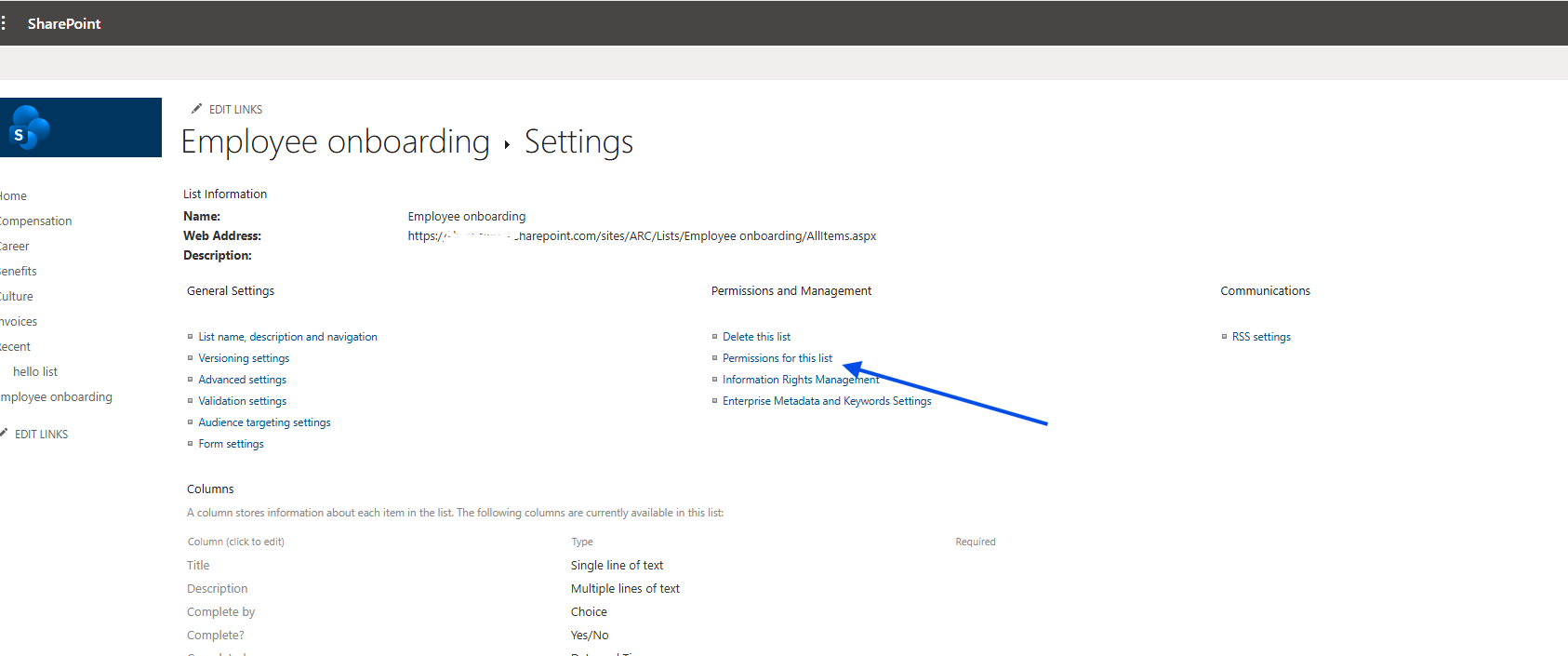
On the next page, you will see whether the list inherits permissions from its parent site, the SharePoint groups, Active Directory groups, and individual users who have access, along with their specific permission levels. Keep in mind that the standard interface does not provide an "Export to Excel" option. 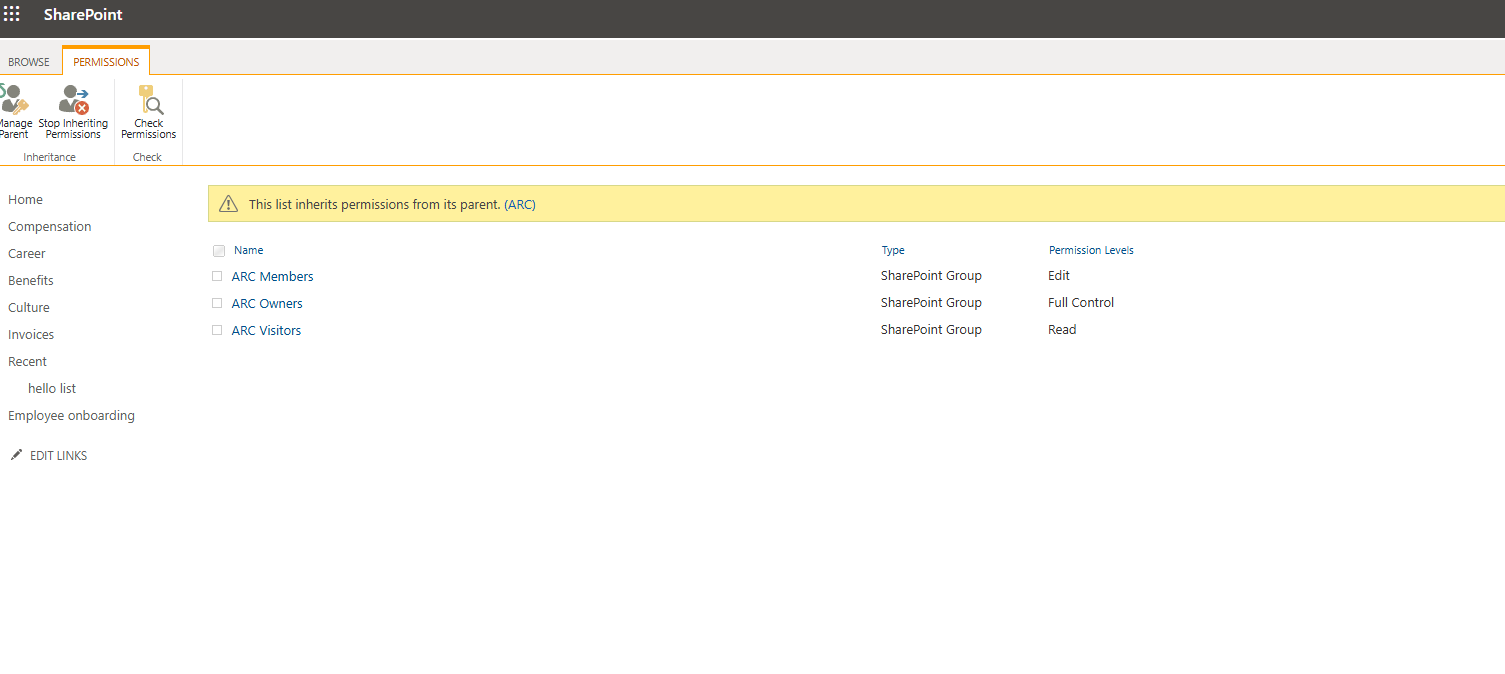
Method 2: Automation via PowerShell (PnP PowerShell)
To view all permissions and export them to an Excel-friendly format, you can execute the following PowerShell script using the PnP module.
# --- Variables--- $siteUrl = "https://mytenant.sharepoint.com/sites/ARC" $listName = "Employee onboarding" # list name $clinetId = "00000000-0000-0000-0000-00000000000"1. Connect SharePoint Online
Connect-PnPOnline -Url $siteUrl -Interactive -ClientId $clinetId
2. Get list and Role Assignments
Το -Includes είναι απαραίτητο για να "τραβήξουμε" τα δεδομένα των δικαιωμάτων
$list = Get-PnPList -Identity $listName -Includes RoleAssignments, HasUniqueRoleAssignments
Write-Host "`n--- Έλεγχος Δικαιωμάτων Λίστας: $($list.Title) ---" -ForegroundColor Cyan Write-Host "Unique Permissions (Broken Inheritance): $($list.HasUniqueRoleAssignments)" -ForegroundColor Yellow Write-Host "--------------------------------------------------"
3. Analyze Permissions
$listPermissions = foreach ($roleAssignment in $list.RoleAssignments) { # Φόρτωση των λεπτομερειών του μέλους και των επιπέδων πρόσβασης Get-PnPProperty -ClientObject $roleAssignment -Property Member, RoleDefinitionBindings
$member = $roleAssignment.Member $permissionLevels = ($roleAssignment.RoleDefinitionBindings | Select-Object -ExpandProperty Name) -join ", " [PSCustomObject]@{ "User/Group" = $member.Title "Principal Type" = $member.PrincipalType "Access Level" = $permissionLevels "Login Name" = $member.LoginName }}
Show Results in table
$listPermissions | Format-Table -AutoSize
4. Export CSV
$listPermissions | Export-Csv -Path "C:\ListPermissionsReport.csv" -NoTypeInformation -Encoding UTF8
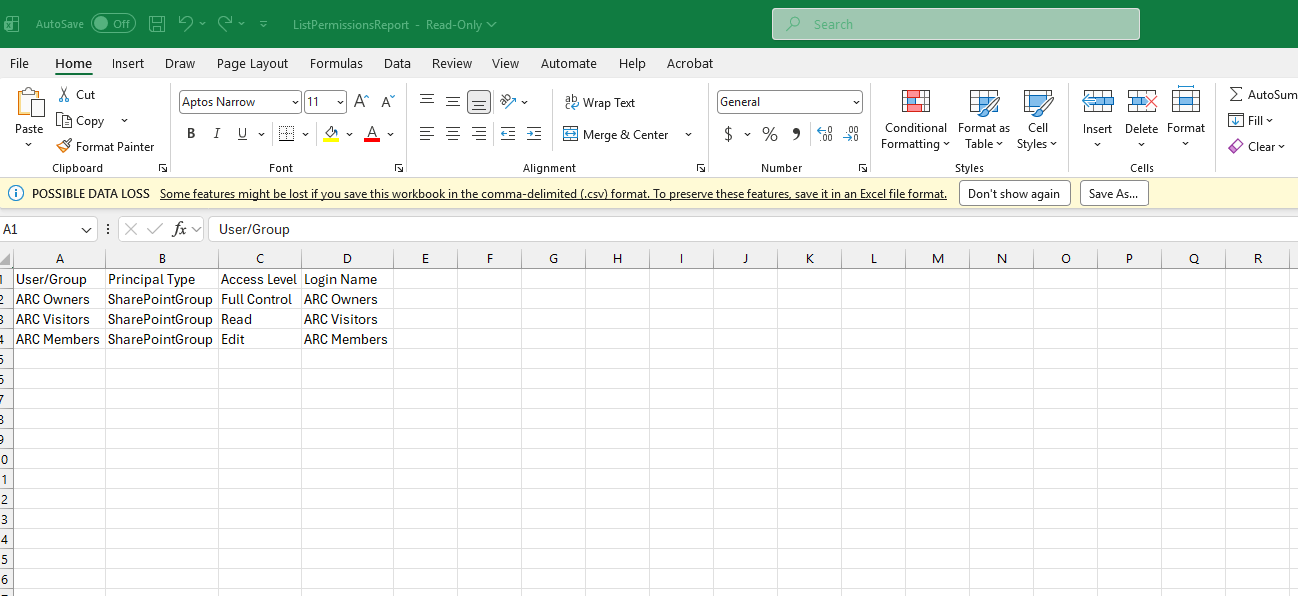
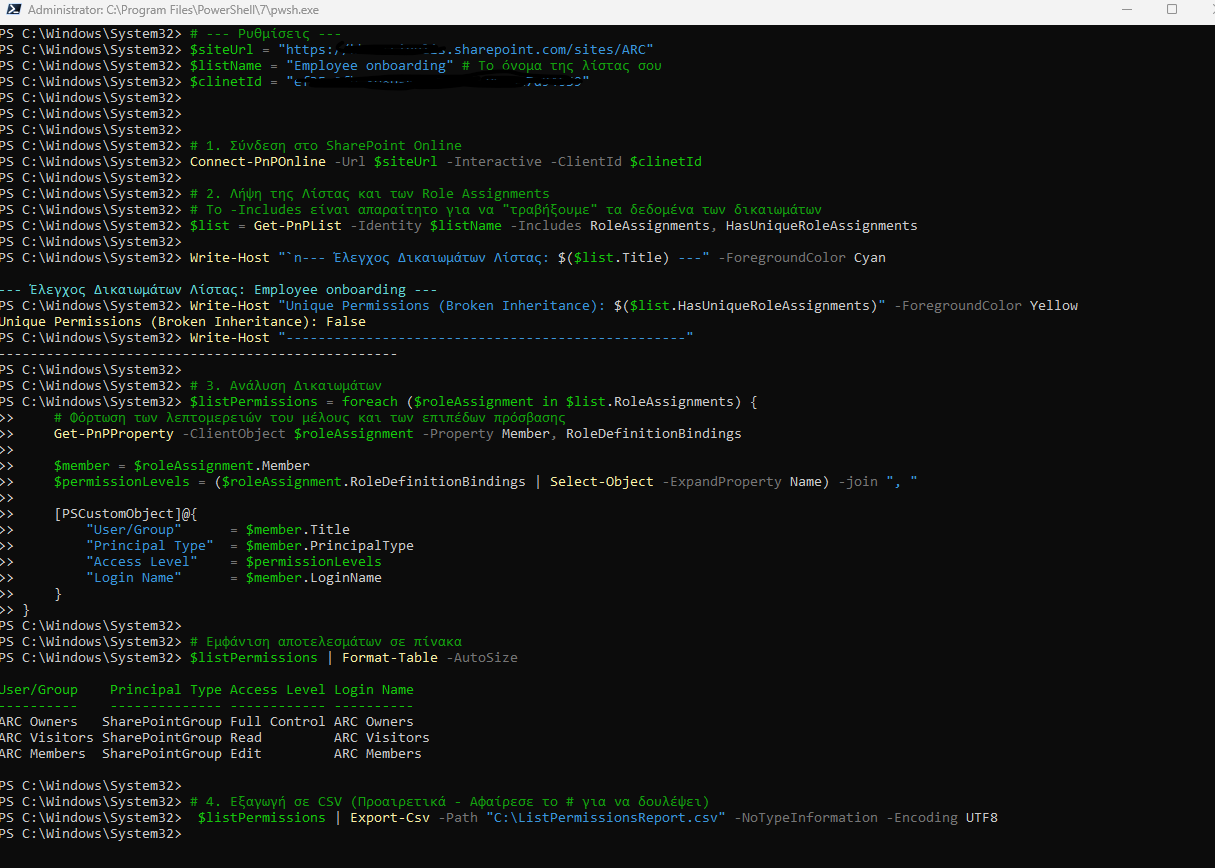 and finally get the export in excel stored in local drive