In today’s post, we will look at how to copy files from one library to another using PnP
This is a process that can be easily performed through the SharePoint Online end-user interface as well.
First, locate the site containing the library from which you want to copy the files.
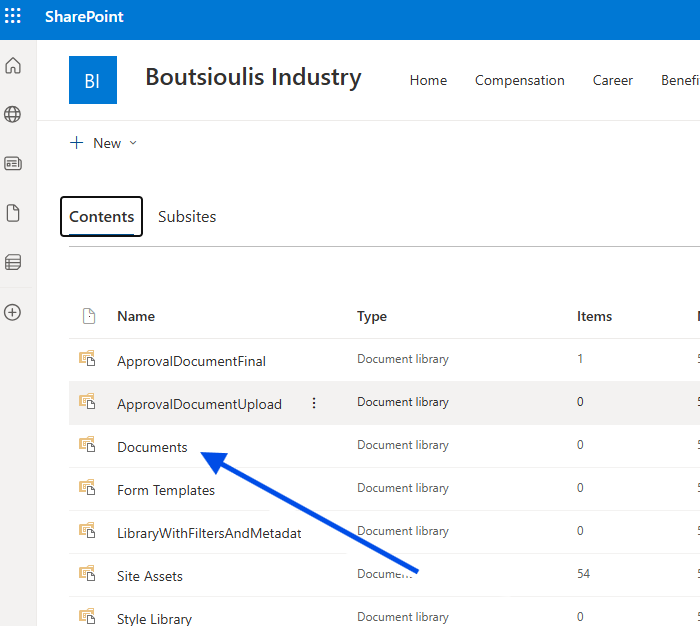
Next, locate the destination site and the corresponding library where the files will be copied.
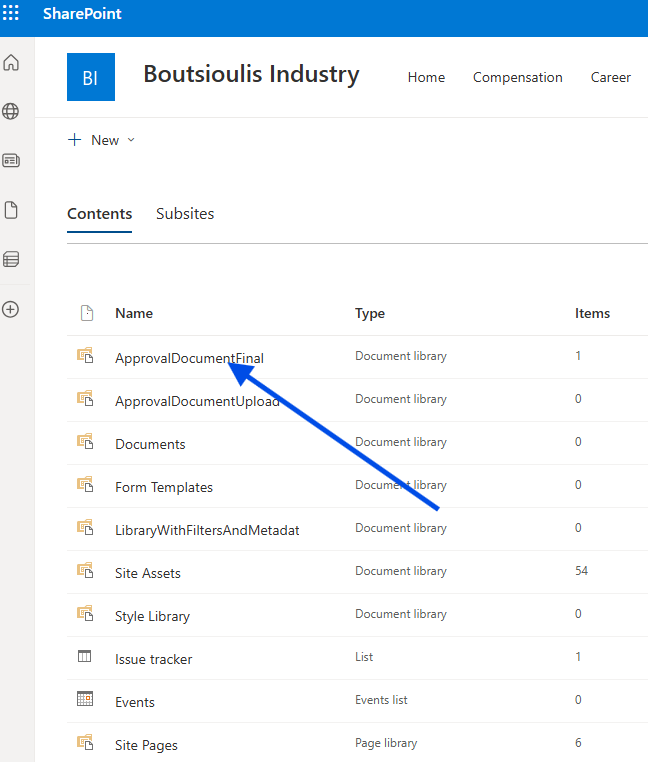
Return to the source list and select the items.
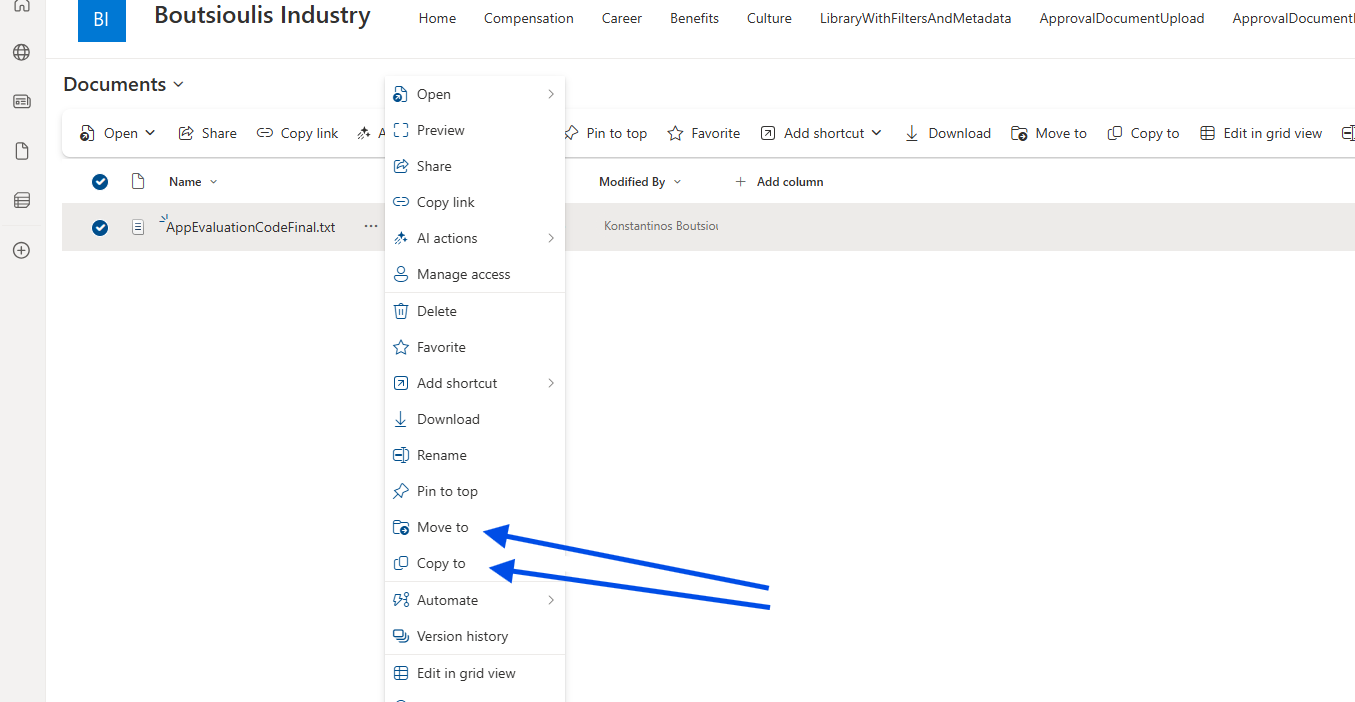
Then, click on the three dots (ellipsis) and select "Copy to."
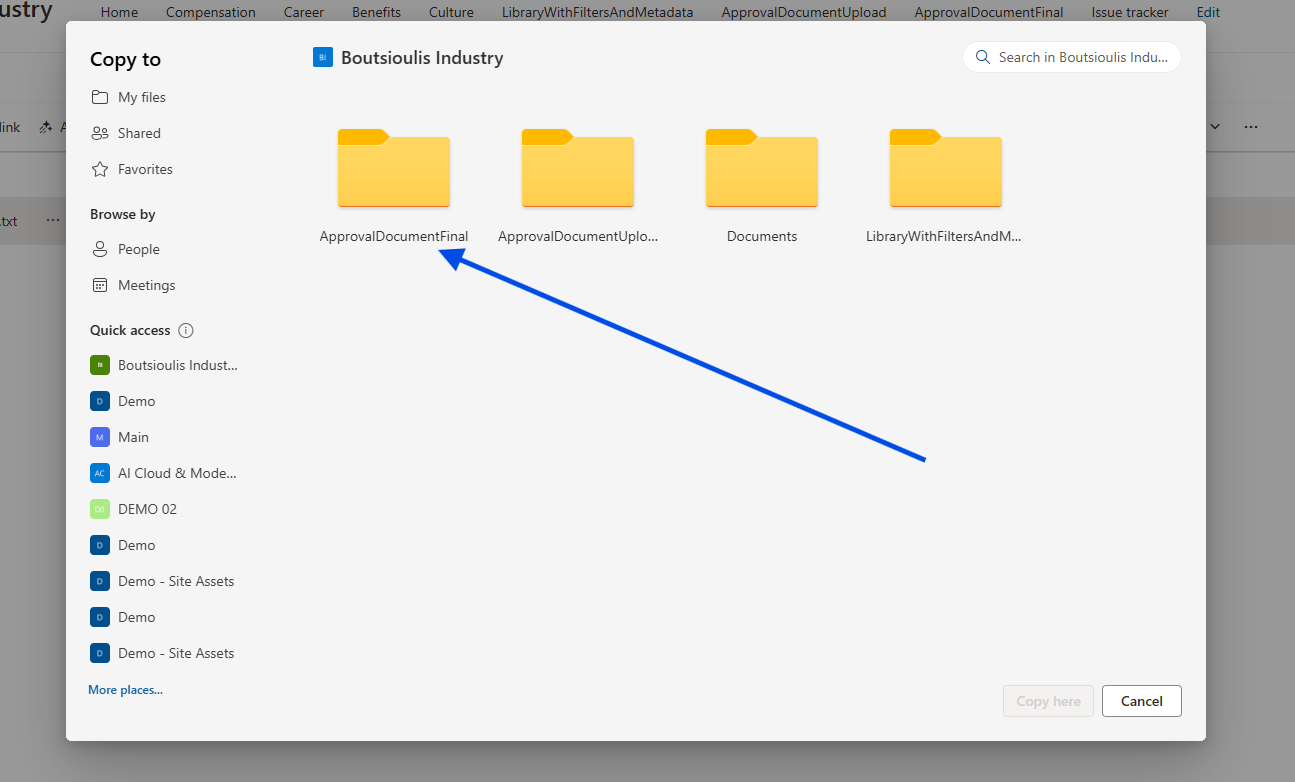
In the pop-up window, find the destination site and library, and then select "Copy here."
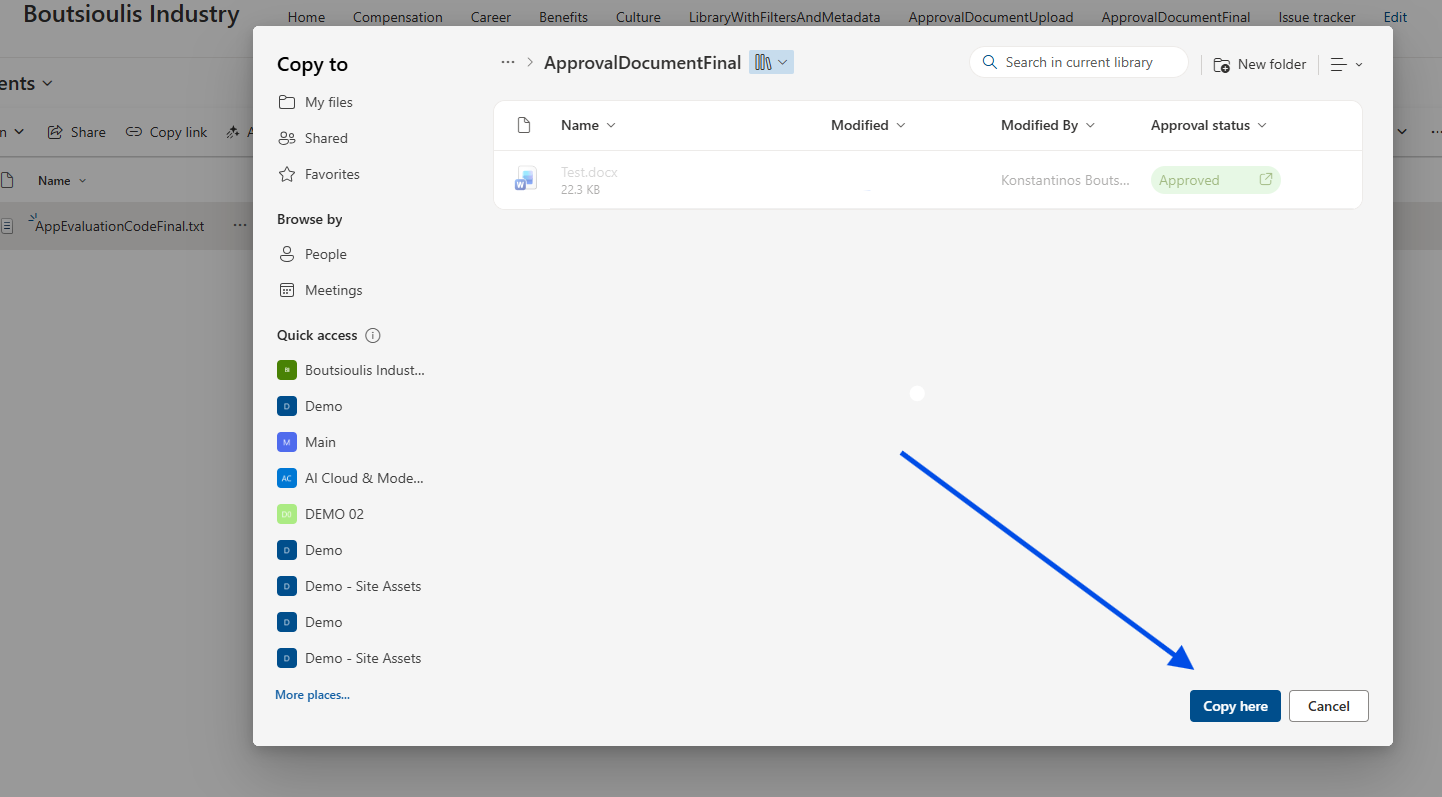
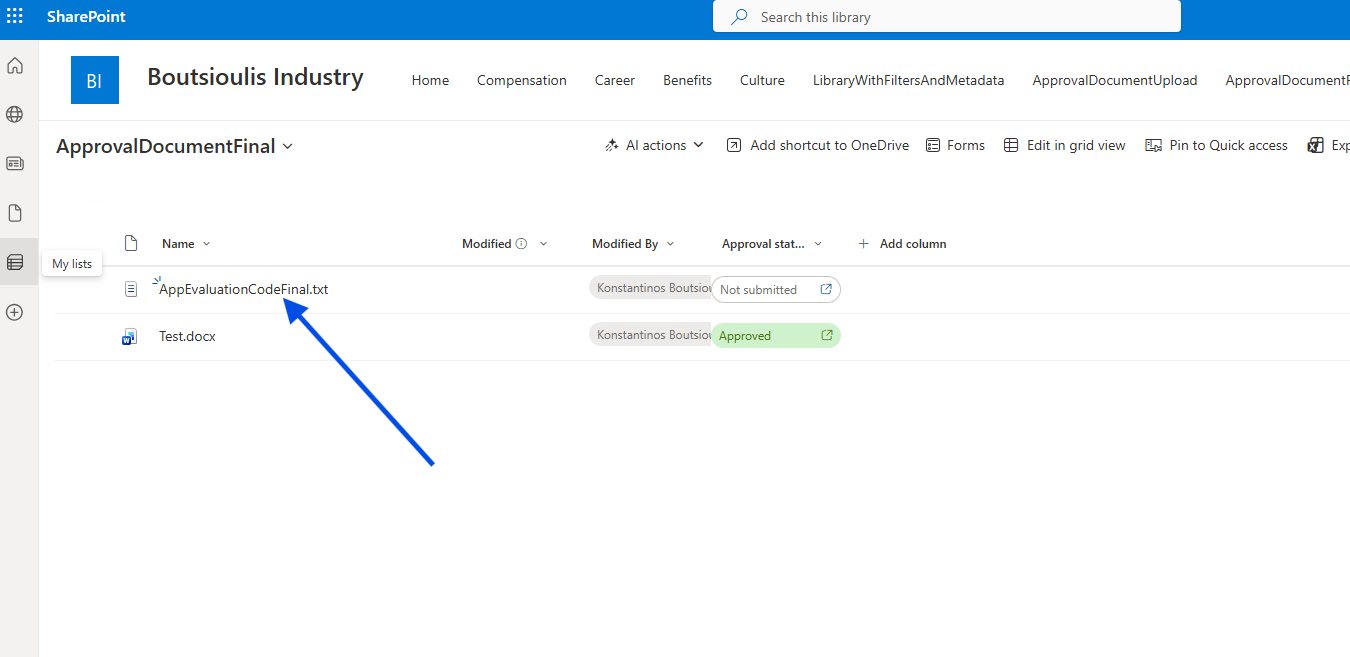
Alternatively, you can use the following PowerShell script to handle the transfer in an automated way:
$siteUrl = "https://yourtenant.sharepoint.com/sites/your-site"$sourceLibUrl = "/sites/your-site/SourceLibrary" # source library url$targetLibUrl = "/sites/your-site/TargetLibrary" # target library url# Connection to SharePoint OnlineConnect-PnPOnline -Url $siteUrl -Interactive# Copy all folders and itemsWrite-Host "Έναρξη αντιγραφής από $sourceLibUrl σε $targetLibUrl..." -ForegroundColor GreenCopy-PnPFile -SourceUrl $sourceLibUrl -TargetUrl $targetLibUrl -OverwriteCopy -ForceWrite-Host "Η αντιγραφή ολοκληρώθηκε επιτυχώς!" -ForegroundColor Red