In today's post, we will look at how we can copy a list in SharePoint using PowerShell.
It is important to emphasize that this is a process that can also be performed through the End-User Environment.
Method 1: Using the User Interface (UI)
Locate the Site: First, the user navigates to the site hosting the list.
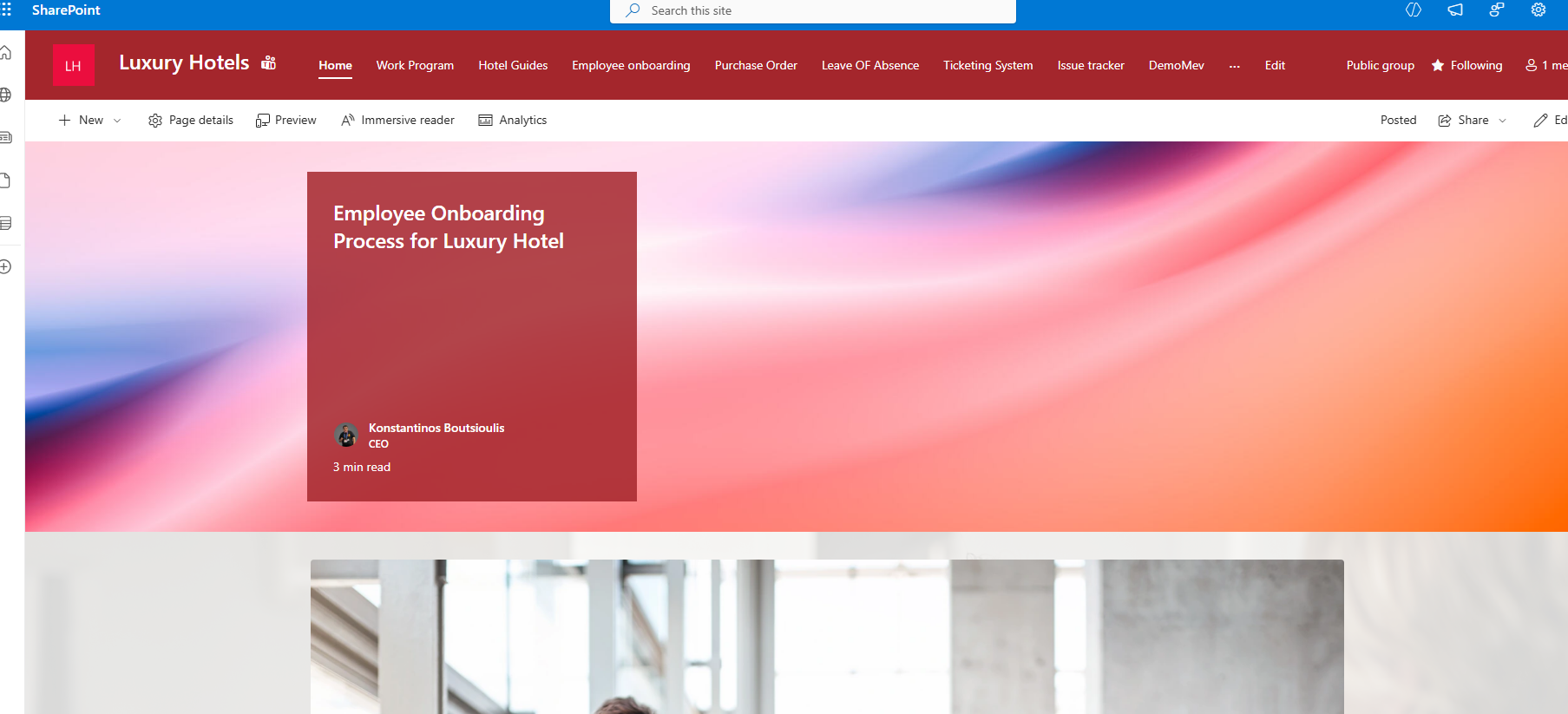
Access Site Contents: Locate the desired list. By clicking the gear icon (Settings) in the top right corner and selecting Site Contents, you will be taken to the page displaying all content for that specific site.
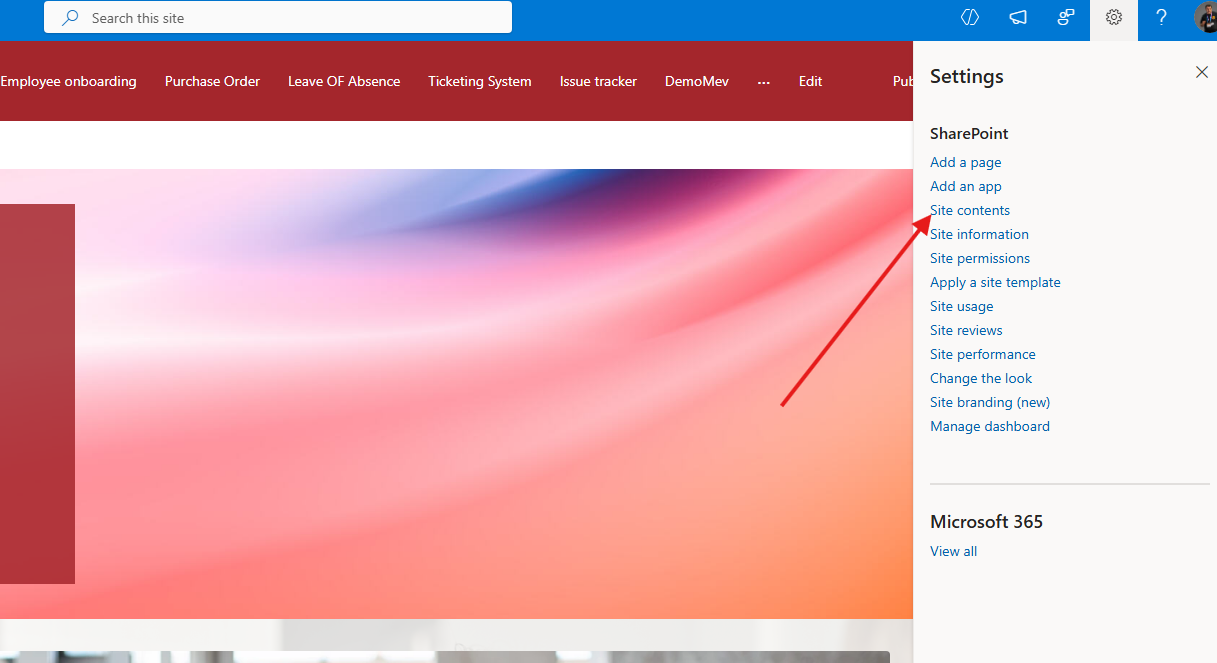
Create New List: Select New in the top left, then select List.
Template Selection: Choose the From existing list option.
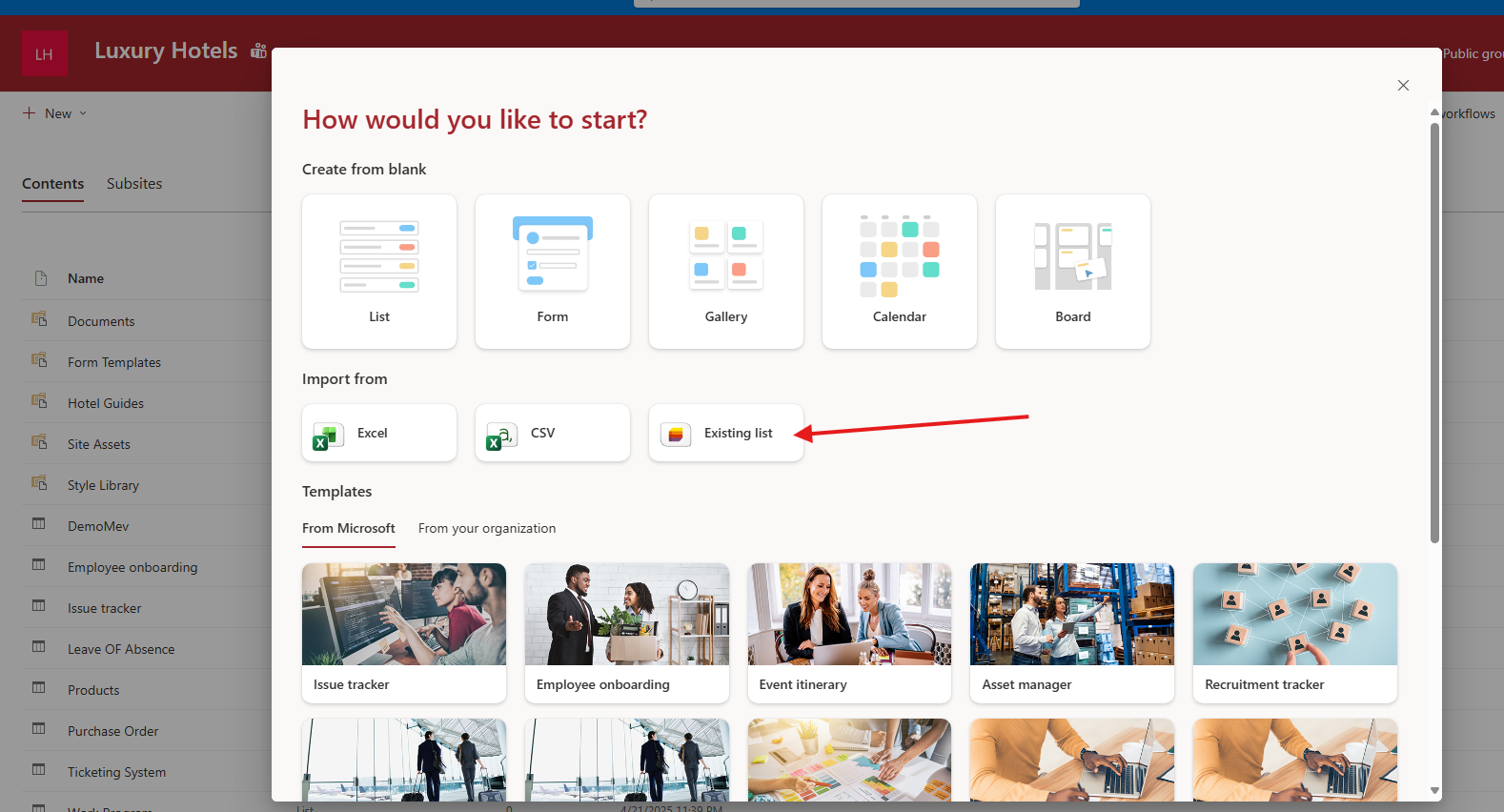
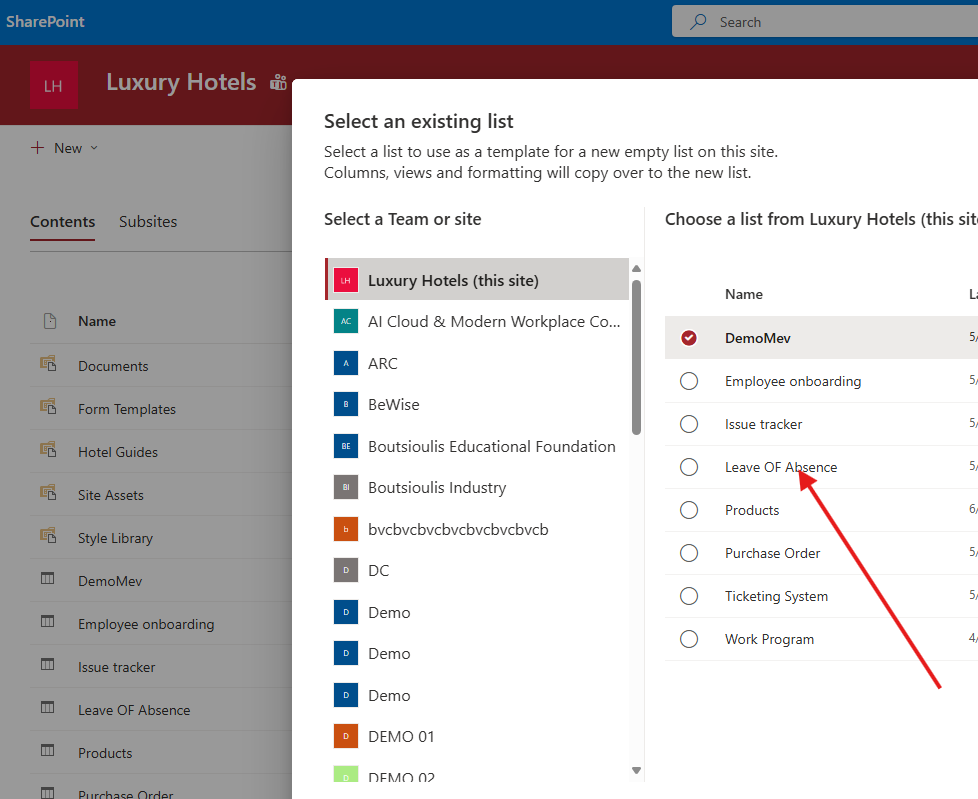
Select Source: In the next step, select the list you wish to use as a template and click OK.
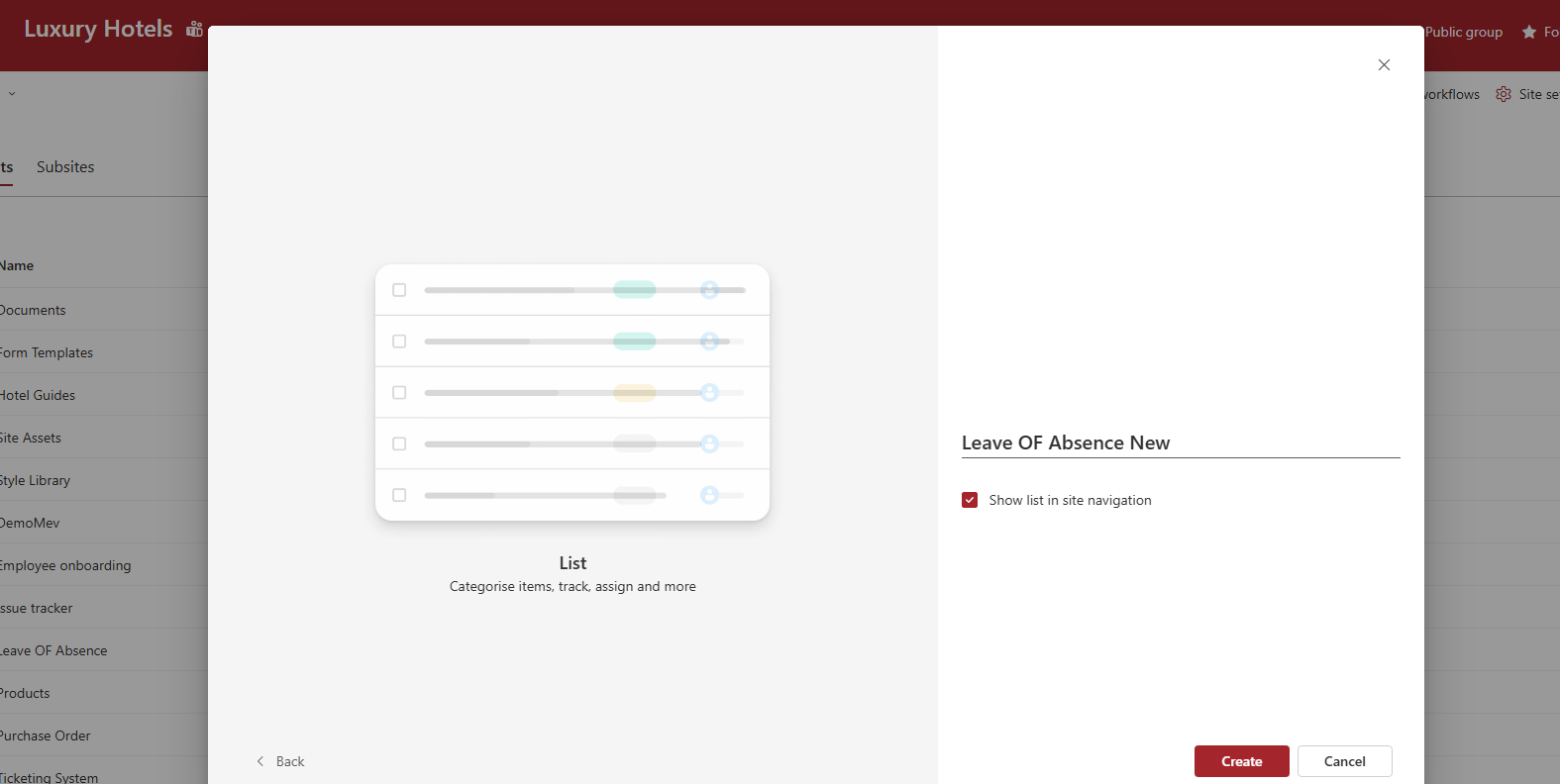
Finalize: Choose a name for your new list and click Create.
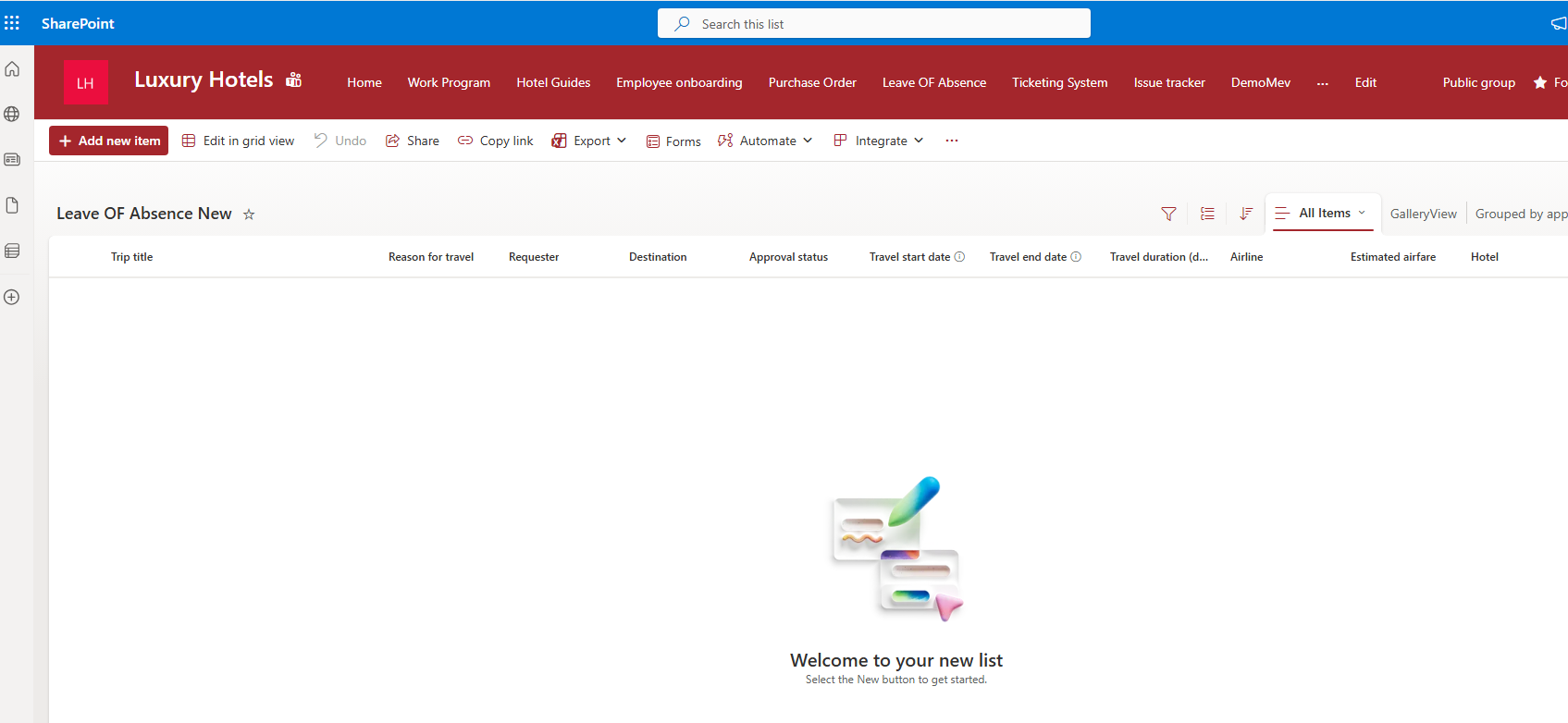
As you can see, a new list has been created that is identical to the existing one.
Method 2: Using PowerShell
Alternatively, this can be achieved by running a simple PowerShell script, as shown below:
# --- Ρυθμίσεις ---
$sourceSiteUrl = "https://yourtenant.sharepoint.com/sites/SourceSite"
$targetSiteUrl = "https://yourtenant.sharepoint.com/sites/TargetSite"
$sourceListName = "Όνομα_Αρχικής_Λίστας"
$targetListName = "Όνομα_Νέας_Λίστας"
$tempTemplatePath = "$env:TEMP\list_structure.xml"
1. Connect to SharePoint
Write-Host "Σύνδεση στην Πηγή: $sourceSiteUrl" -ForegroundColor Cyan
$sourceConn = Connect-PnPOnline -Url $sourceSiteUrl -Interactive -ReturnConnection
2. extract stracture (Template)
Write-Host "Εξαγωγή δομής για τη λίστα: $sourceListName" -ForegroundColor Yellow
Get-PnPListTemplate -Identity $sourceListName -Out $tempTemplatePath -Connection $sourceConn
3. Connect to destination
Write-Host "Σύνδεση στον Προορισμό: $targetSiteUrl" -ForegroundColor Cyan
$targetConn = Connect-PnPOnline -Url $targetSiteUrl -Interactive -ReturnConnection
4. Create List in destination (Χωρίς items)
Write-Host "Δημιουργία νέας λίστας '$targetListName' στον προορισμό..." -ForegroundColor Green
Add-PnPListFromTemplate -TemplatePath $tempTemplatePath -Title $targetListName -Connection $targetConn
clear cache
if (Test-Path $tempTemplatePath) { Remove-Item $tempTemplatePath }
Write-Host "`nΟλοκληρώθηκε! Η κενή λίστα δημιουργήθηκε με επιτυχία." -ForegroundColor Green
Pro-Tip: Why use PowerShell?
While the UI method is great for one-off tasks, the PowerShell approach is significantly faster if you need to:
Copy multiple lists at once.
Automate the process across different environments (e.g., Dev to Production).
Ensure exact schema replication without manual clicking.