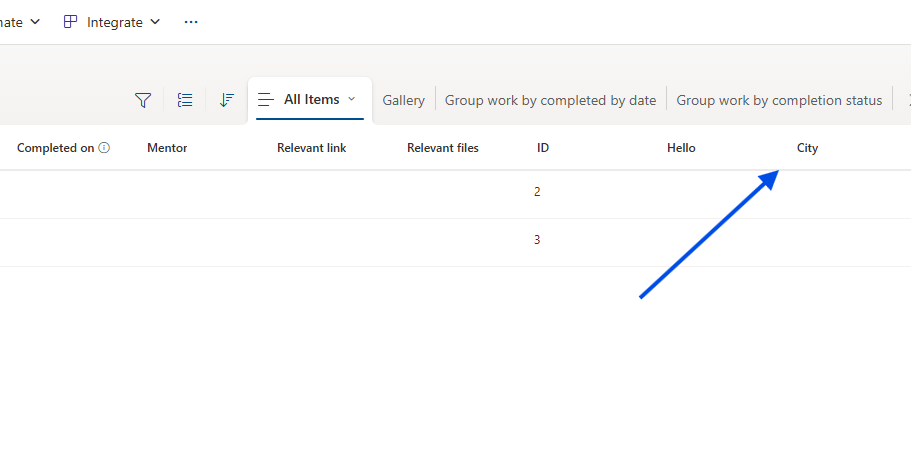
In today’s post I will show you how we can add a column from the existing ones that are not visible. Let’s assume that we want to add a column, for example, named city.
First, we select the site that hosts our list and from the gear icon at the top right we choose Site contents.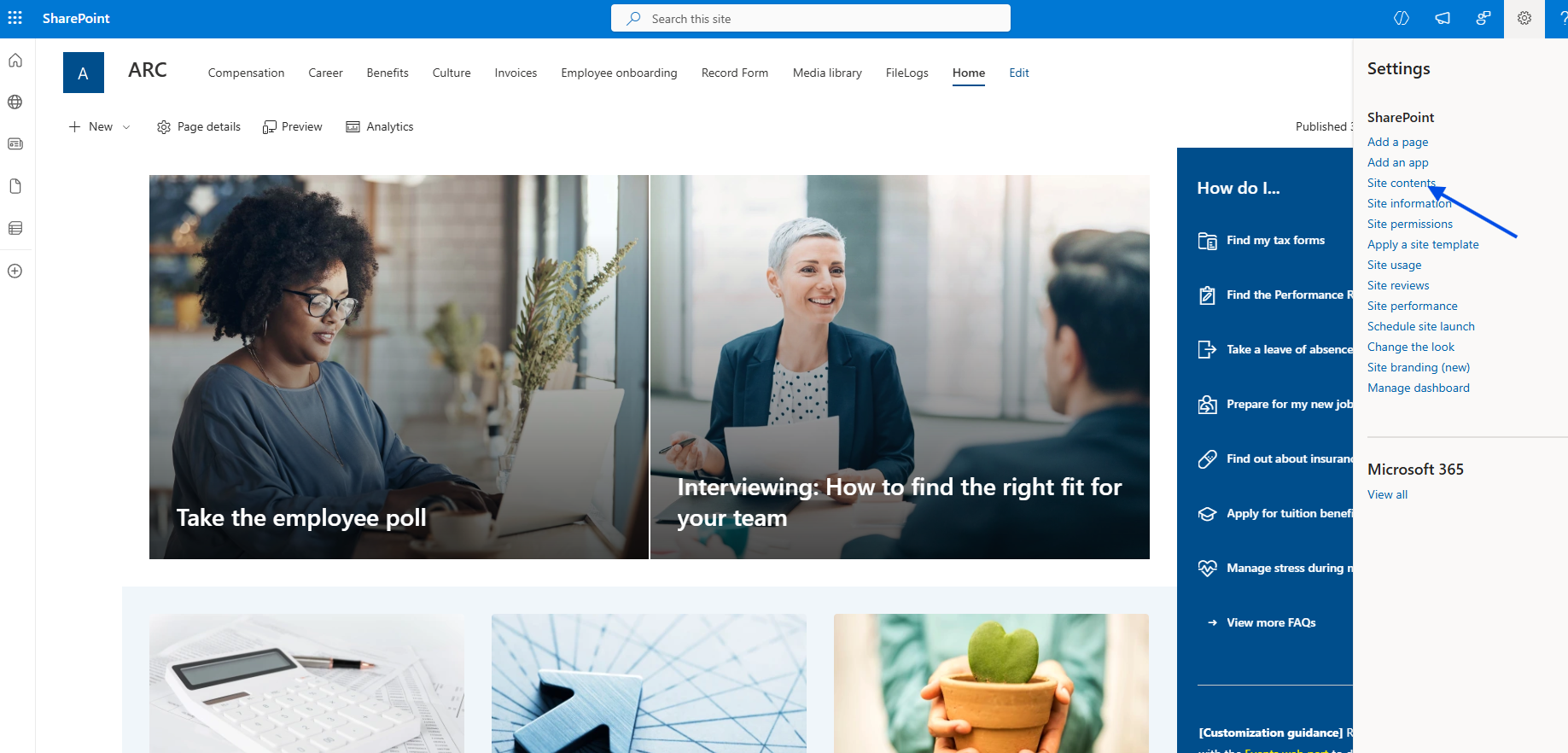
In the next step, we select the list.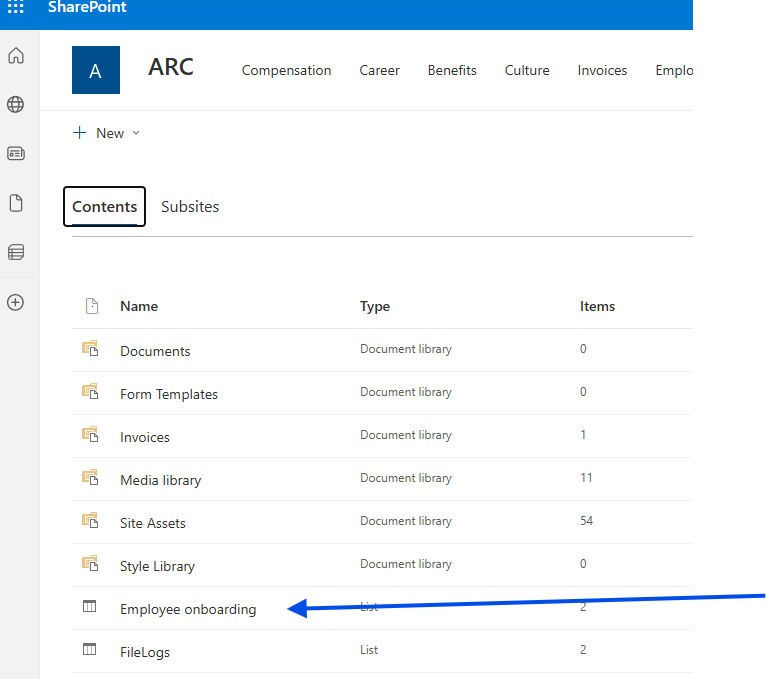
In the next step, from the gear icon at the top right we select List settings.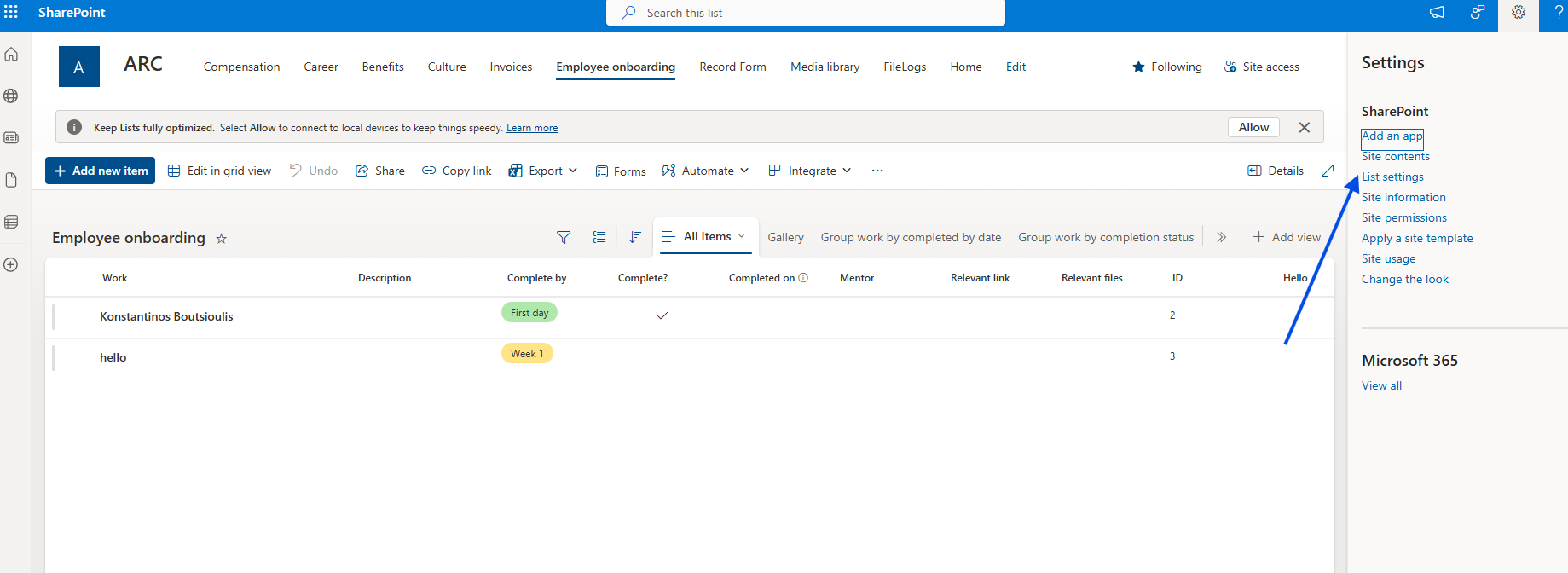
Then we select Add from existing site columns under the Columns tab.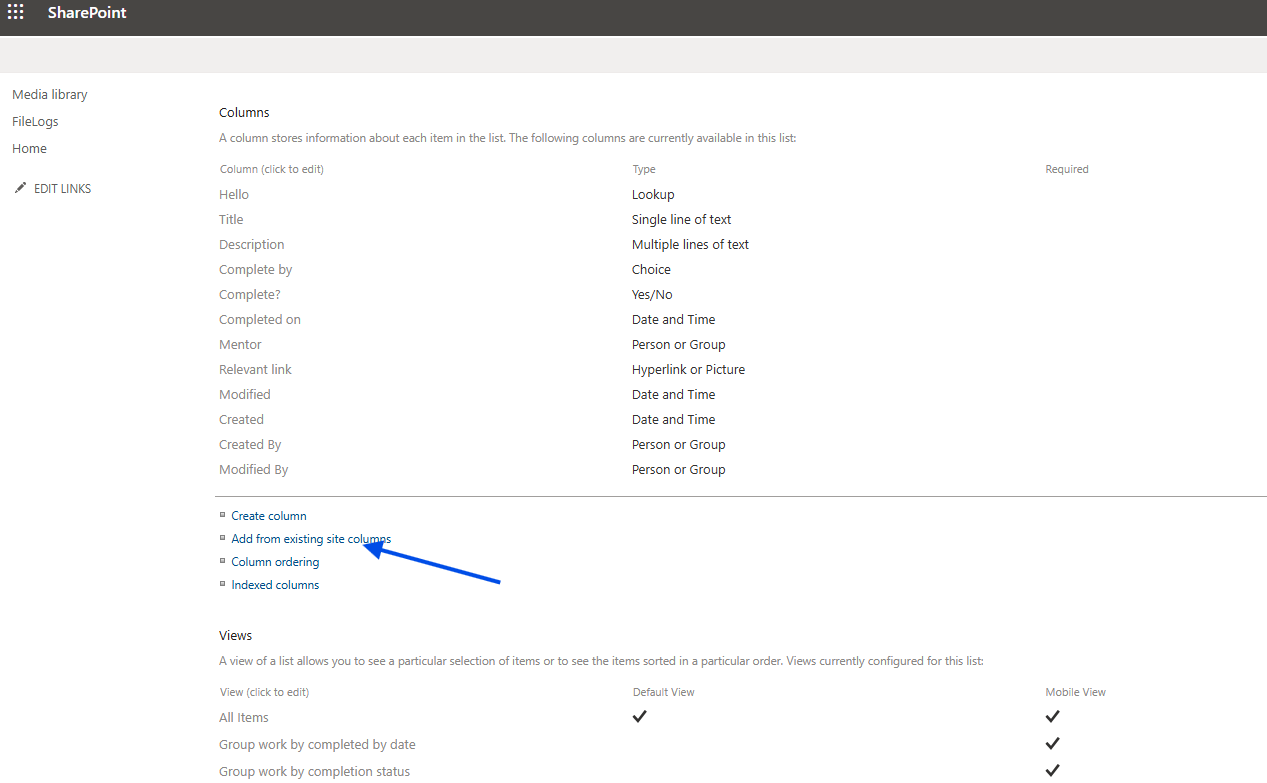
Here, as you can see, a window opens with all the available default columns, grouped into categories as provided by the content types. We select the column city, click Add, and then OK.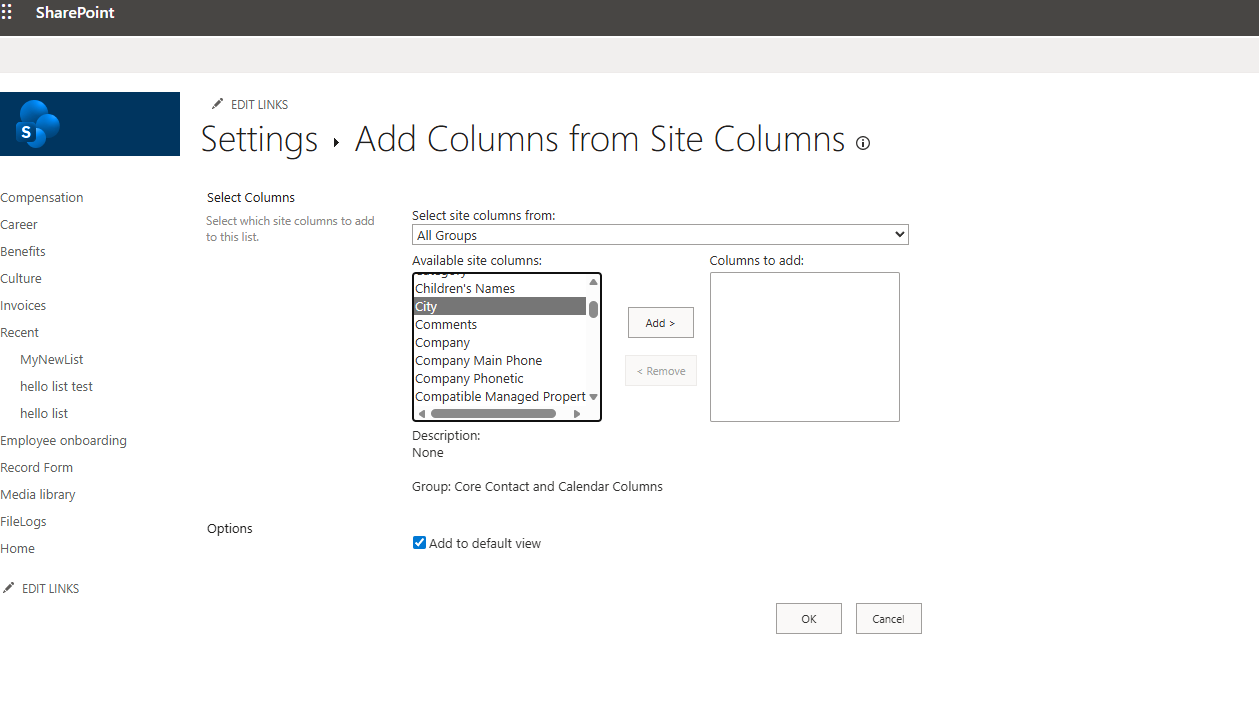
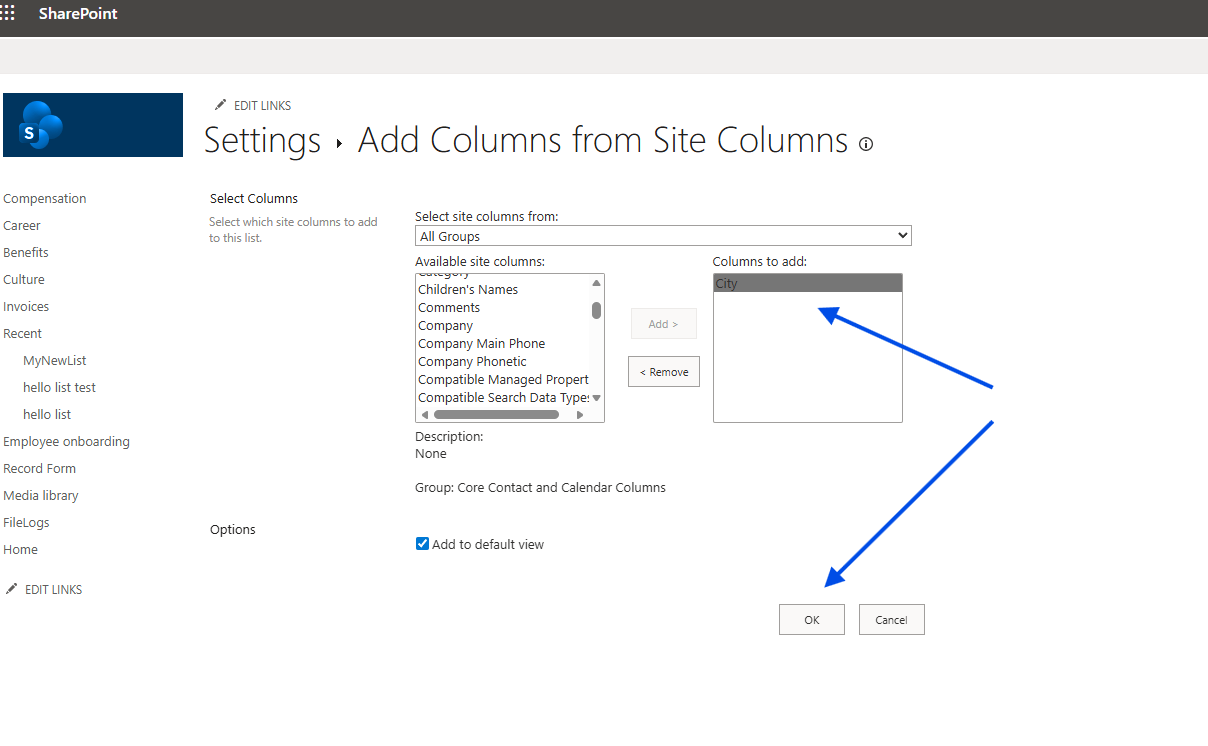
As you can see, this column has now been added to our list.