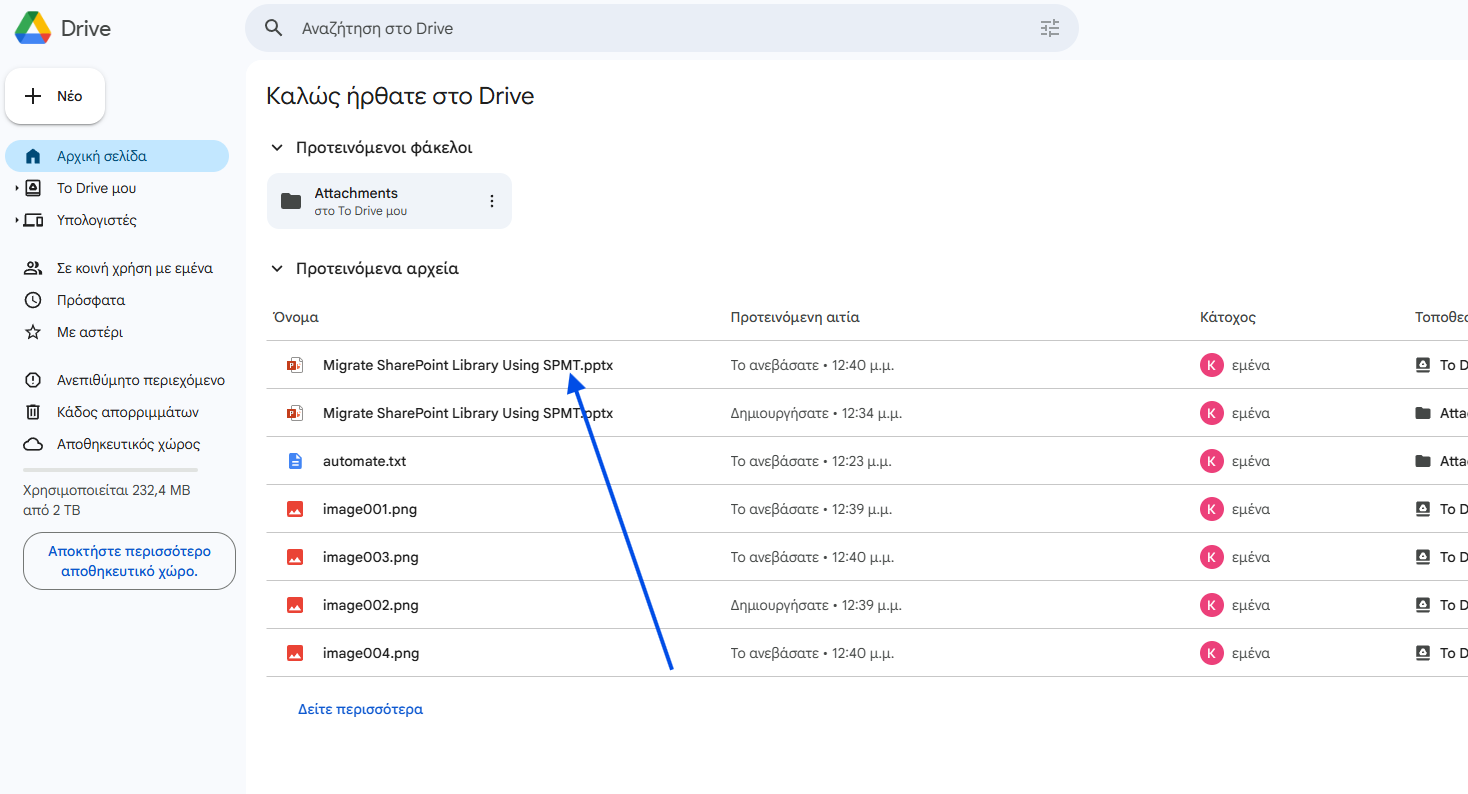
In today’s post we will see how we can save attachments from an Outlook email to Google Drive using Power Automate.
First, we go to the main Power Automate page and select Templates.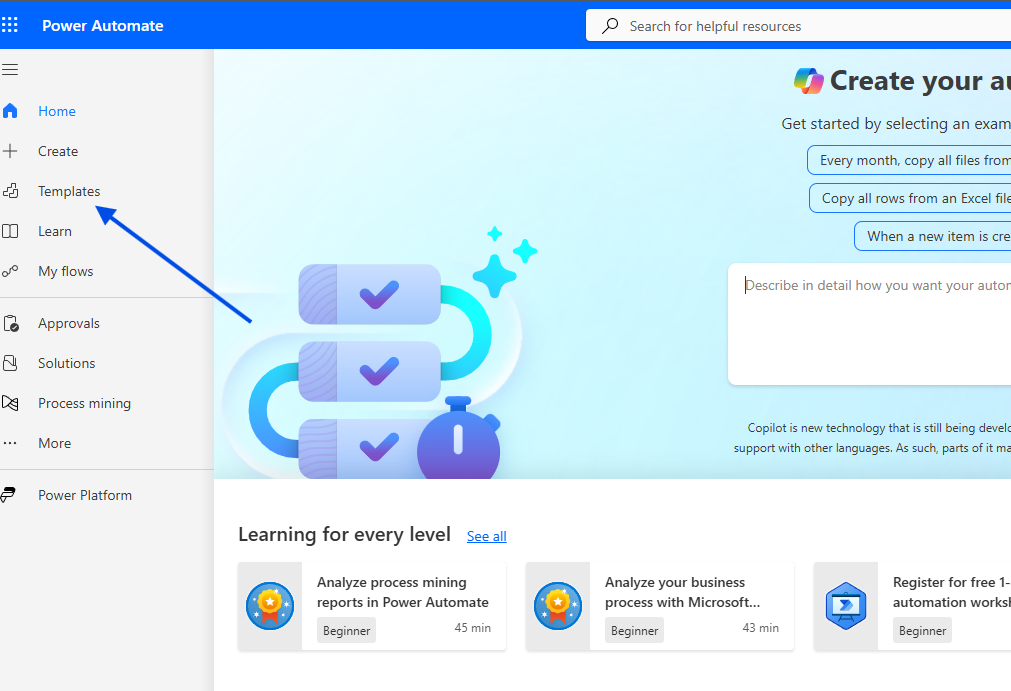
In the next step, we type save email attachments from outlook.com to google drive and select the automation template.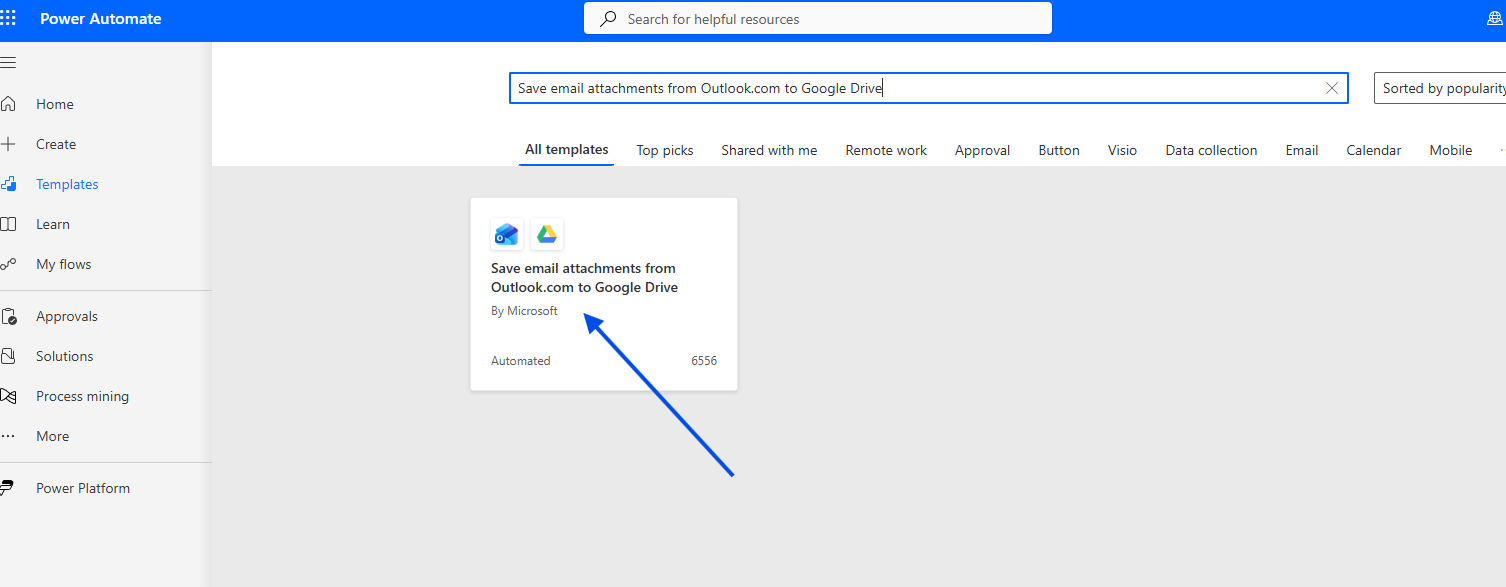
We allow all required connections for the accounts we choose and click Continue.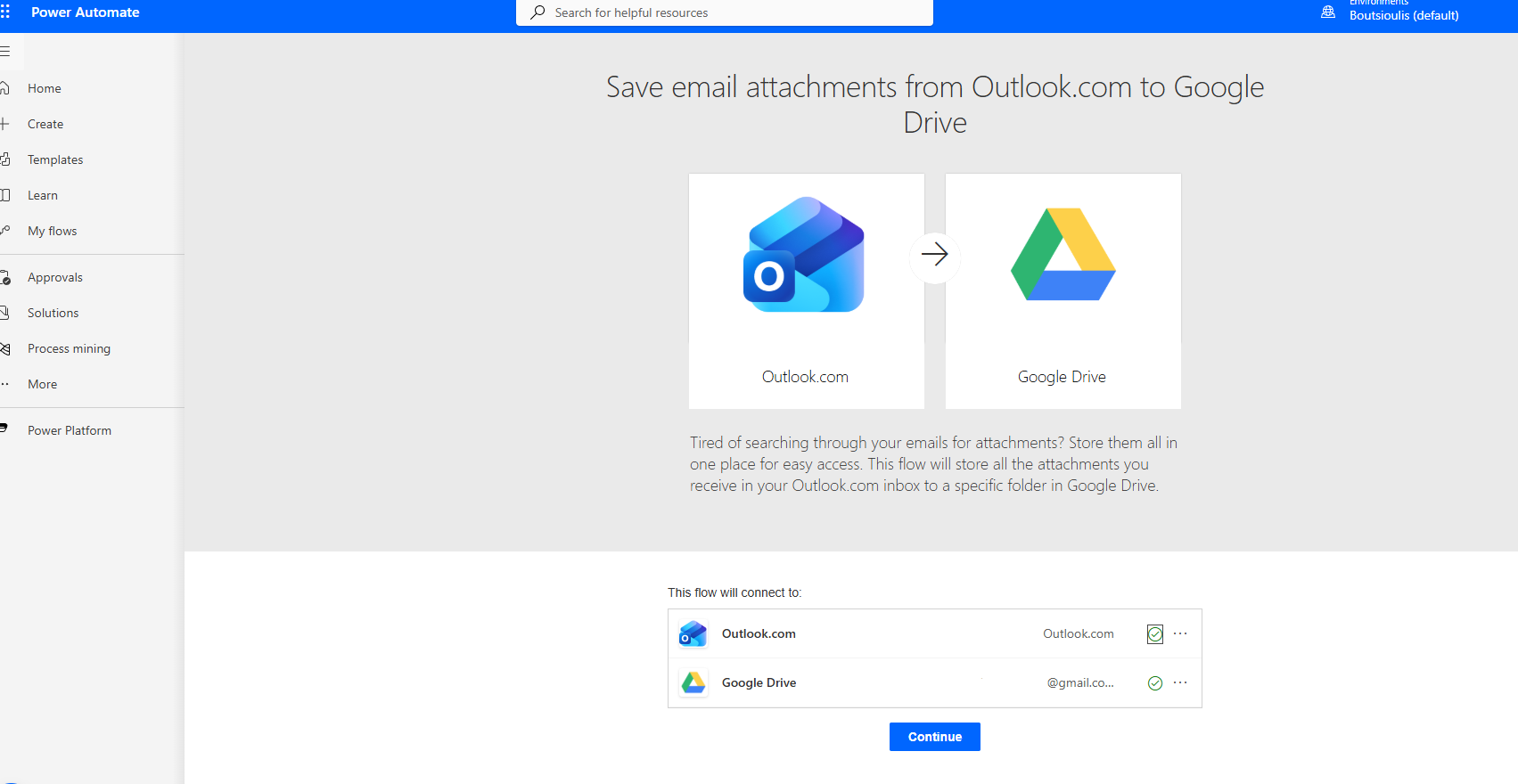
Next, we enter the recipient, set Include attachments to Yes, specify the importance, and choose the folder where the email arrives—e.g., Inbox.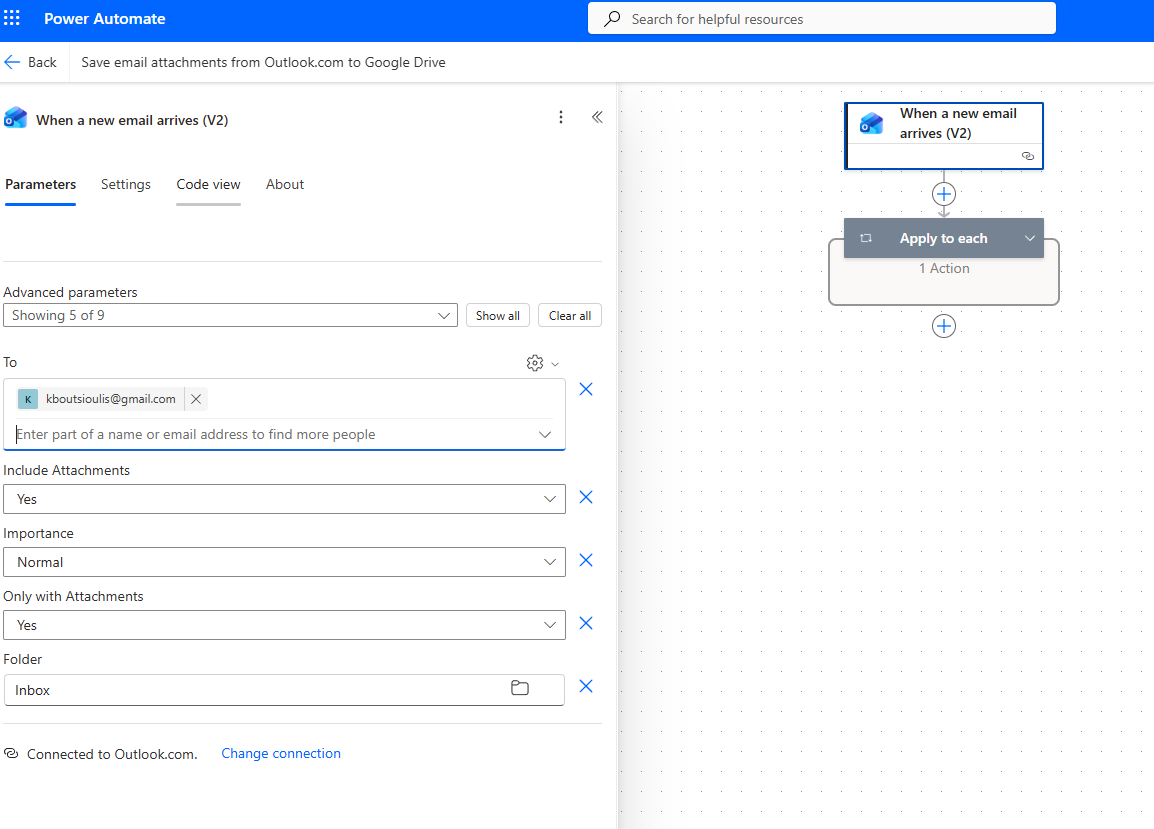
Then a foreach loop follows, so that it includes all the items that are attached.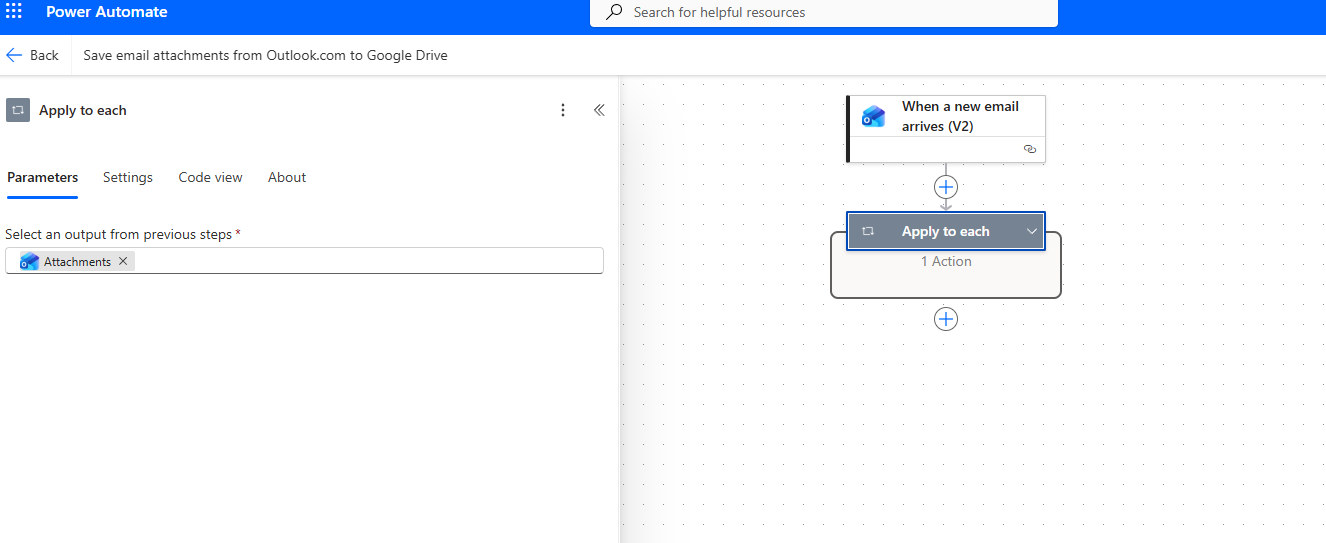
In the next step, for each attachment it creates a file in Google Drive.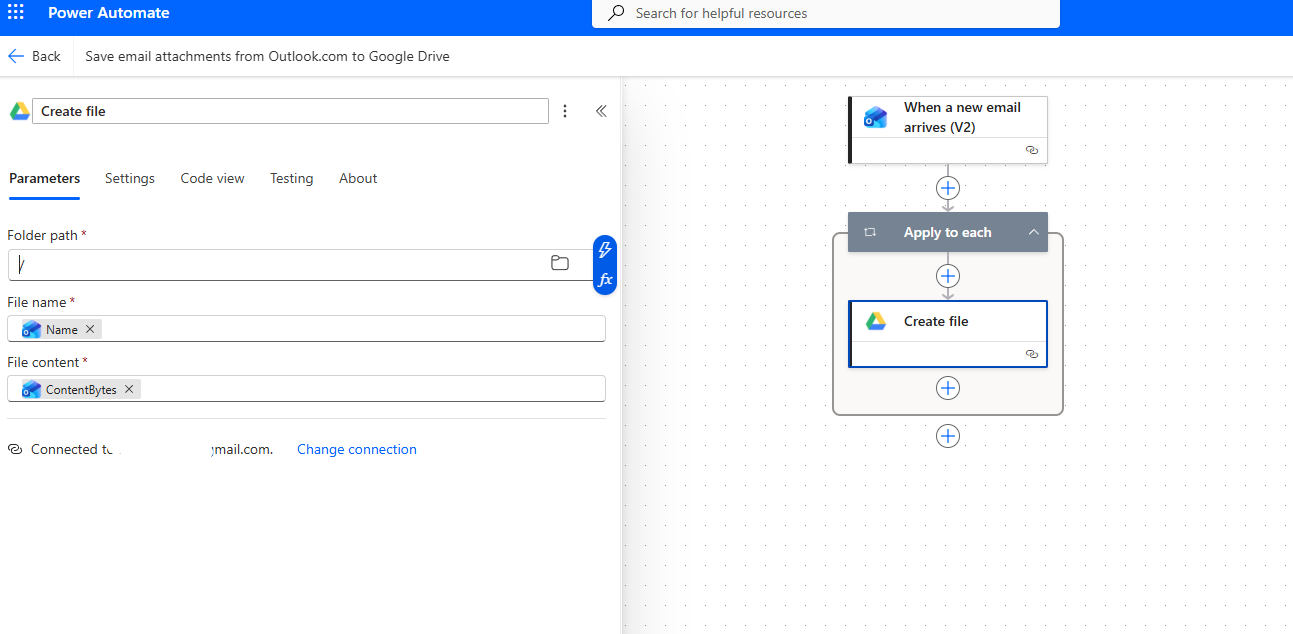
After that, we need to save the automation.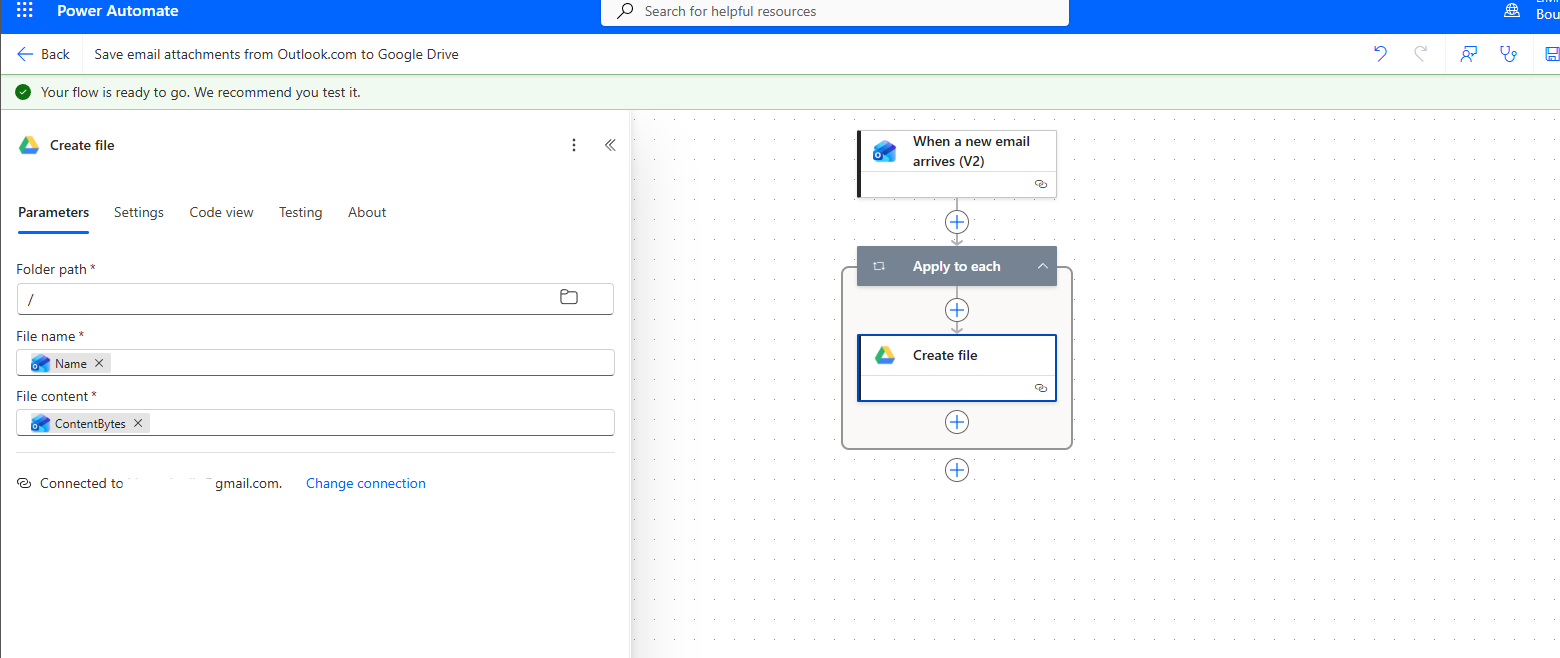
Then we perform a manual test.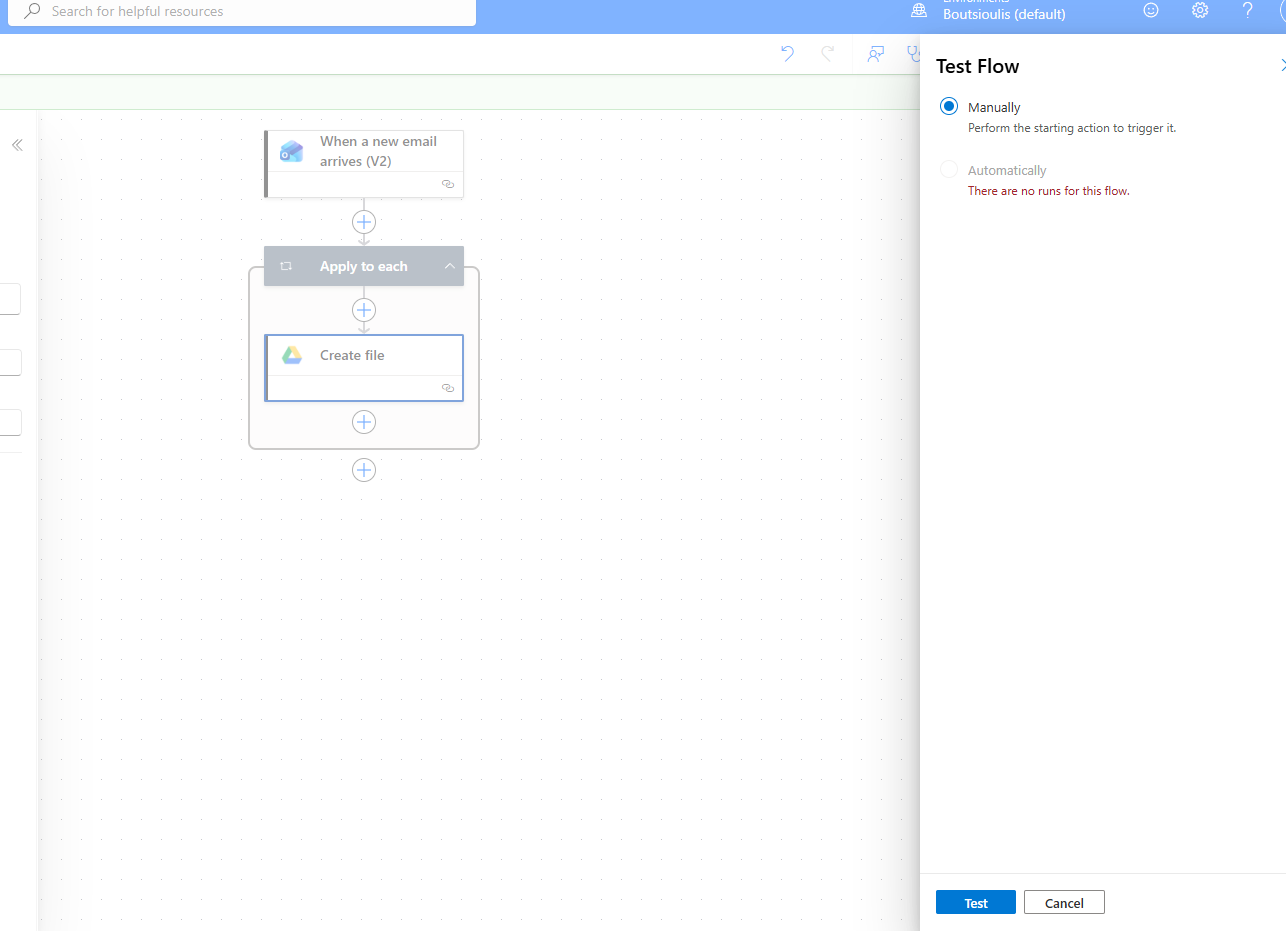
We send a new test email with attachments, and as you can see, the automation runs without any issues.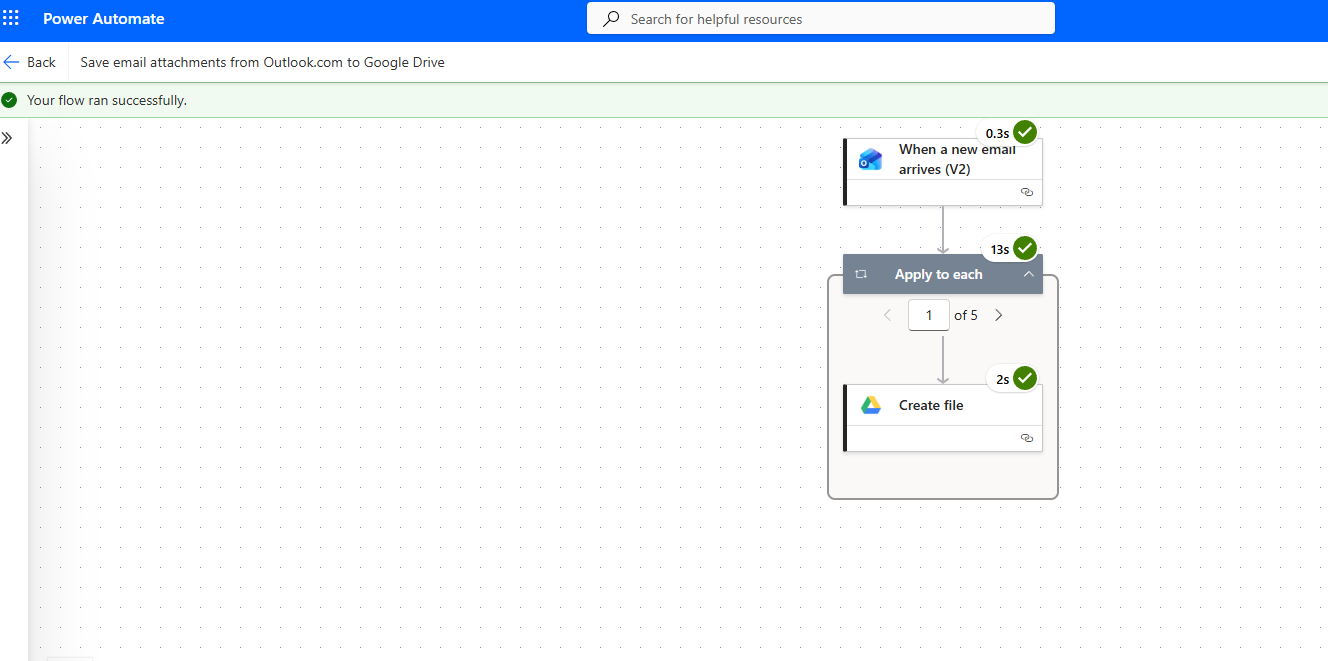
Finally, as shown, the attachment was successfully created inside Google Drive.