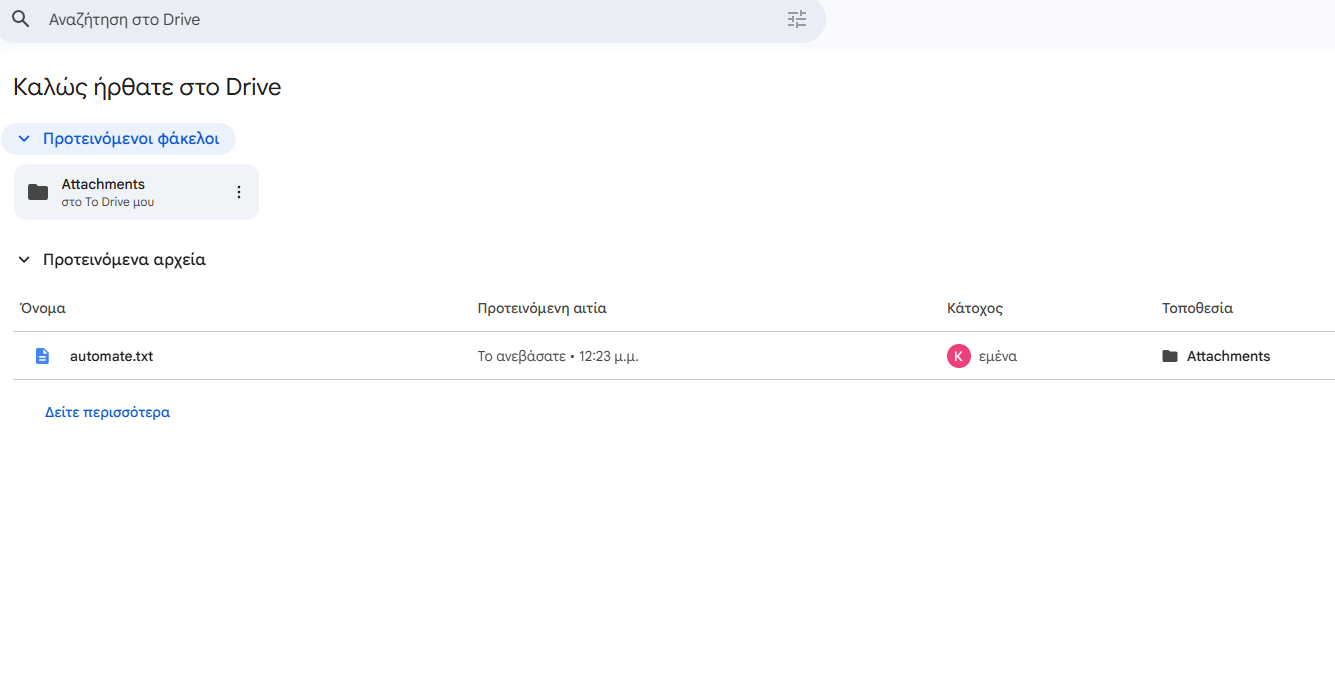
In today’s post we will see how we can save the attachments we receive in Gmail to Google Drive.
For this action, we will need a template automation.
First, we go to the main Power Automate page and select Templates.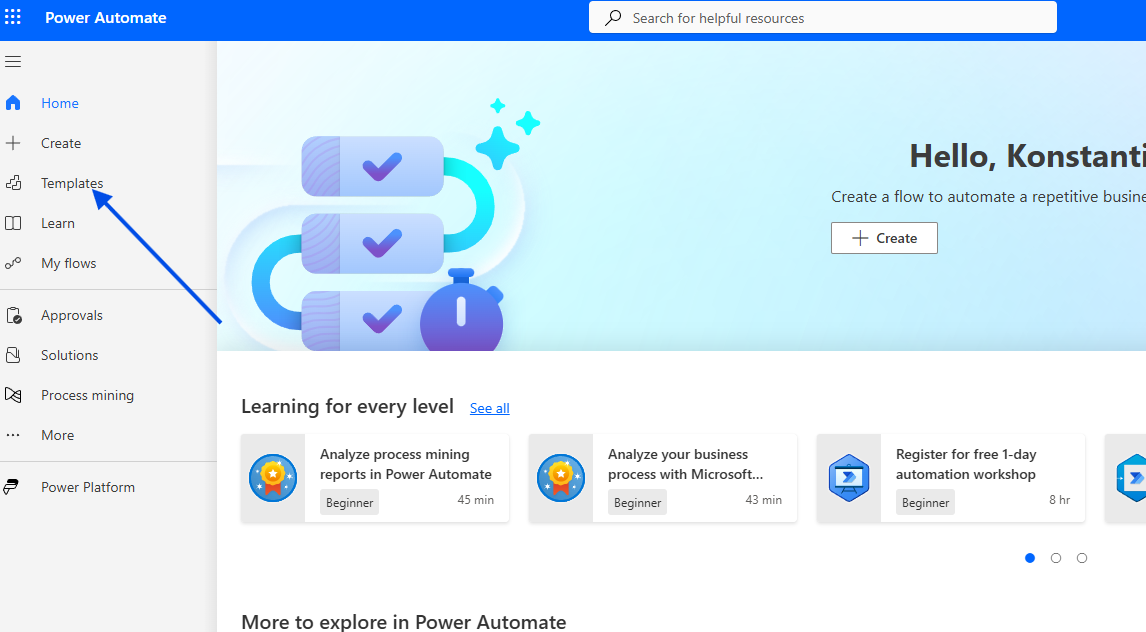
In the next step, we type save gmail attachments to your Google Drive and select the available template.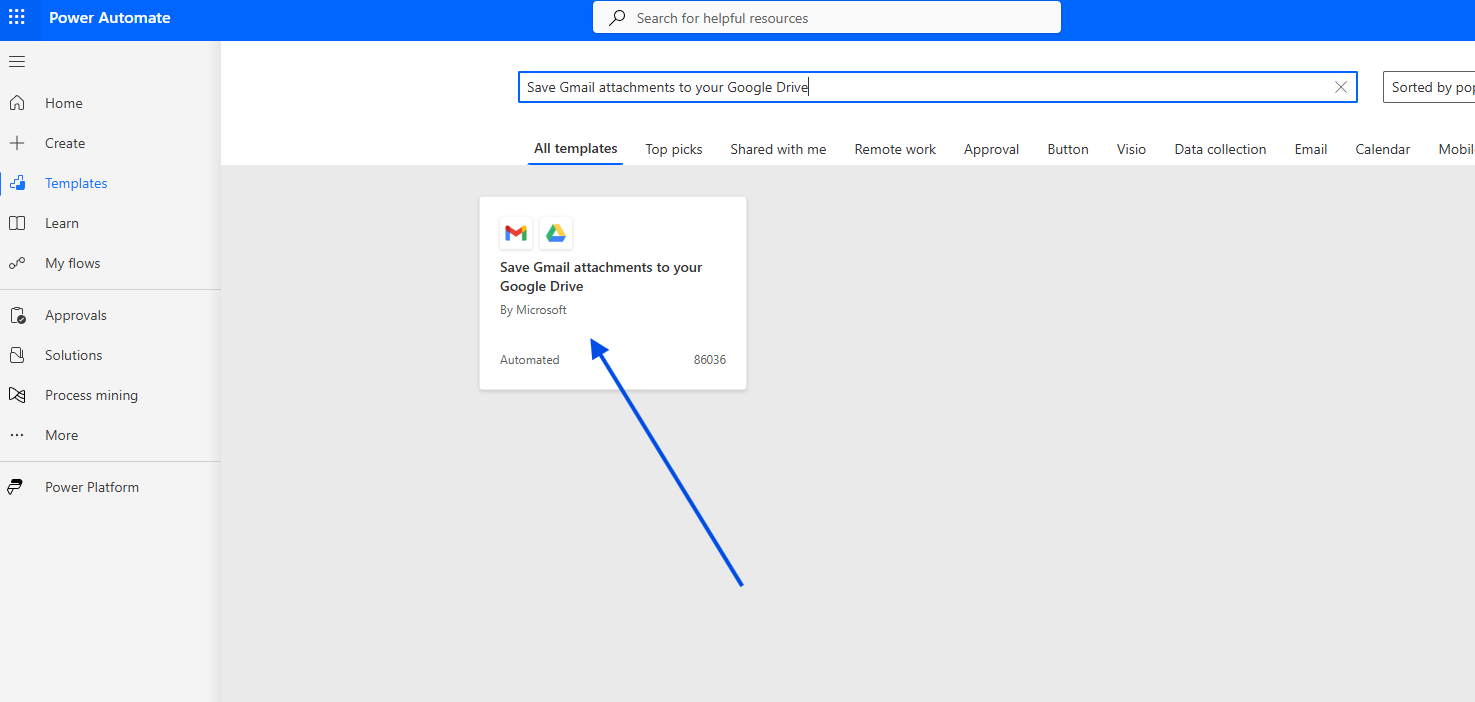
Next, we enter our Google account and allow all required connections.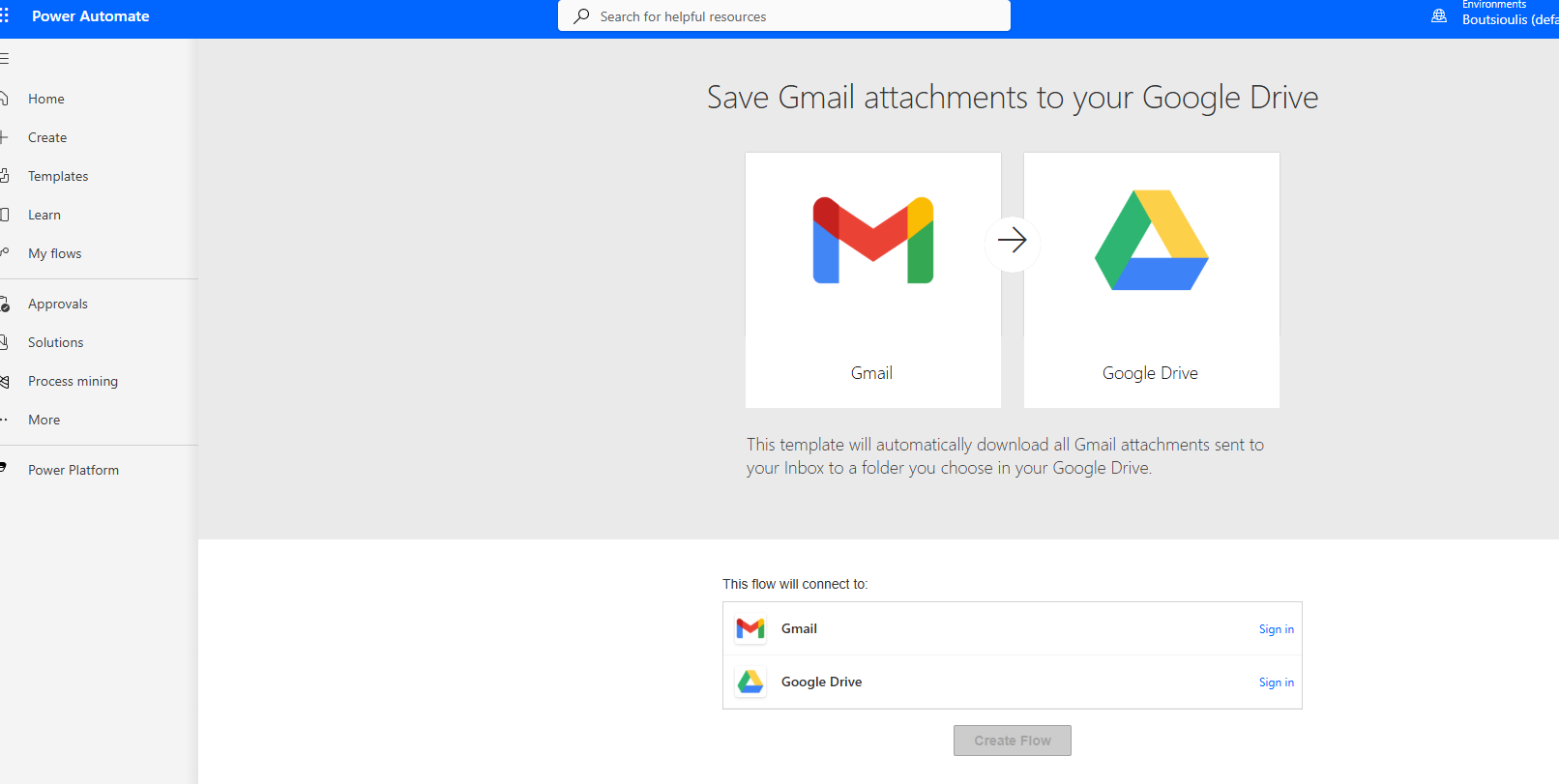
In the following step, we insert the recipient, the importance, and define whether the email we receive has attachments.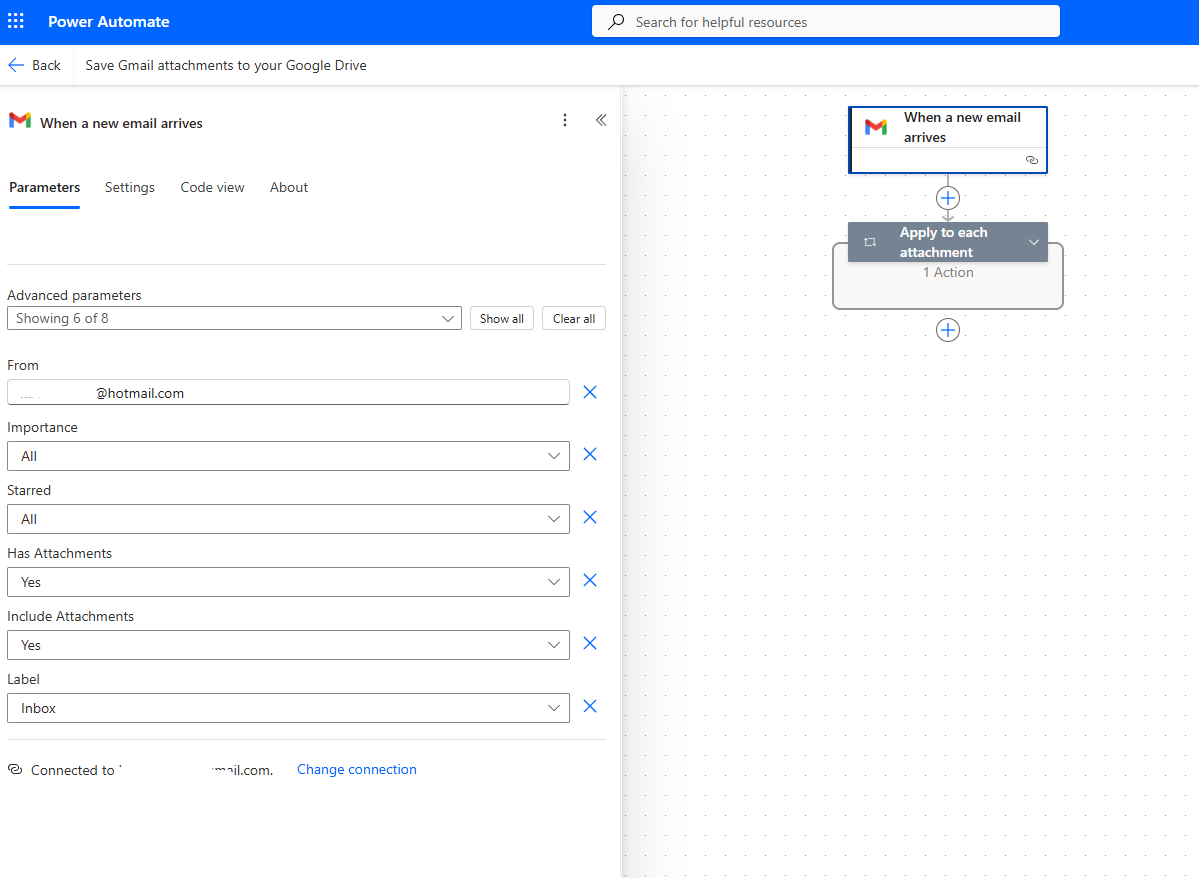
Then we select a foreach, so that all attachments are included.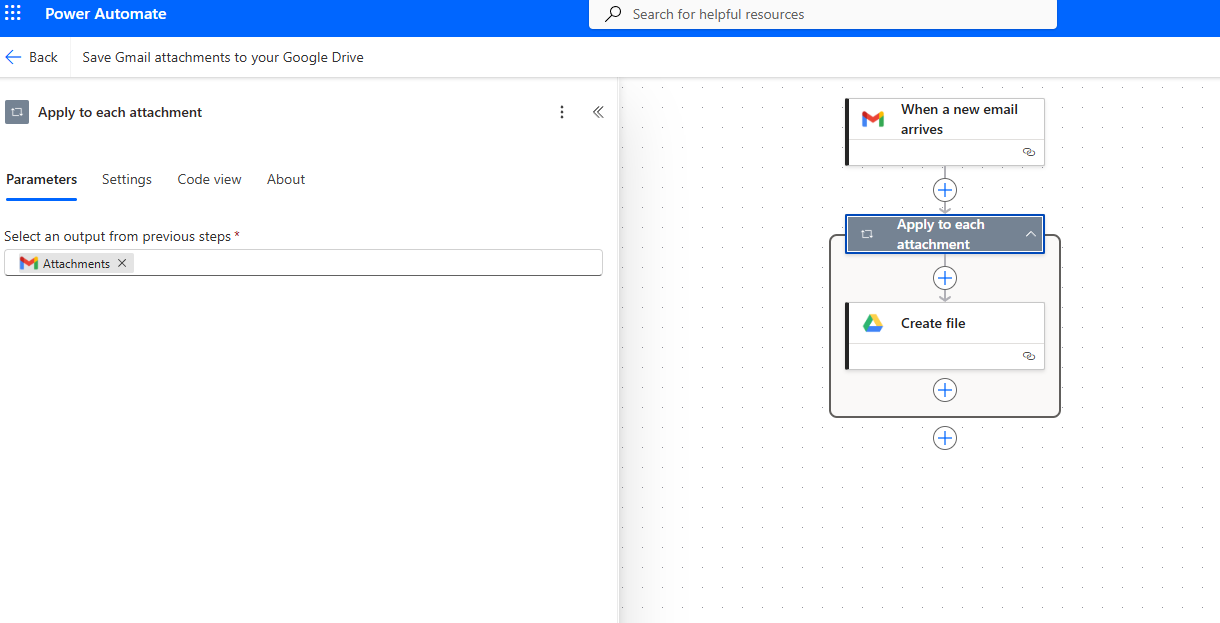
The next action creates a file for each attachment, passing the name and file content dynamically.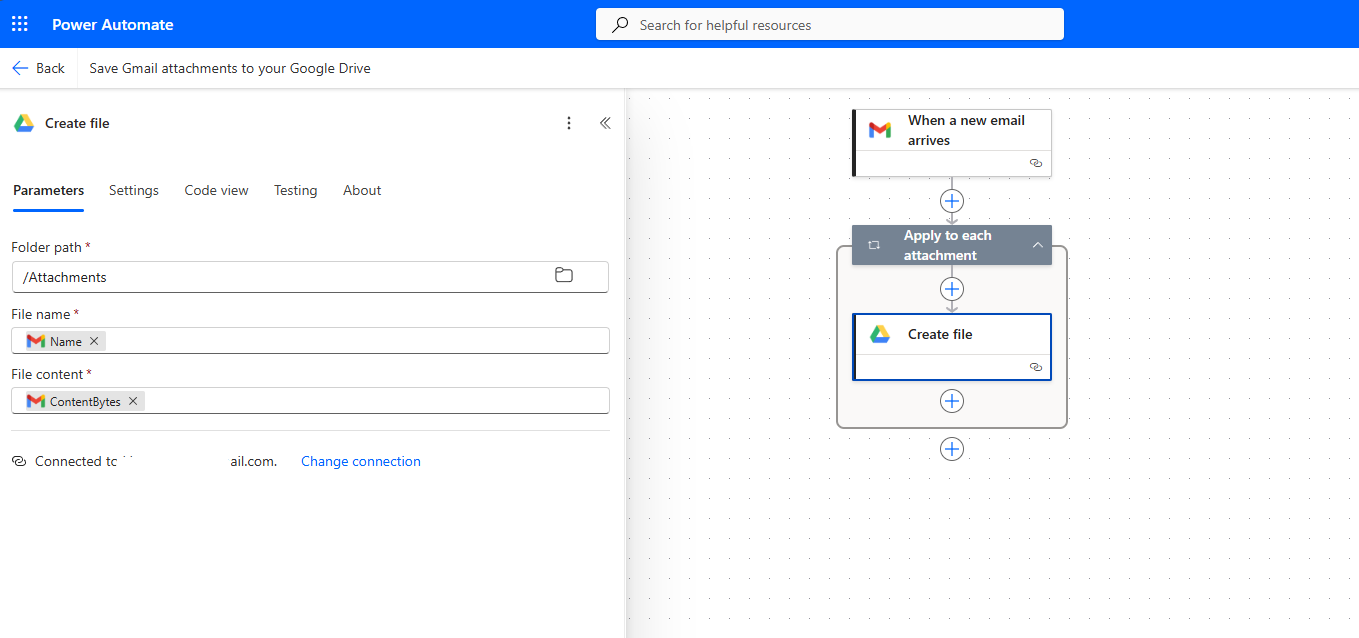
We then save the automation.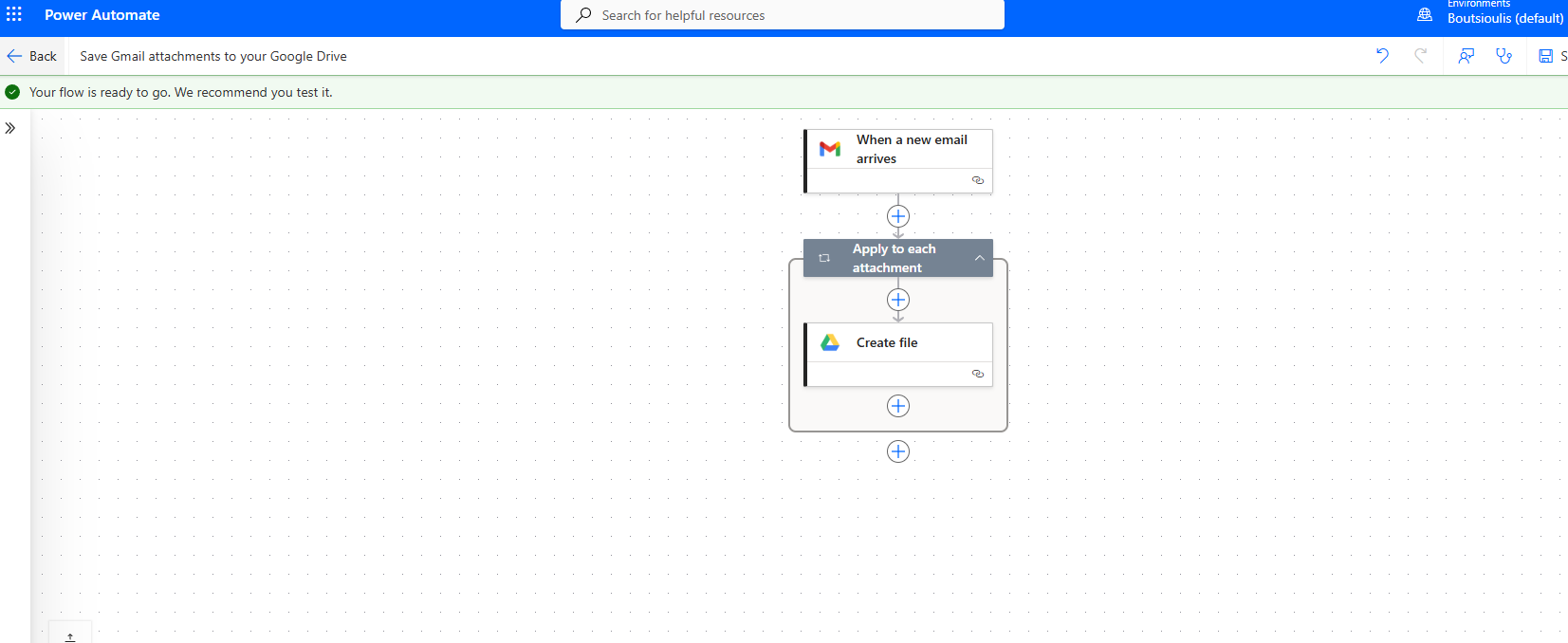
We choose to run a manual test.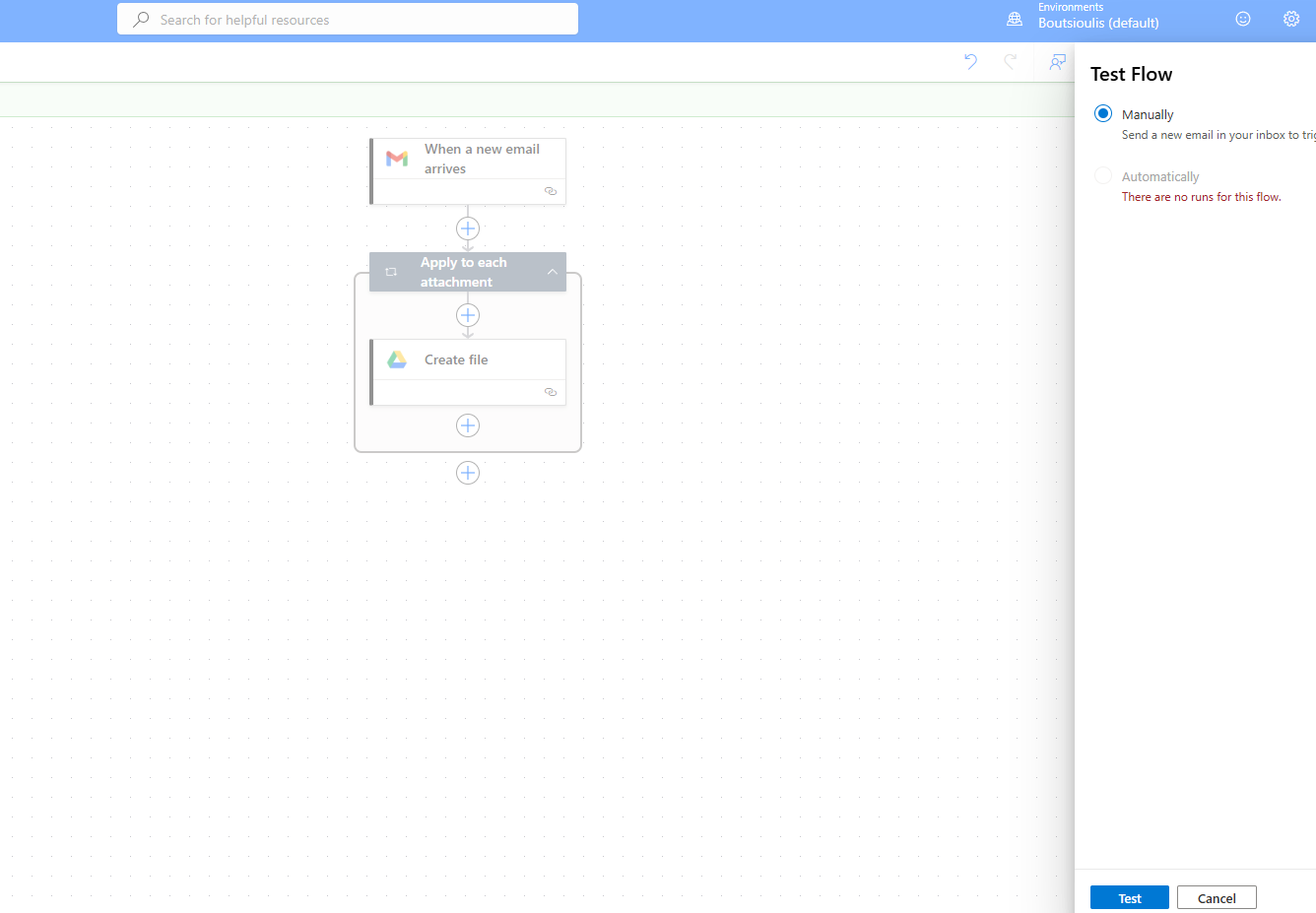
We send an email with attachments from our account, and we see that the automation runs normally without any issues.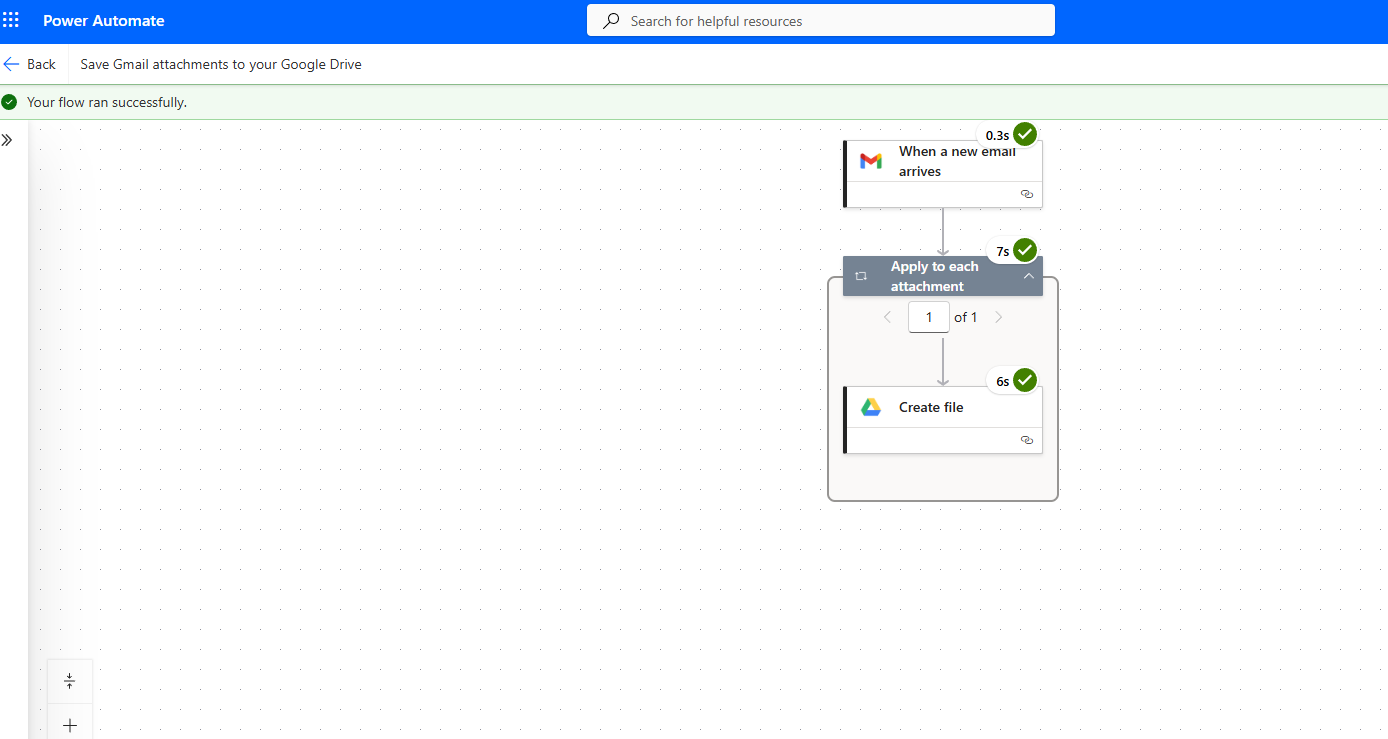
Finally, as shown, it has saved the attachment in Google Drive.