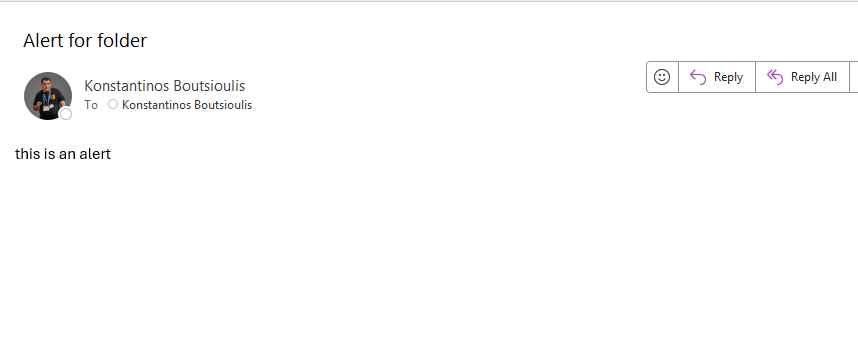
In today’s post we will see how we can create an alert for a specific folder inside a SharePoint library.
First, we need to have an active M365 subscription.
We begin by selecting the SharePoint site that hosts the library and therefore the folder.
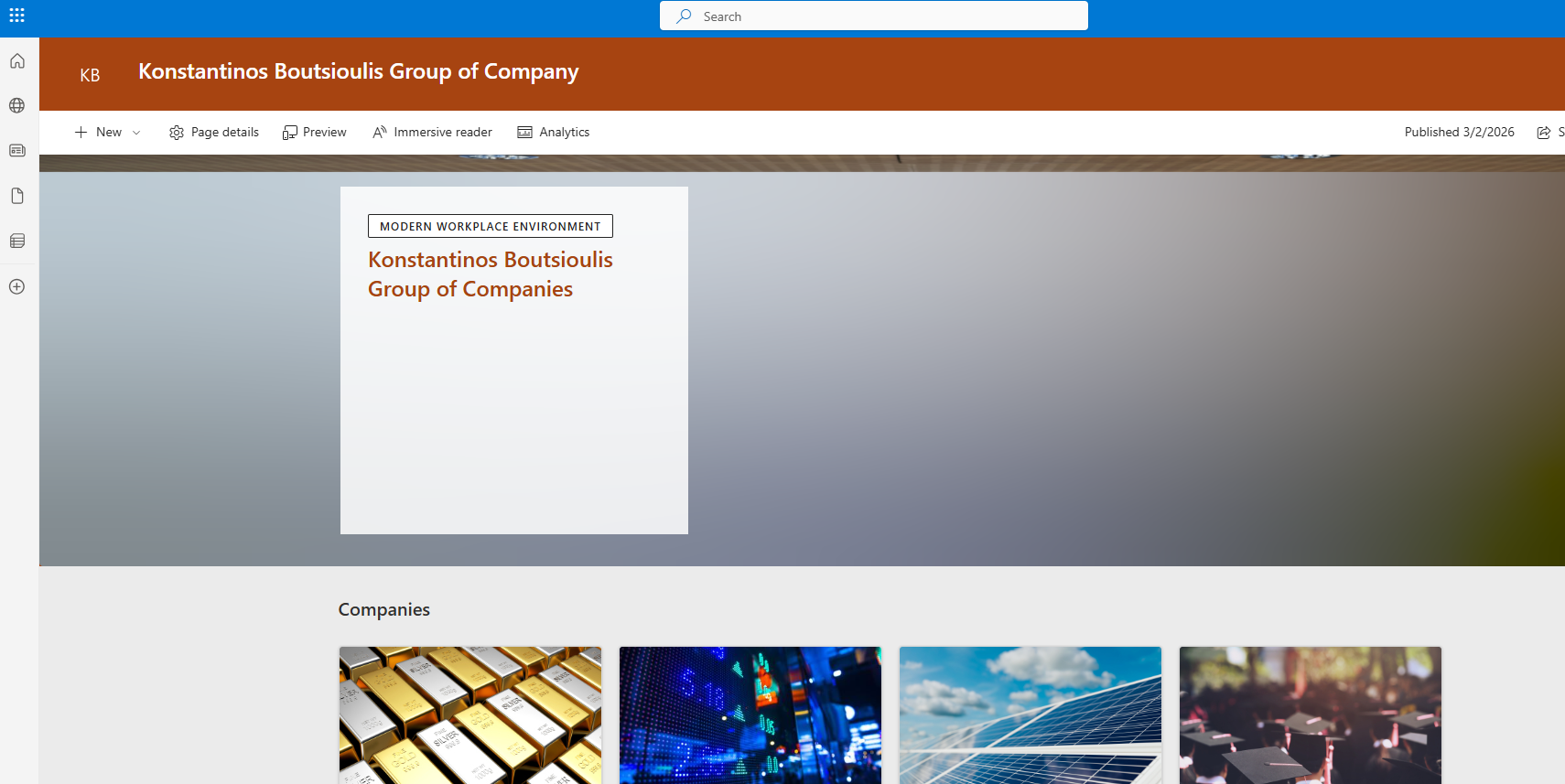
Next, we choose to open Power Automate from the home page.
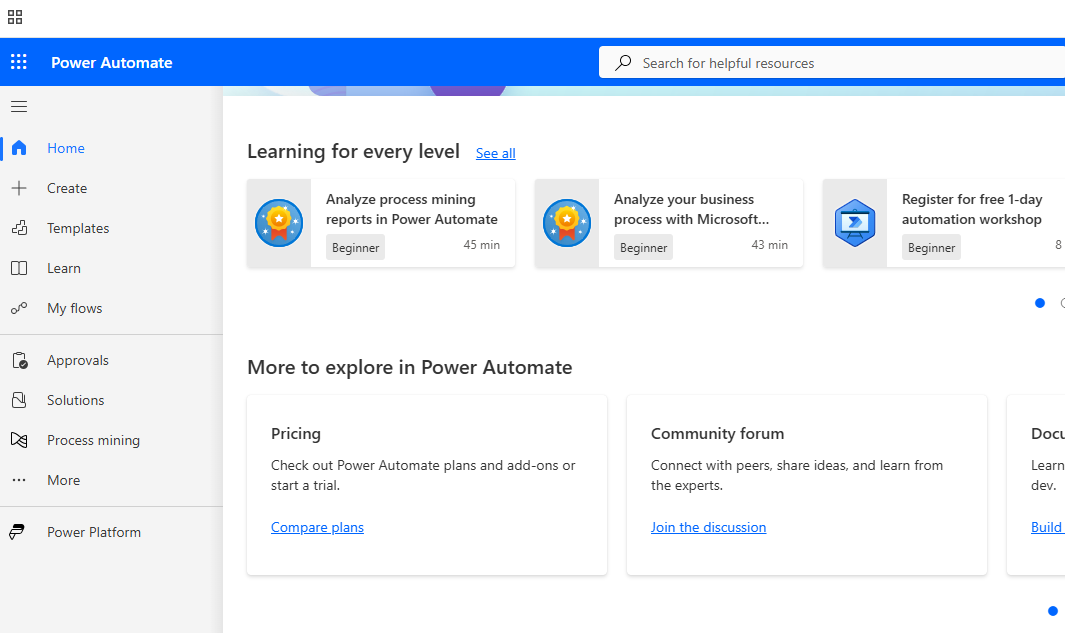
Then we select Create in the top-left corner.
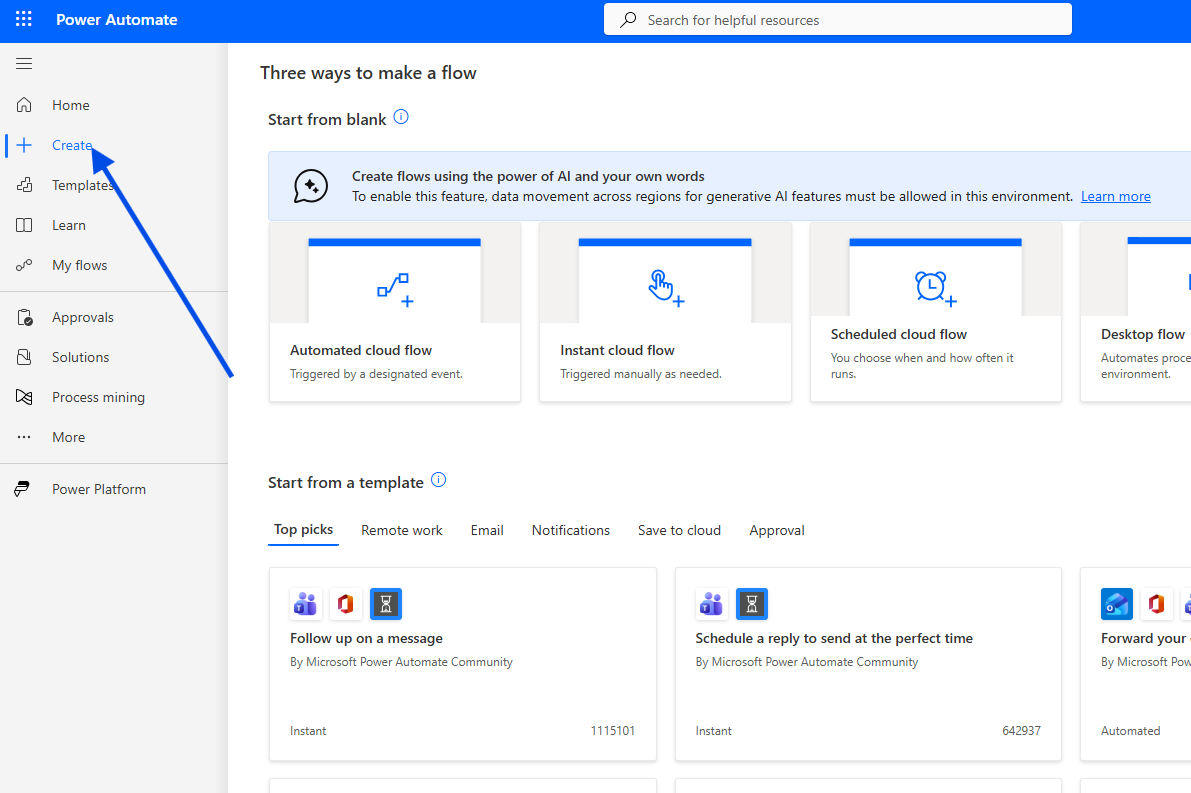
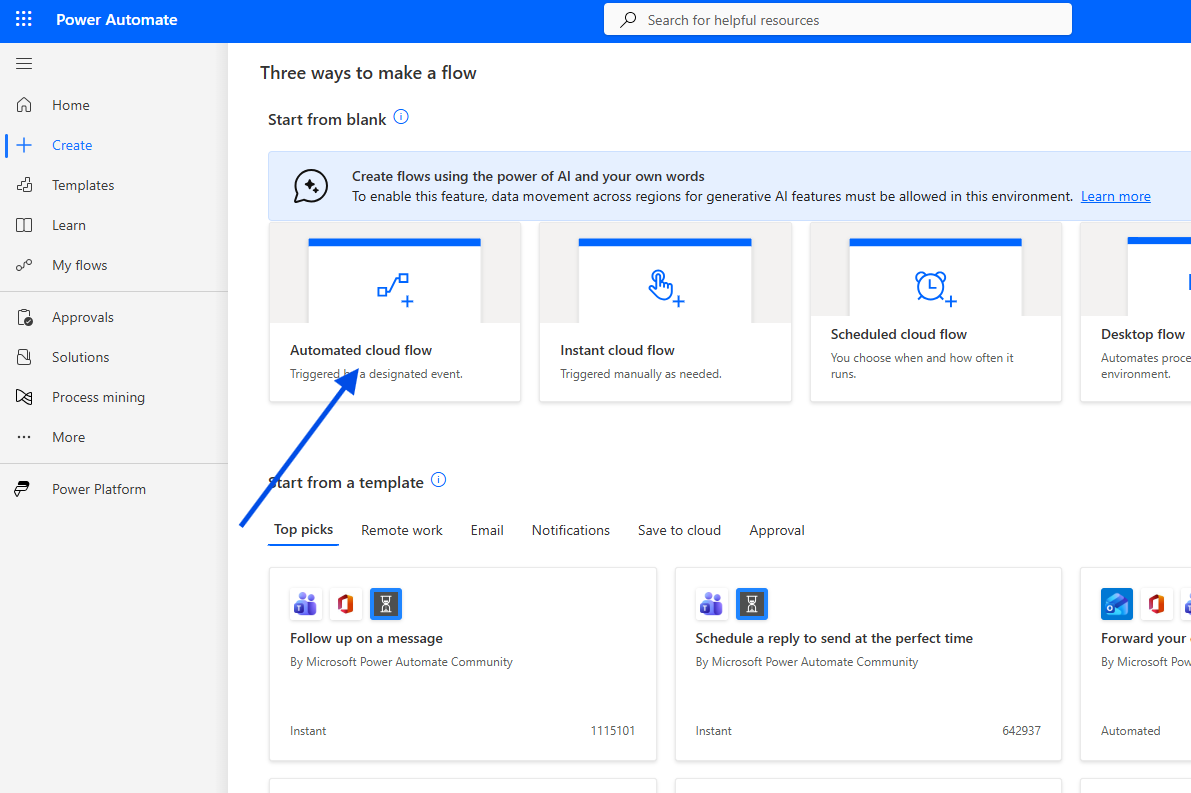
In the next step, we choose Automated Cloud Flow.
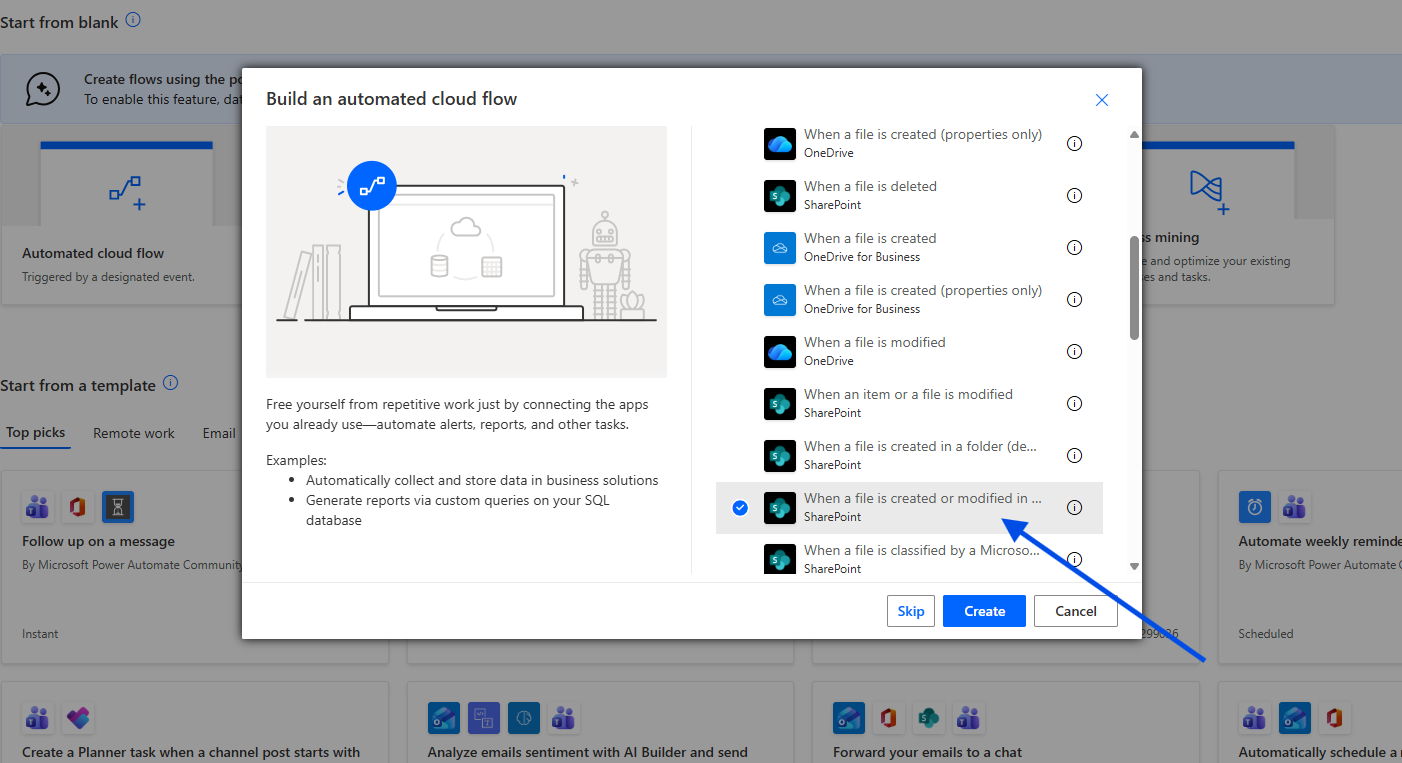
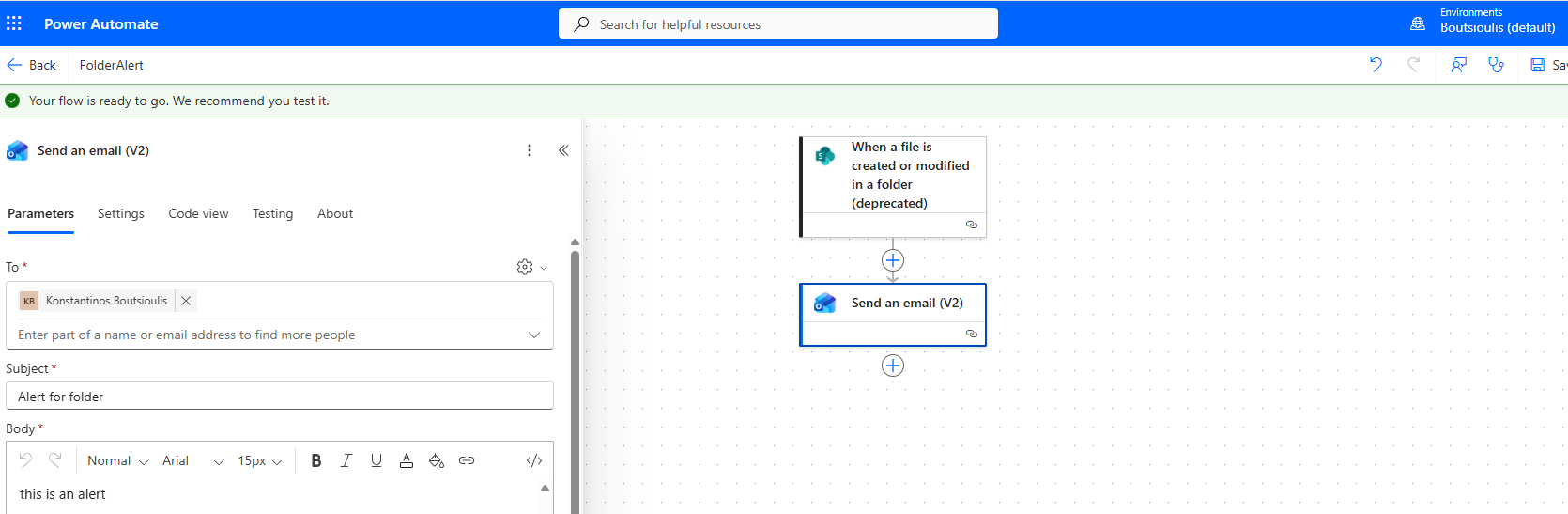
In the following step, we must give the automation a name and select the initial trigger, which is When a file is created or modified in a folder.
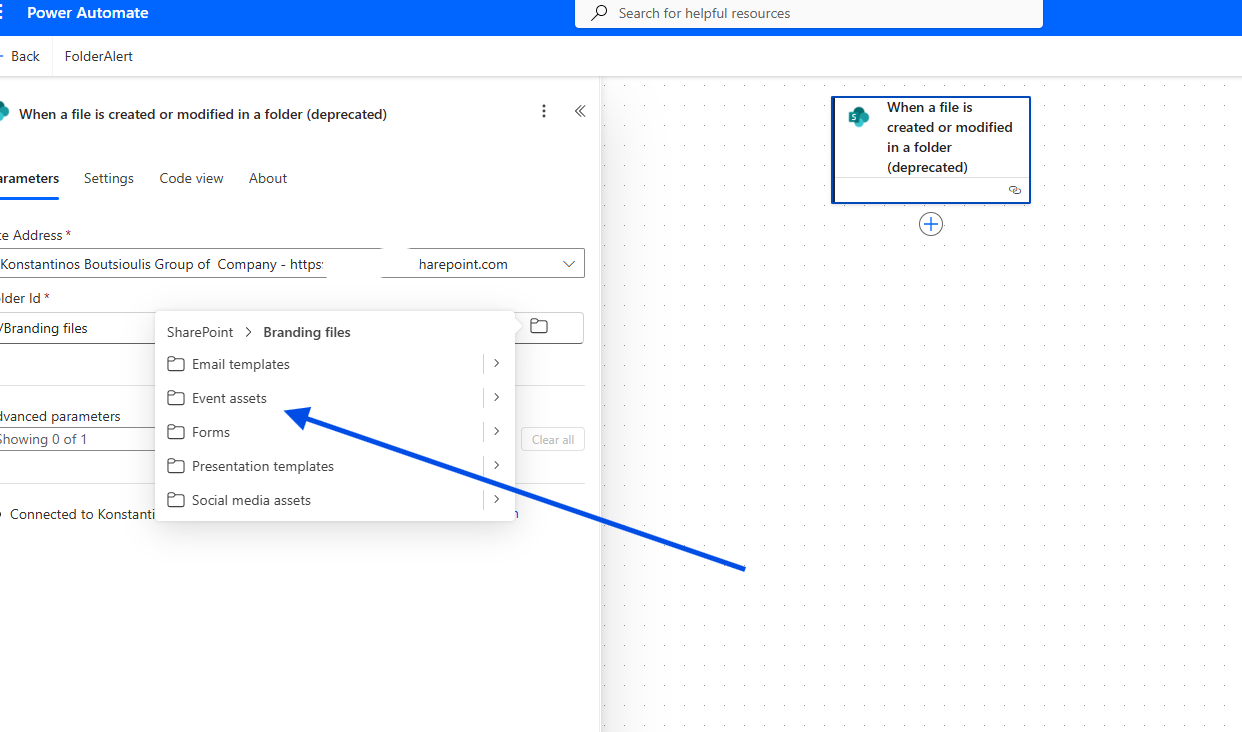
Next, we provide the site address that hosts the library containing the folder, and in the Folder ID field, we select the folder path.
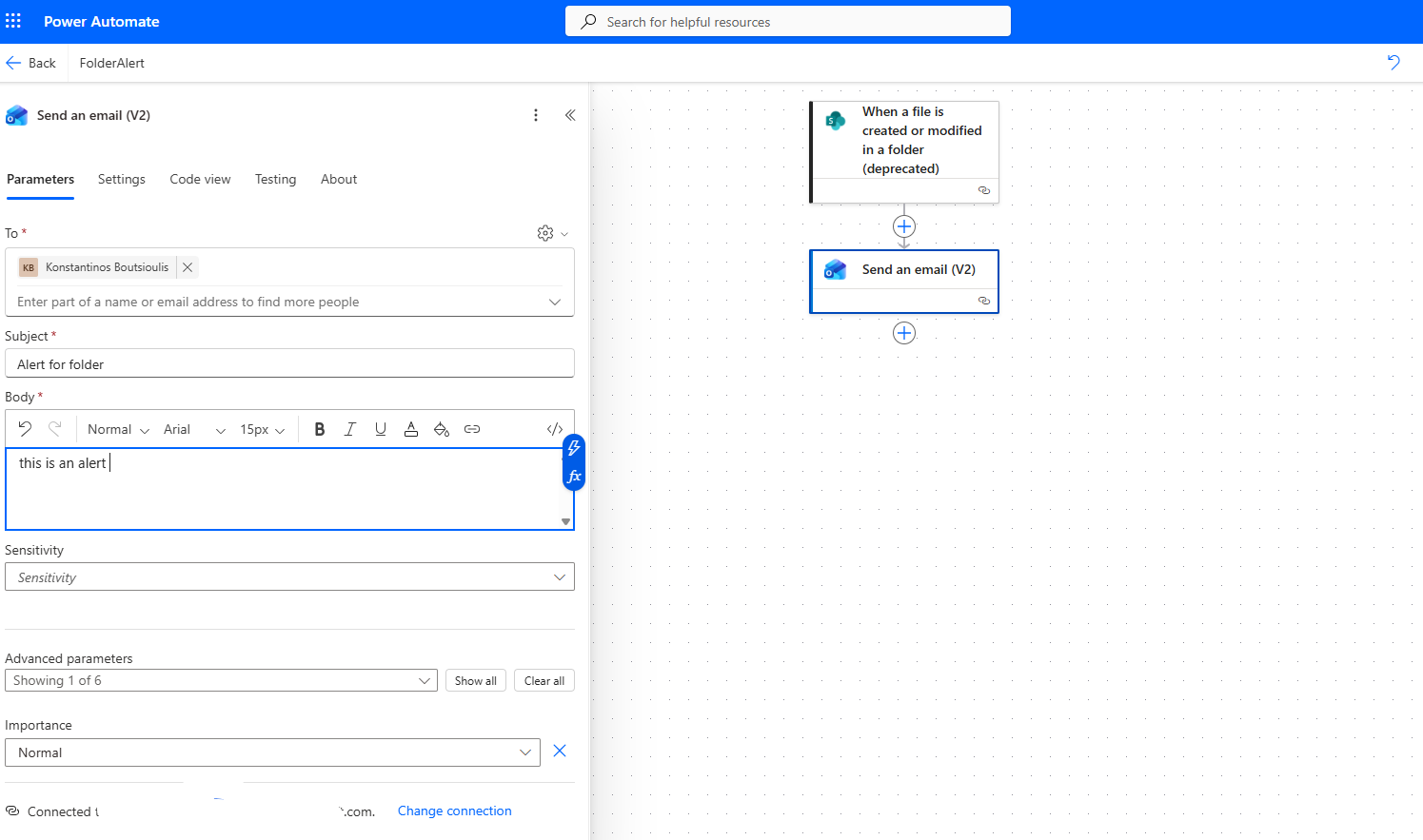
Then we add an action of type Send an email (V2) and enter the sender, subject, and body of the email.
The next step is to save the flow.
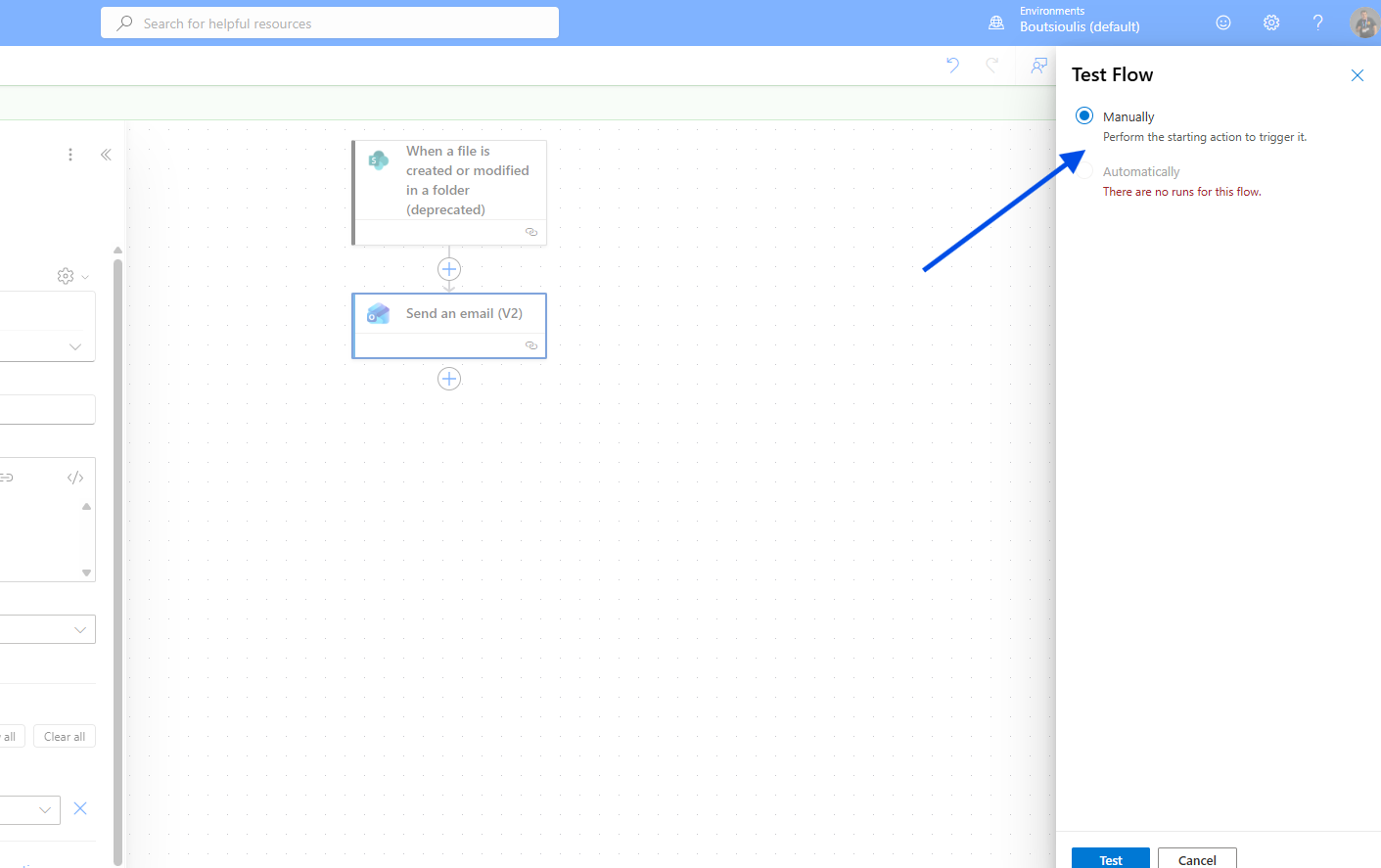
Then we run a test manually.
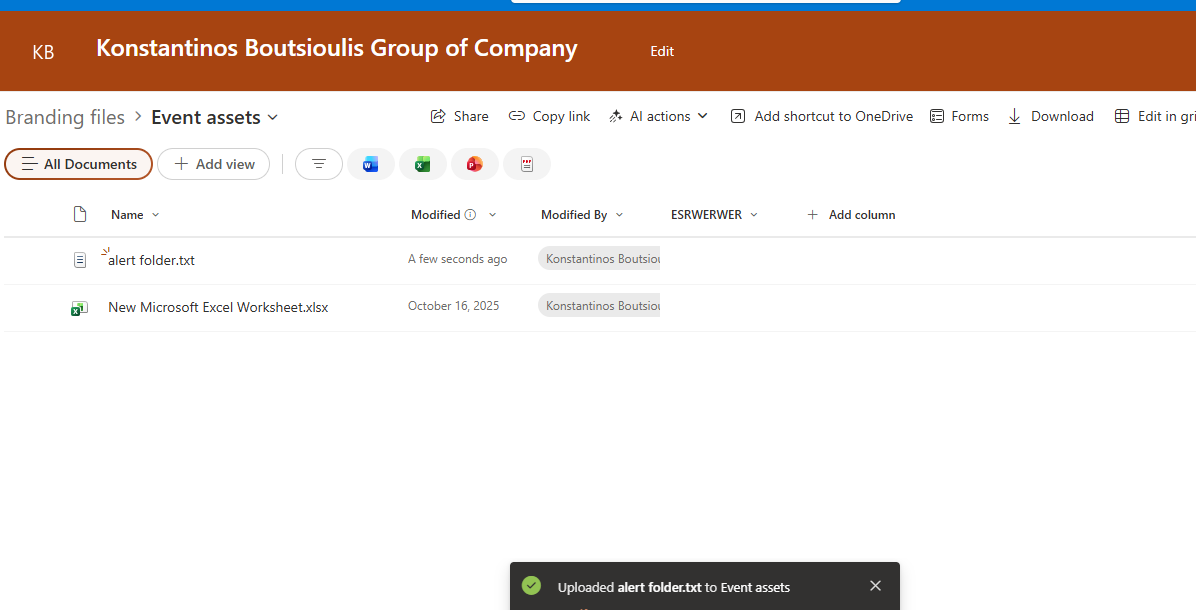
We upload a new file in the folder we specified.
The automation ran successfully.
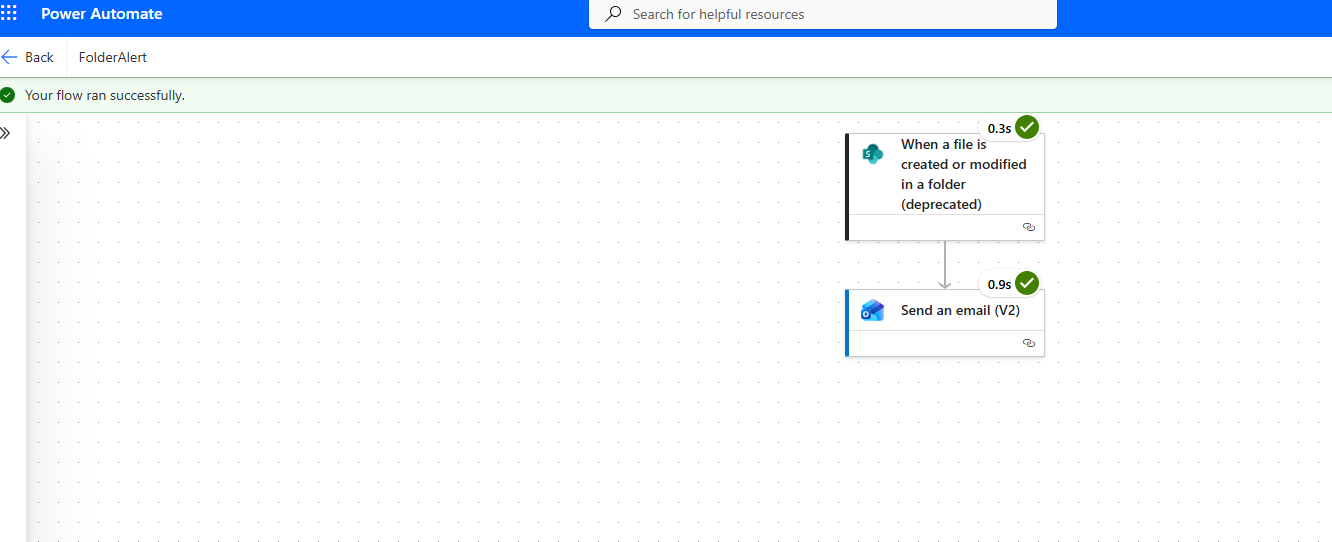
And it sent a notification email.