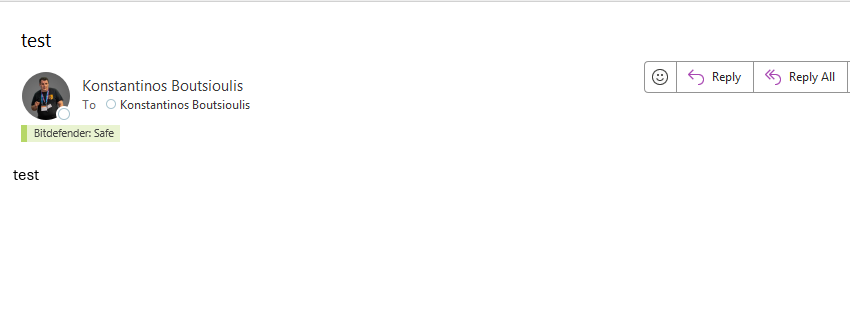
In today’s post we will see how we can create an alert for changes happening anywhere inside a SharePoint document library.
Important: until now we have covered alerts on a specific folder and on a specific item.
This time, we are talking about any change that occurs inside the entire library.
As I have emphasized before, file changes require special handling, as you may remember from the previous post.
However, if we configure the trigger at the folder level, changes inside subfolders do not get captured.
With the method I’ll show you in this post, changes inside all subfolders will also be captured, without exception.
First, we must have an active M365 subscription.
Then, we select the SharePoint site that hosts the library and therefore all the files we want to monitor.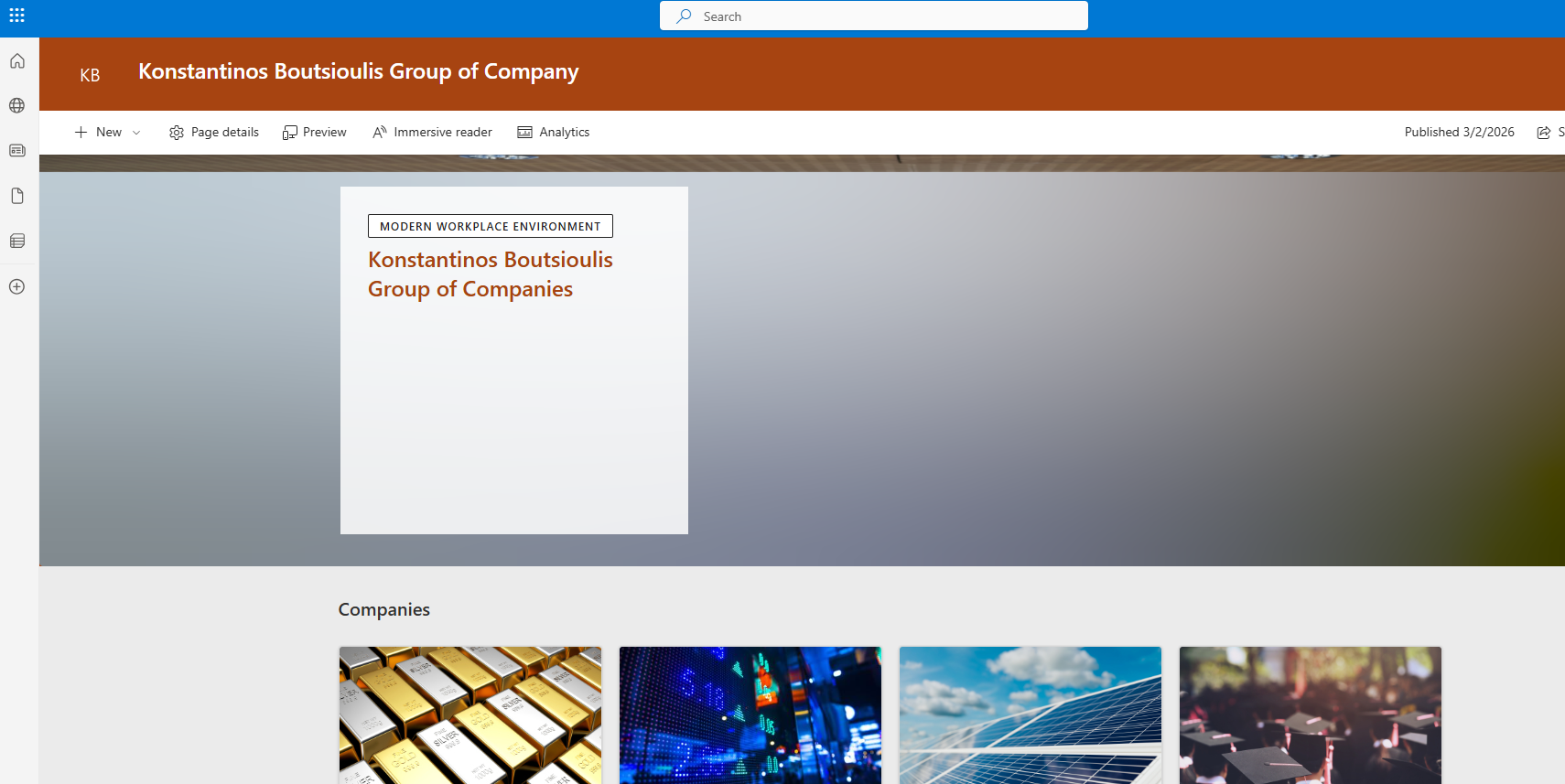
Next, we open Power Automate from the home page.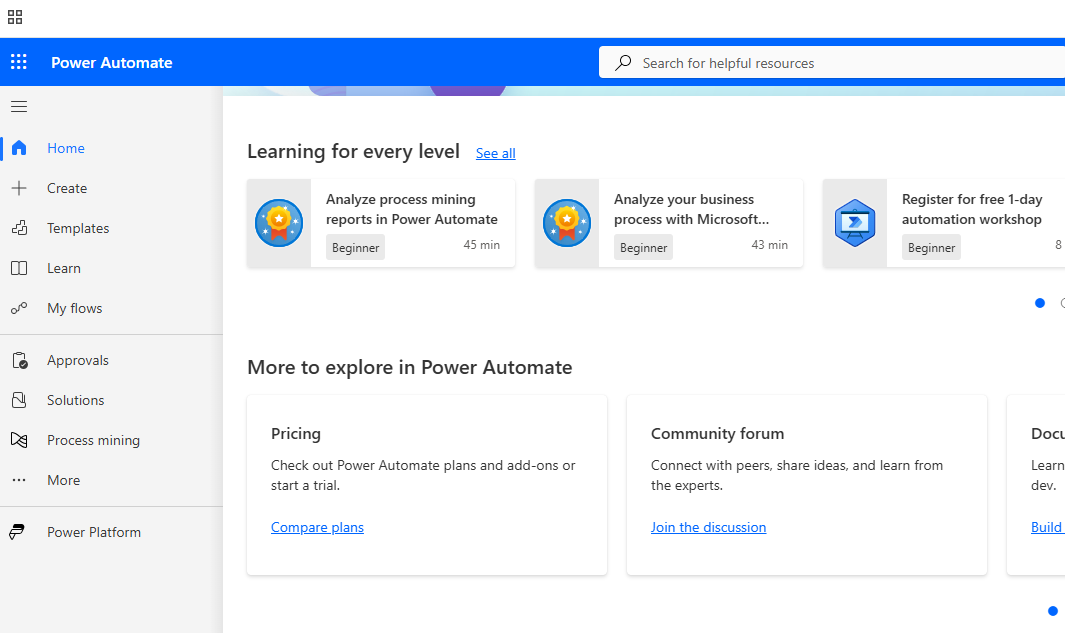
Then we select Create at the top left.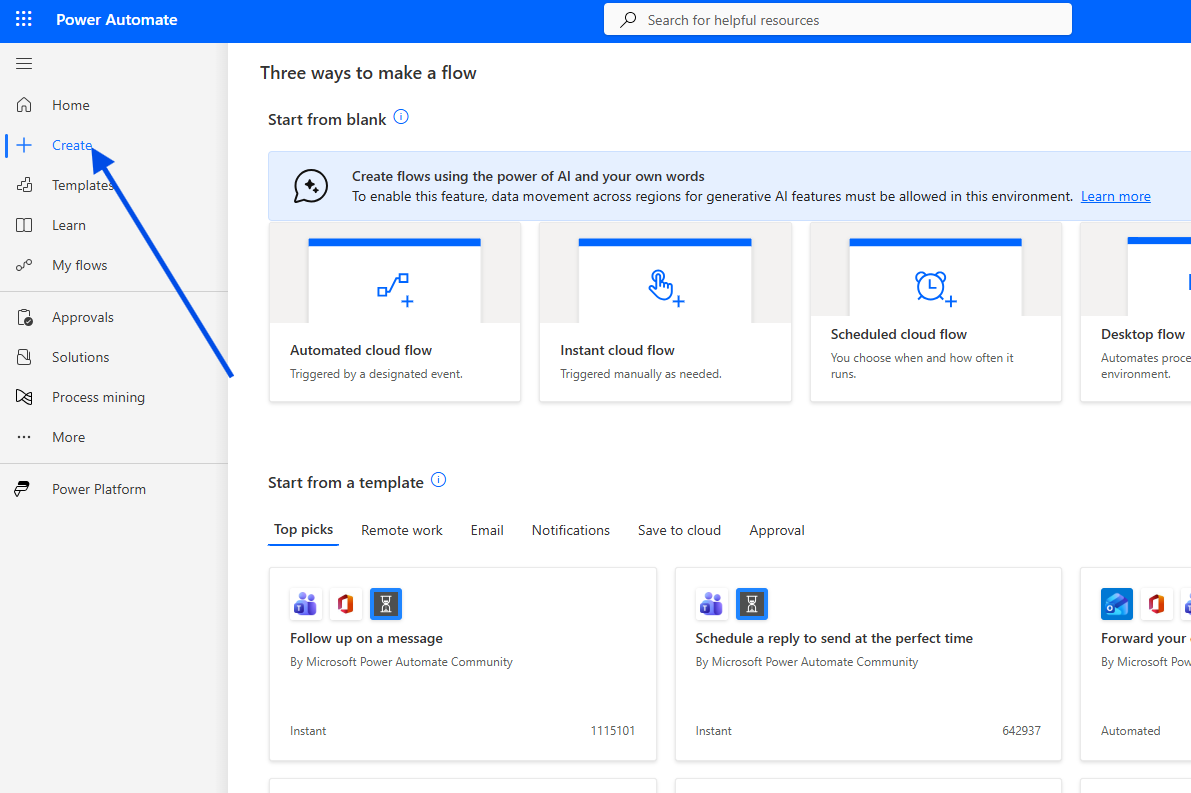
In the next step, we choose Automated Cloud Flow.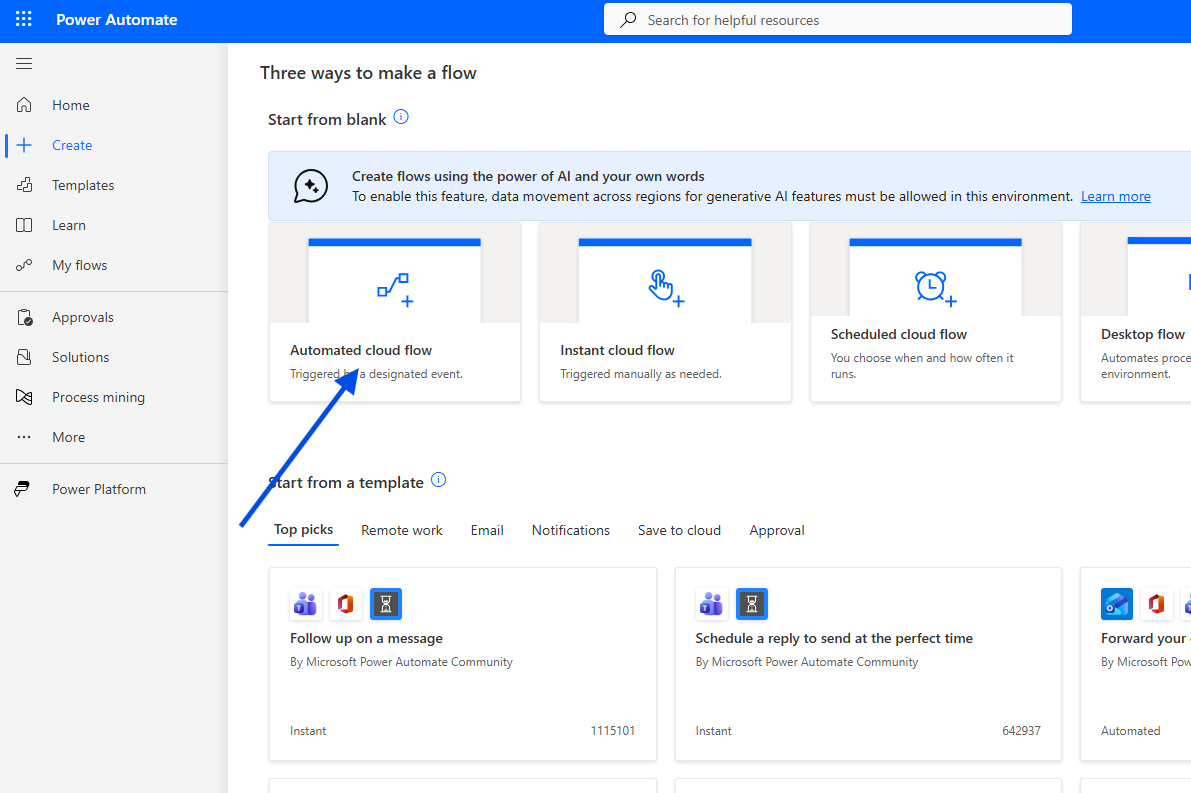
We then give the automation a name and select the initial trigger:
When a file is created or modified (Properties Only).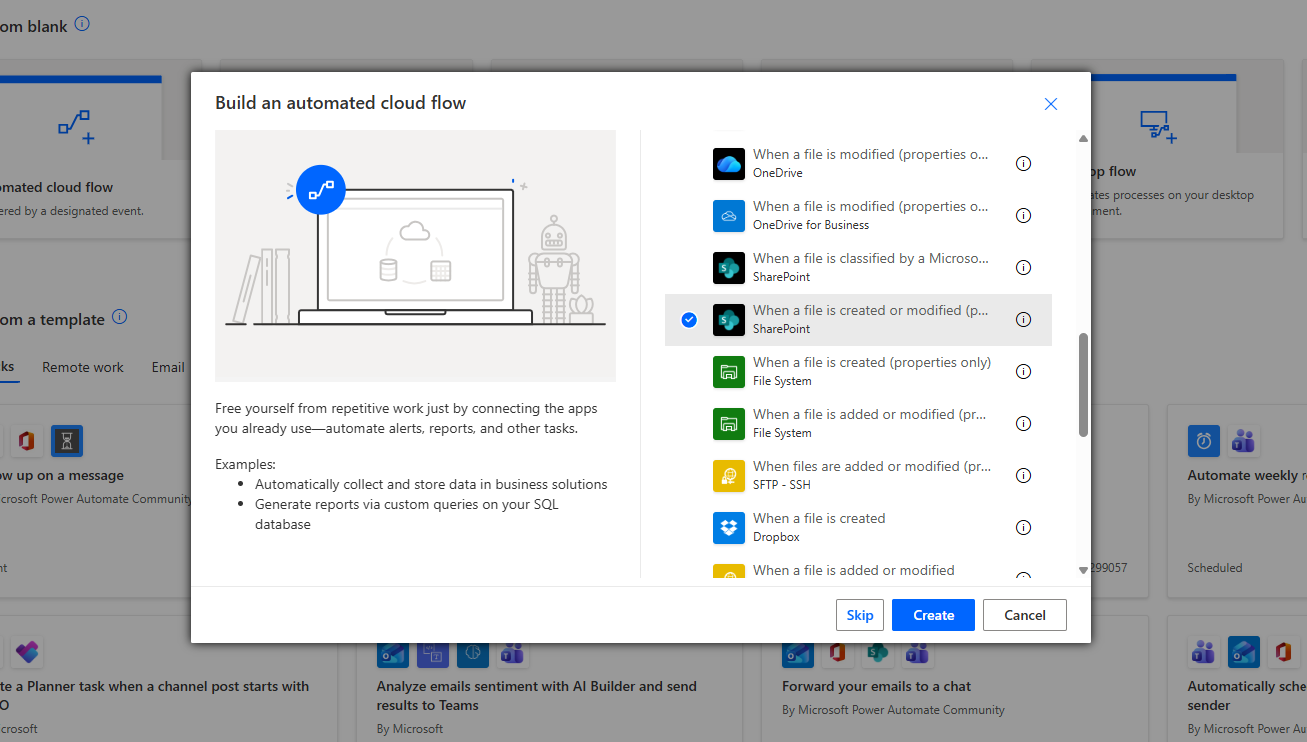
Next, we enter the site details and leave the Folder field empty.
This ensures that all files and all subfolders inside the library are monitored.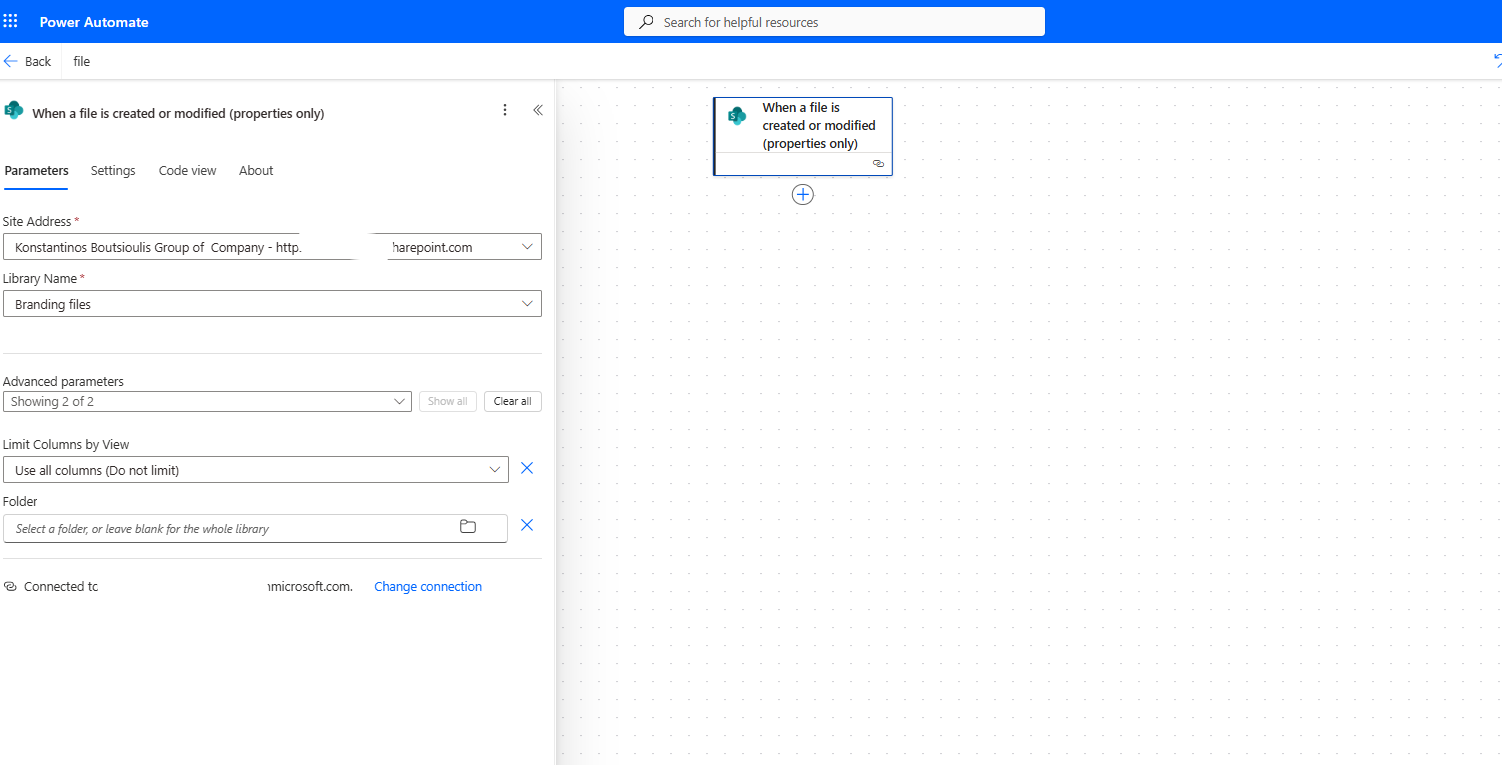
We then add a simple action: Send an email (V2), where we specify the recipient, the subject, and the email body.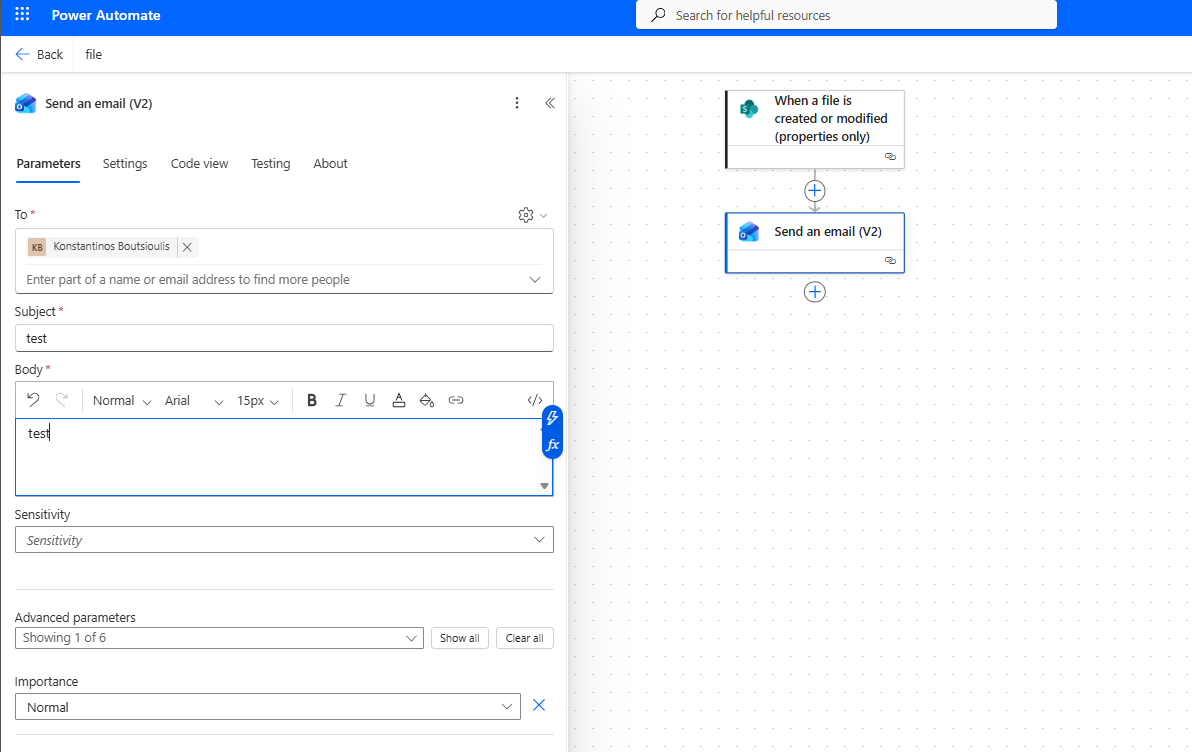
After that, we save the flow.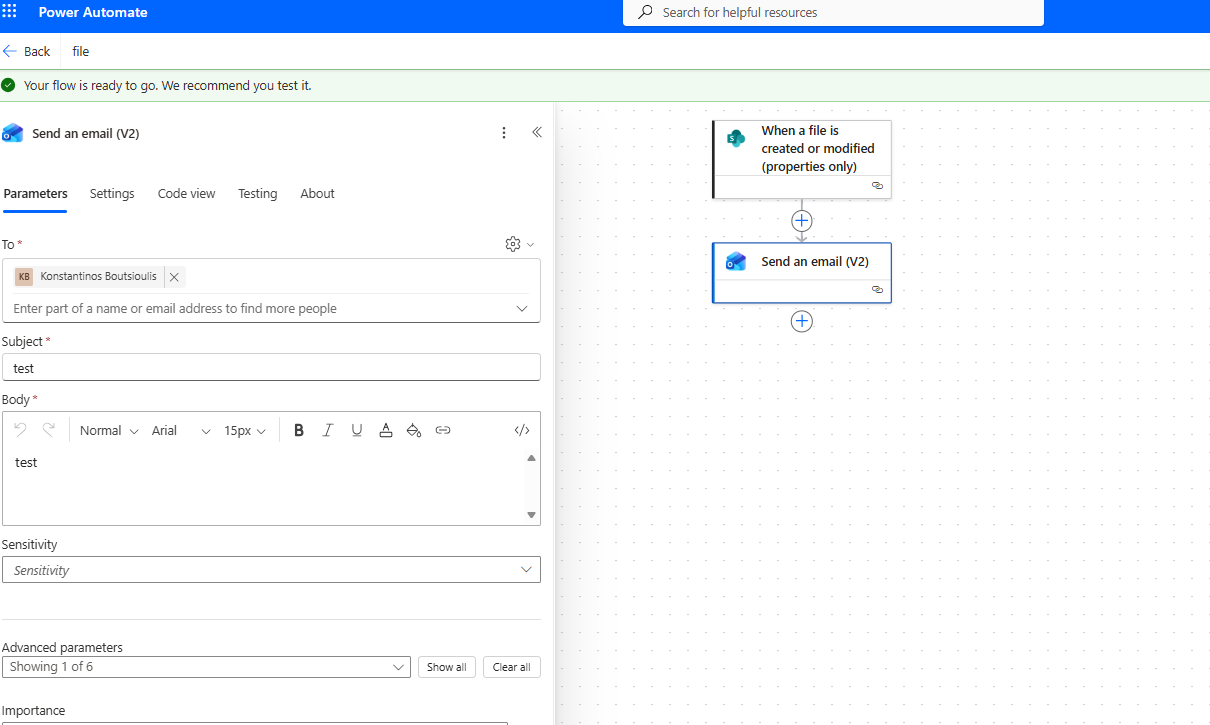
The next step is to run a manual test.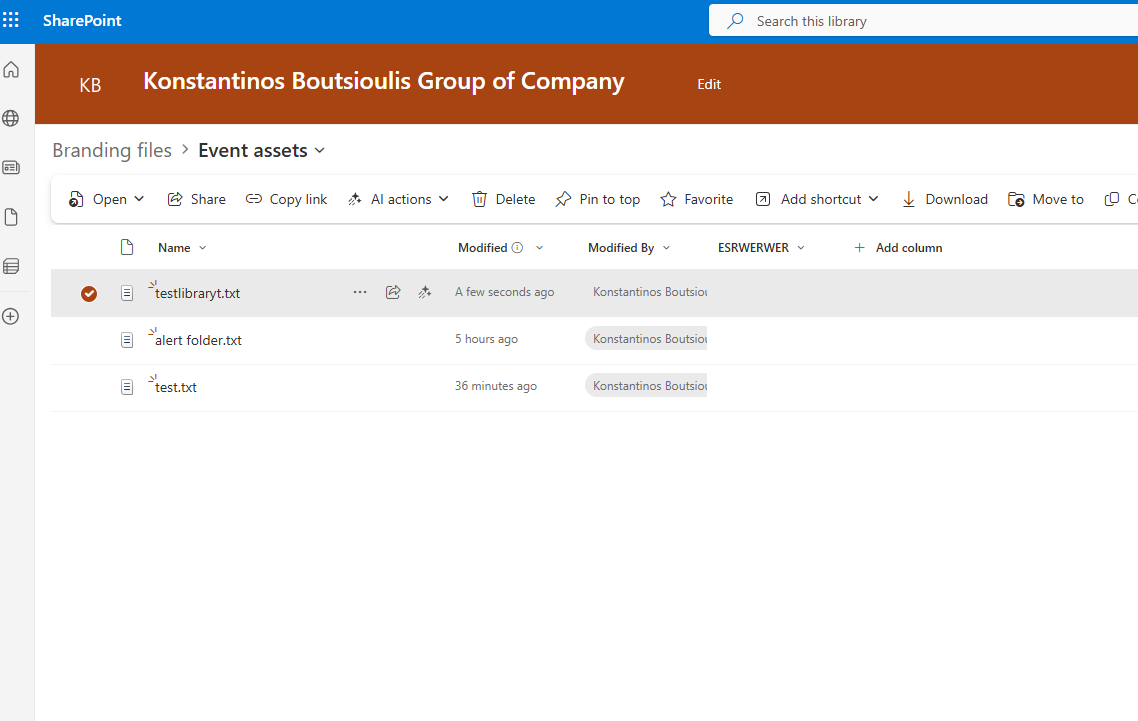
We upload a file or modify an existing file inside the library.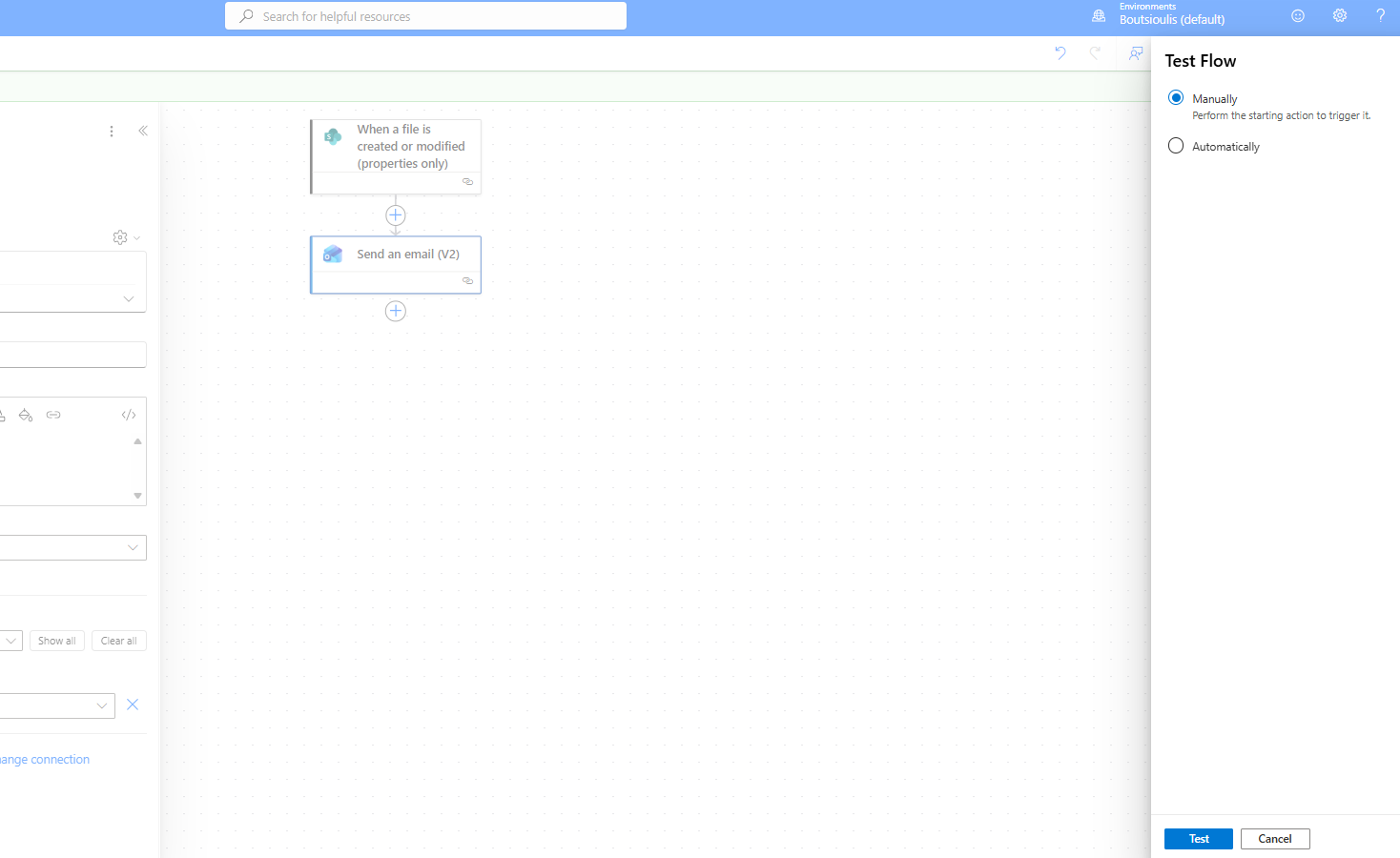
The flow runs successfully.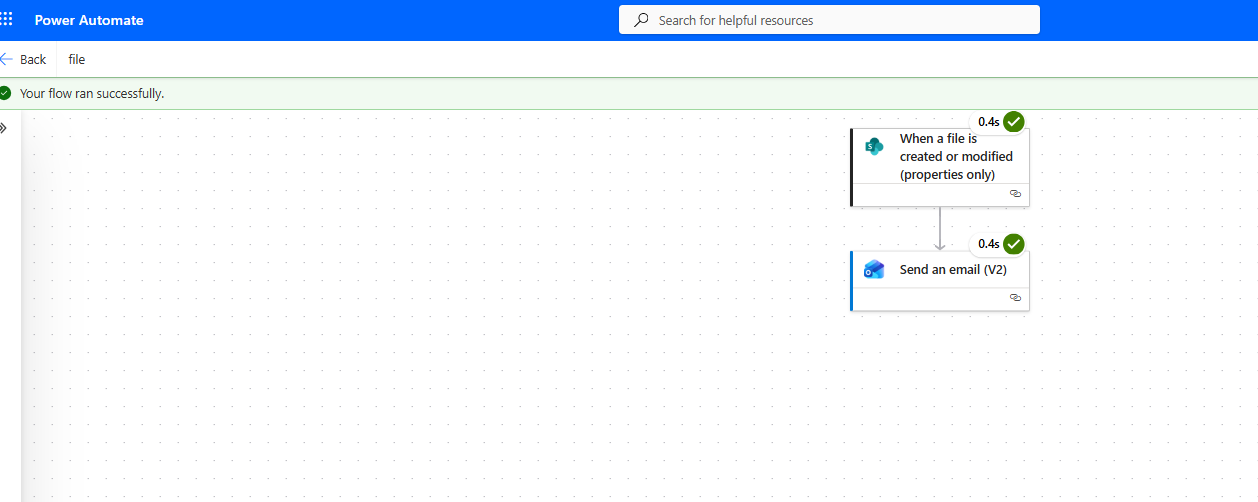
And the notification email is sent to the recipient as expected.