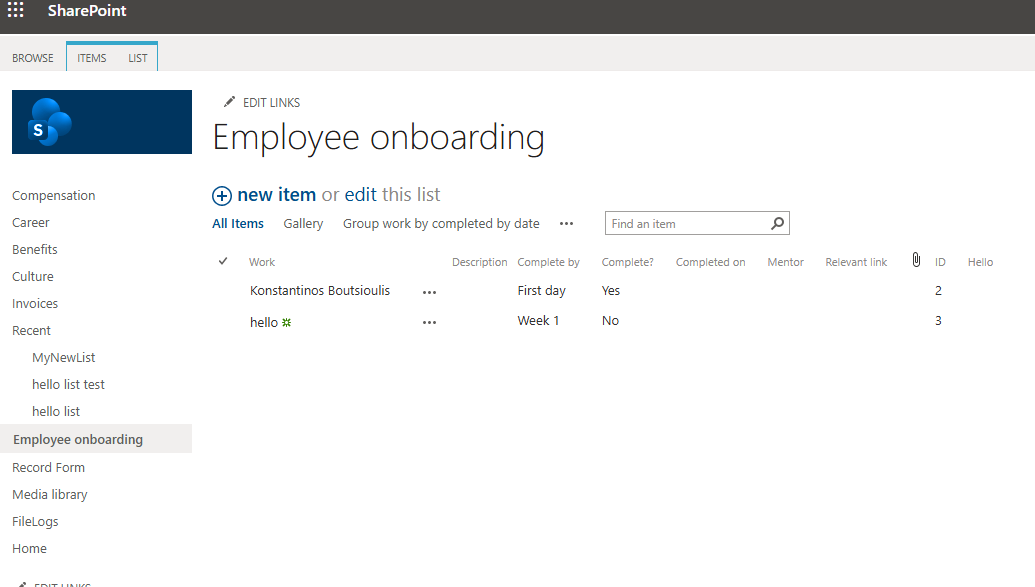
In today’s post I will show you how we can change the experience for a list. Let’s assume that we want to keep the old classic look and feel for our list
First, we select the site that hosts our list and from the gear icon at the top right we choose Site contents.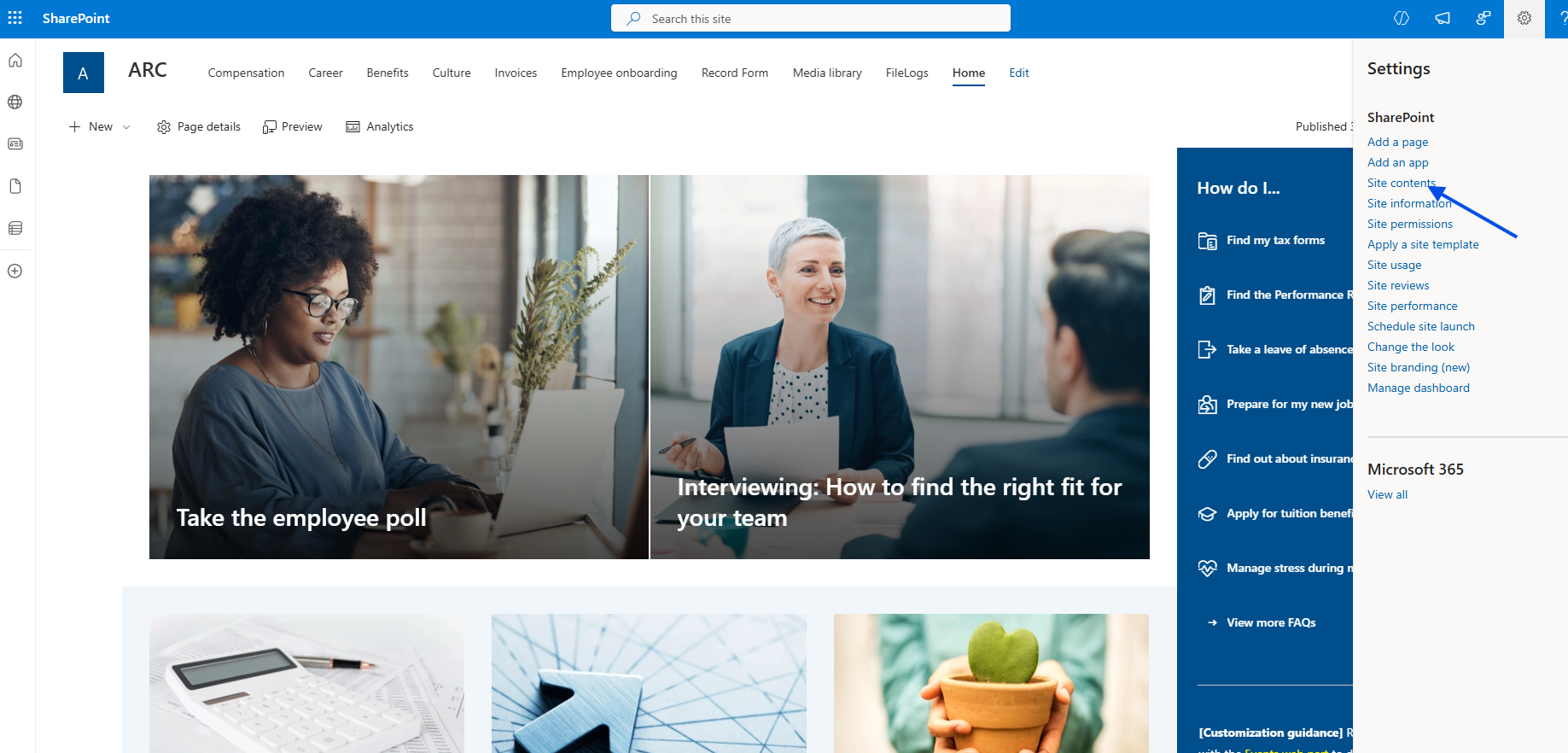
In the next step, we select the list.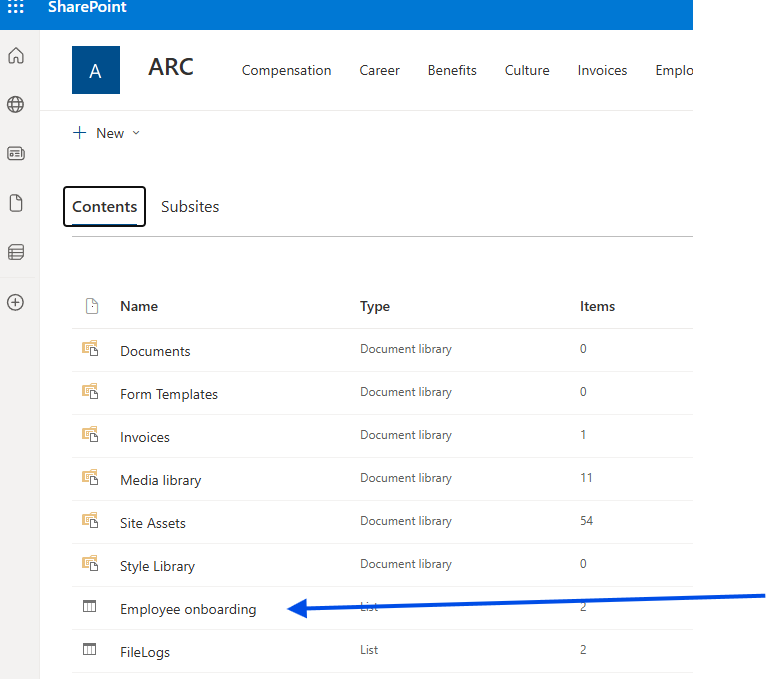
In the next step, from the gear icon at the top right we choose List settings.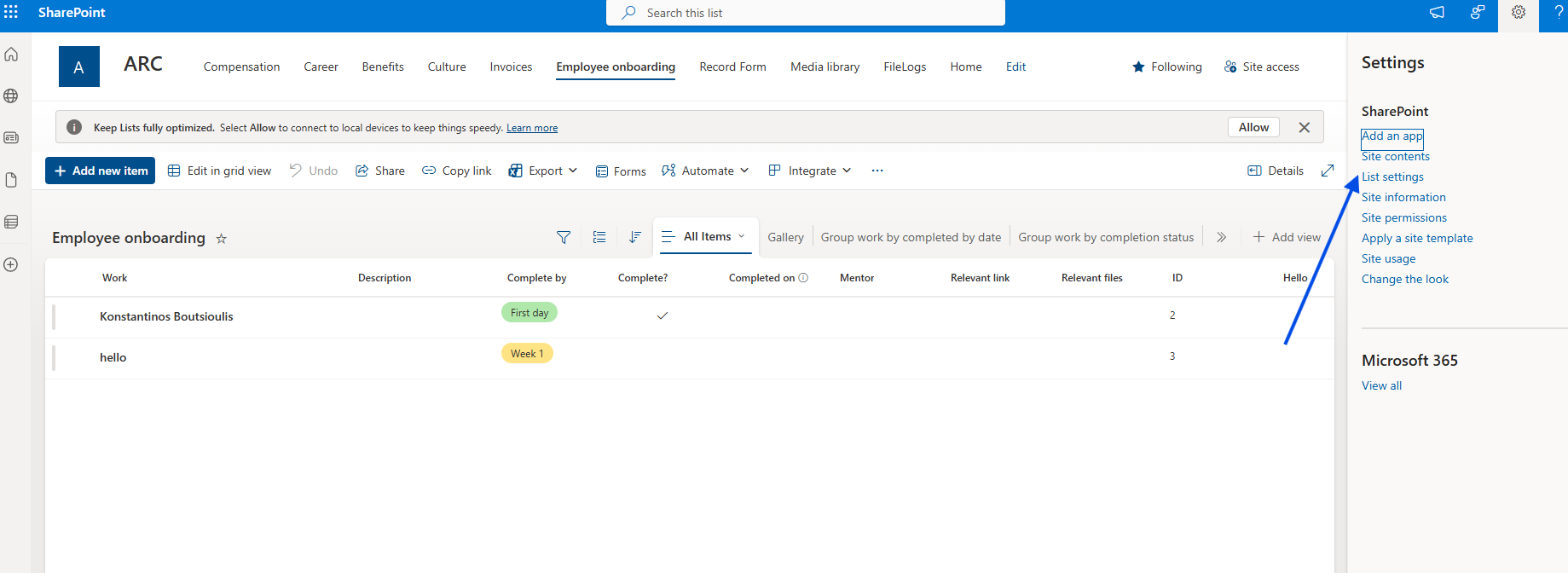
Then we select Advanced Settings.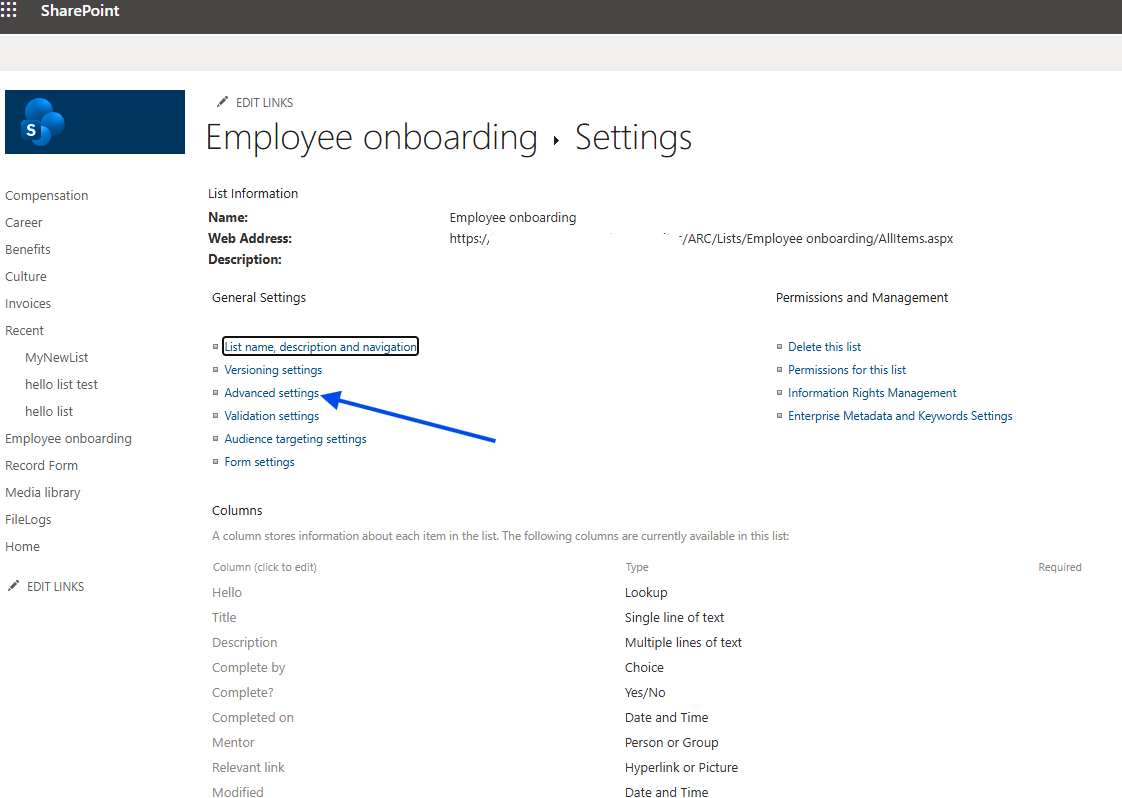
At the bottom of the page we have the following options:
List experience
Select the experience you want to use for this list. The new experience is faster, has more features, and works better across different devices.
Display this list using the new or classic experience?
Default experience for the site
New experience
Classic experience
The default experience is based on what has already been selected for the site, depending on whether we want it to be in the new style.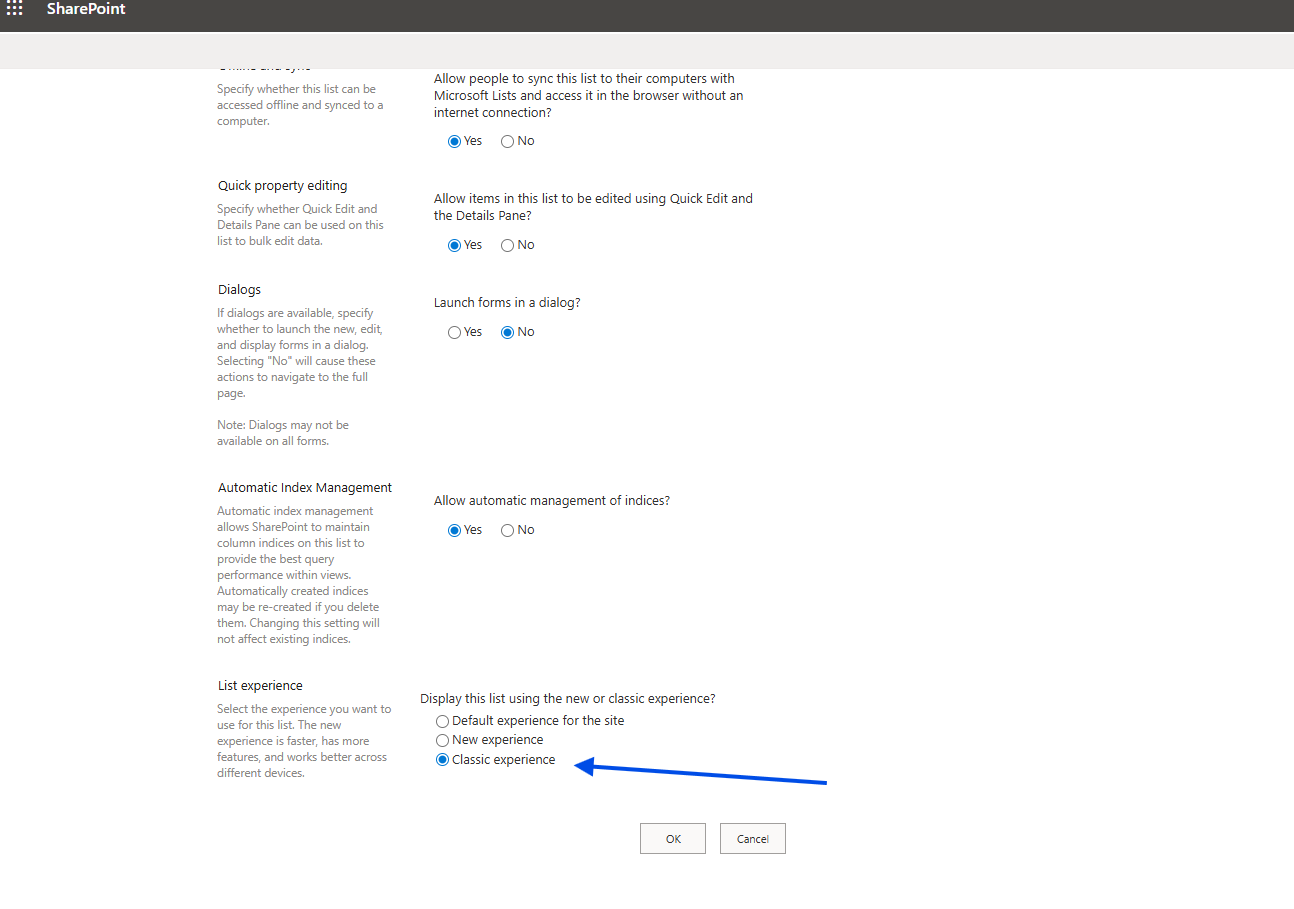
We make the change to classic experience as needed and finally click OK.