In today’s article, we will see how we can create a calculated column in SharePoint.
Calculated columns are columns that contain values generated based on other columns.
For example, a calculated column can combine text (string) or perform arithmetic operations between numbers—provided the participating columns are of type Number.
First, we select the list we want to work with.
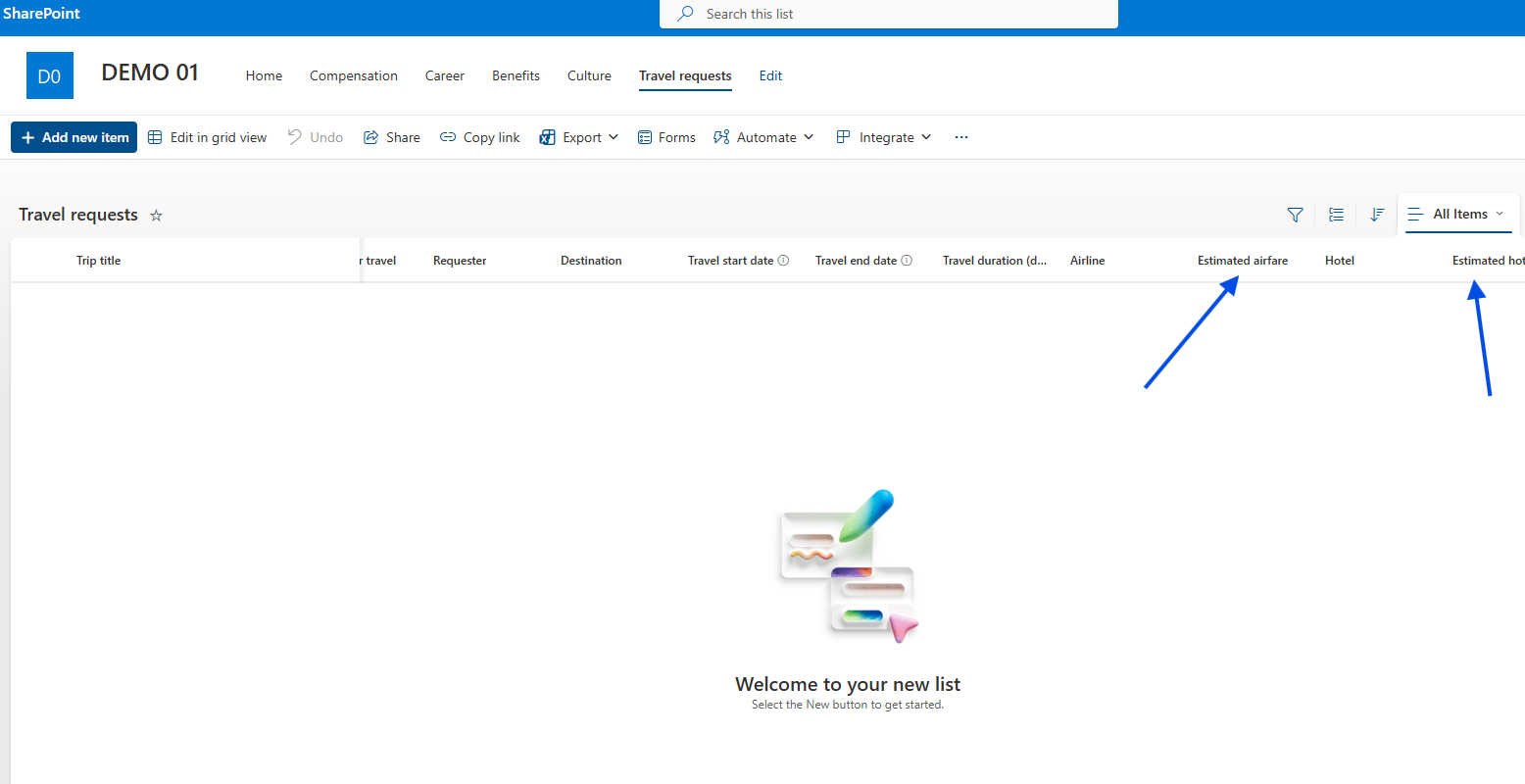
In our example, we have a Travel Requests list, where we have two columns:
- Estimated Airfare
- Estimated Hotel Cost
We want a new column that calculates the total cost.
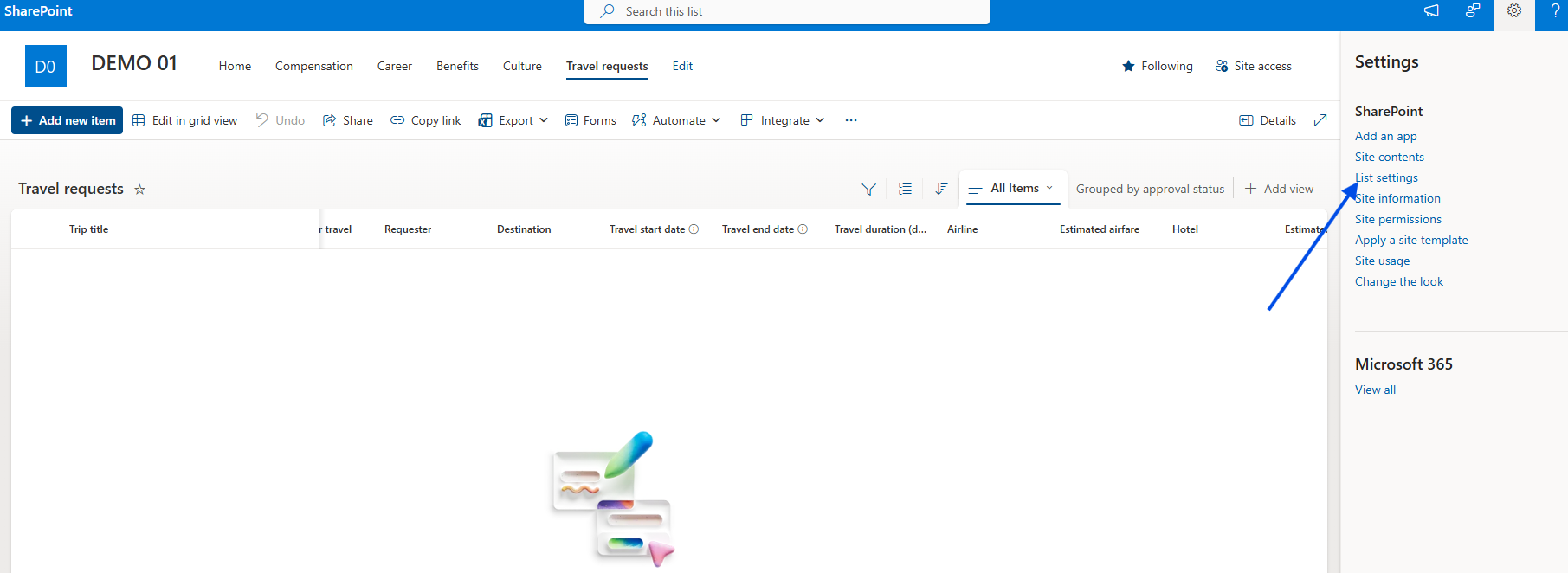
Then we click the gear icon at the top right and choose List settings.
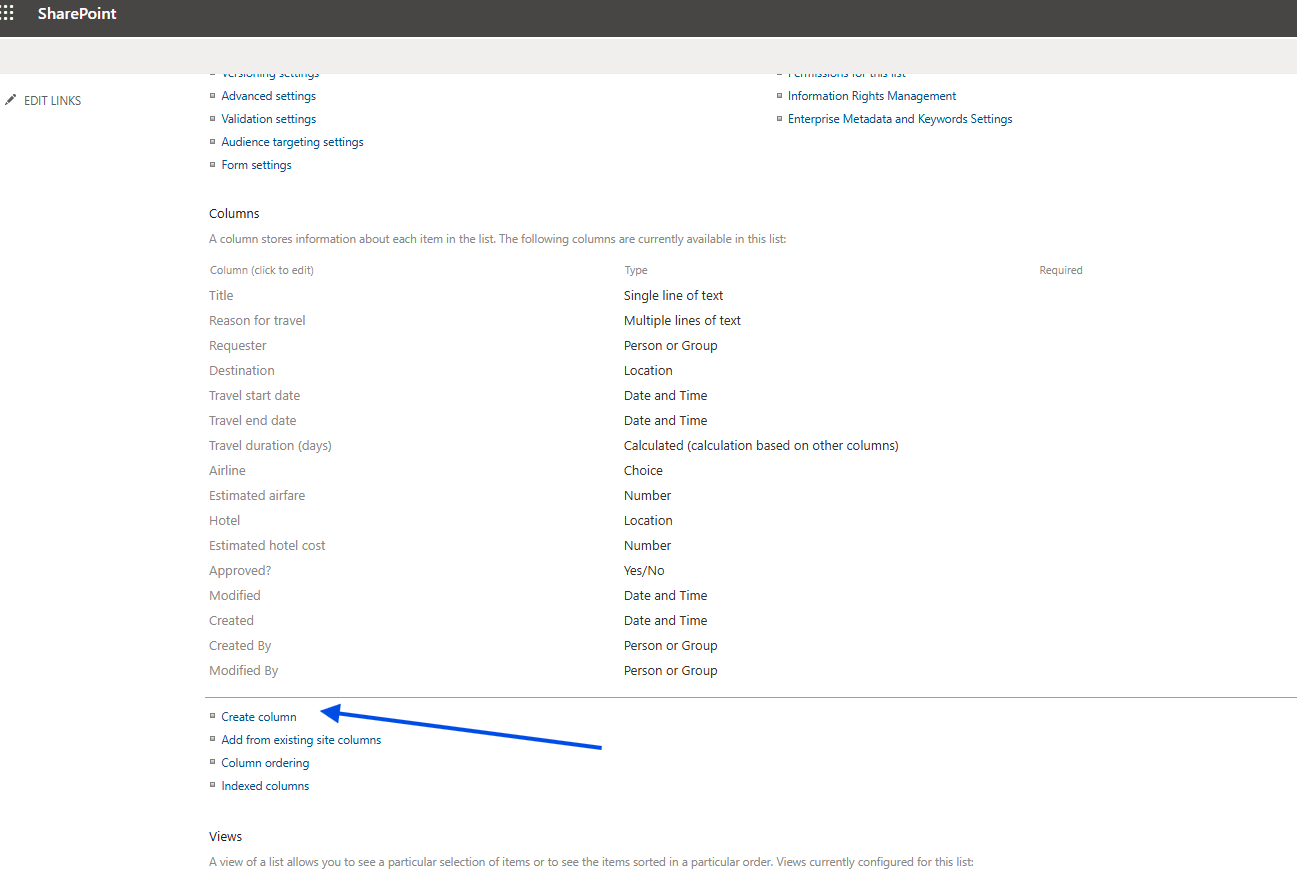
Next, we select Create column.
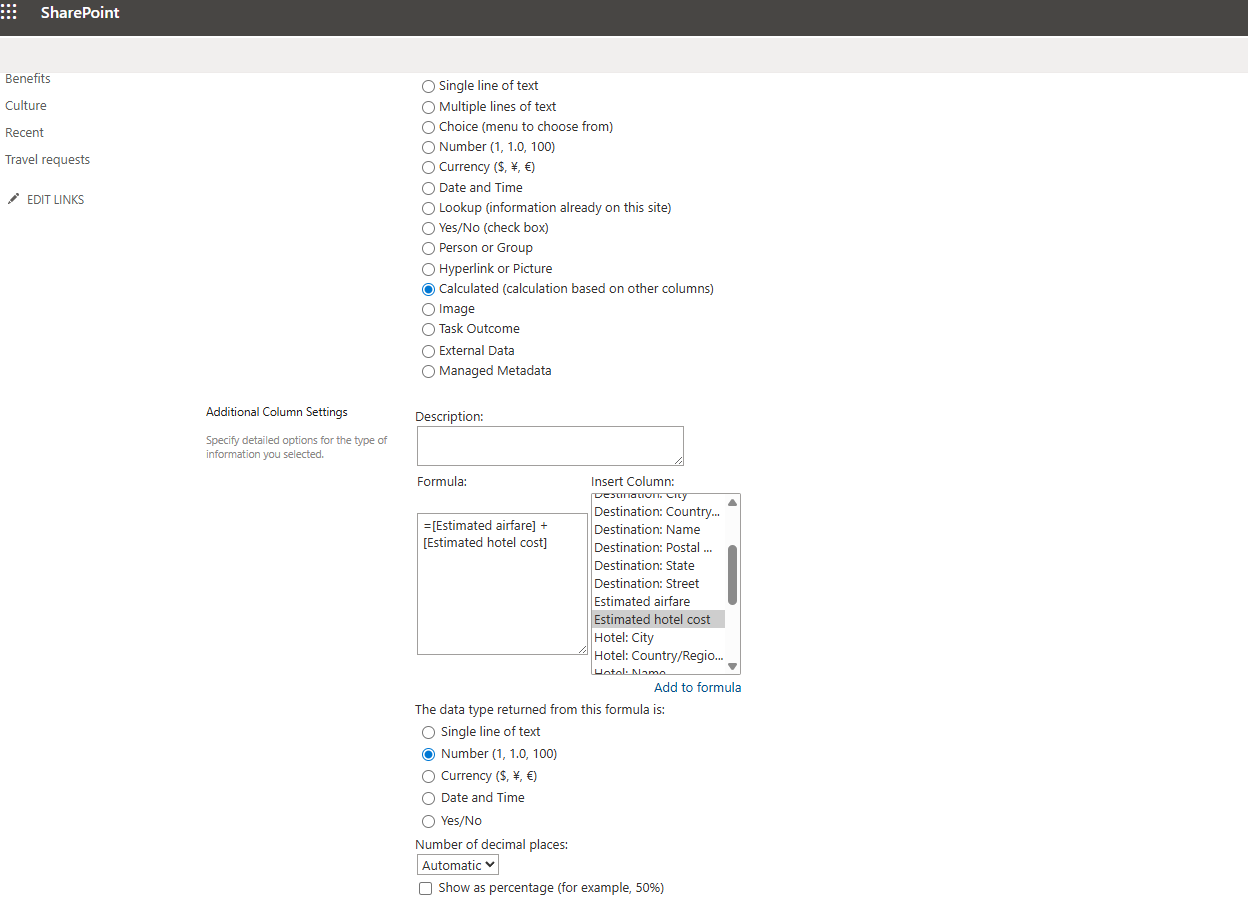
We give our new column a name, e.g. Total Cost, and select Calculated as the column type.
In the Formula field, we enter the expression that adds the values of the two columns.
We also specify the data type of the result, which in this case is Number.
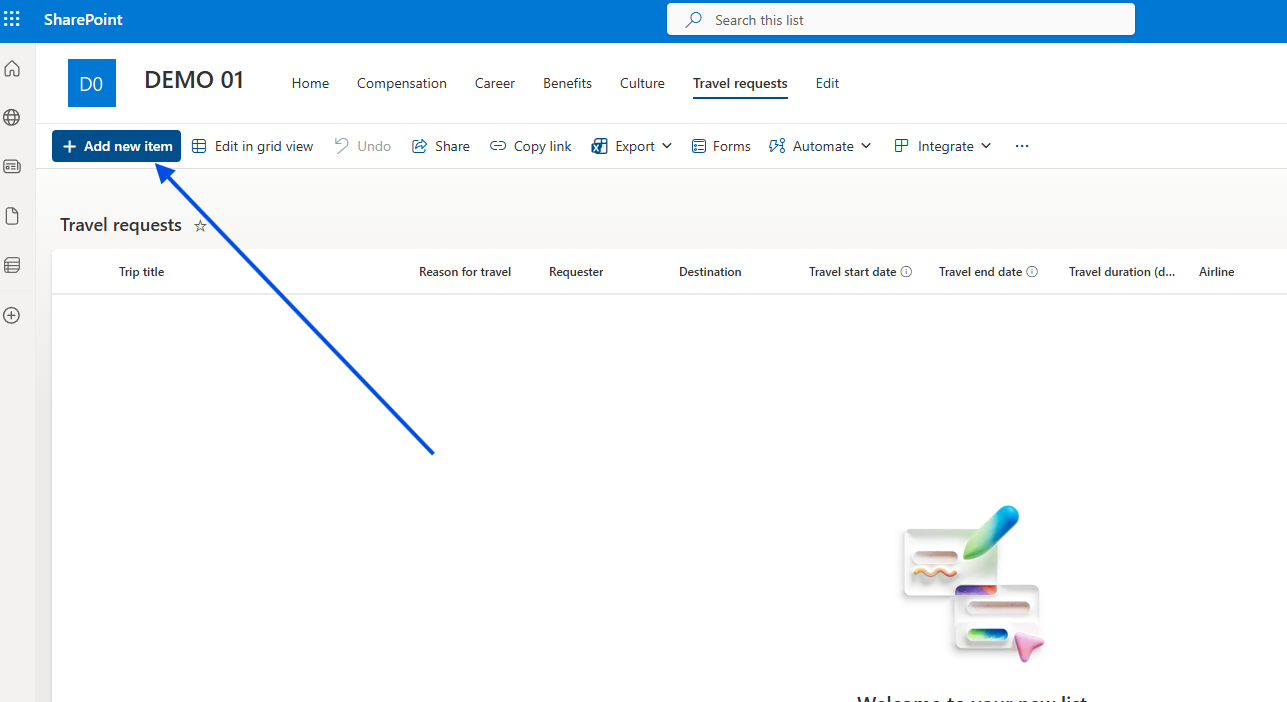
We return to the list and add a new item using Add new item.
We create a new item and enter:
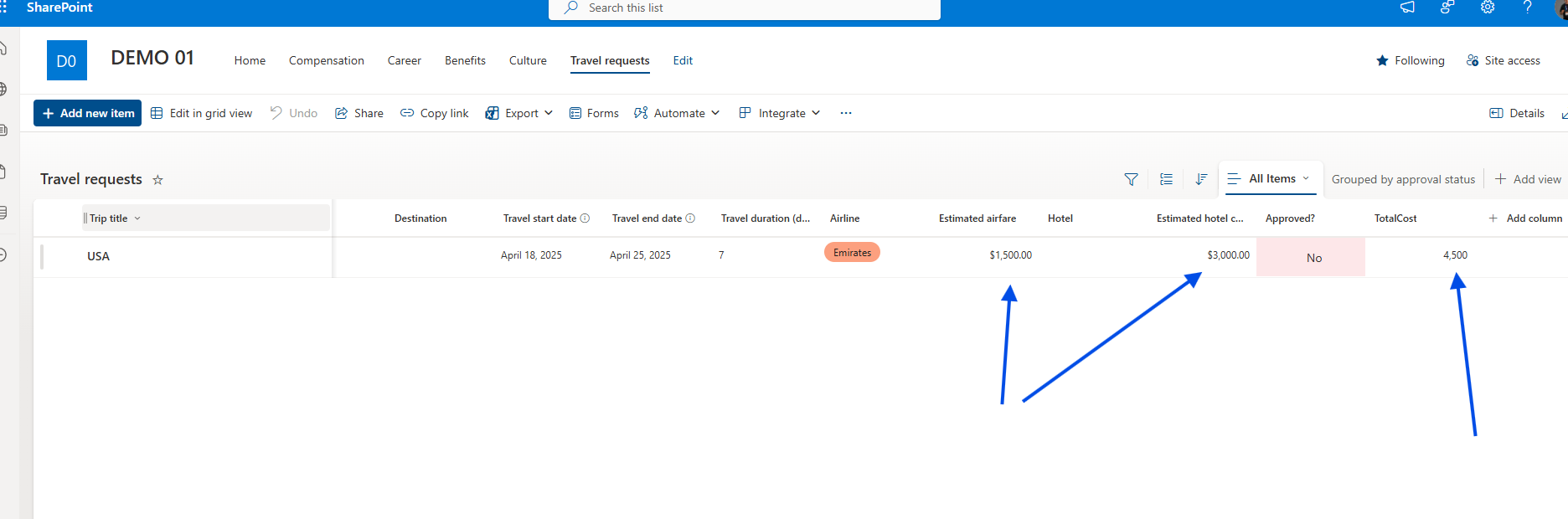
- Airfare: 1500
- Hotel: 3000
As you can see, once the item is created, the calculated column performs the addition and produces the Total Cost = 4500.