In today’s post, we will look at an automated process for SharePoint.
As with any other task, the procedure below can also be performed using the end‑user environment.
This process is about creating a list — but today we will see an alternative method using REST API and JavaScript.
Let’s recap: to create a list, we go to the site of our choice and click on the gear icon at the top right.
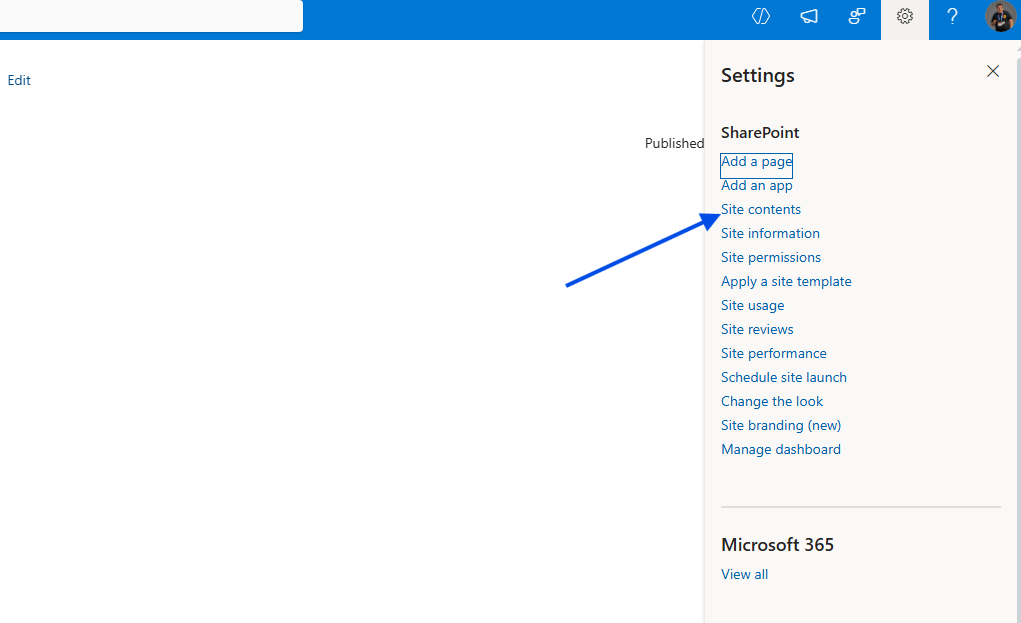
Then we select Site Contents.
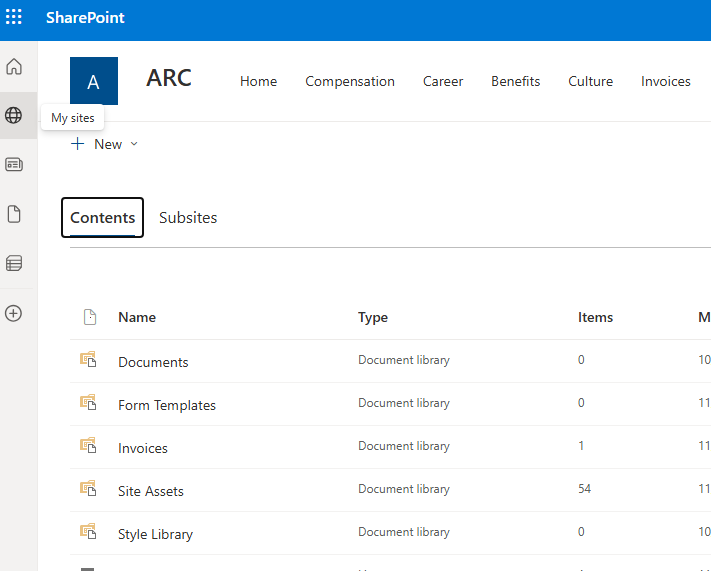
And then we choose Add → New List from the dropdown menu.
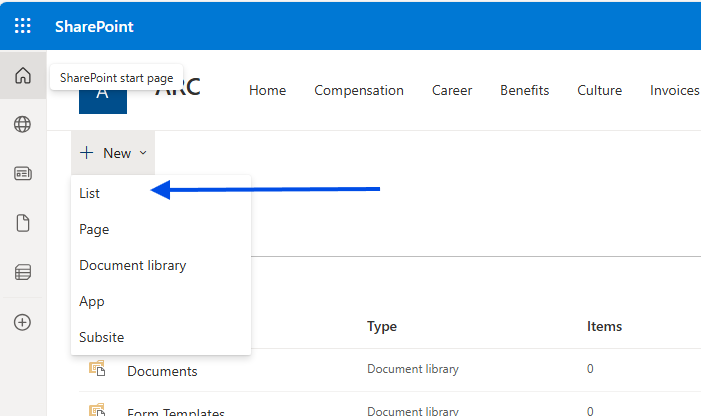
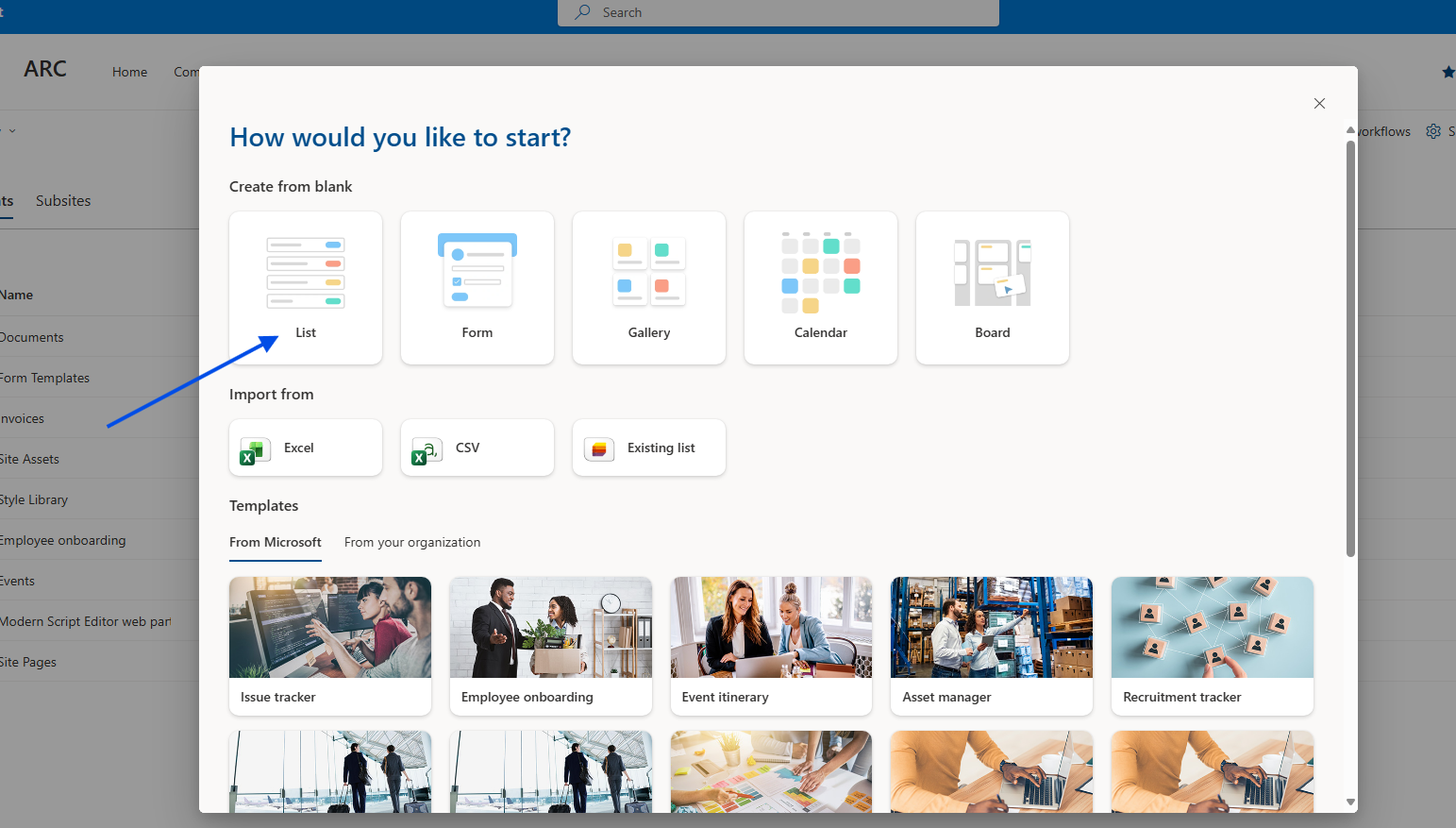
In this example, we will select a blank list, and as you can see, we get a list with only one column: Title.
A very simple and everyday process.
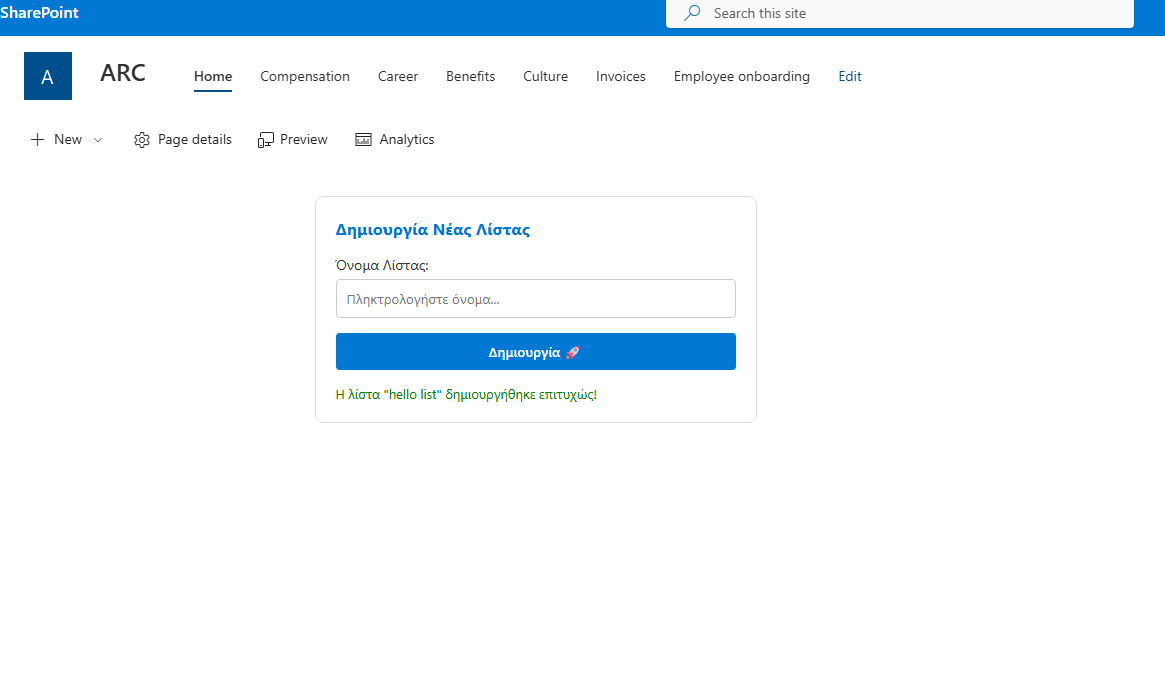
However, if we want to automate this process, we just need to add a Script Editor with a button that creates the list and a field to enter the list name.
There, we add the following JavaScript code using the SharePoint REST API and execute the action.
<div id="create-list-container" style="padding: 20px; background: #fff; border-radius: 8px; border: 1px solid #ddd; font-family: 'Segoe UI', sans-serif; max-width: 400px;"><h3 style="margin-top: 0; color: #0078d4;">Δημιουργία Νέας Λίστας</h3><div style="margin-bottom: 15px;"><label for="new-list-name" style="display: block; margin-bottom: 5px; font-size: 14px;">Όνομα Λίστας:</label><input type="text" id="new-list-name" placeholder="Πληκτρολογήστε όνομα..."style="width: 100%; padding: 10px; border: 1px solid #ccc; border-radius: 4px; box-sizing: border-box;"></div><button id="btn-create-list" onclick="handleCreateList()"style="background: #0078d4; color: white; border: none; padding: 10px 20px; border-radius: 4px; cursor: pointer; font-weight: 600; width: 100%;">Δημιουργία 🚀</button><div id="status-message" style="margin-top: 15px; font-size: 13px; display: none;"></div></div><script>async function handleCreateList() {const input = document.getElementById('new-list-name');const status = document.getElementById('status-message');const btn = document.getElementById('btn-create-list');const listName = input.value.trim();if (!listName) {showStatus("Παρακαλώ δώστε ένα όνομα!", "red");return;}// Απενεργοποίηση κουμπιούbtn.disabled = true;btn.innerText = "Παρακαλώ περιμένετε...";showStatus("Δημιουργία λίστας...", "#666");try {// --- ΑΣΦΑΛΗΣ ΠΡΟΣΔΙΟΡΙΣΜΟΣ URL SITE ---let relativeUrl = "";if (typeof _spPageContextInfo !== "undefined") {relativeUrl = _spPageContextInfo.webServerRelativeUrl;} else {// Fallback: Προσπάθεια εξαγωγής από το URL του browserconst pathParts = window.location.pathname.split('/');if (pathParts.includes('sites') || pathParts.includes('teams')) {relativeUrl = pathParts.slice(0, 3).join('/');}}// Καθαρισμός του URL για να μην έχουμε διπλά slashesconst siteUrl = window.location.origin + (relativeUrl === "/" ? "" : relativeUrl);// -------------------------------------// 1. Λήψη Request Digestconst contextRes = await fetch(`${siteUrl}/_api/contextinfo`, {method: "POST",headers: { "Accept": "application/json;odata=verbose" }});if (!contextRes.ok) throw new Error("Δεν ήταν δυνατή η επικοινωνία με το SharePoint (ContextInfo).");const contextData = await contextRes.json();const digest = contextData.d.GetContextWebInformation.FormDigestValue;// 2. REST Request για δημιουργία λίσταςconst response = await fetch(`${siteUrl}/_api/web/lists`, {method: "POST",body: JSON.stringify({'__metadata': { 'type': 'SP.List' },'AllowContentTypes': true,'BaseTemplate': 100, // Custom List template'Title': listName}),headers: {"Accept": "application/json;odata=verbose","Content-Type": "application/json;odata=verbose","X-RequestDigest": digest}});if (response.ok) {showStatus(`Η λίστα "${listName}" δημιουργήθηκε επιτυχώς!`, "green");input.value = "";} else {const err = await response.json();const errorMsg = (err.error && err.error.message) ? err.error.message.value : "Άγνωστο σφάλμα";showStatus("Σφάλμα: " + errorMsg, "red");}} catch (error) {showStatus("Σφάλμα: " + error.message, "red");console.error("Full Error:", error);} finally {btn.disabled = false;btn.innerText = "Δημιουργία 🚀";}}function showStatus(msg, color) {const status = document.getElementById('status-message');status.style.display = "block";status.style.color = color;status.innerText = msg;}</script>
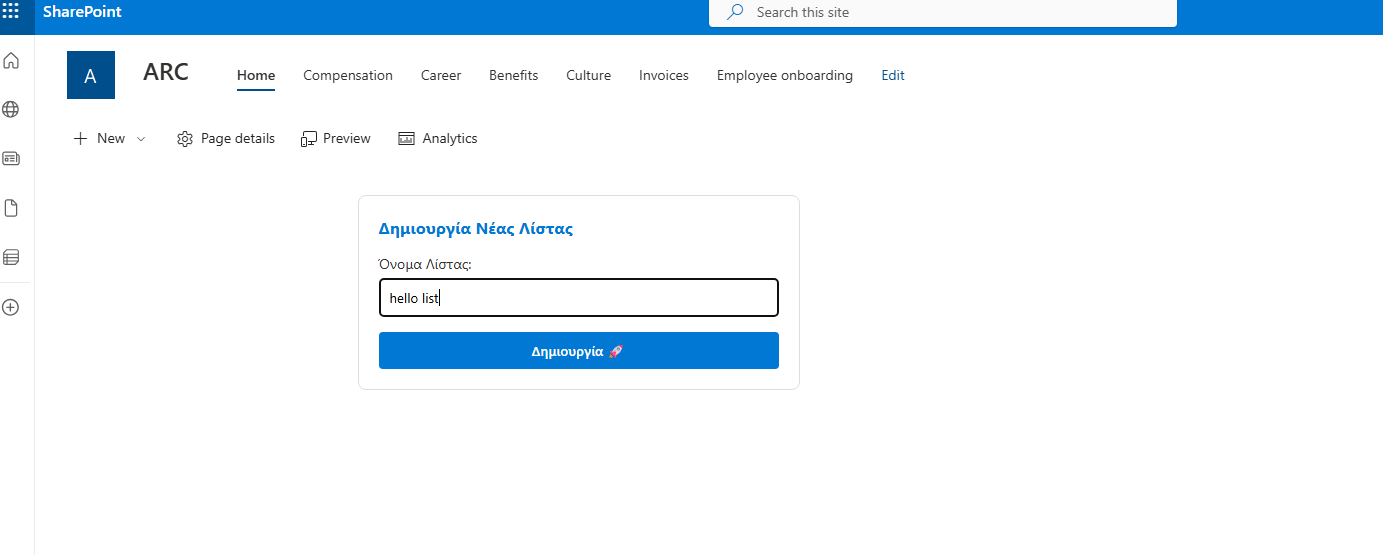
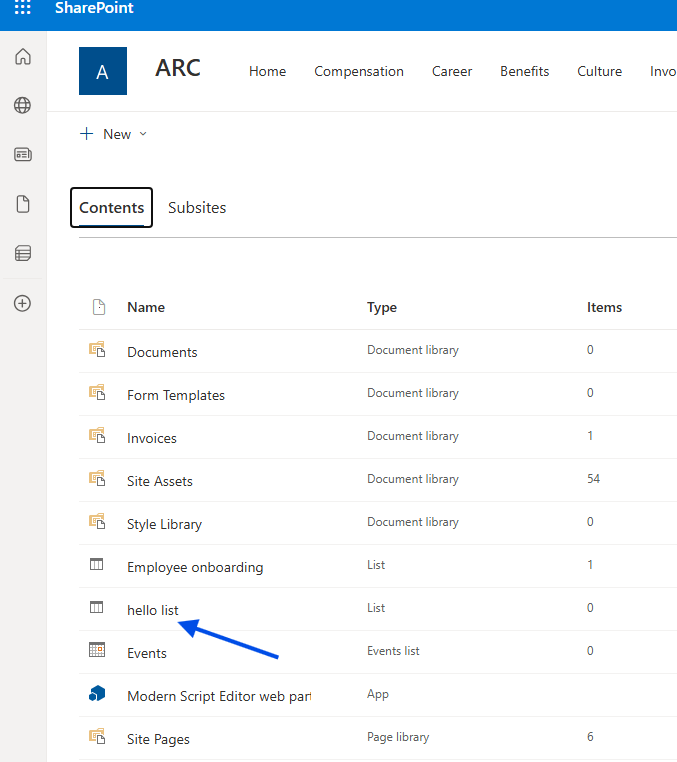
And finally, as you can see, it has created a new list with just one click.