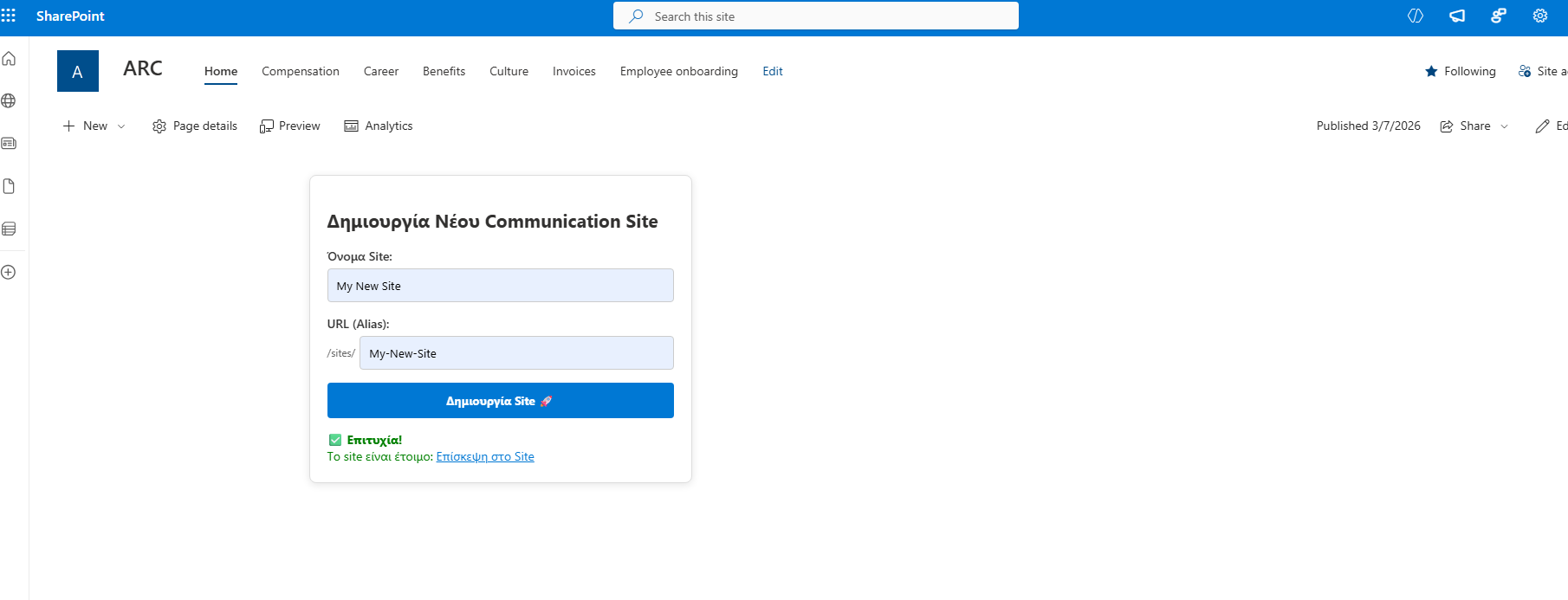
In today’s post, we will see how we can create a Communication Site through a custom form using the REST API.
The truth is I have developed several alternatives in the past, but let’s assume you have users who are not familiar with SharePoint and simply want to create a site without navigating through multiple options and forms.
We select a site that will host the form—the site generator.
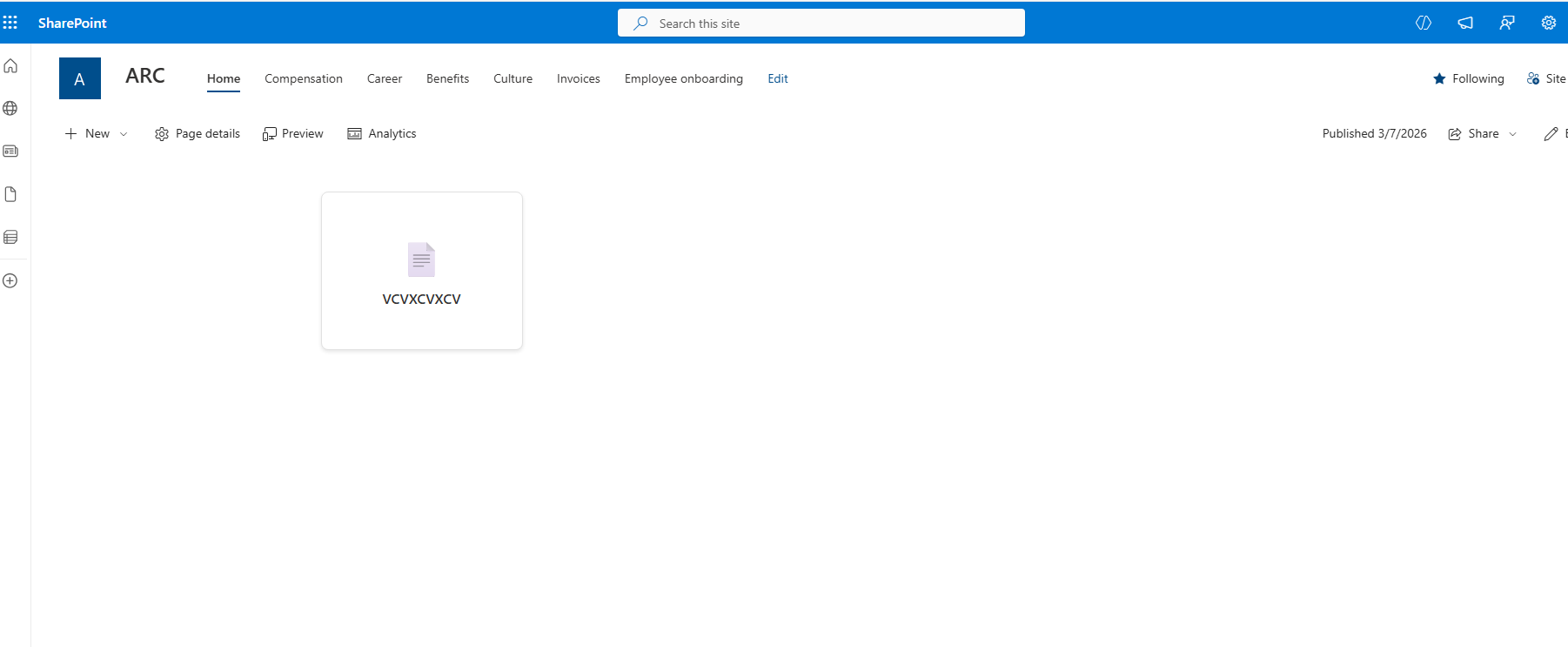
Insert the Modern Script Editor web part.
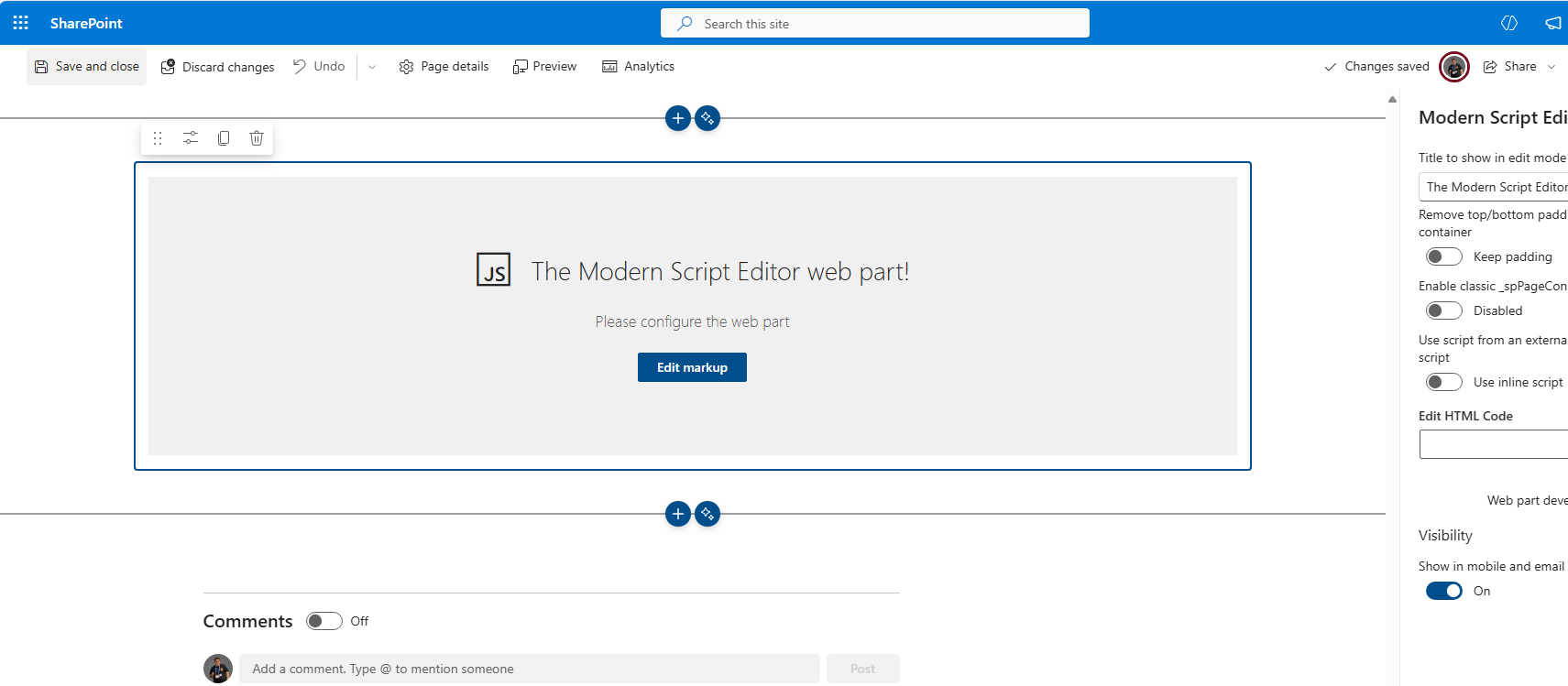
Then insert the following code:
<div id="create-site-form" class="site-form-wrapper"><h2>Δημιουργία Νέου Communication Site</h2><div class="field"><label>Όνομα Site:</label><input type="text" id="site-title" placeholder="π.χ. My New Project"></div><div class="field"><label>URL (Alias):</label><div style="display:flex; align-items:center;"><span style="font-size:12px; color:#666; margin-right:5px;">/sites/</span><input type="text" id="site-url" placeholder="my-new-project"></div></div><button id="btn-create-site" onclick="createCommSite()">Δημιουργία Site 🚀</button><div id="status-message"></div></div><style>.site-form-wrapper {padding: 20px;background: #ffffff;border: 1px solid #ddd;border-radius: 8px;max-width: 400px;font-family: 'Segoe UI', sans-serif;box-shadow: 0 2px 10px rgba(0,0,0,0.1);}.field { margin-bottom: 15px; }label { display: block; font-weight: 600; margin-bottom: 5px; color: #333; }input { width: 100%; padding: 10px; border: 1px solid #ccc; border-radius: 4px; box-sizing: border-box; }button {background: #0078d4; color: white; border: none;padding: 12px 20px; cursor: pointer; border-radius: 4px; font-weight: bold; width: 100%;}button:disabled { background: #ccc; cursor: not-allowed; }#status-message { margin-top: 15px; font-size: 14px; line-height: 1.4; }</style><script>async function createCommSite() {const title = document.getElementById('site-title').value.trim();const urlAlias = document.getElementById('site-url').value.trim();const btn = document.getElementById('btn-create-site');const status = document.getElementById('status-message');if (!title || !urlAlias) {alert("Παρακαλώ συμπληρώστε όλα τα πεδία.");return;}btn.disabled = true;status.style.color = "#666";status.innerText = "Έναρξη διαδικασίας... παρακαλώ περιμένετε.";try {// 1. Αυτόματος προσδιορισμός URL του τρέχοντος sitelet siteUrl = window.location.origin;if (typeof _spPageContextInfo !== "undefined") {siteUrl = window.location.origin + _spPageContextInfo.webServerRelativeUrl;} else {const pathParts = window.location.pathname.split('/');if (pathParts.includes('sites') || pathParts.includes('teams')) {siteUrl = window.location.origin + pathParts.slice(0, 3).join('/');}}// 2. Λήψη Request Digest (Απαραίτητο για POST σε modern περιβάλλον)status.innerText = "Λήψη Security Token...";const contextRes = await fetch(`${siteUrl}/_api/contextinfo`, {method: "POST",headers: { "Accept": "application/json;odata=verbose" }});const contextData = await contextRes.json();const digest = contextData.d.GetContextWebInformation.FormDigestValue;// 3. Προετοιμασία Payloadconst fullSiteUrl = `${window.location.origin}/sites/${urlAlias}`;const endpoint = `${siteUrl}/_api/SPSiteManager/Create`;const payload = {"request": {"__metadata": { "type": "Microsoft.SharePoint.Portal.SPSiteCreationRequest" },"Title": title,"Url": fullSiteUrl,"Lcid": 1032, // 1032 για Ελληνικά"ShareByEmailEnabled": false,"WebTemplate": "SITEPAGEPUBLISHING#0","Description": "Created via custom REST script"}};status.innerText = "Δημιουργία στο Azure/SharePoint... (αυτό μπορεί να πάρει 10-20 δευτερόλεπτα)";// 4. Κλήση του APIconst response = await fetch(endpoint, {method: "POST",headers: {"Accept": "application/json;odata=verbose","Content-Type": "application/json;odata=verbose","X-RequestDigest": digest},body: JSON.stringify(payload)});const result = await response.json();// Το SiteStatus 2 σημαίνει 'Created'if (response.ok && result.d && result.d.Create && result.d.Create.SiteStatus === 2) {status.style.color = "green";status.innerHTML = `✅ <b>Επιτυχία!</b><br>Το site είναι έτοιμο: <a href="${result.d.Create.SiteUrl}" target="_blank" style="color:#0078d4; text-decoration:underline;">Επίσκεψη στο Site</a>`;} else {// Ανάλυση σφάλματος από το SharePointconst errorDetail = result.error ? result.error.message.value : "Το URL ίσως χρησιμοποιείται ή δεν έχετε δικαιώματα δημιουργίας.";throw new Error(errorDetail);}} catch (error) {console.error("Creation Error:", error);status.style.color = "red";status.innerText = "❌ Σφάλμα: " + error.message;} finally {btn.disabled = false;}}</script>
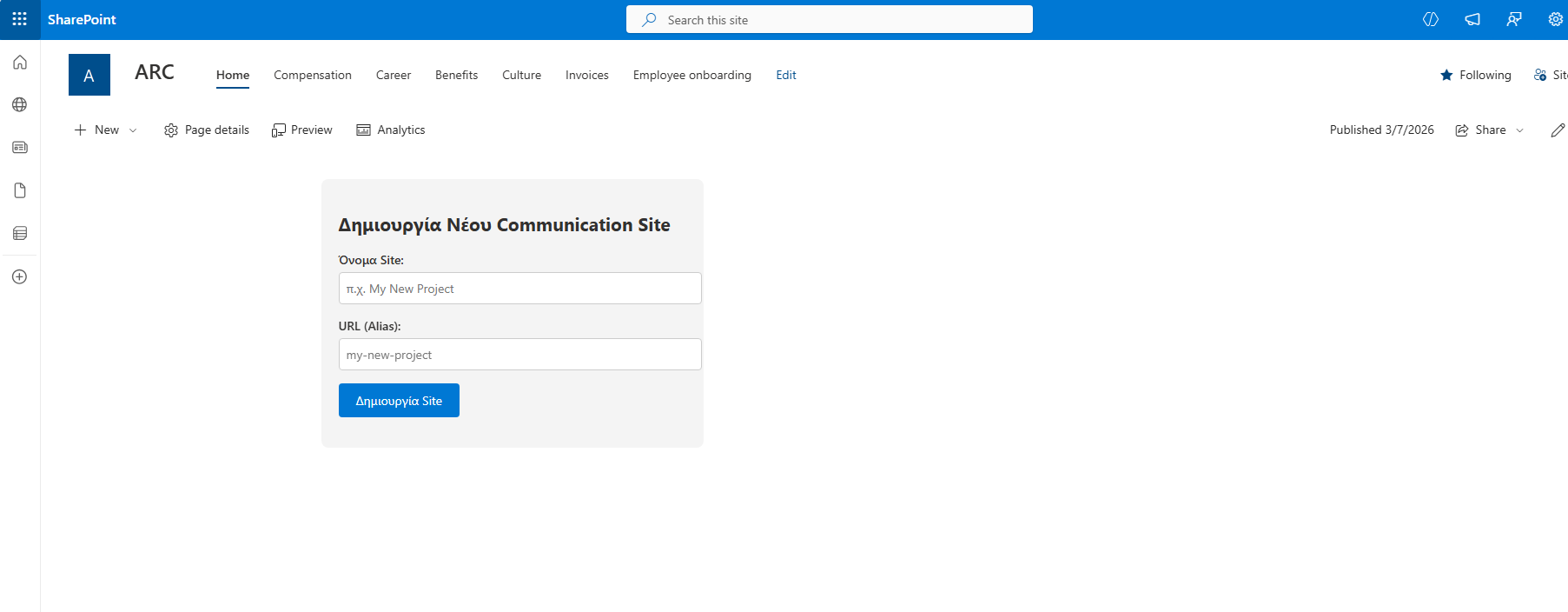
So, whenever someone wants to create a site, they go to this specific site, fill out the form, and click Create.
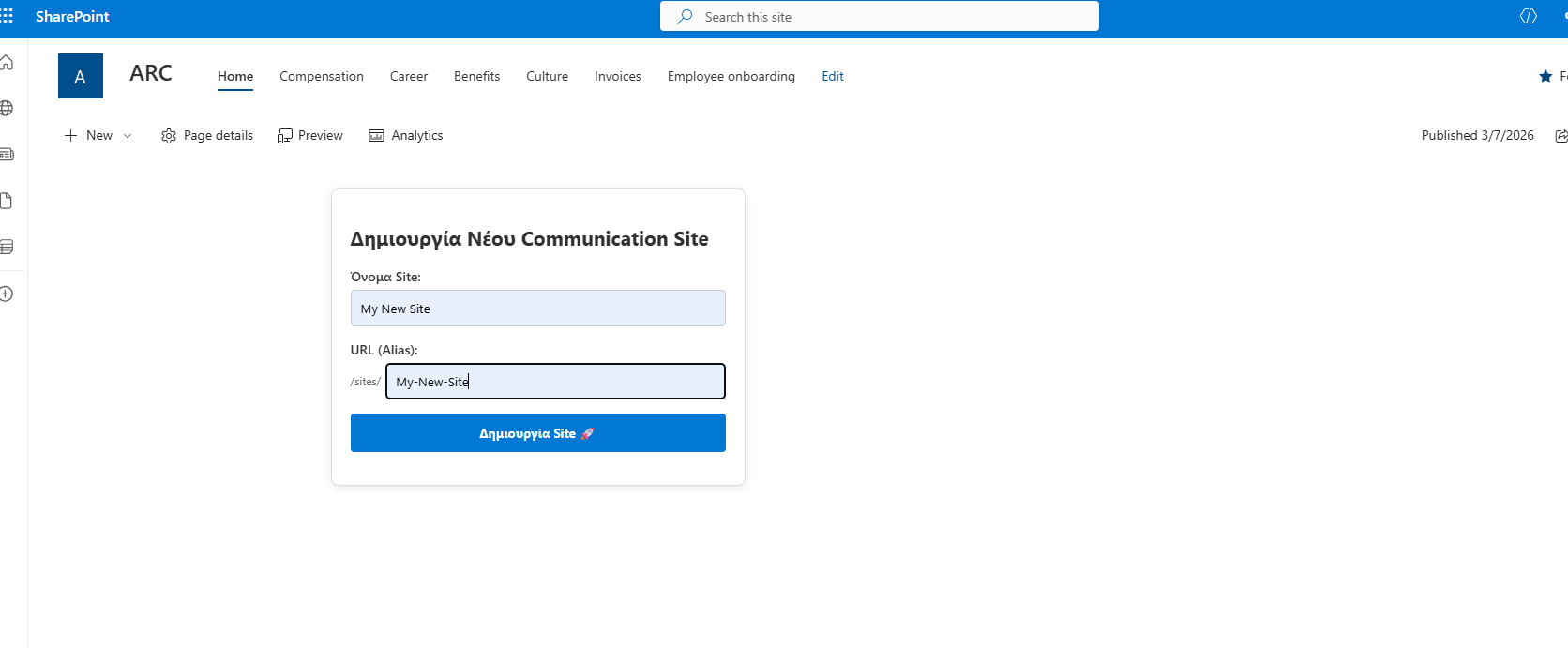
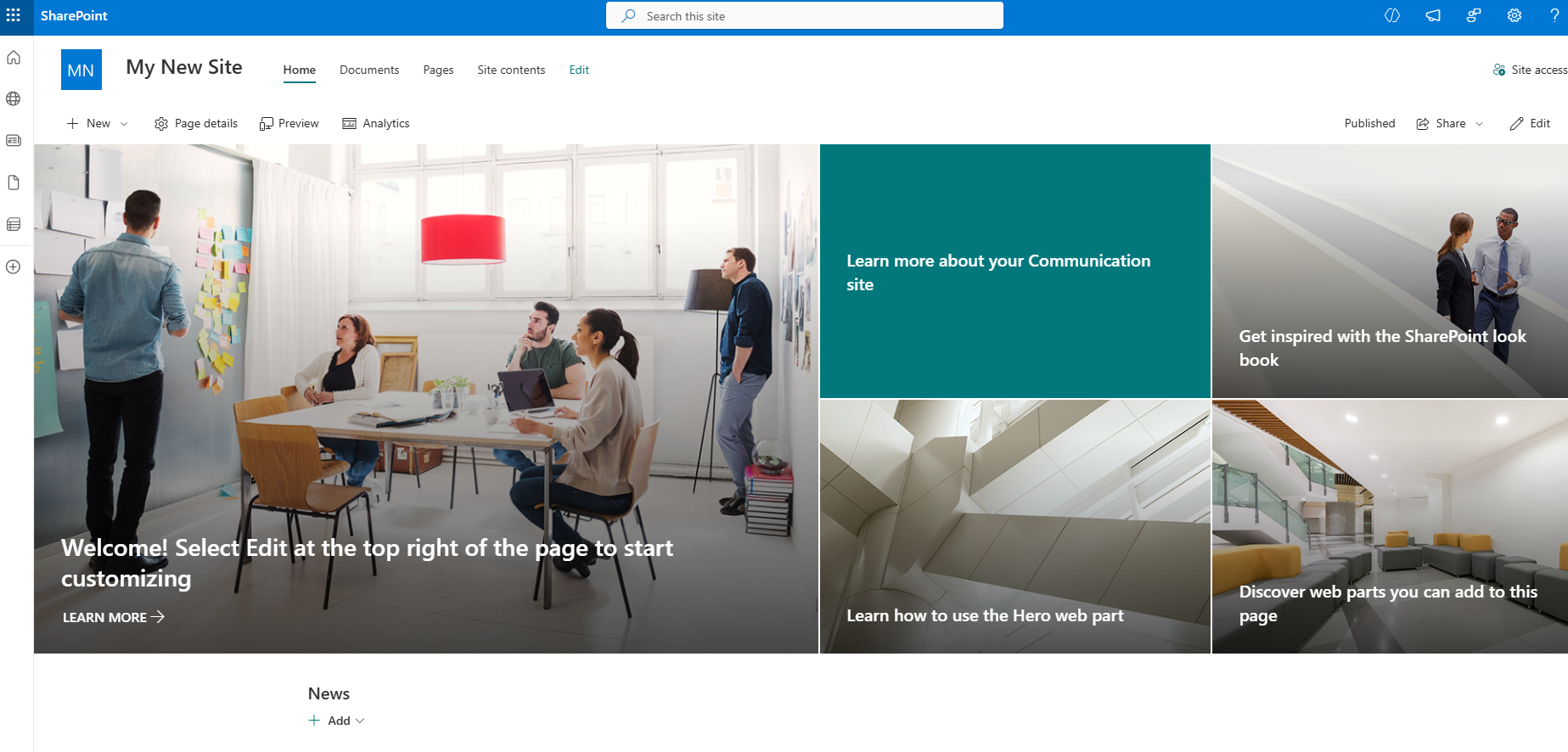
As you can see, the site was eventually created.
Note that the user who uses this solution must have administrative permissions in order to be able to create sites.