In today’s post, we will see how we can provision a site from a template site.
First, we should emphasize that if the sites have complex layouts and themes, there is a significant chance issues may arise during provisioning. It should also be clearly understood that the more complex a site is, the larger the XML or JSON used for provisioning will be—and this can also lead to errors during execution.
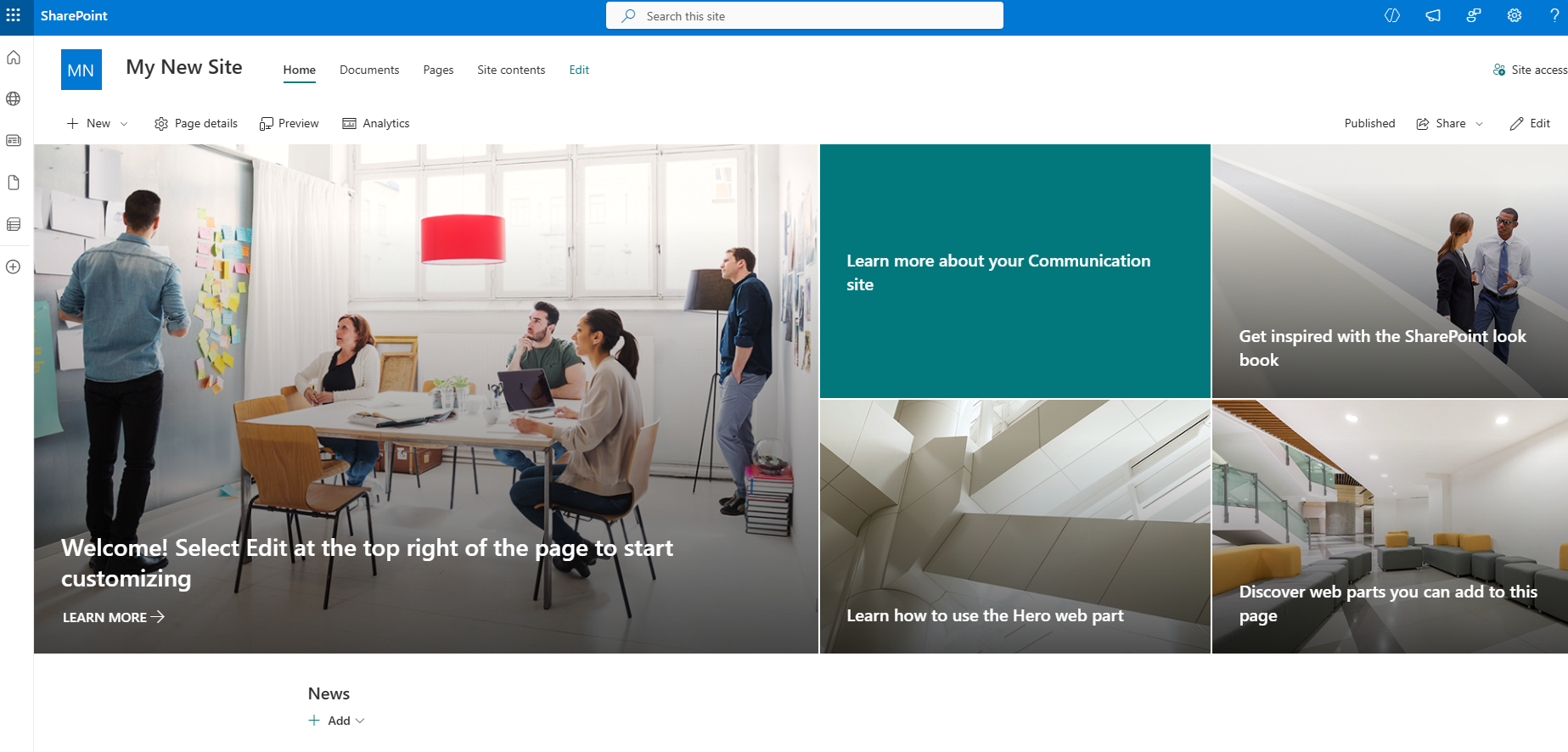
The way to proceed is to create a site template.
Then we write the following PowerShell and run it:
# --- SETTINGS ---$sourceSiteUrl = "https://mytenant.sharepoint.com/sites/ARC" # The site with the Tiles$adminUrl = "https://mytenant-admin.sharepoint.com"$templateTitle = "Πρότυπο Portal με Tiles"$templateDescription = "Αυτό το πρότυπο περιλαμβάνει αυτόματα τον Modern Script Editor και το Tiles layout."$clinetId = "0000000-0000-0000-0000-000000000000"# 1. Connect to SharePoint OnlineConnect-PnPOnline -Url $siteUrl -Interactive -ClientId $clinetIdWrite-Host "Εξαγωγή ρυθμίσεων από το Source Site..." -ForegroundColor Cyan# Create the Site Script (JSON format) directly from the existing Web$siteScriptJson = Get-PnPSiteScriptFromWeb -Url $sourceSiteUrl -IncludeBranding -IncludeLinks -IncludeRegionalSettings -IncludeSiteExternalSharingSettings# 3. Connect to SharePoint Admin to register the script/designConnect-PnPOnline -Url $adminUrl -InteractiveWrite-Host "Δημιουργία Org Template στο Tenant..." -ForegroundColor Yellow# Add the script to the tenant$uploadedScript = Add-PnPSiteScript -Title "$templateTitle Script" `-Content $siteScriptJson `-Description $templateDescription# Create the Site Design (Org Template)# WebTemplate "68" = Communication Site$siteDesign = Add-PnPSiteDesign -Title $templateTitle `-SiteScriptIds $uploadedScript.Id `-WebTemplate "68" `-Description $templateDescriptionWrite-Host "----------------------------------------------------------" -ForegroundColor WhiteWrite-Host "ΕΠΙΤΥΧΙΑ!" -ForegroundColor GreenWrite-Host "Το template '$templateTitle' είναι πλέον διαθέσιμο."Write-Host "ID Σχεδιασμού: $($siteDesign.Id)"Write-Host "----------------------------------------------------------"
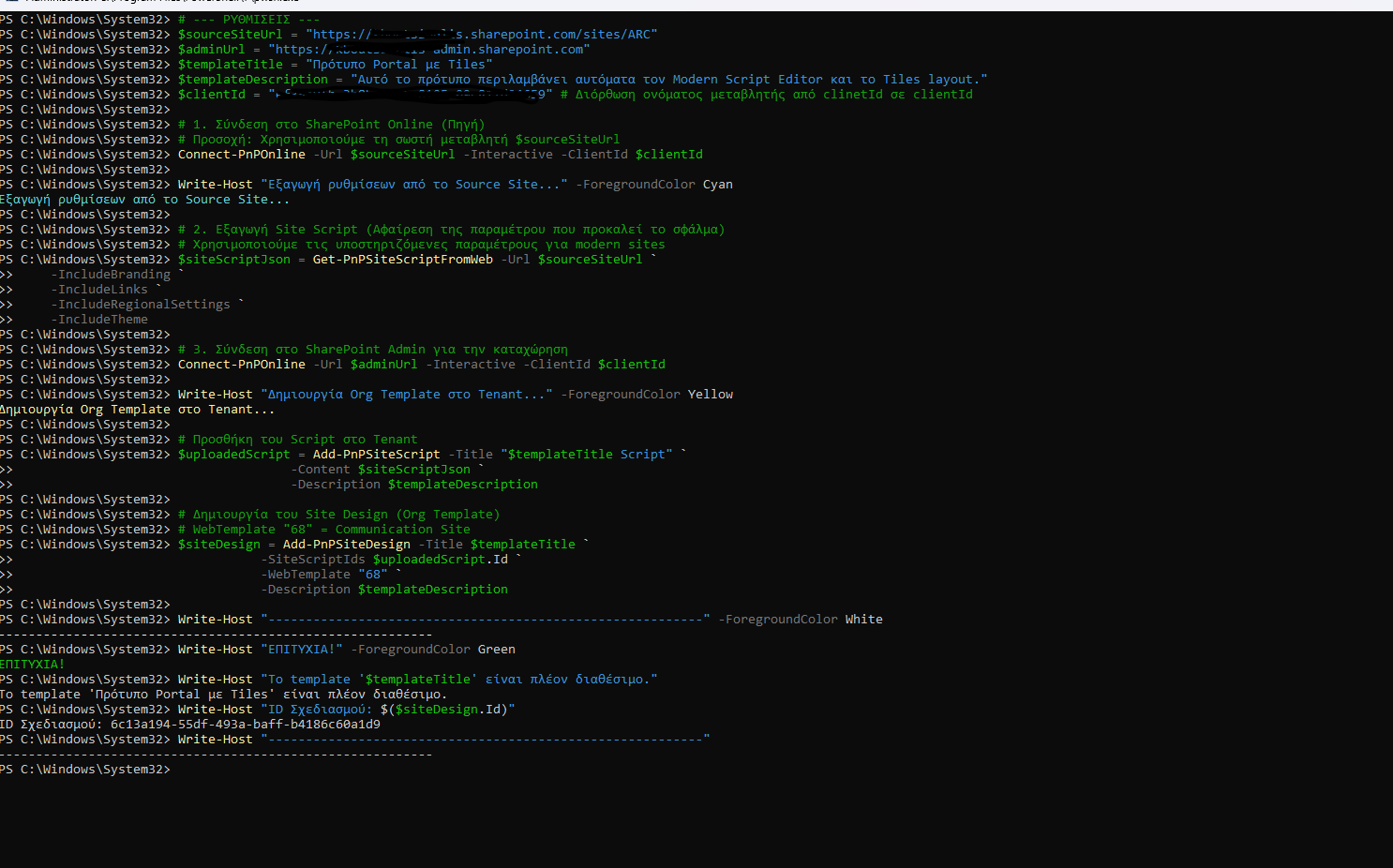
With this approach, we have saved our site into the organization’s templates.
Now, every time we create a new site, we choose Communication.
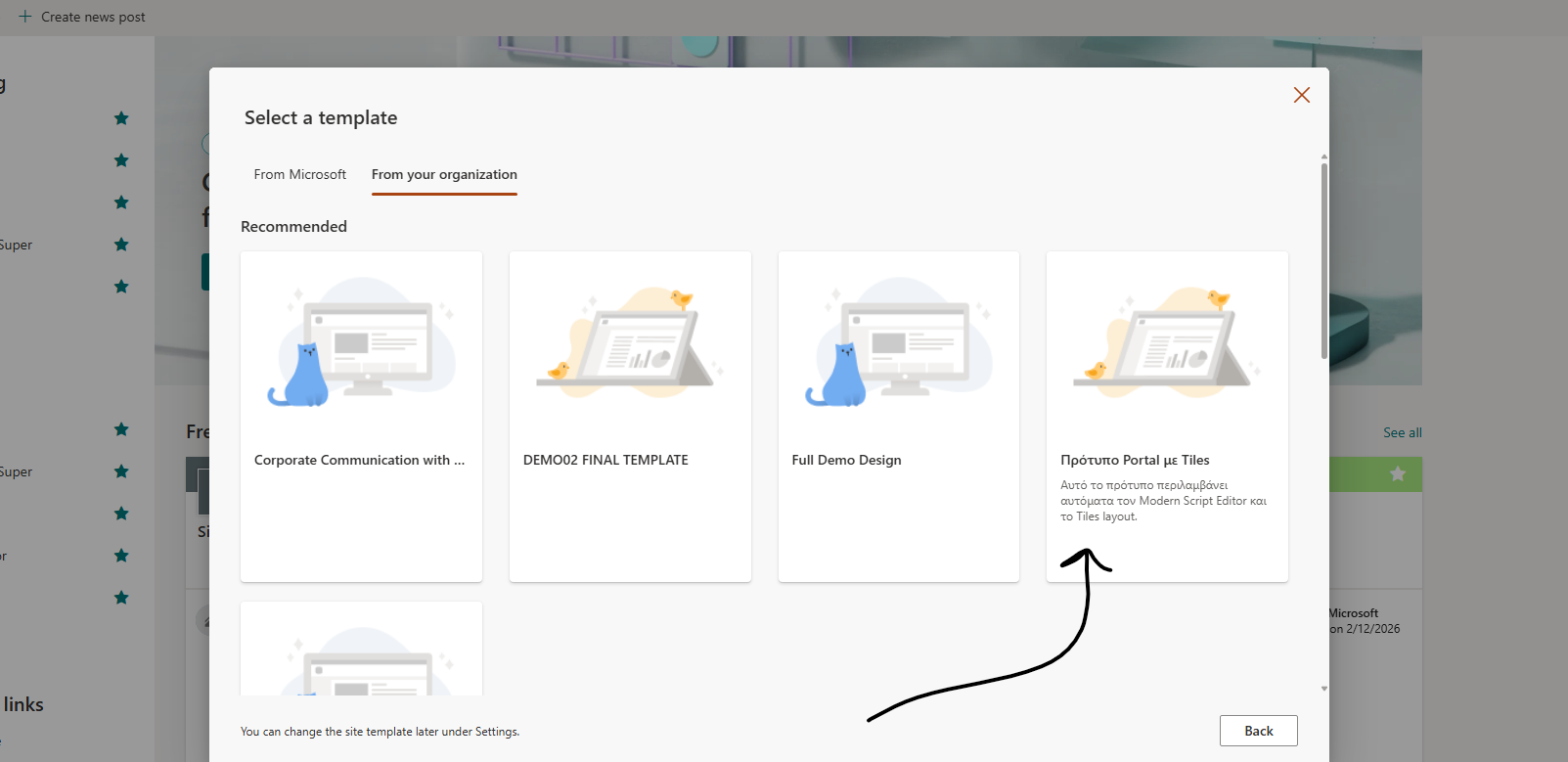
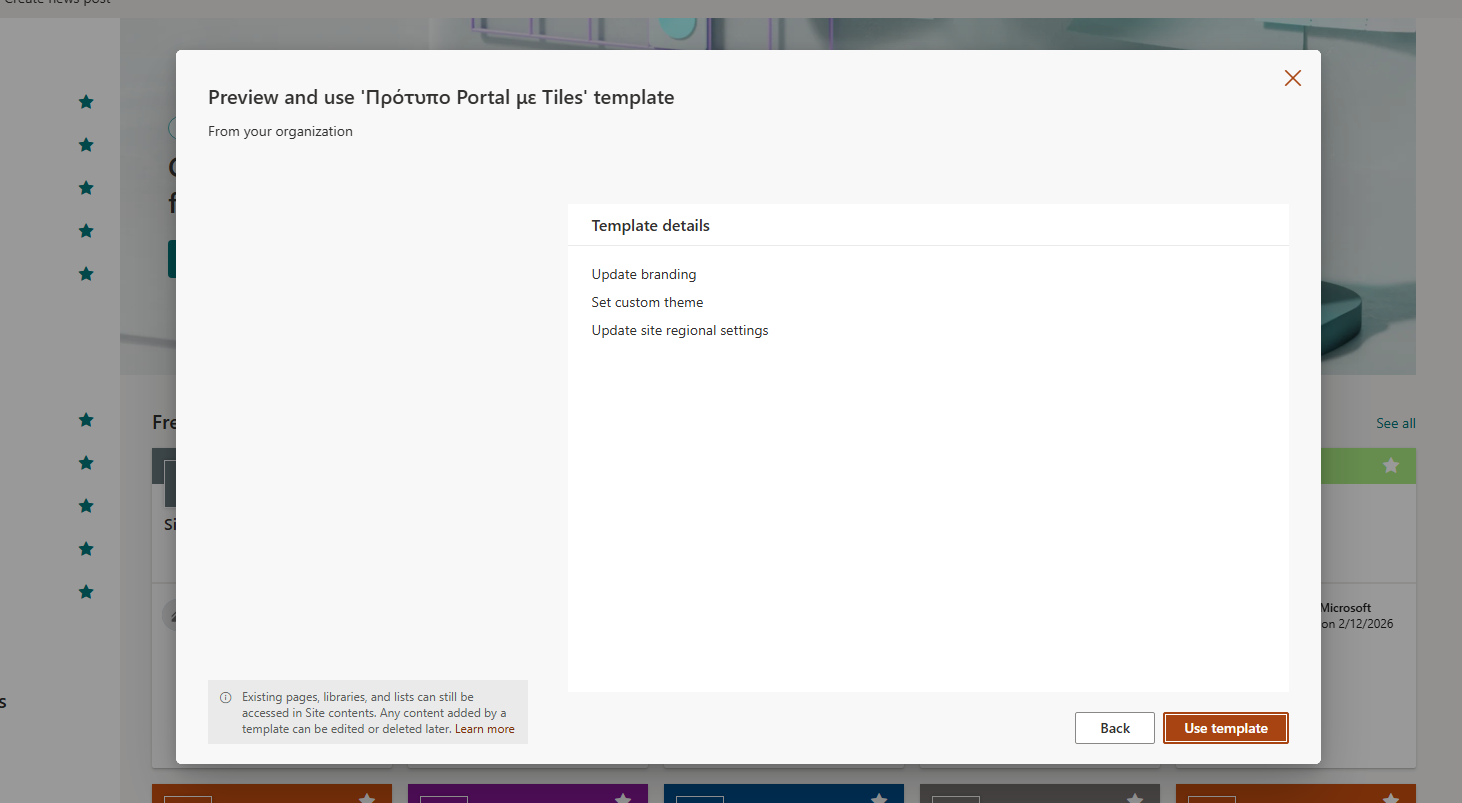
And then From your organization. We locate the site template and proceed with it.