In today's article we will see how we can use PowerShell to enable and disable comments in a list .
First we need to have administrator rights to both the list and the SharePoint Online Management Shell.
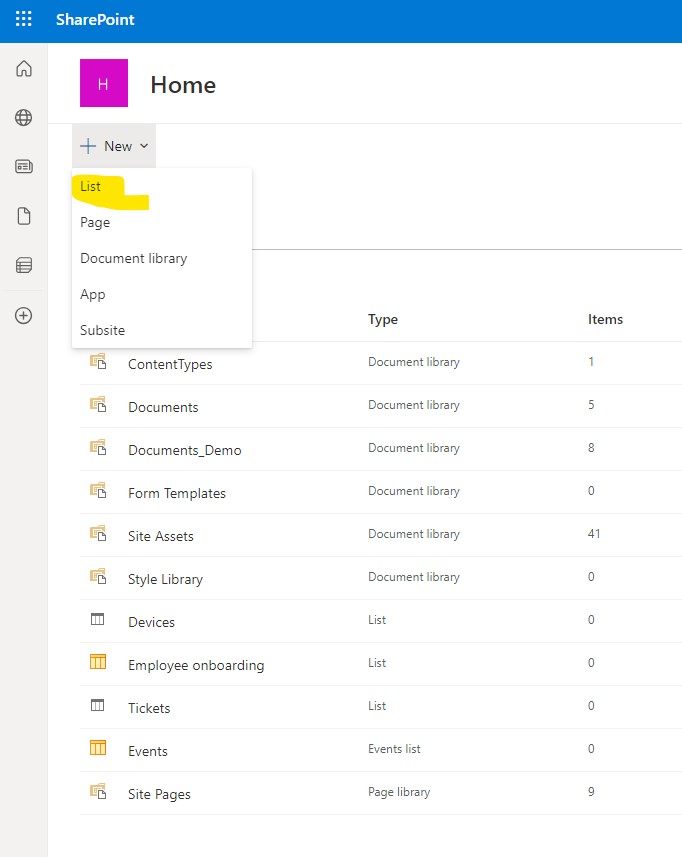
We choose to create a list on the site of our choice First we select site and then from the site contents we select new
Next step is to select list
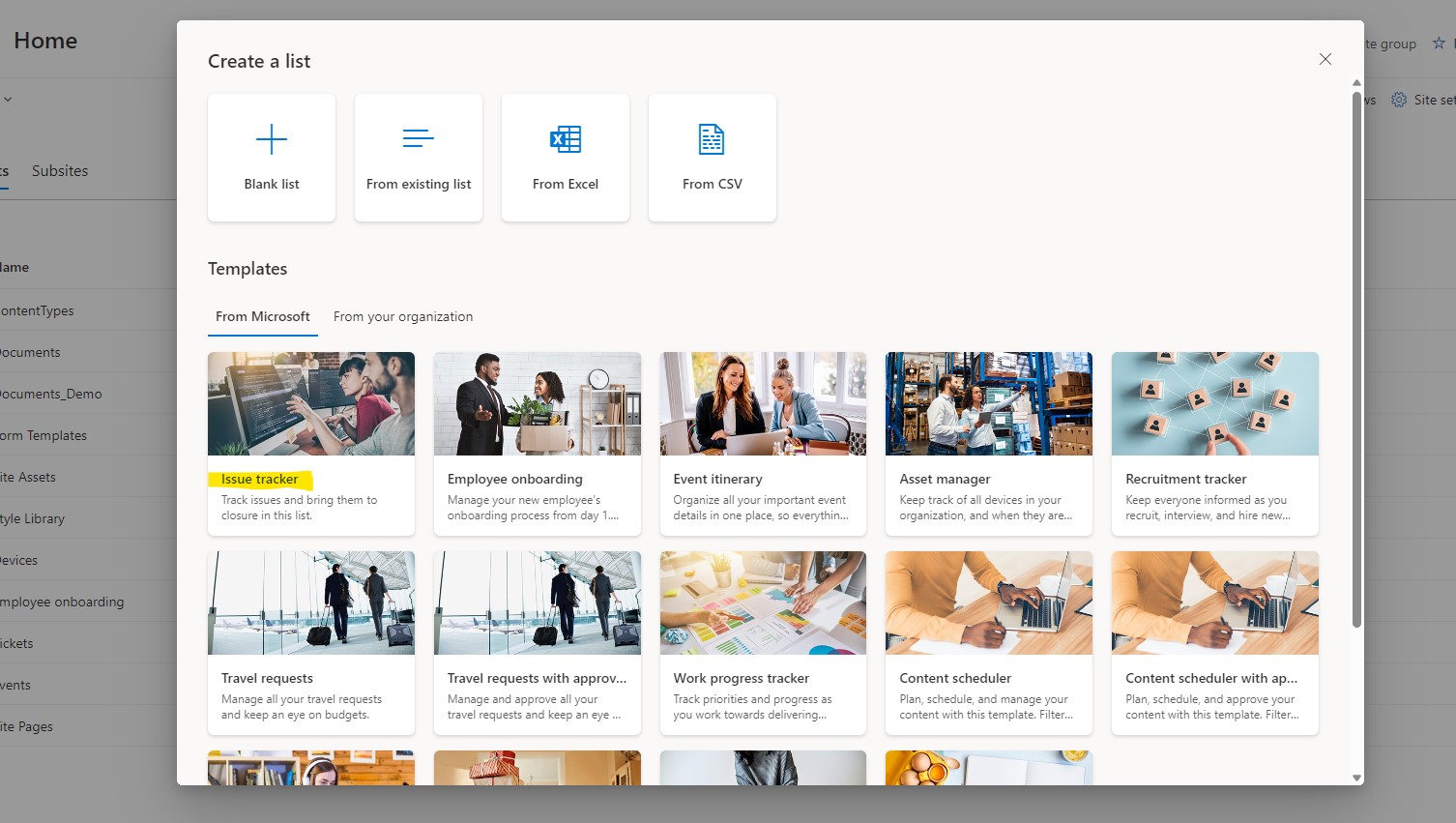
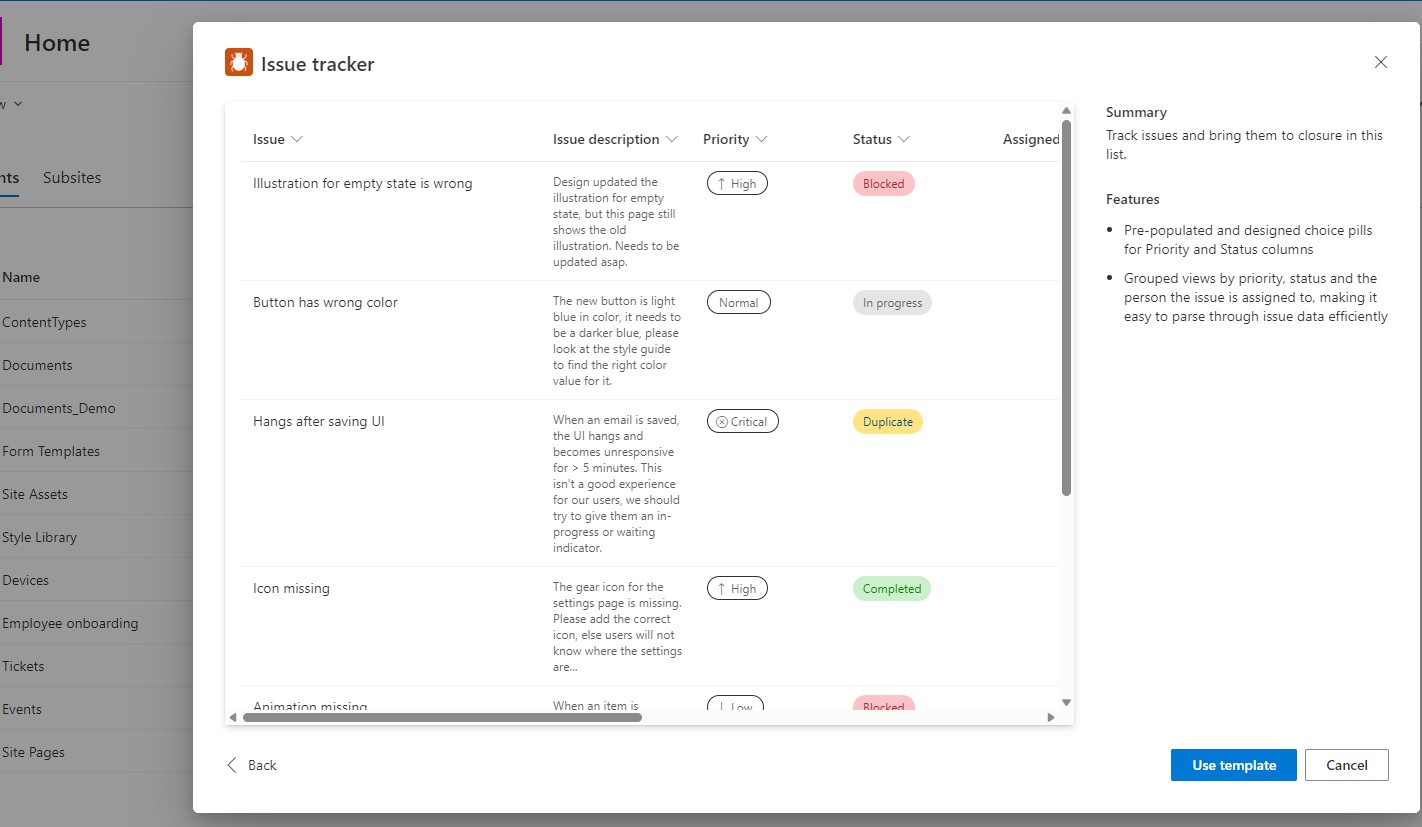
And next step is to select one of the available lists that SharePoint has as template .We select the first one the issue tracker
Press use this template
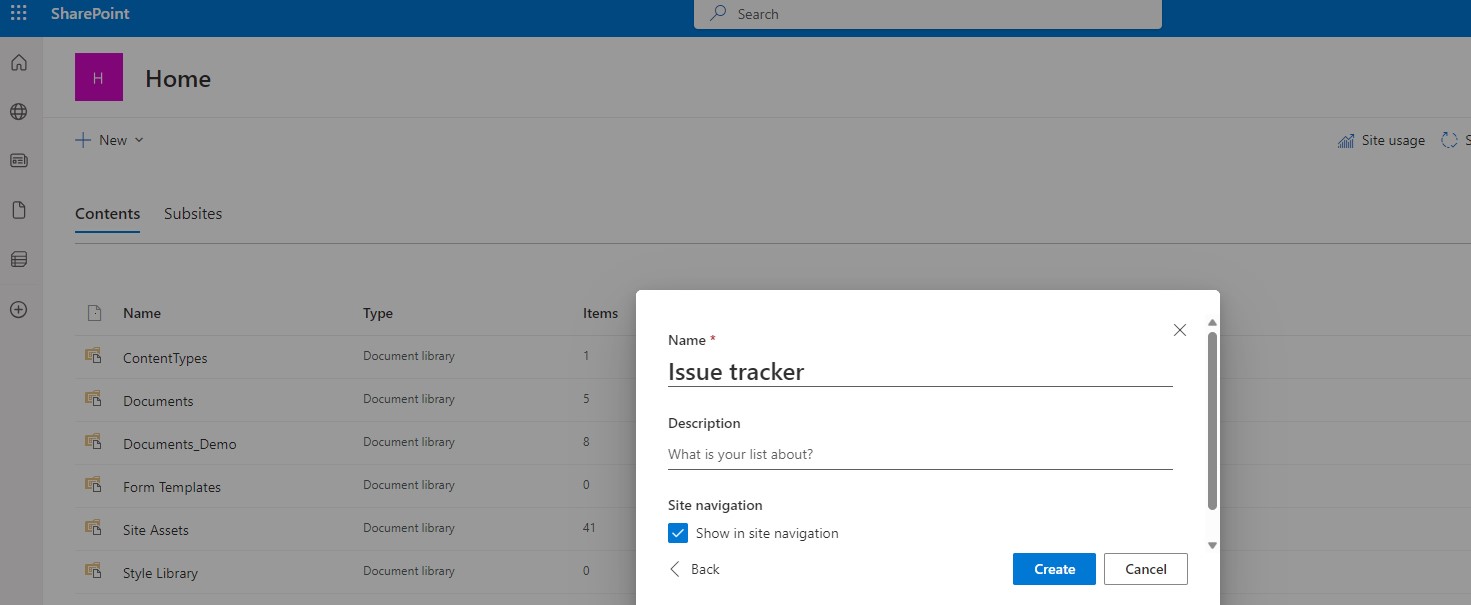
Next step is to name our new list we will keep the issue tracker name
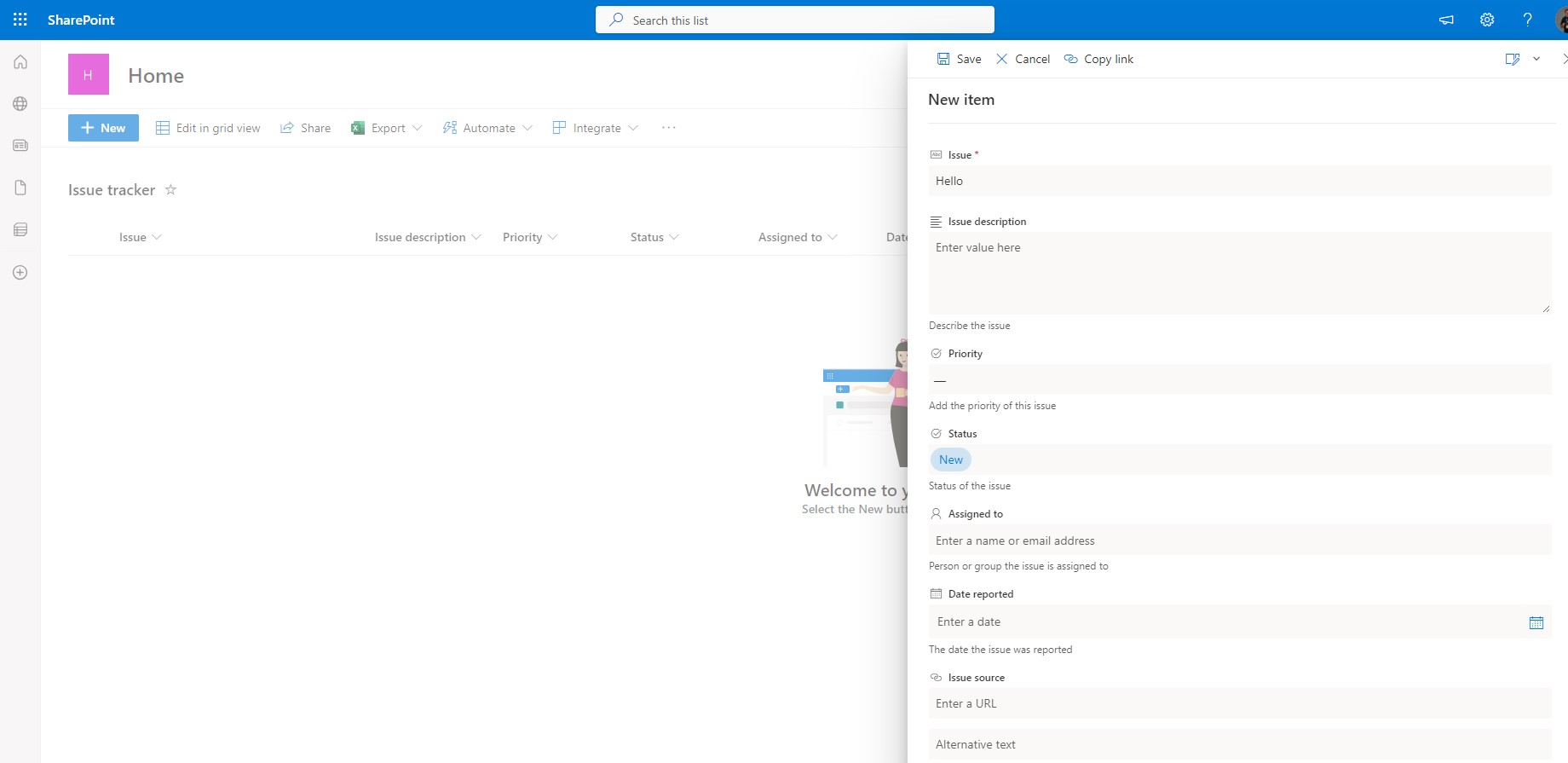
And our list is finally ready. Now we have to add a new item by clicking new and simply filling in the required fields.
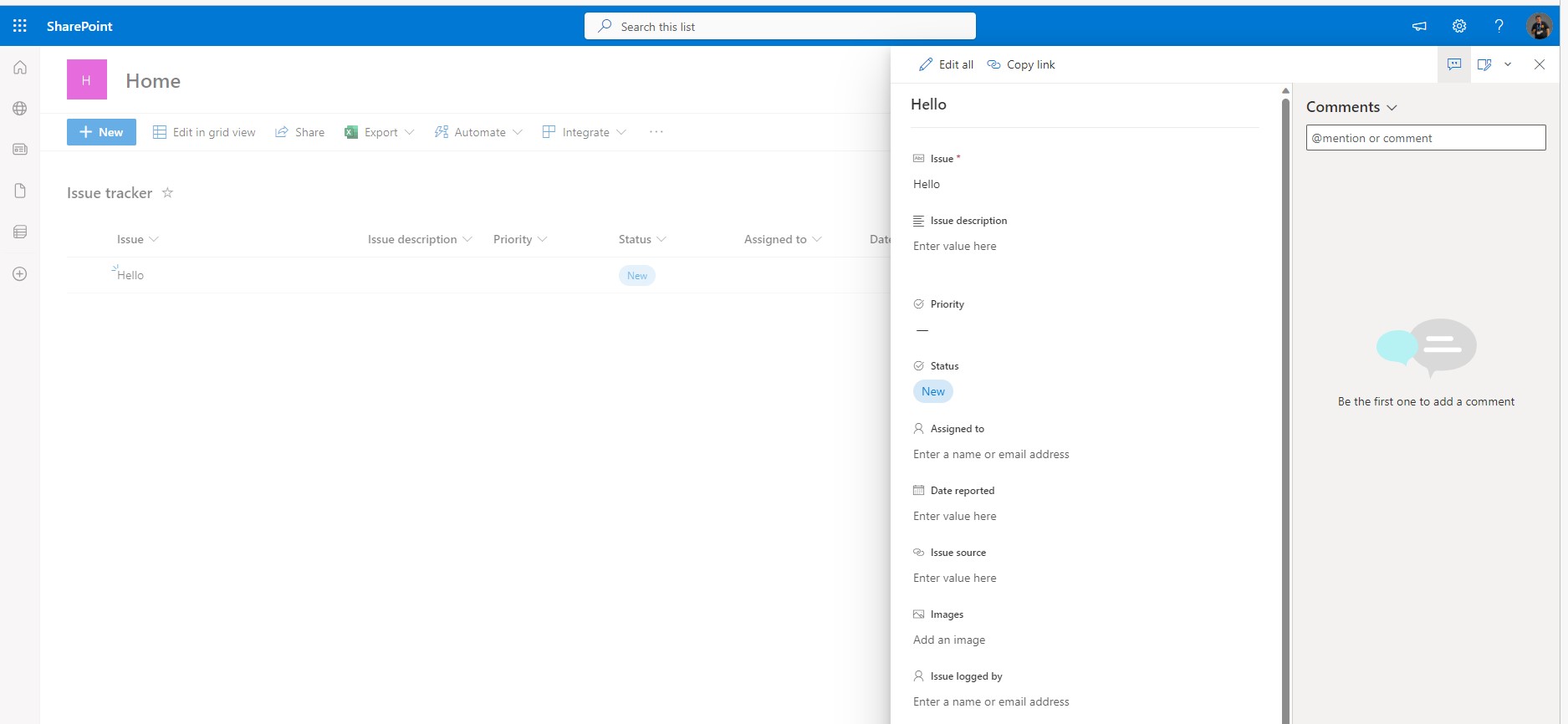
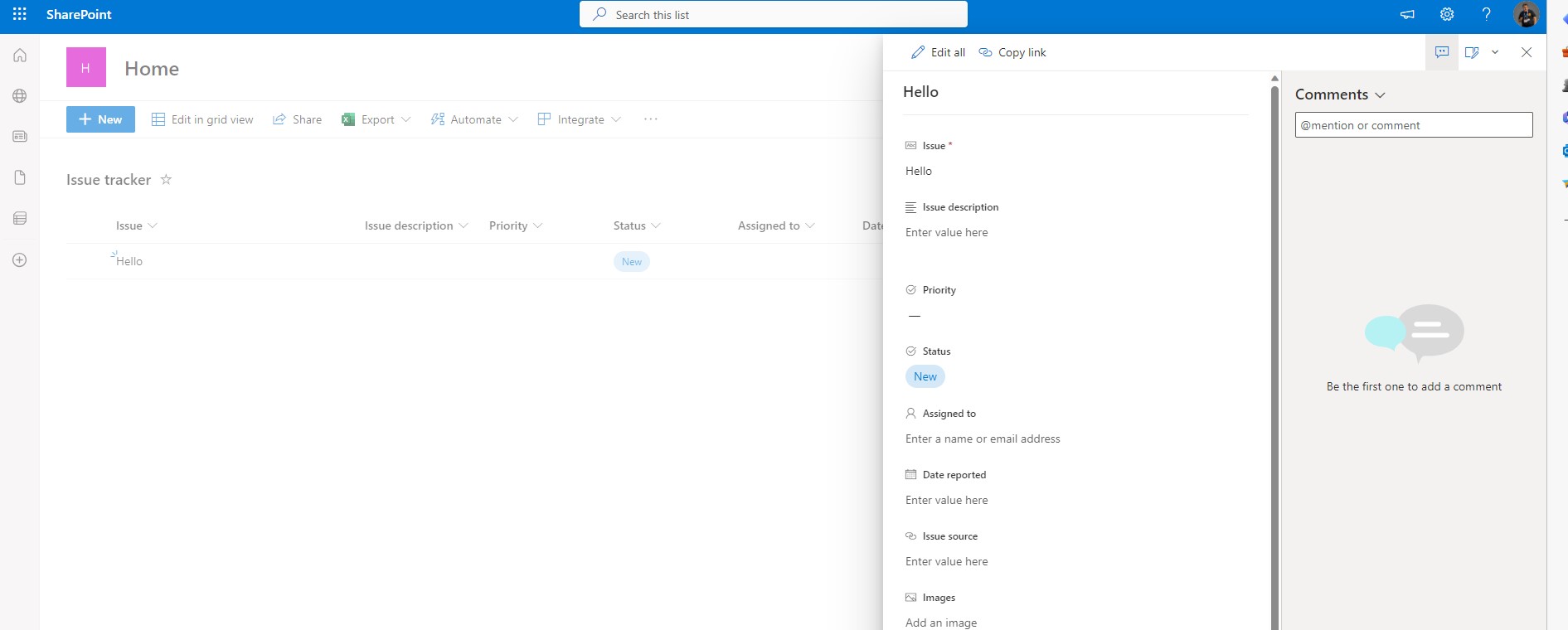
Now that we've created the new item if we click on it we see that the right side of the menu opens where we can add comments.
To disable comments on the list items using PowerShell we run the following PowerShell in SharePoint Online management shell with manager privileges and we have
#Connect to SharePoint OnlineConnect-PnPOnline -Url https://mytenant.sharepoint.com/sites/home -Interactive$List_With_Comments = Get-PnPList "Issue tracker"#Disable Comments on your List$List_With_Comments.DisableCommenting = $True$List_With_Comments.Update()Invoke-PnPQuery# Disconnect from SharePoint OnlineDisconnect-SPOService
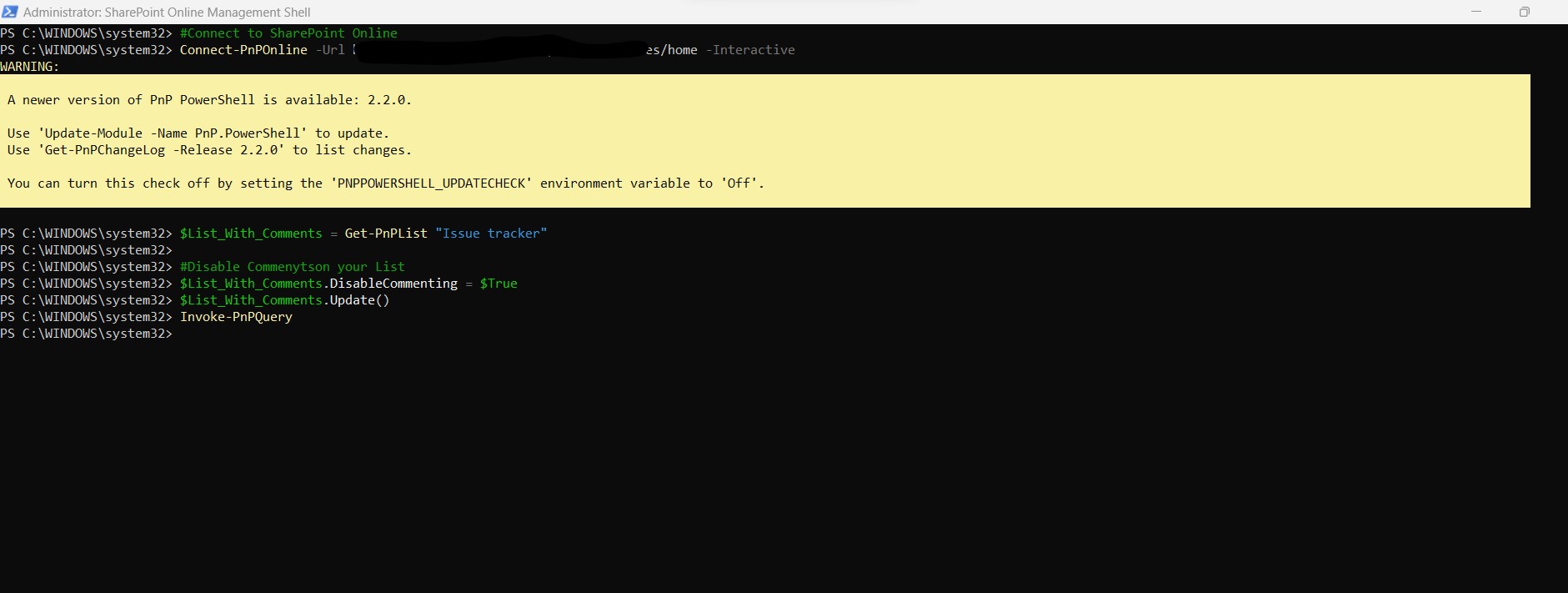
The execution was successful and now we return to our list and click again on the item we have created
As you can finally see the ability to comment on the items in this list has been disabled But older comments are retained, not deleted by running PowerShell
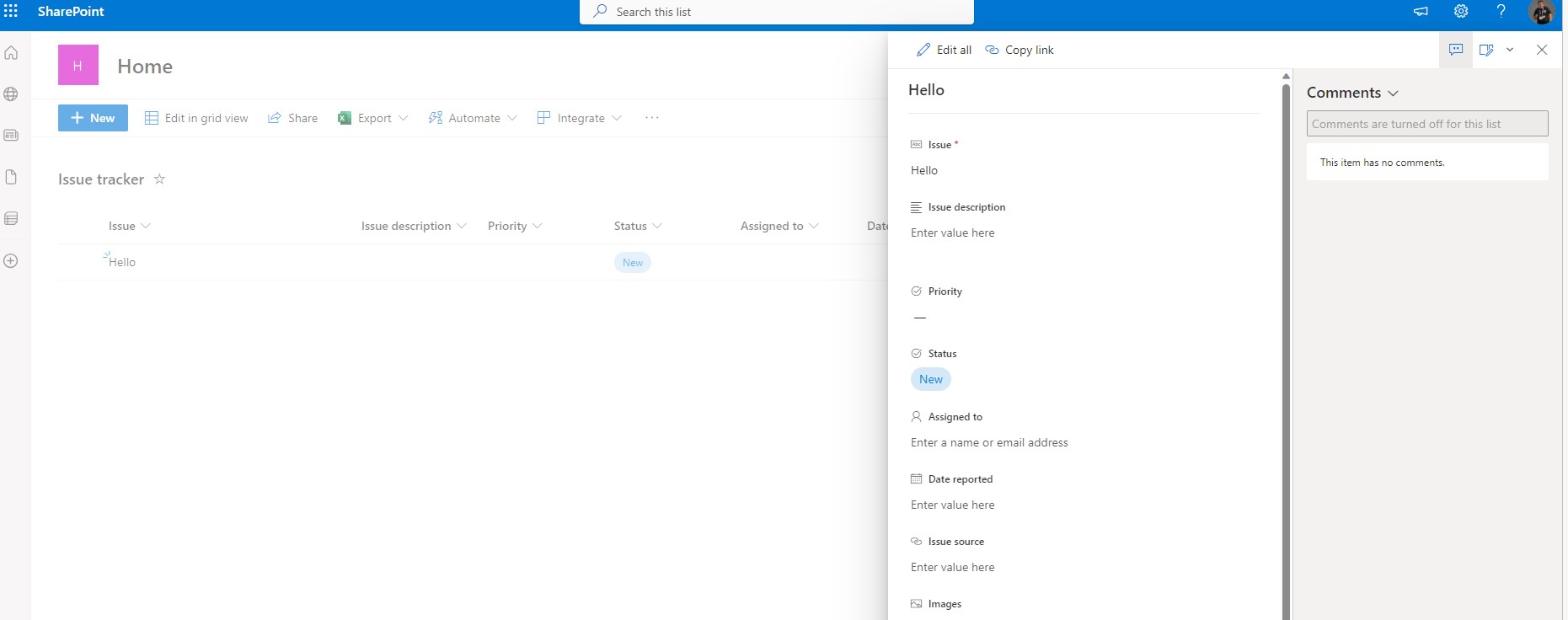
To reset the list to its original state you will need when declaring the variable in the DisableCommenting propertie to change to false
#Connect to SharePoint OnlineConnect-PnPOnline -Url https://mytenant.sharepoint.com/sites/home -Interactive$List_With_Comments = Get-PnPList "Issue tracker"#Enable Comments on your List$List_With_Comments.DisableCommenting = $False$List_With_Comments.Update()Invoke-PnPQuery# Disconnect from SharePoint OnlineDisconnect-SPOService
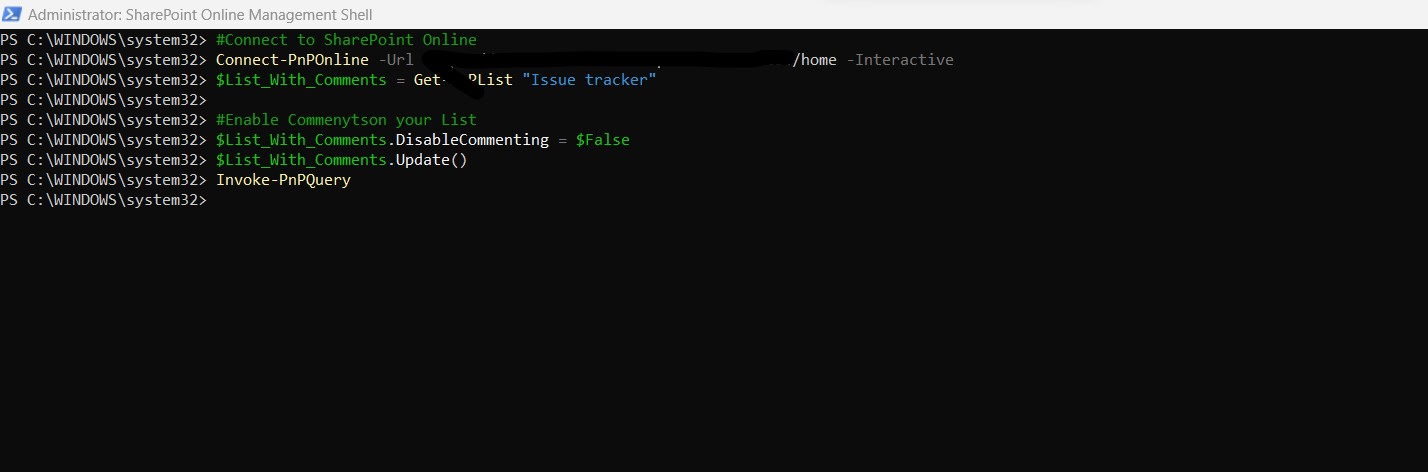
The execution was successful and now we return to our list and click again on the item we have created
As you can finally see the ability to add comments on top of the specific item has become active again