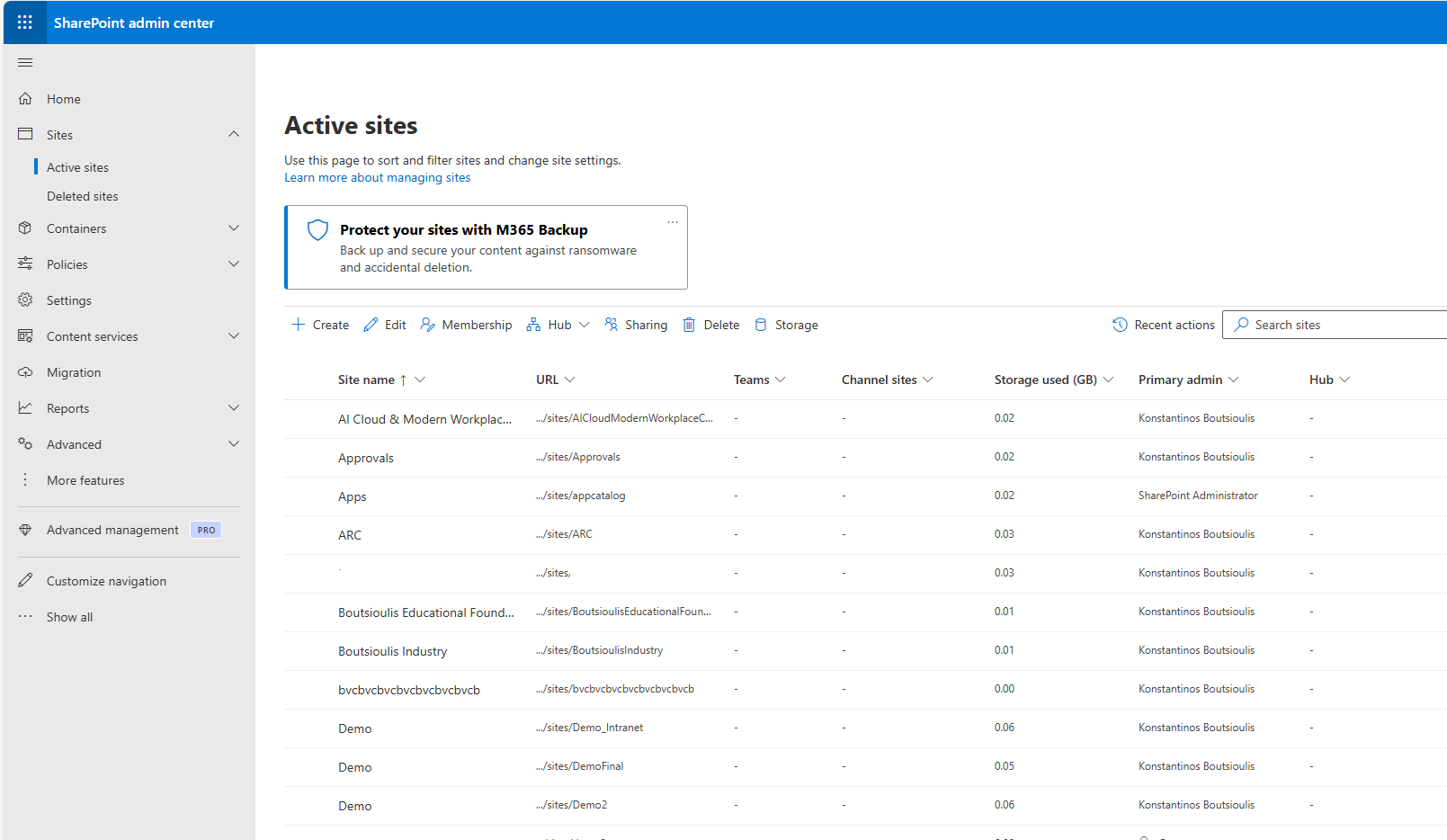
In today’s post, we will see how we can export a report to Excel containing all the SharePoint sites in our tenant.
This is a process that cannot be automated inside SharePoint itself.
The only place where we can see all sites is the SharePoint Admin Center, where we do have visibility of all tenant sites—but there is no option to export them to Excel.
To achieve this, we can only use the following PowerShell script:
# --- SETTINGS ---$adminUrl = "https://mytenant-admin.sharepoint.com" # Your Admin URL$clientId = "000000-0000-0000-0000-000000000000"$exportPath = "$home\Desktop\All_SharePoint_Sites.csv"try {Write-Host "Connecting to SharePoint Admin Center..." -ForegroundColor Cyan# 1. Connect using your ClientIdConnect-PnPOnline -Url $adminUrl -Interactive -ClientId $clientIdWrite-Host "Retrieving all sites (this may take some time)..." -ForegroundColor Yellow# 2. Get all Site Collections# We use -Detailed to include more metadata (Storage, Owner, etc.)$allSites = Get-PnPTenantSite -Detailed# 3. Select the fields we want for the Excel export$siteData = $allSites | Select-Object `Title, `Url, `Template, `StorageQuota, `StorageUsageCurrent, `Owner, `LastContentModifiedDate, `Status# 4. Export to CSV (Excel friendly)$siteData | Export-Csv -Path $exportPath -NoTypeInformation -Encoding UTF8 -Delimiter ","Write-Host "----------------------------------------------------------" -ForegroundColor WhiteWrite-Host "✅ EXPORT COMPLETED SUCCESSFULLY!" -ForegroundColor GreenWrite-Host "File saved at: $exportPath"Write-Host "Total Sites: $($siteData.Count)"Write-Host "----------------------------------------------------------"} catch {Write-Host "❌ ERROR: $($_.Exception.Message)" -ForegroundColor Red} finally {Disconnect-PnPOnline}
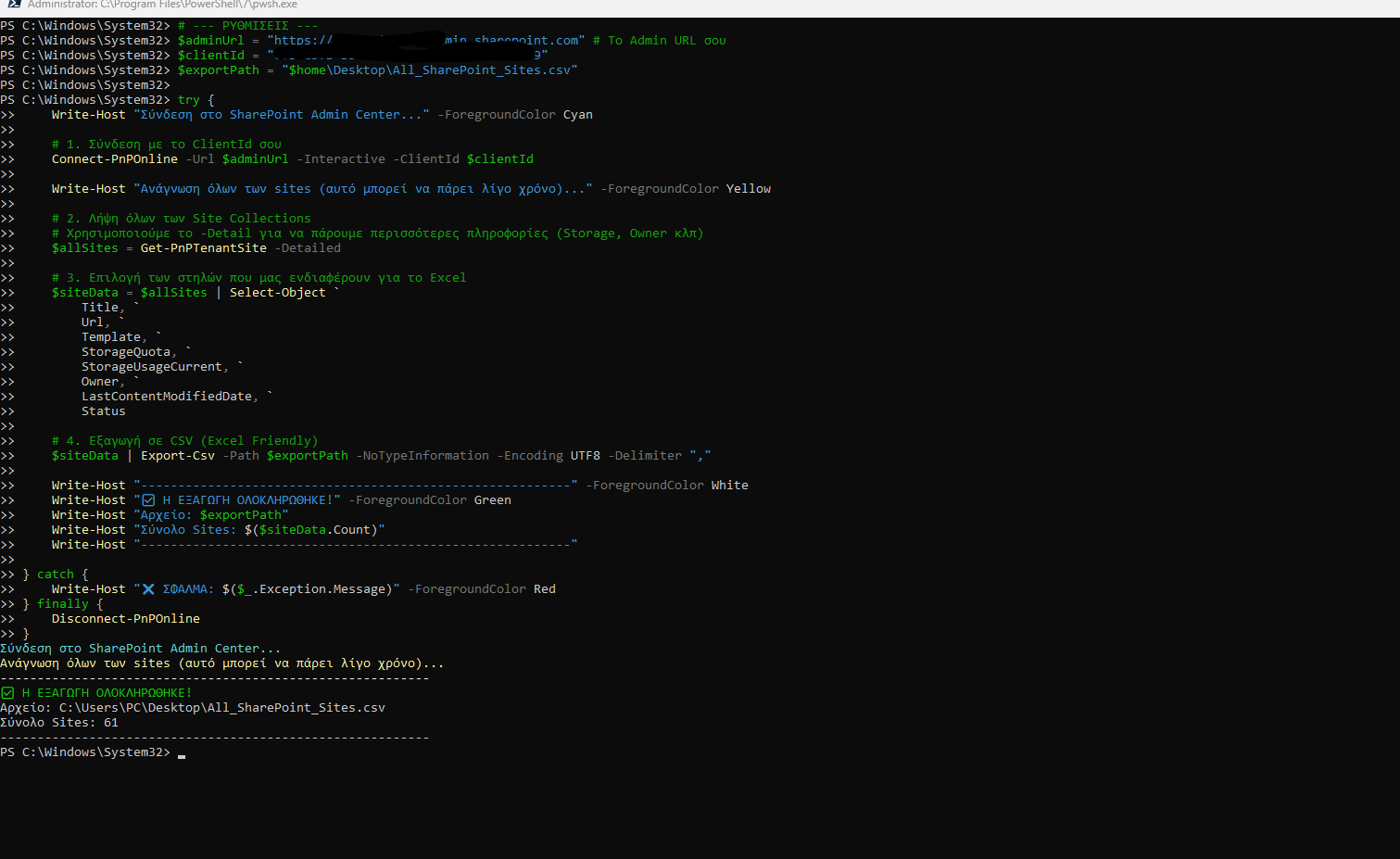
If we then look locally, we will find the exported Excel file.
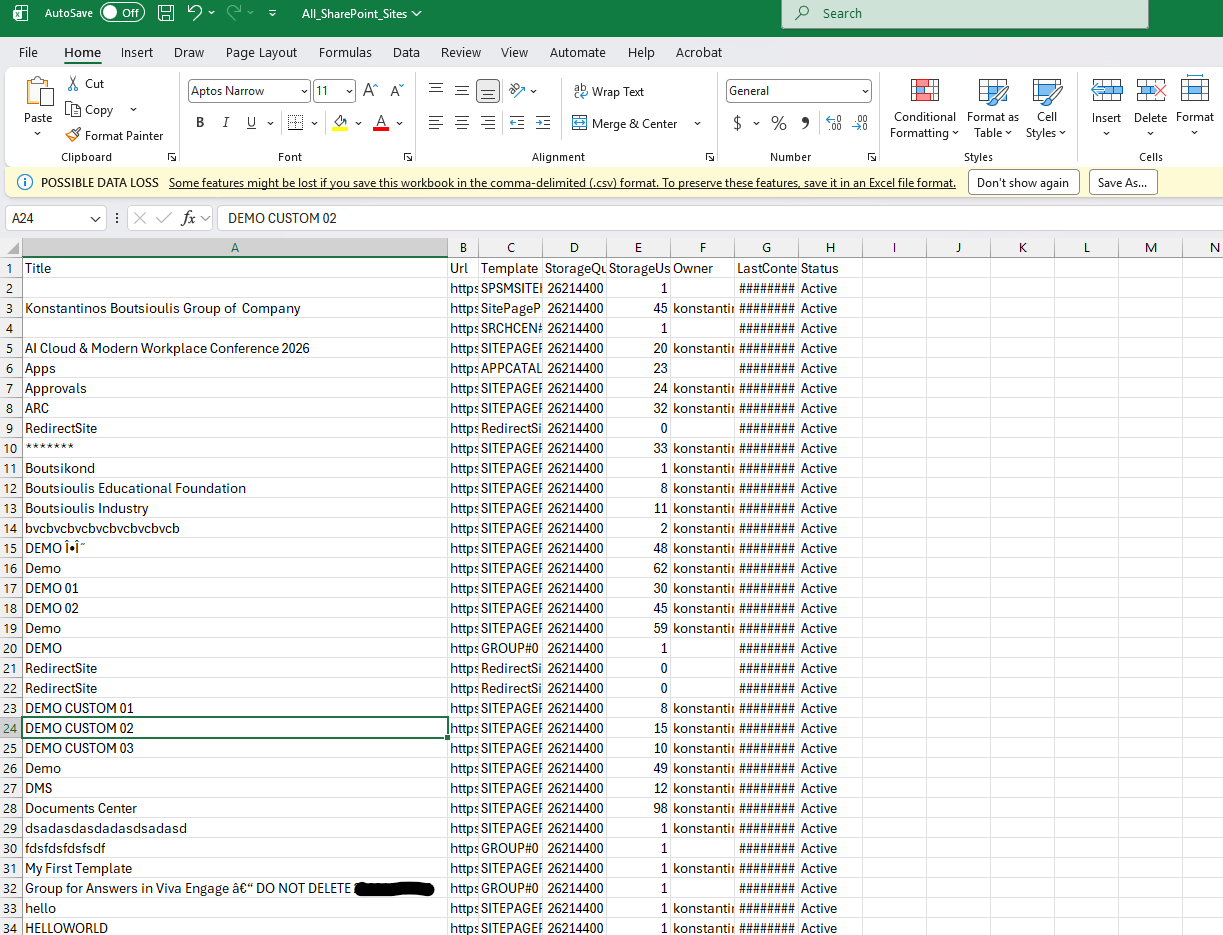
When we open it, we see the report:
Finally, as mentioned earlier, this information is visible only through the SharePoint Admin Center, where all site collections in the tenant are displayed.