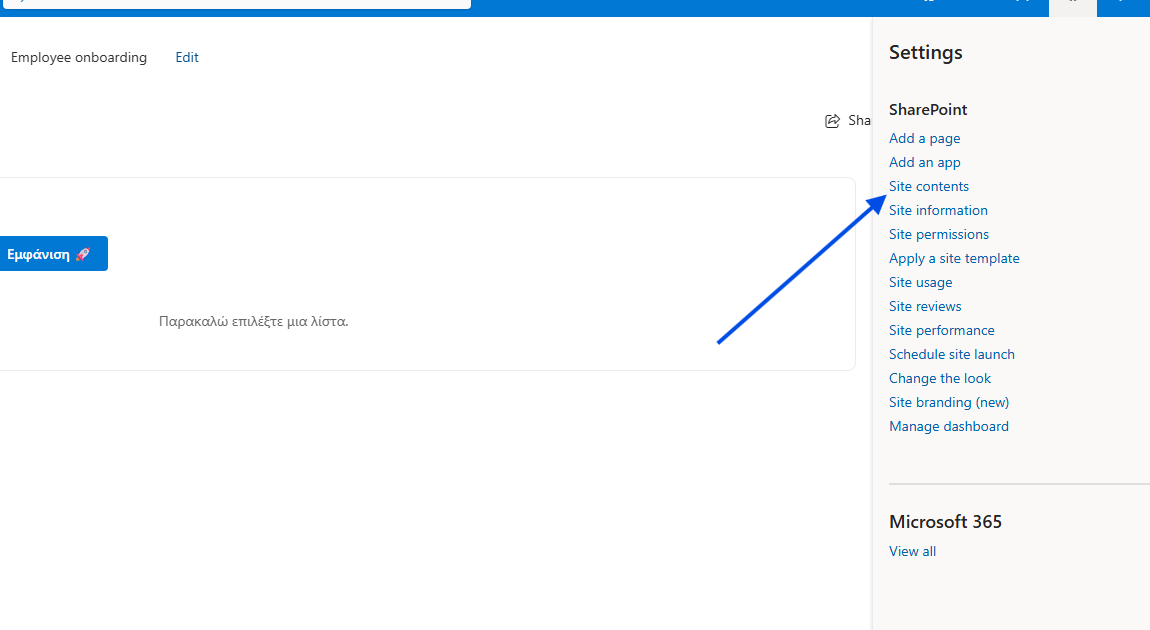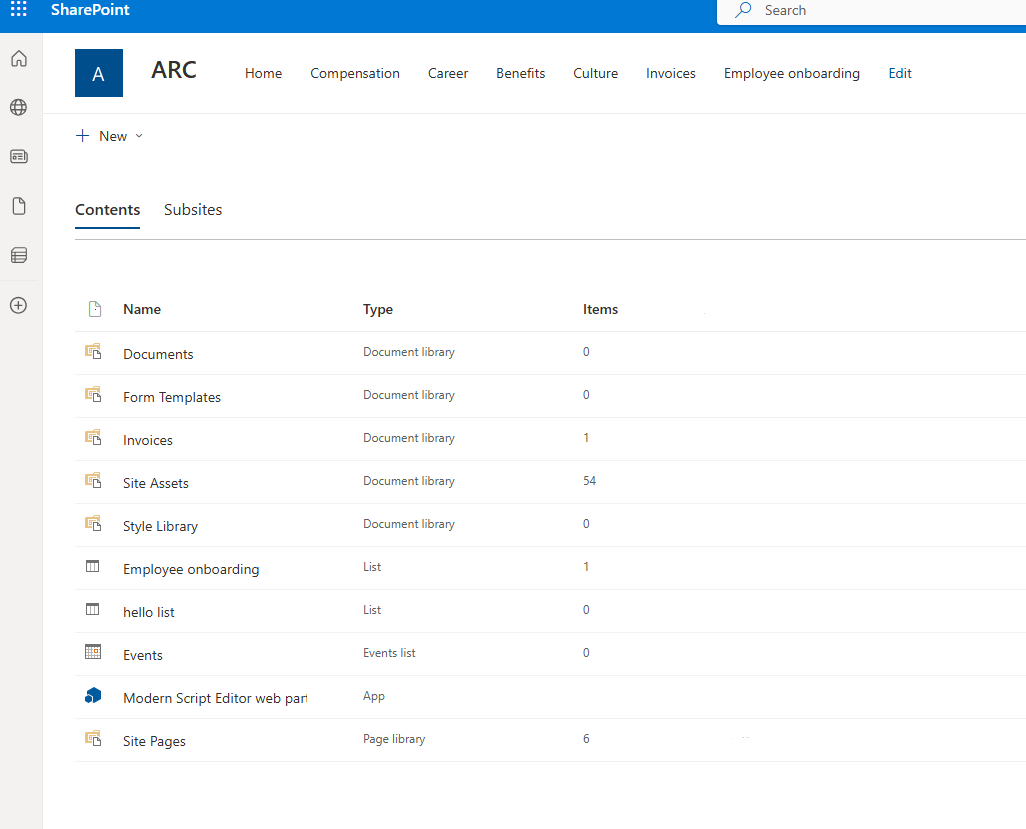
In today’s post, we will show how—using the power of PowerShell—we can export a report to Excel containing how many lists and which lists exist in one of our SharePoint sites, as well as the item count for each list.
Unfortunately, these actions cannot be performed automatically inside SharePoint, so we must rely on a PowerShell solution.
We first select the site for which we want to export the lists and then run the following PowerShell script:
# --- SETTINGS ---$siteUrl = "https://mytenant.sharepoint.com/sites/ARC"$clientId = "000000-0000-0000-0000-0000000000000"$exportPath = "$home\Desktop\ARC_Lists_Export.csv"try {Write-Host "Connecting to SharePoint: $siteUrl..." -ForegroundColor Cyan# 1. Connect using interactive login and your ClientIdConnect-PnPOnline -Url $siteUrl -Interactive -ClientId $clientIdWrite-Host "Retrieving lists..." -ForegroundColor Yellow# 2. Retrieve all lists (excluding hidden/system lists)$allLists = Get-PnPList | Where-Object { $_.Hidden -eq $false }# 3. Select and format relevant data$listData = $allLists | Select-Object `Title, `ItemCount, `@{Name="CreatedDate"; Expression={$_.Created}}, `@{Name="LastModified"; Expression={$_.LastItemModifiedDate}}, `@{Name="UniquePermissions"; Expression={$_.HasUniqueRoleAssignments}}, `BaseTemplate, `Id# 4. Export to CSV on Desktop$listData | Export-Csv -Path $exportPath -NoTypeInformation -Encoding UTF8 -Delimiter ","Write-Host "----------------------------------------------------------" -ForegroundColor WhiteWrite-Host "✅ SUCCESS!" -ForegroundColor GreenWrite-Host "File saved to Desktop: $exportPath"Write-Host "Total Lists Found: $($listData.Count)"Write-Host "----------------------------------------------------------"} catch {Write-Host "❌ ERROR: $($_.Exception.Message)" -ForegroundColor Red} finally {# Disconnect for security reasonsDisconnect-PnPOnline}
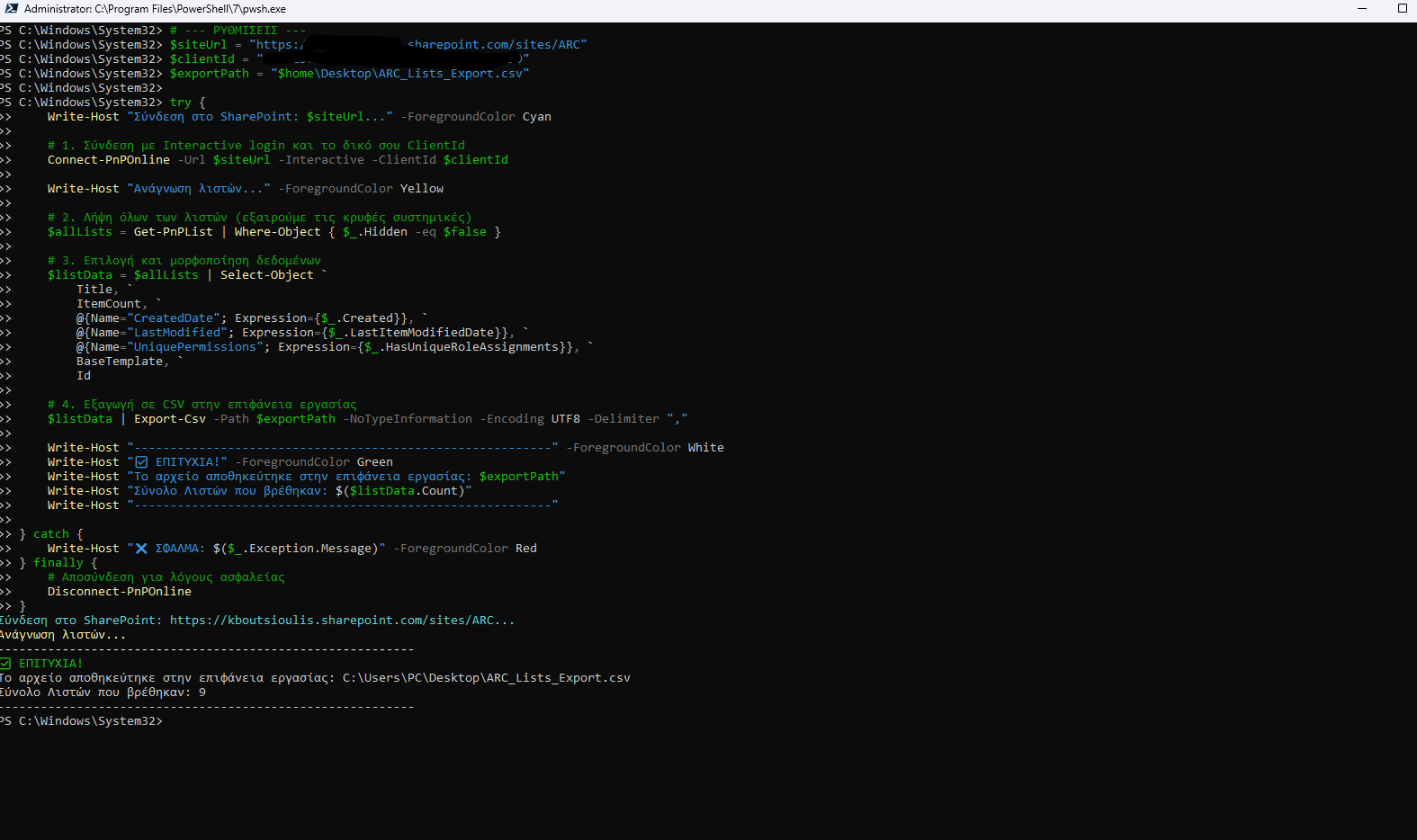
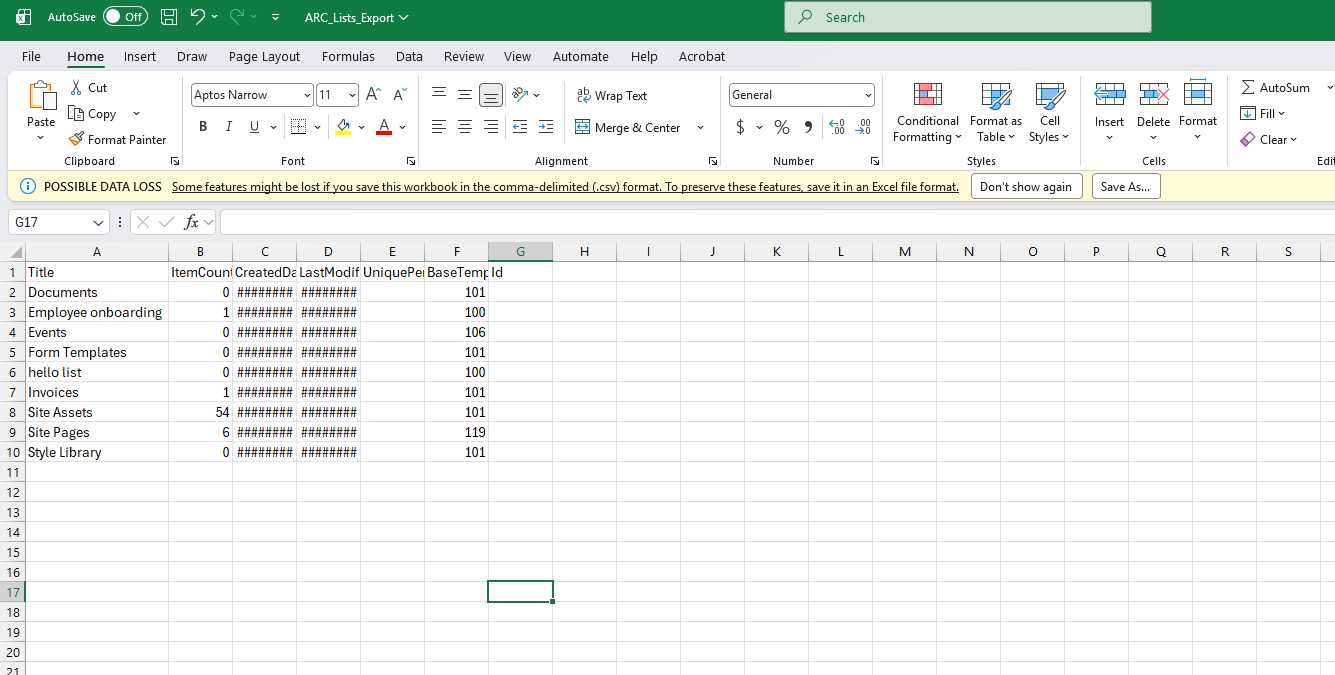
After running the script, we indeed have a local Excel file showing all the lists.
Even if we manually browse the site:
Then select Site contents,
we can visually confirm that all lists displayed there match the lists exported to Excel.