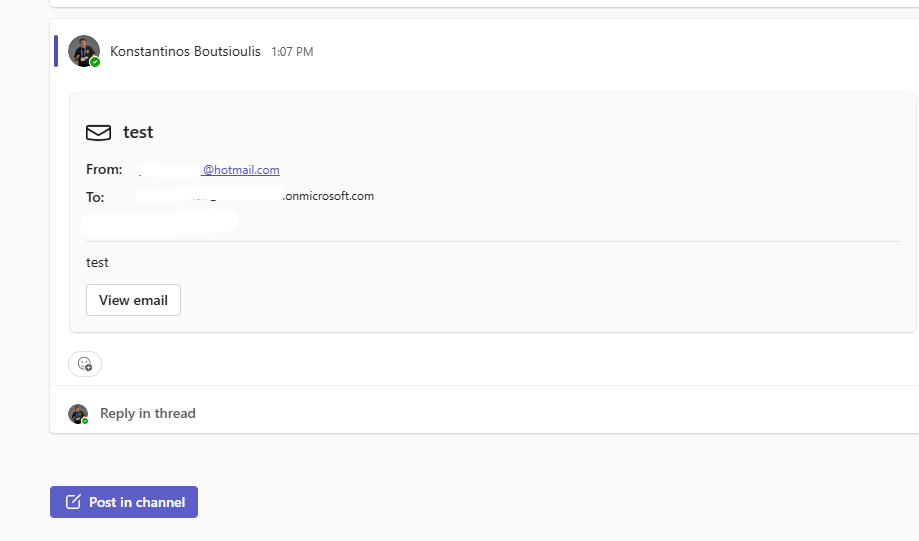
In today’s post we will see how we can forward emails that arrive in a specific folder in our account to a channel of a Teams team.
This is a template automation.
First, we go to the Power Automate page and select Templates.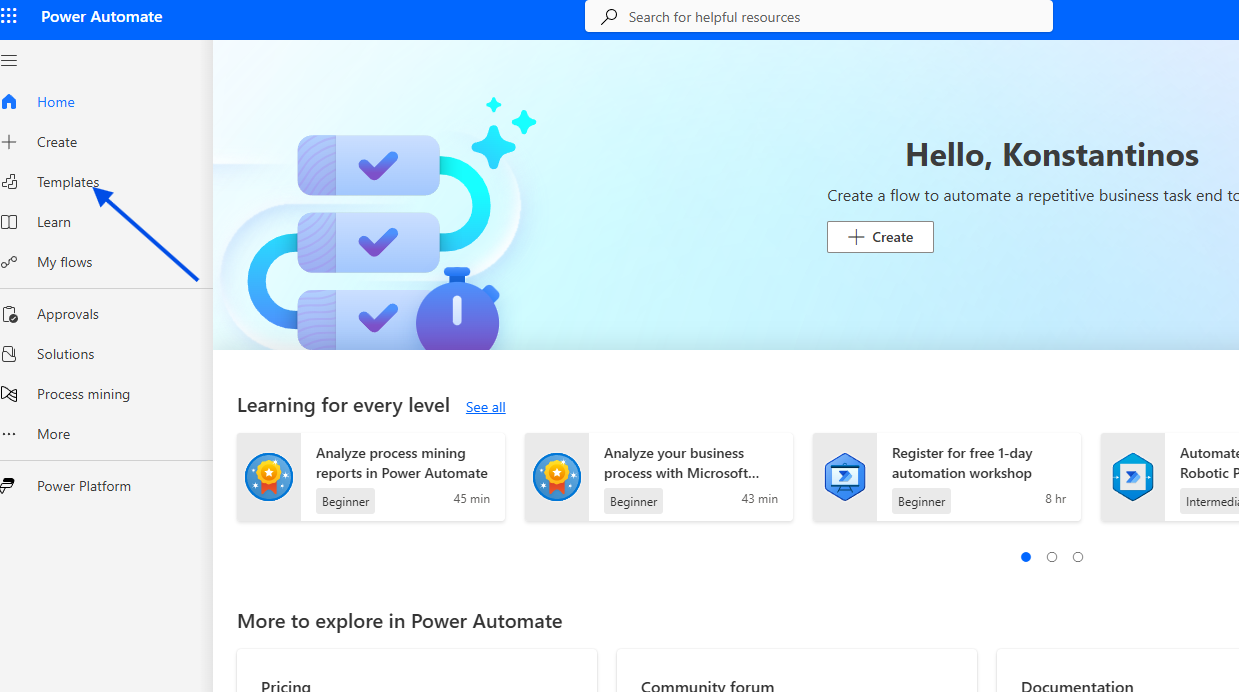
We type Forward your emails to a channel and select the ready-made template.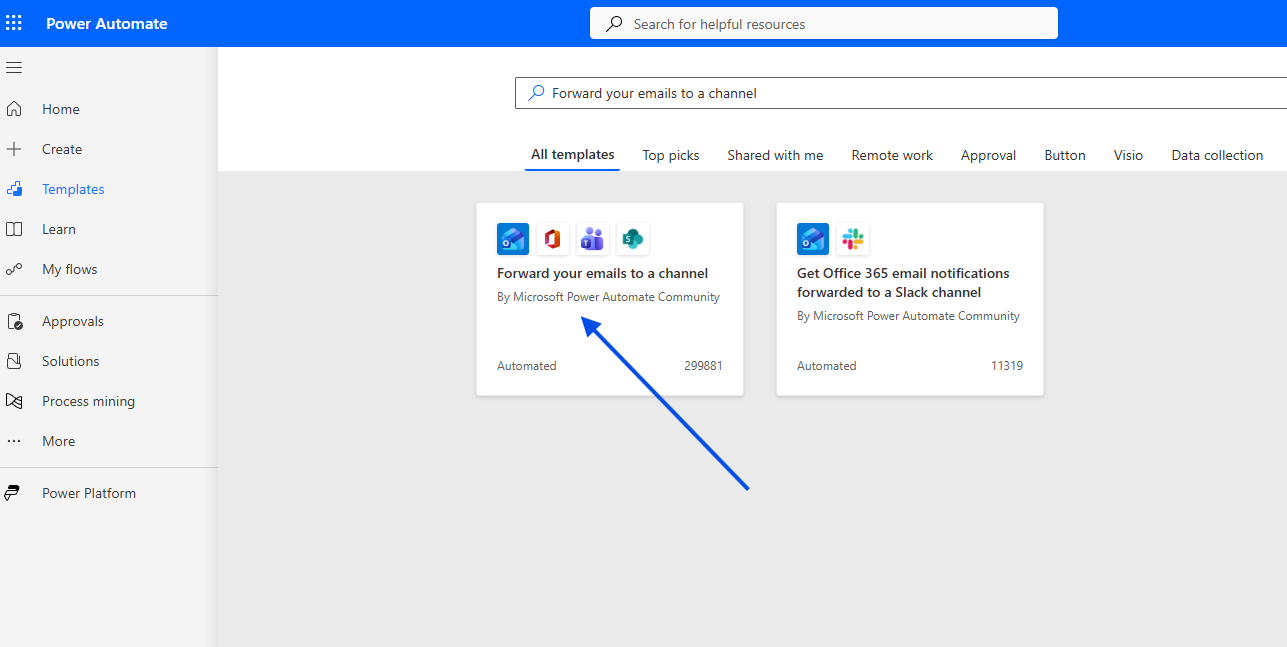
We allow all the required connections.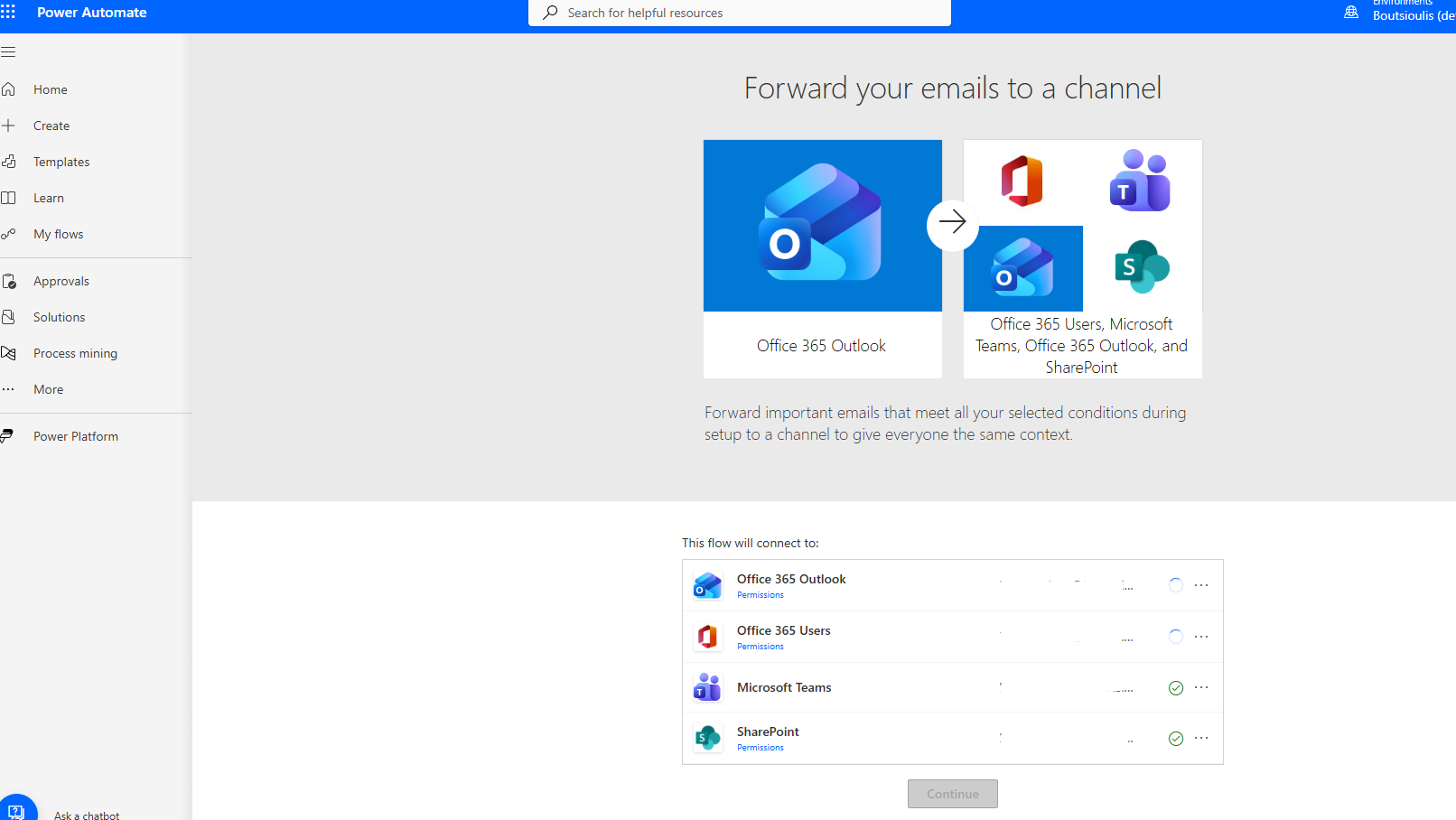
We select the folder in Inbox, then we choose the Team and Channel, and then click Create.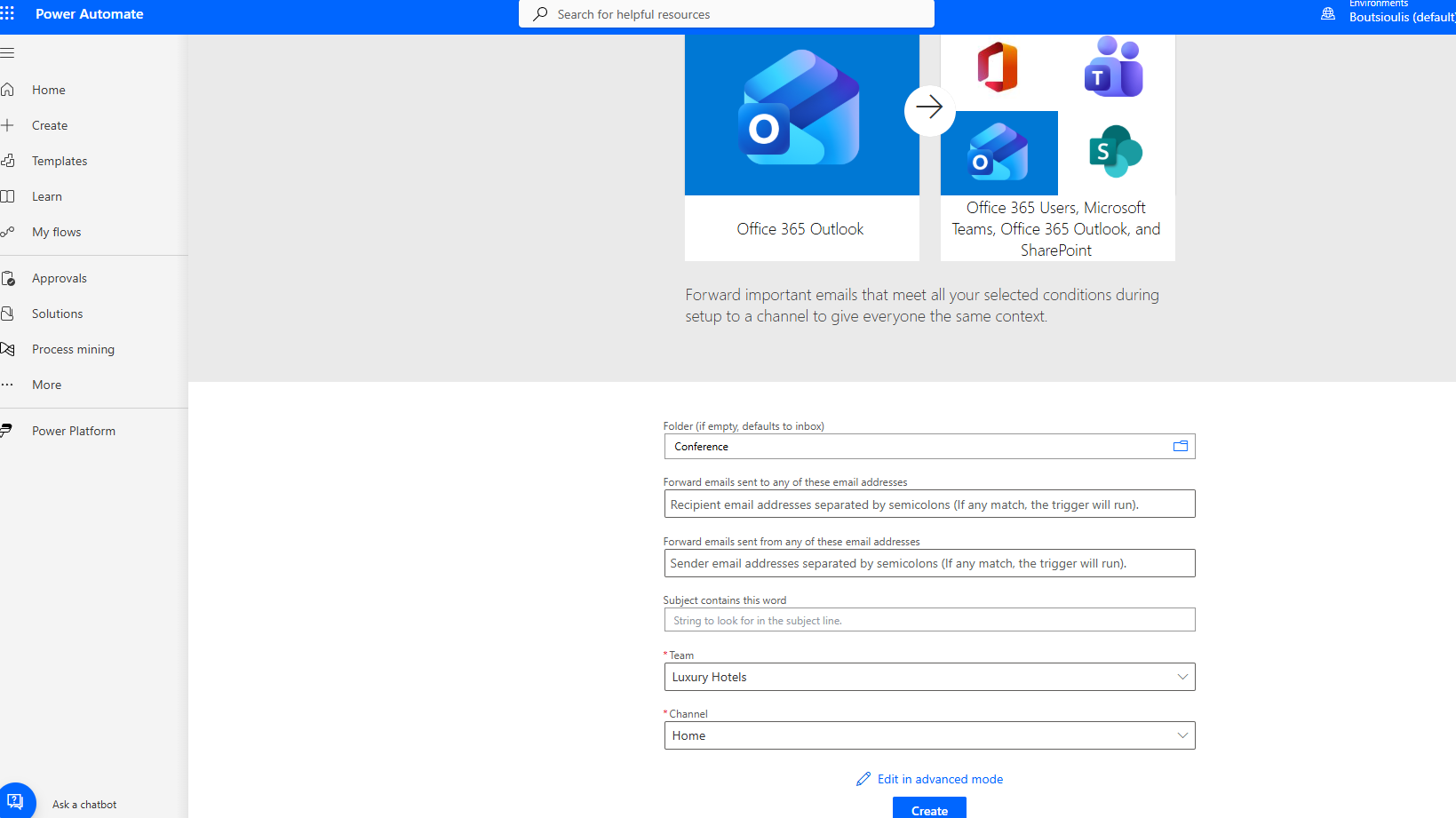
In the first action, we enter the sender and the recipient.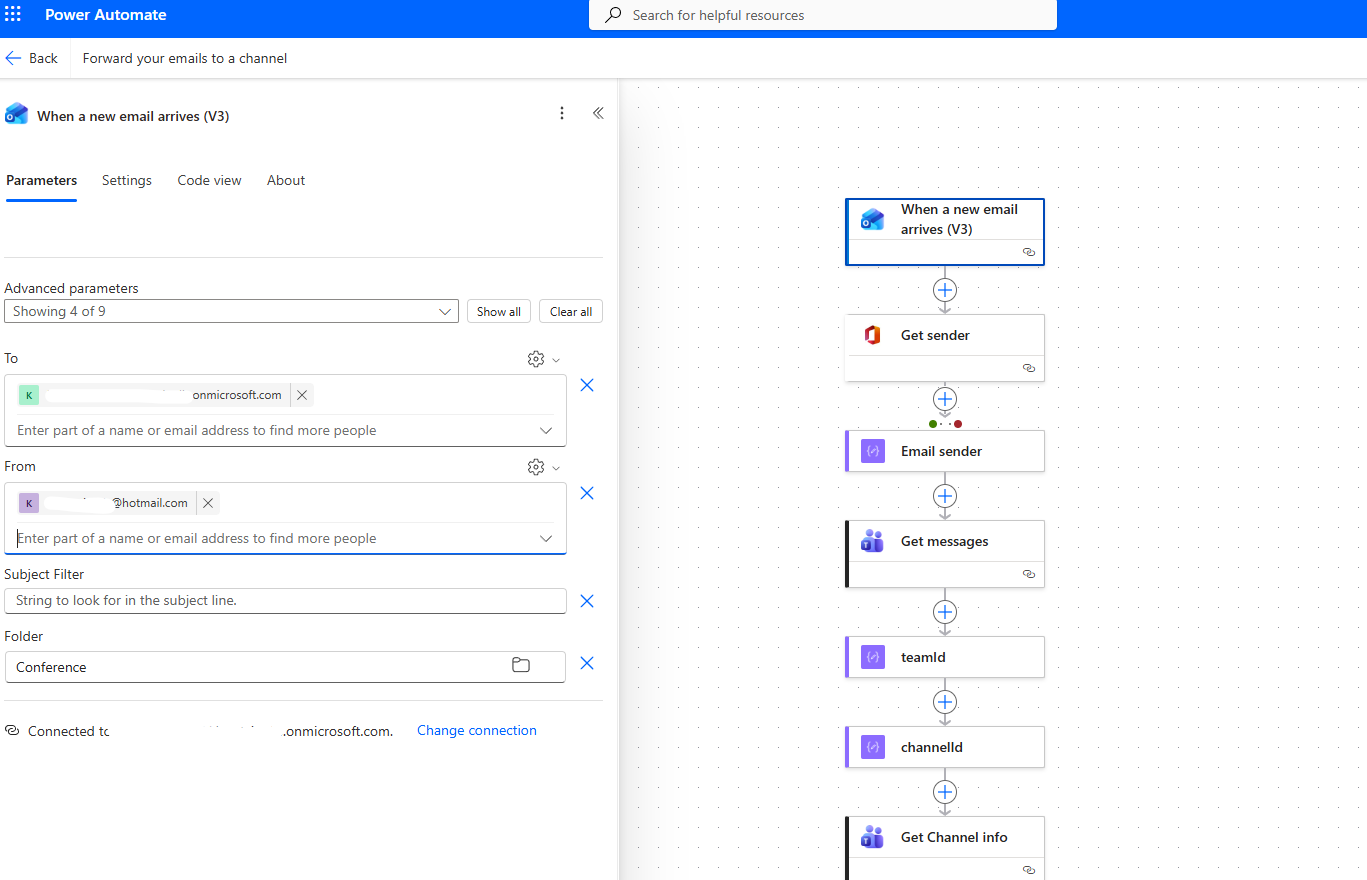
Then, as you can see, it tries to identify the user if they belong to the same tenant.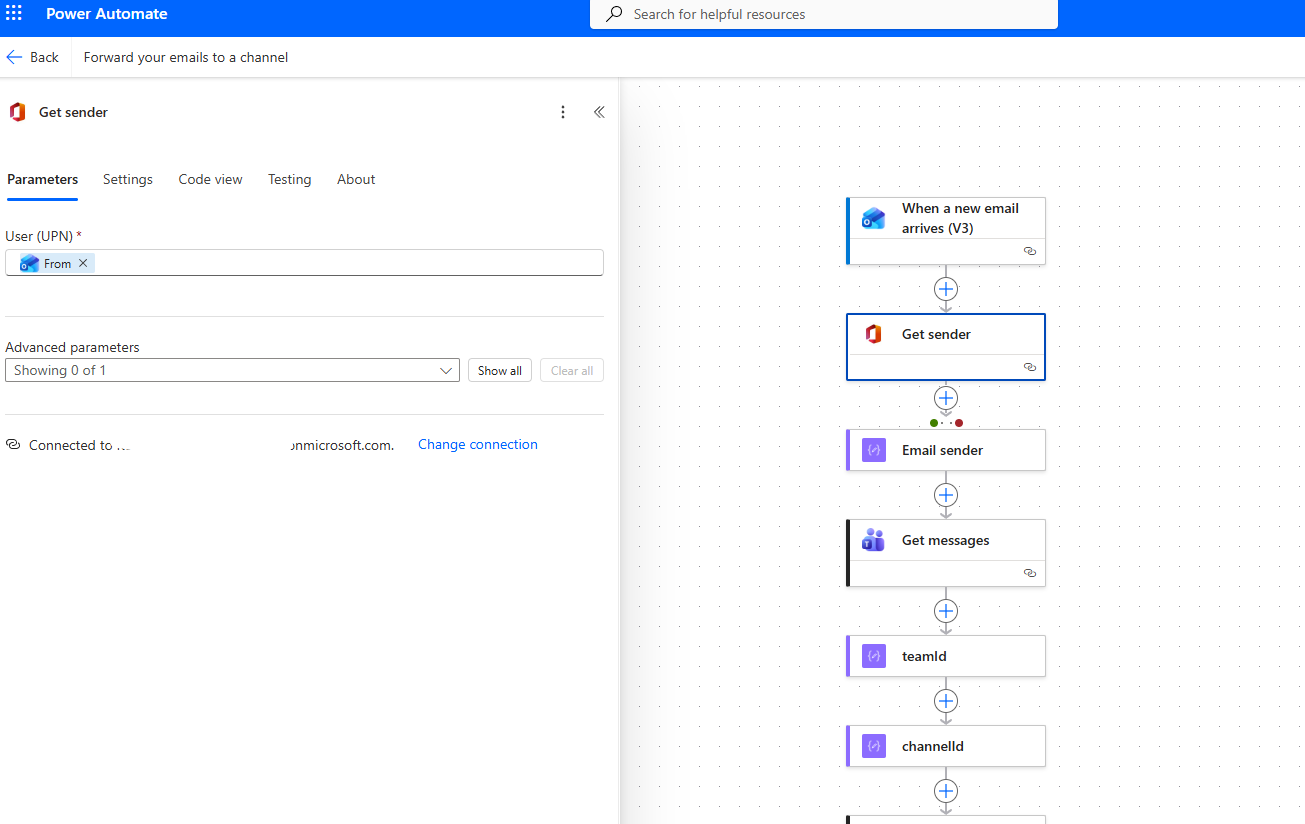
In the next step, it creates a variable and assigns the sender’s details to it.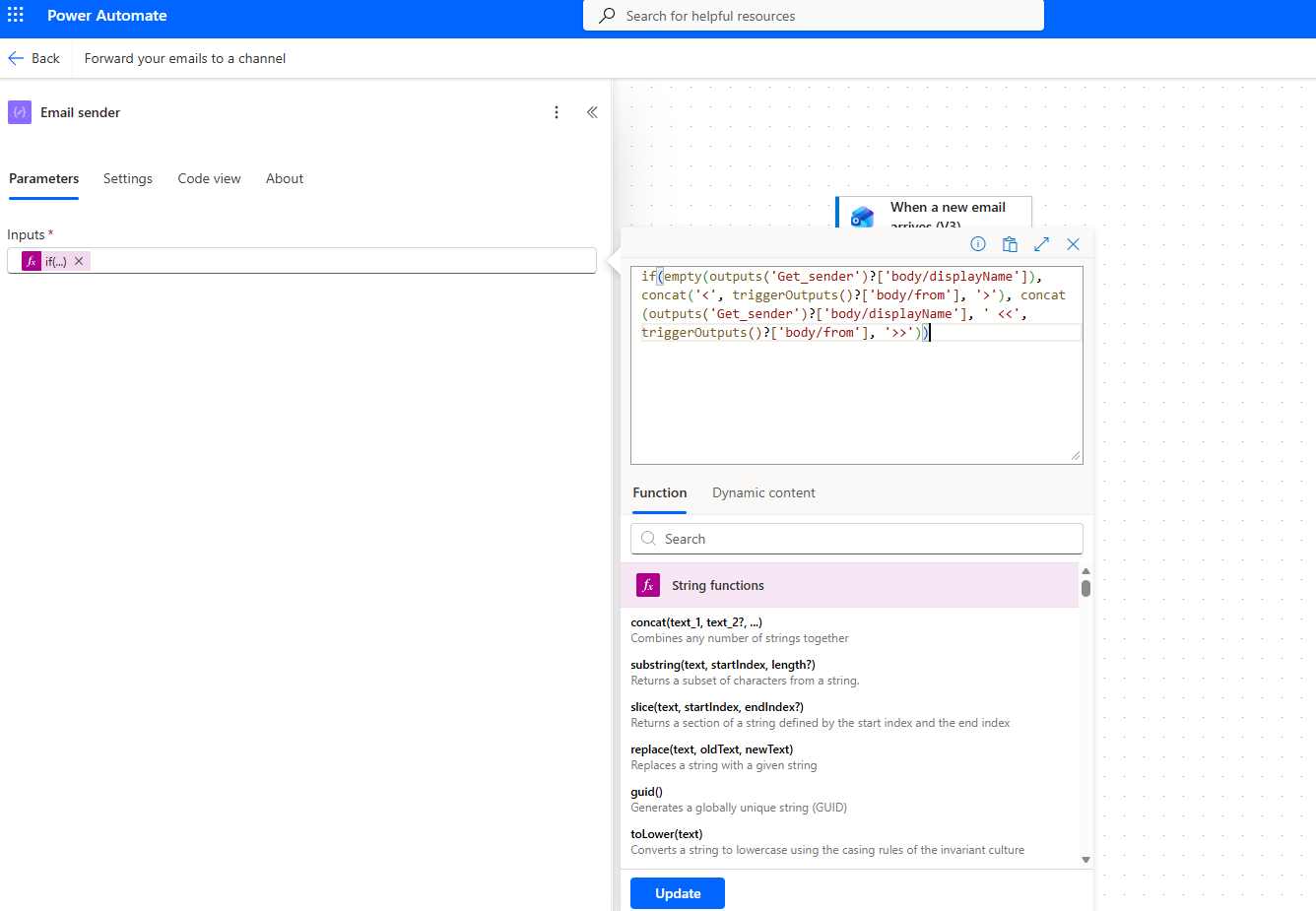
Then it selects Get messages, where we must enter the team and channel where we want the notification to be sent.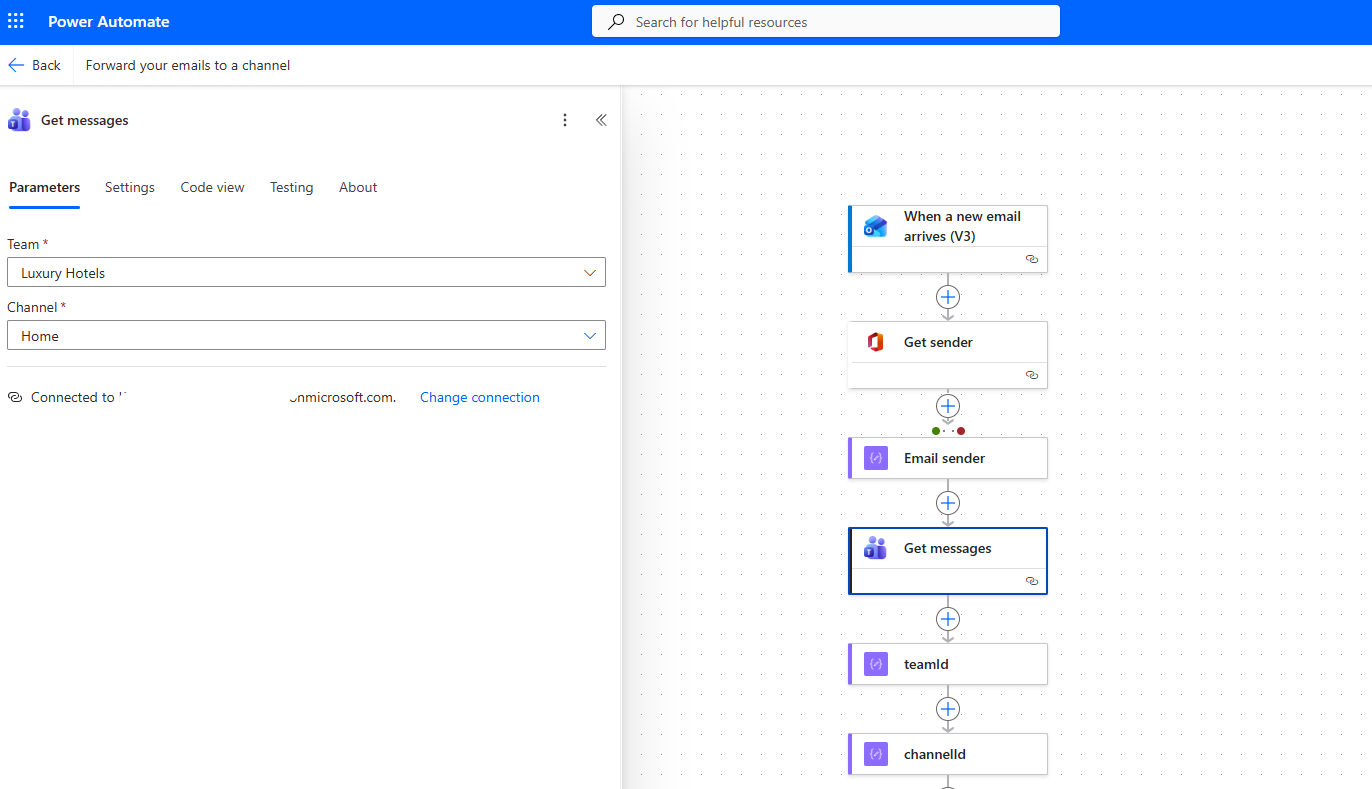
It assigns the team ID to a variable.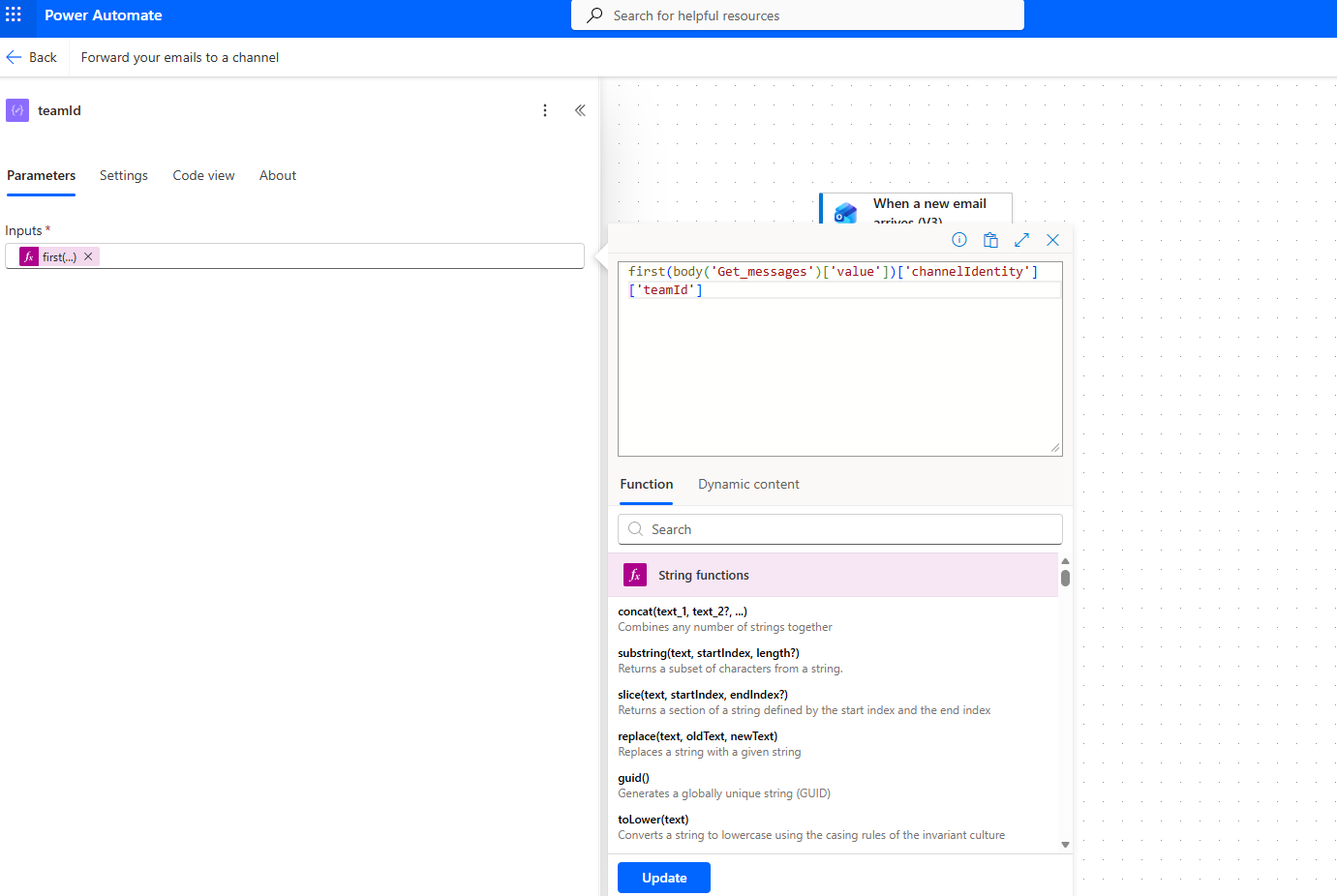
It also assigns the channel ID to another variable.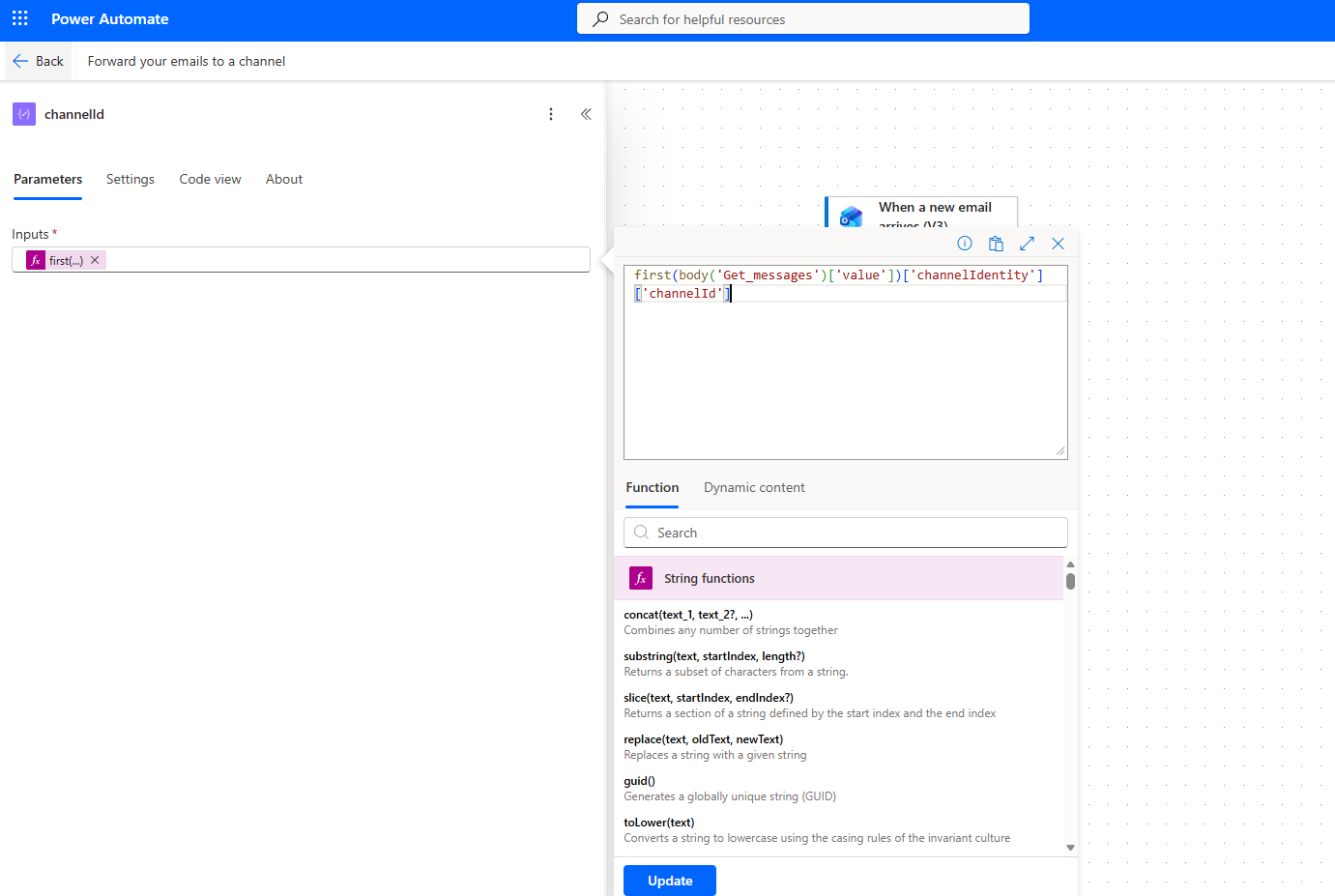
It retrieves the channel information via GET.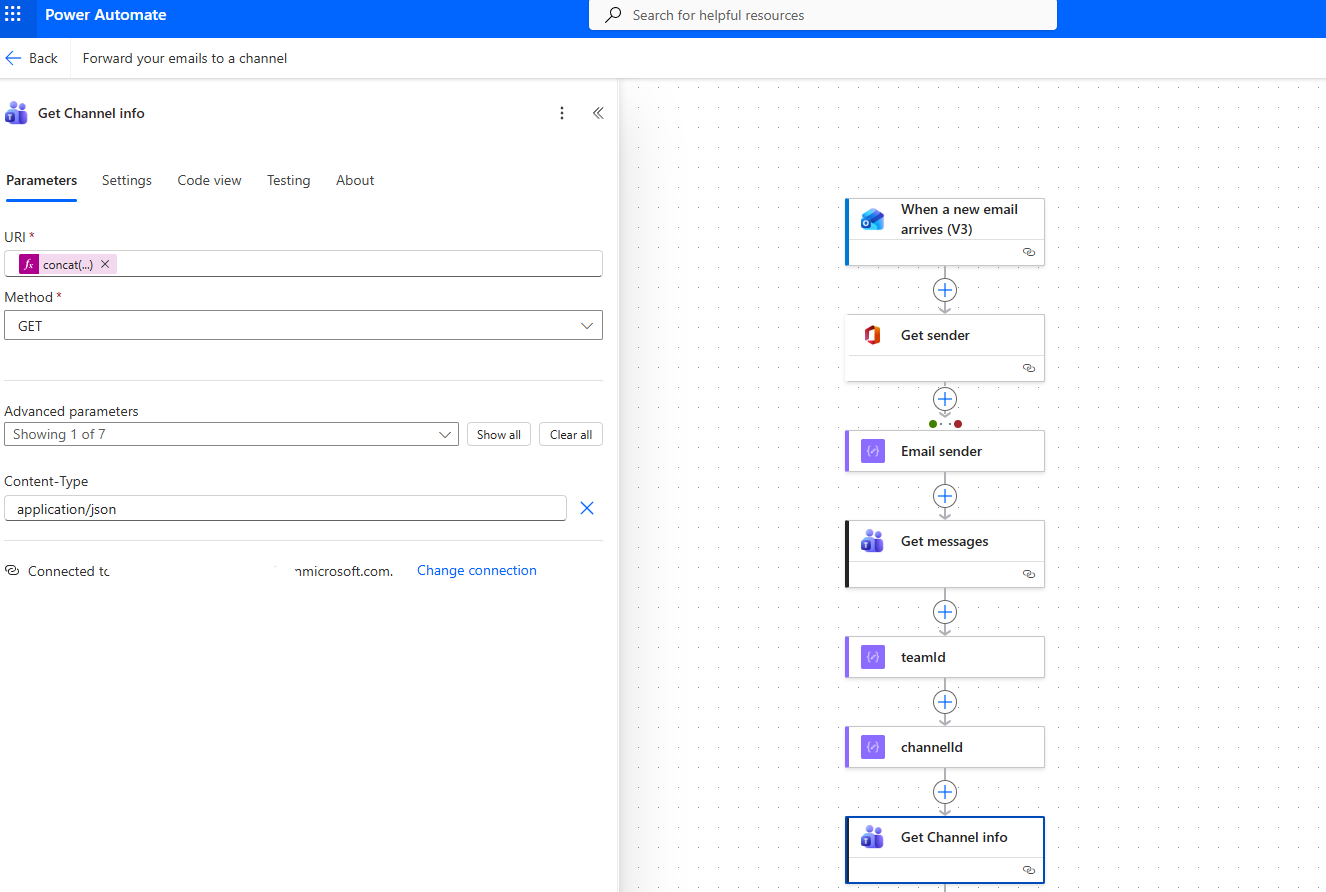
The next action assigns the SharePoint details to a variable.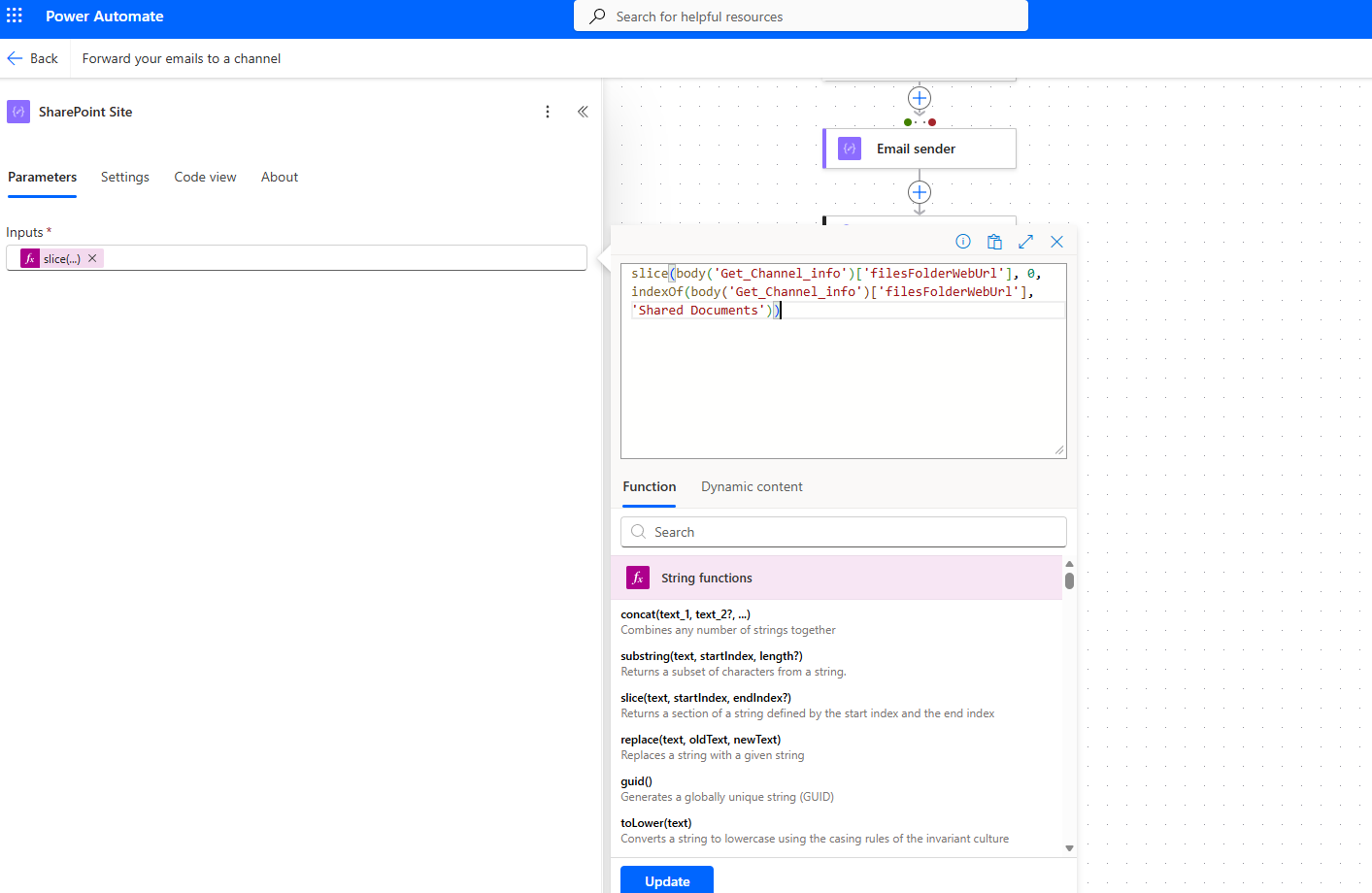
Then the email must be exported, which it locates using the Message ID.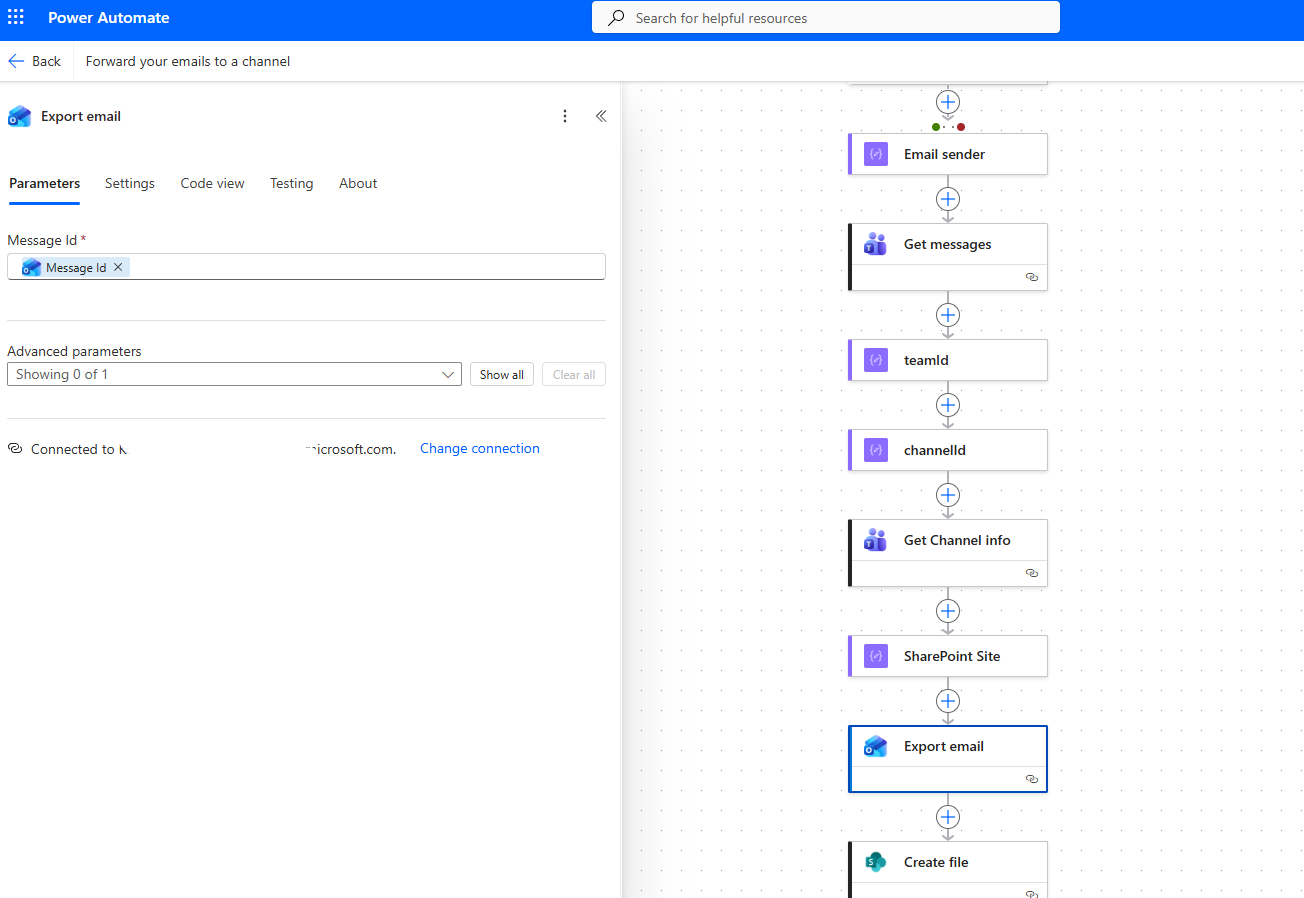
It creates a new file in SharePoint with the email data.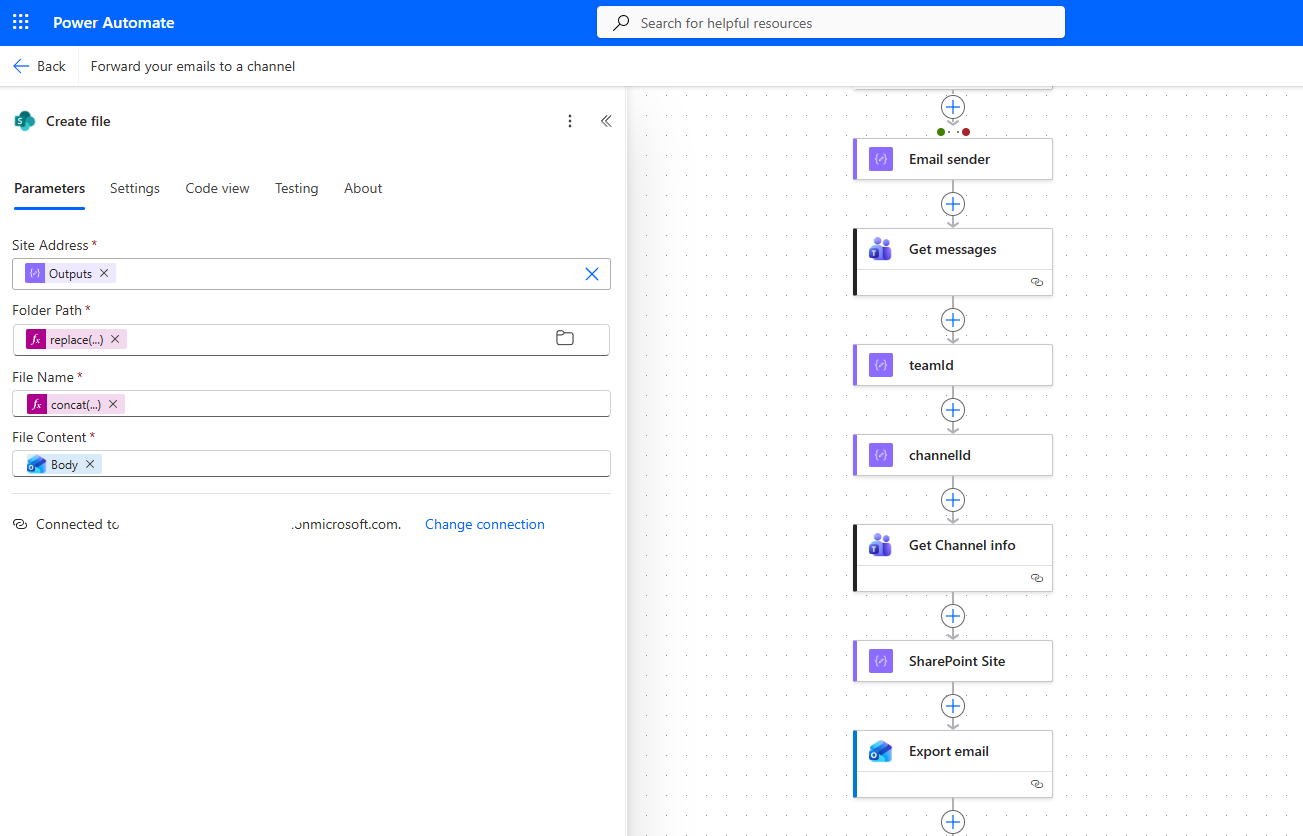
Then it generates the adaptive card using JSON, injecting dynamic values that were previously assigned to variables.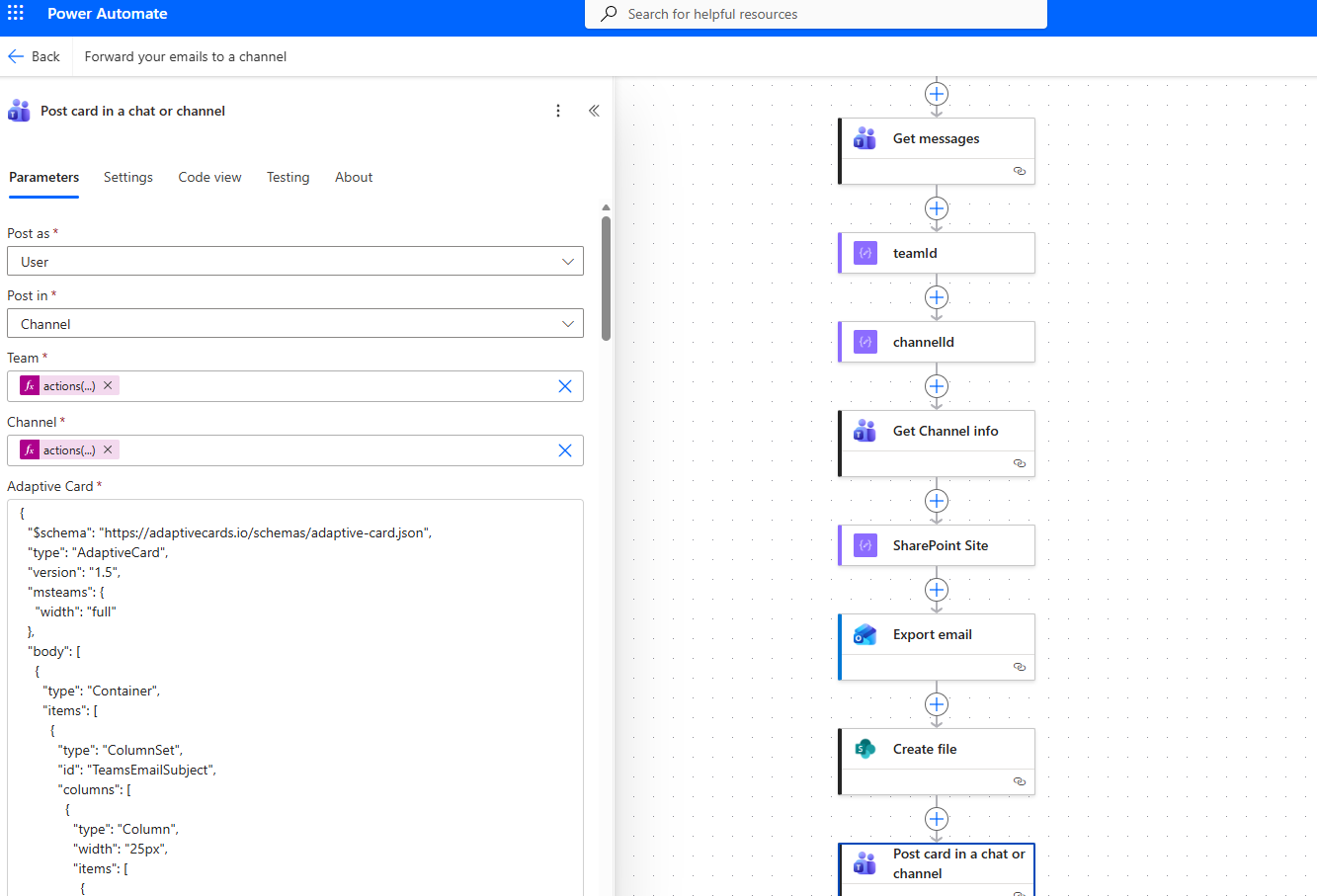
In the next step, we save the automation.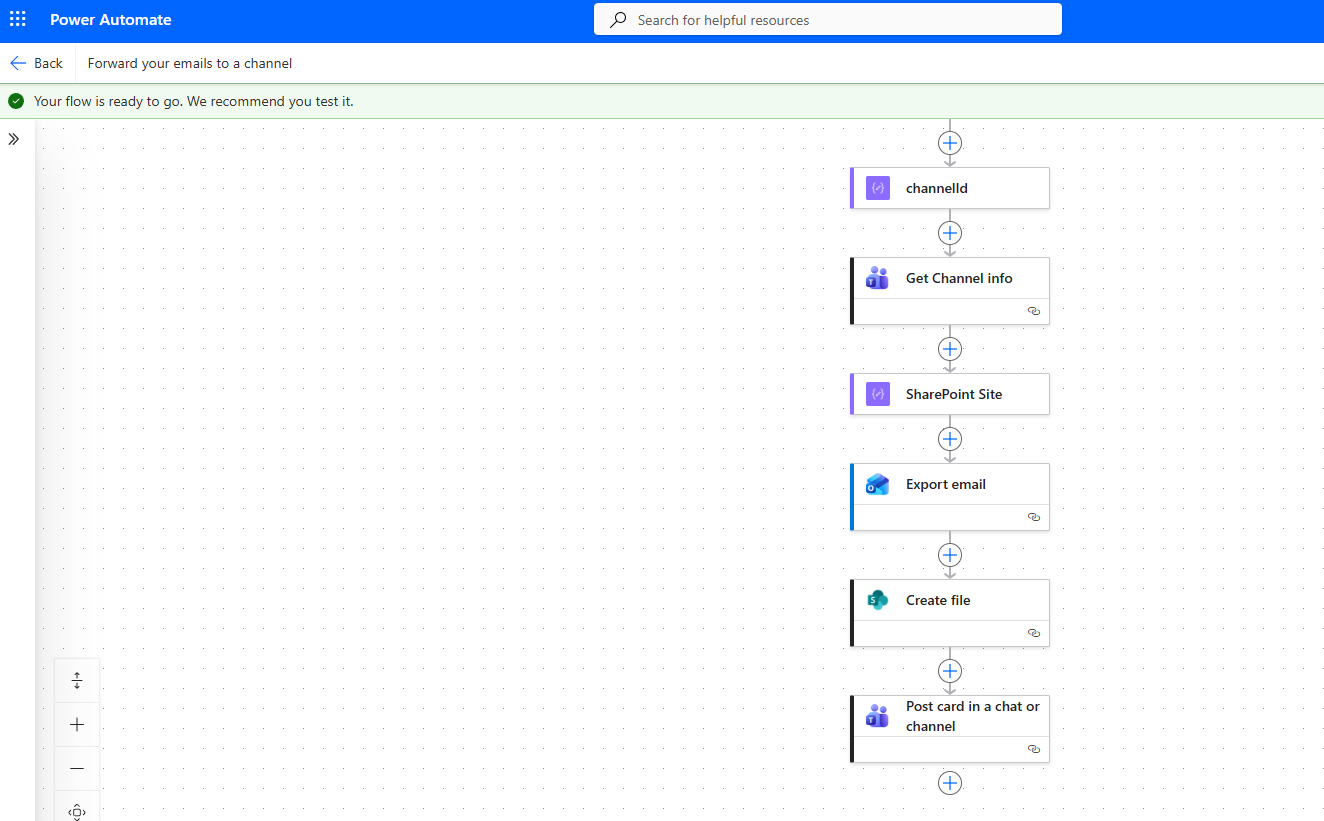
We need to run a manual test to verify that the automation works correctly.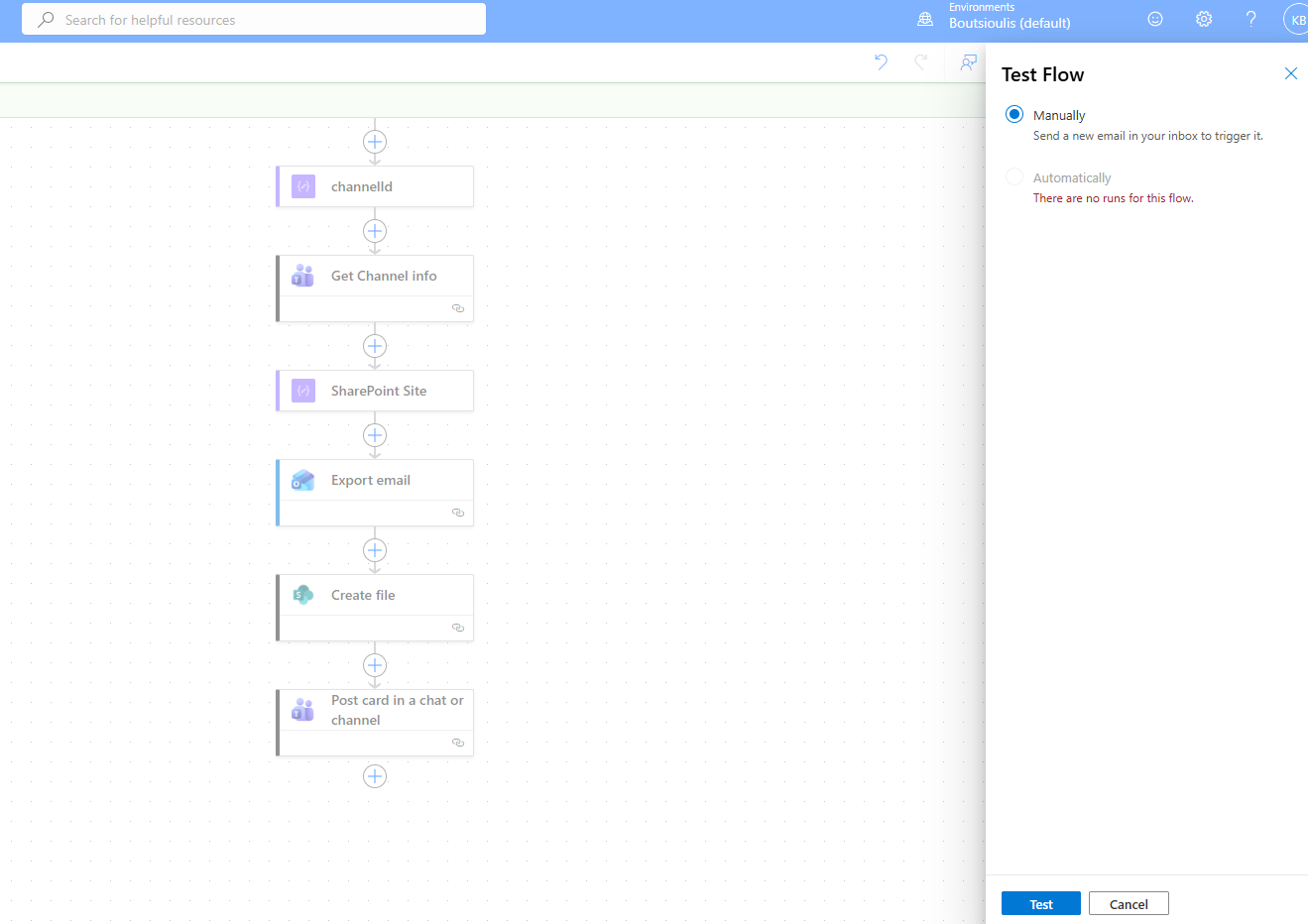
I send a new email to the address defined at the beginning, move the email to the conference folder that I initially assigned, and the automation runs normally without any issue.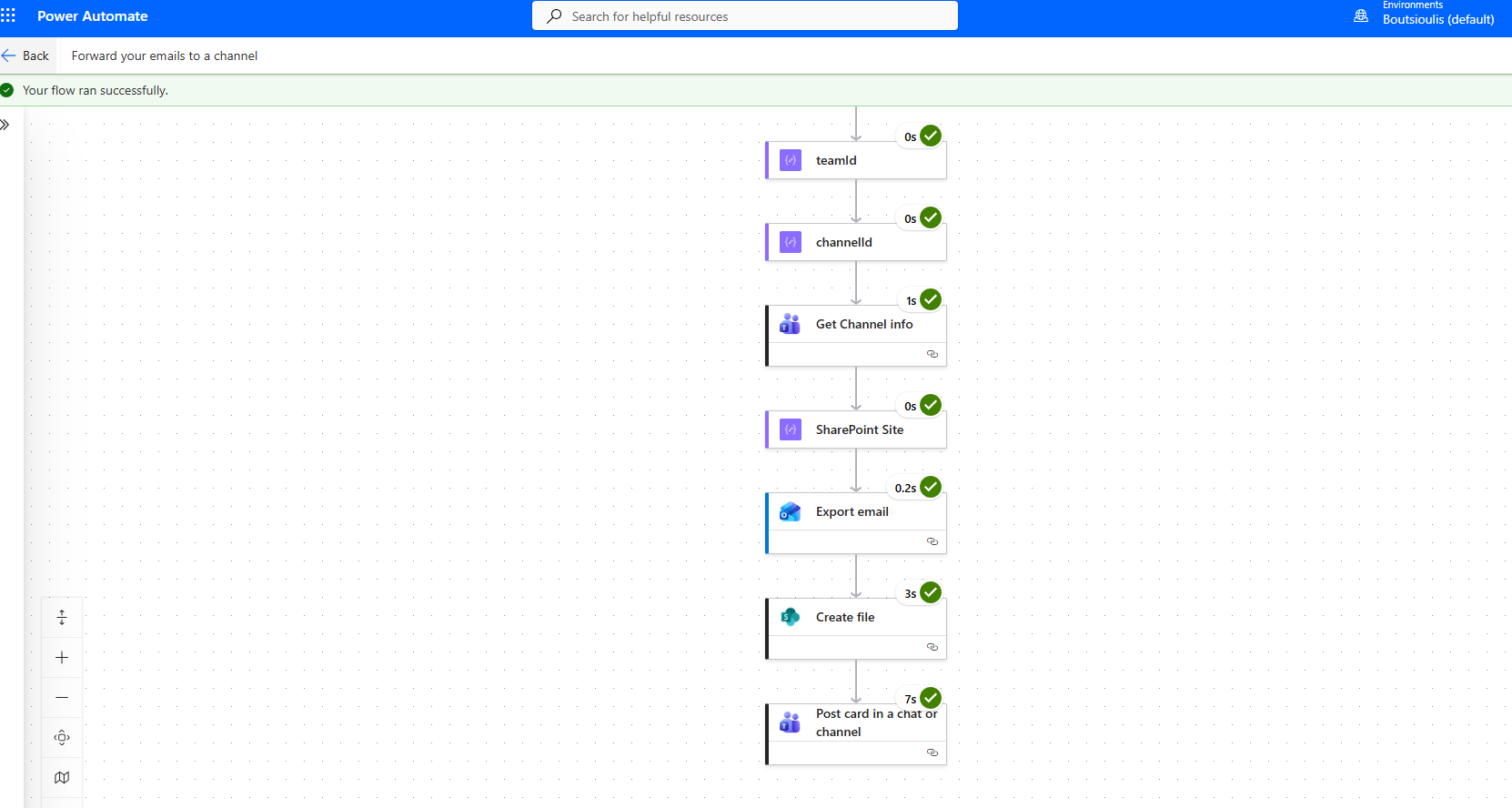
Finally, as you can see, it has created the adaptive card in the Teams channel.