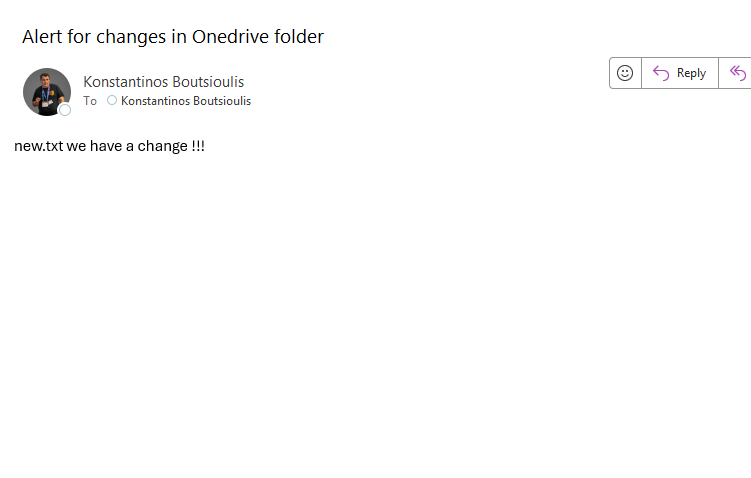
In today’s post, we will see how we can receive notifications about file changes inside a folder in OneDrive using Power Automate.
Alerting through email is extremely important, because—as is fully understood—it is almost impossible to manually keep track of changes happening across folders, lists, and libraries in M365.
First, we select the folder we want in OneDrive for Business.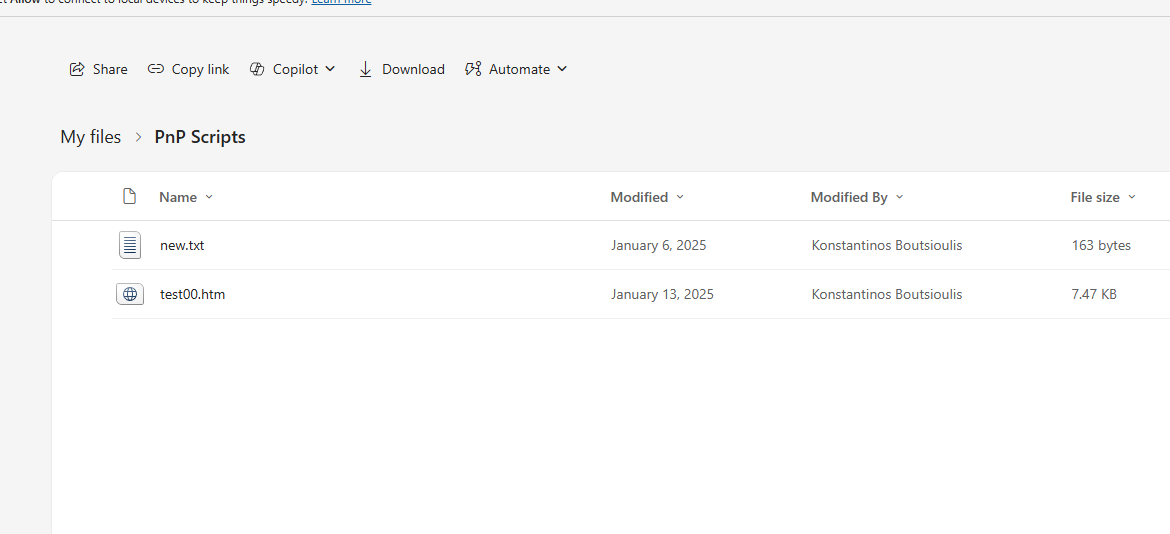
Then we go to the main Power Automate page and select Create.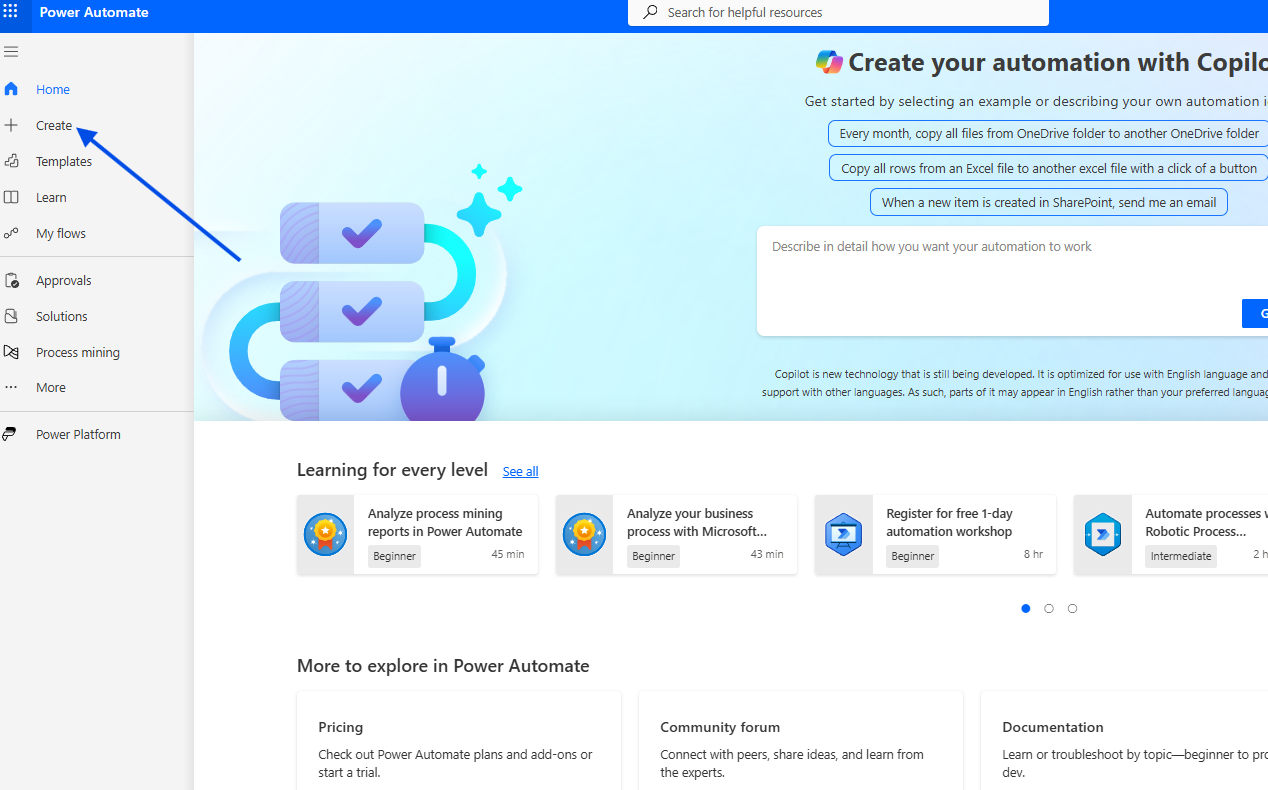
There, we choose Automated Cloud Flow.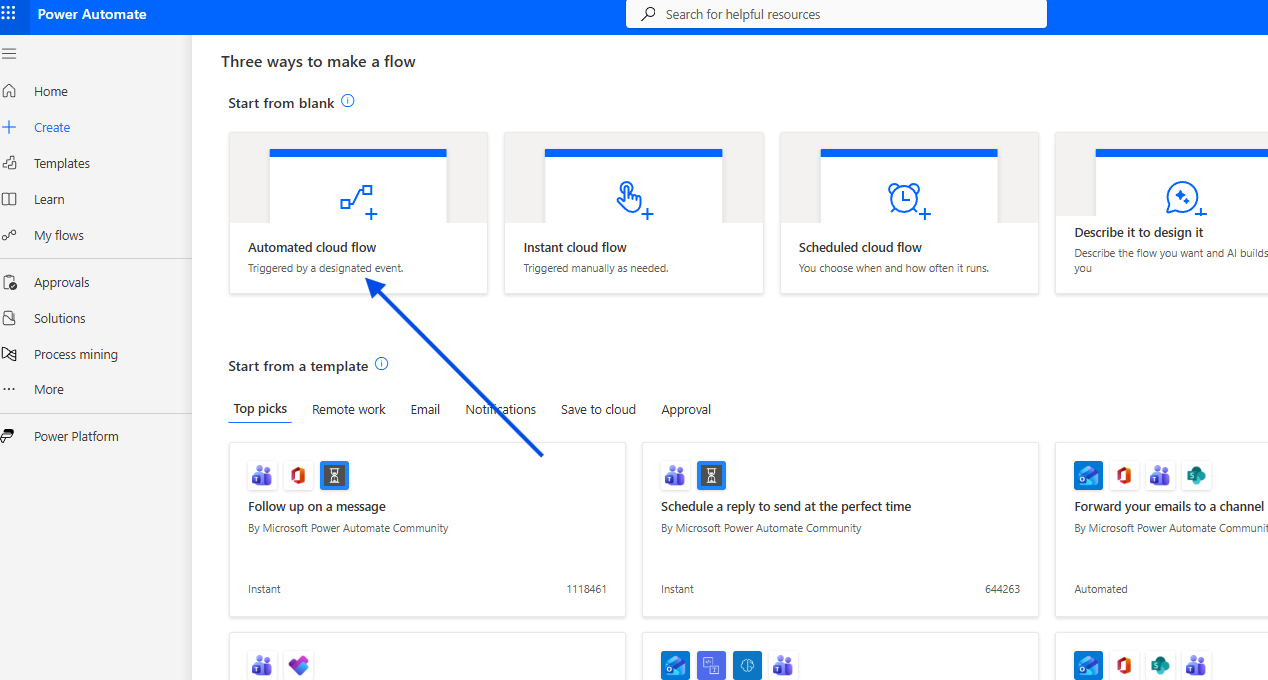
We give the flow a name and choose the trigger When a file is modified for OneDrive.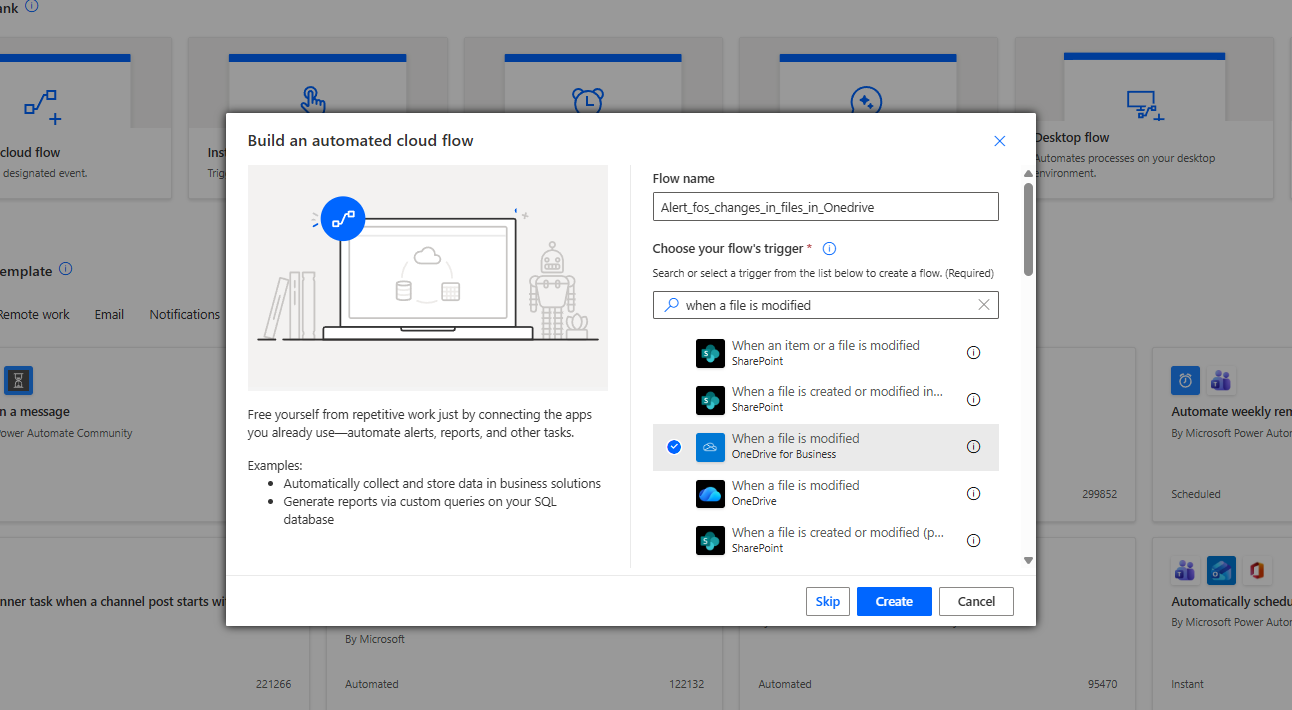
In the next step, we must open the OneDrive connection and specify the folder for which we want to be notified every time a change occurs.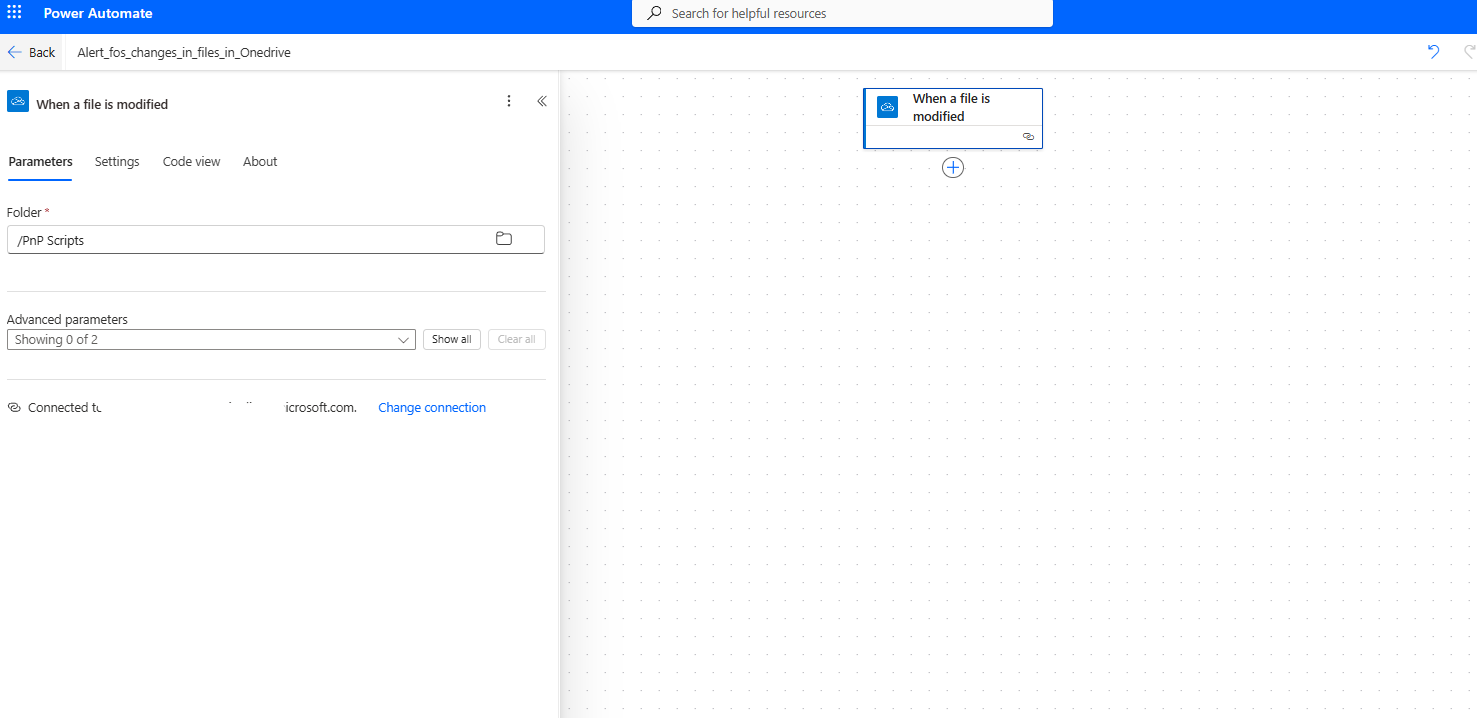
Next, we select Send an email (V2) and add the recipient, subject, and message body, including dynamic content such as the file name.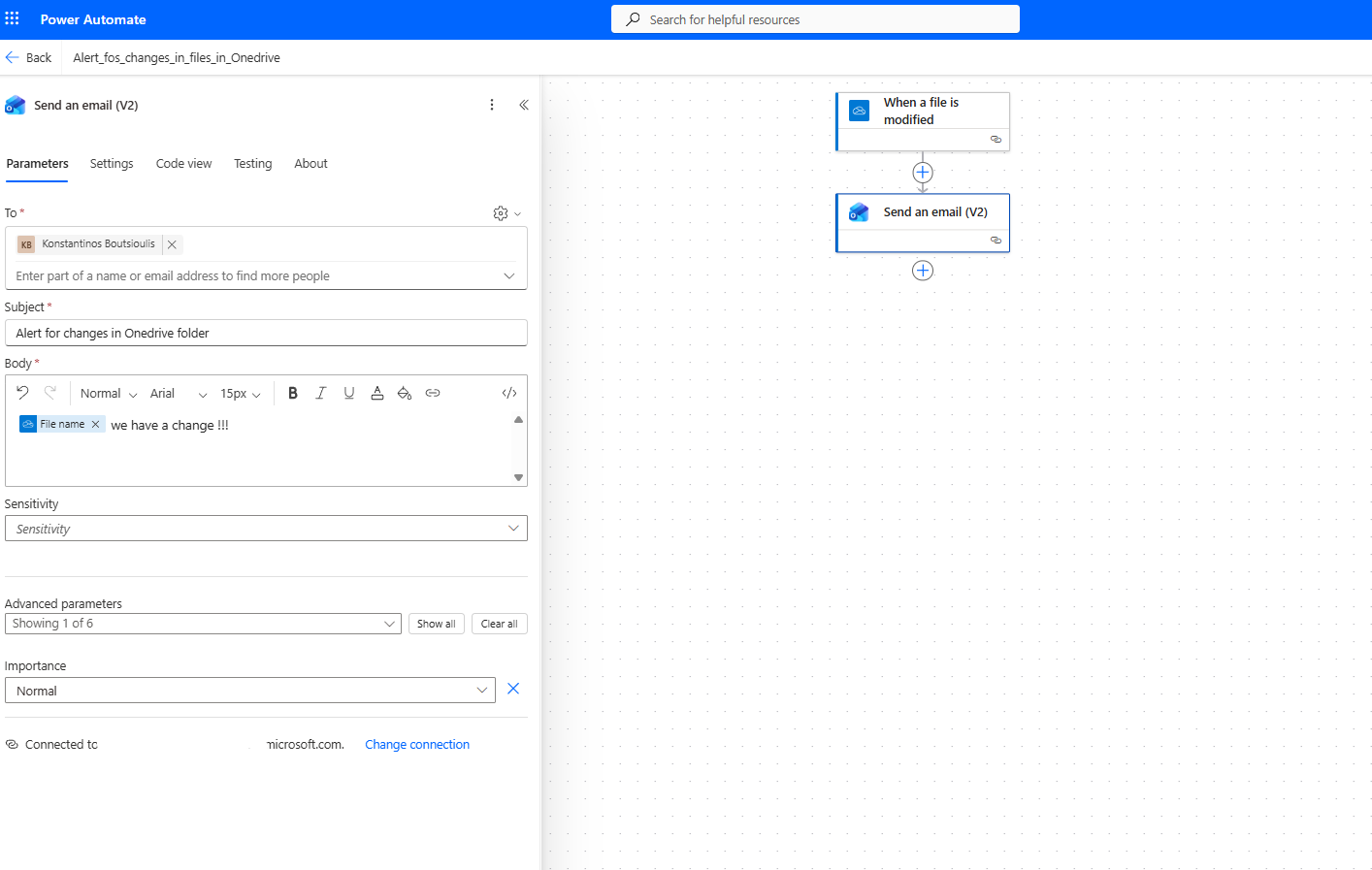
We save our flow.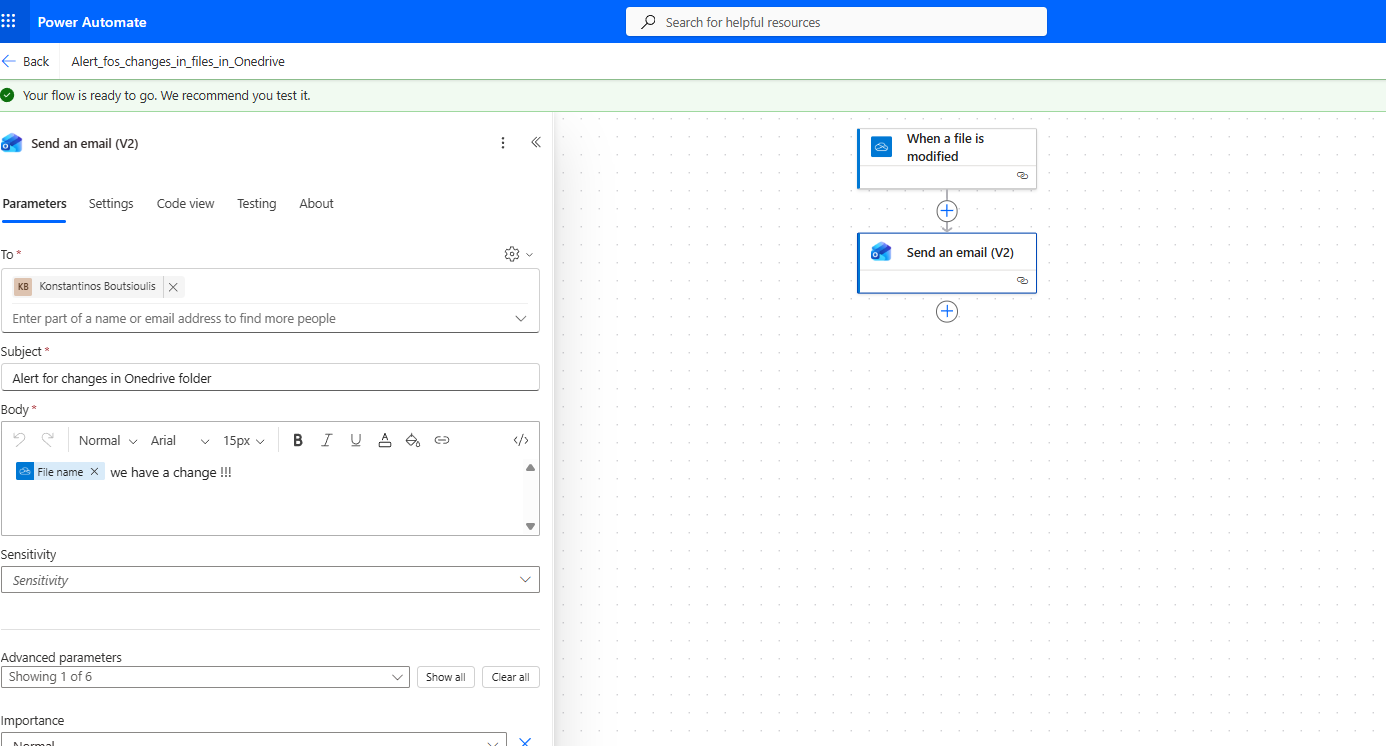
And we manually run a test to see if it works correctly.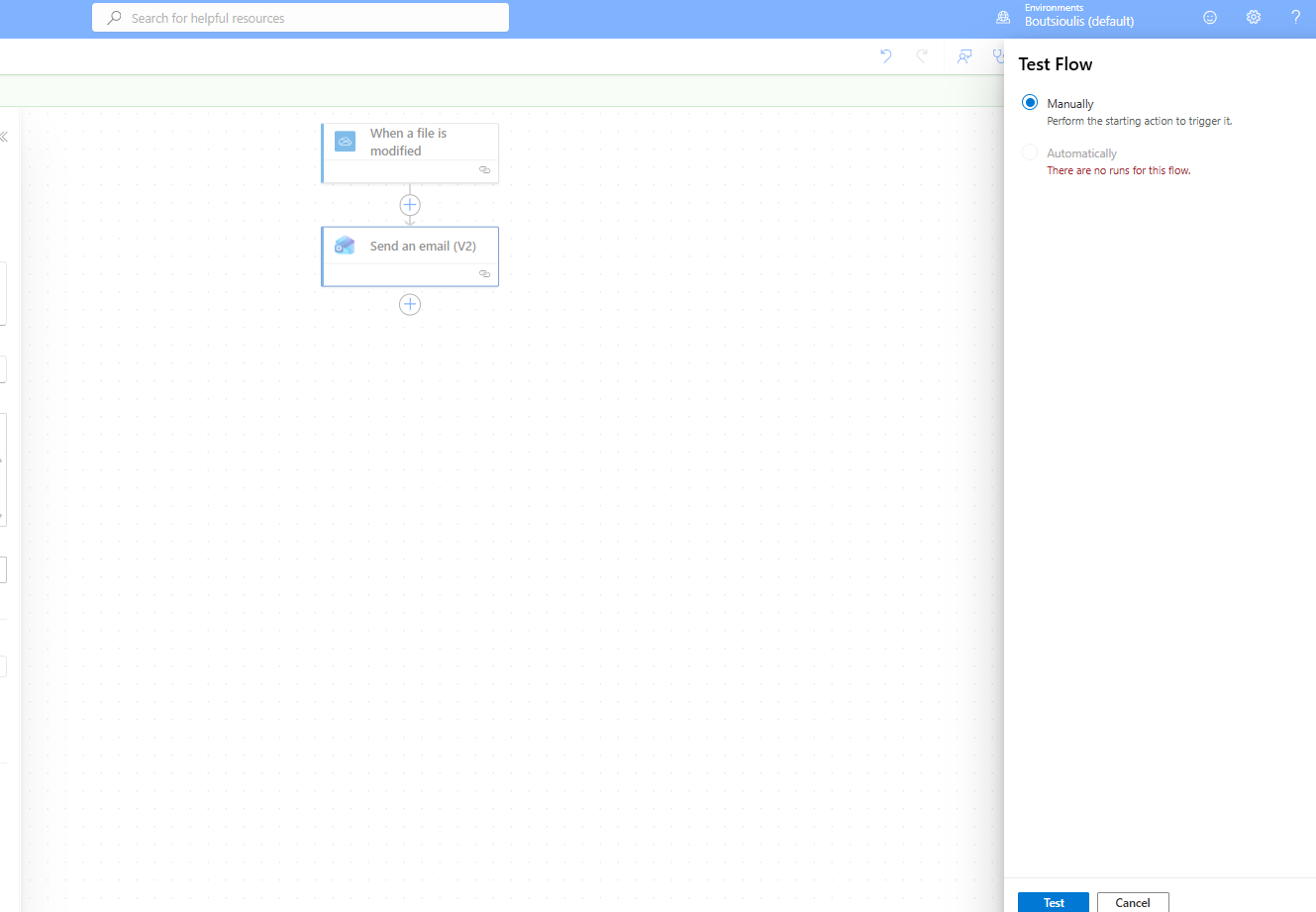
We make a change to one of the files.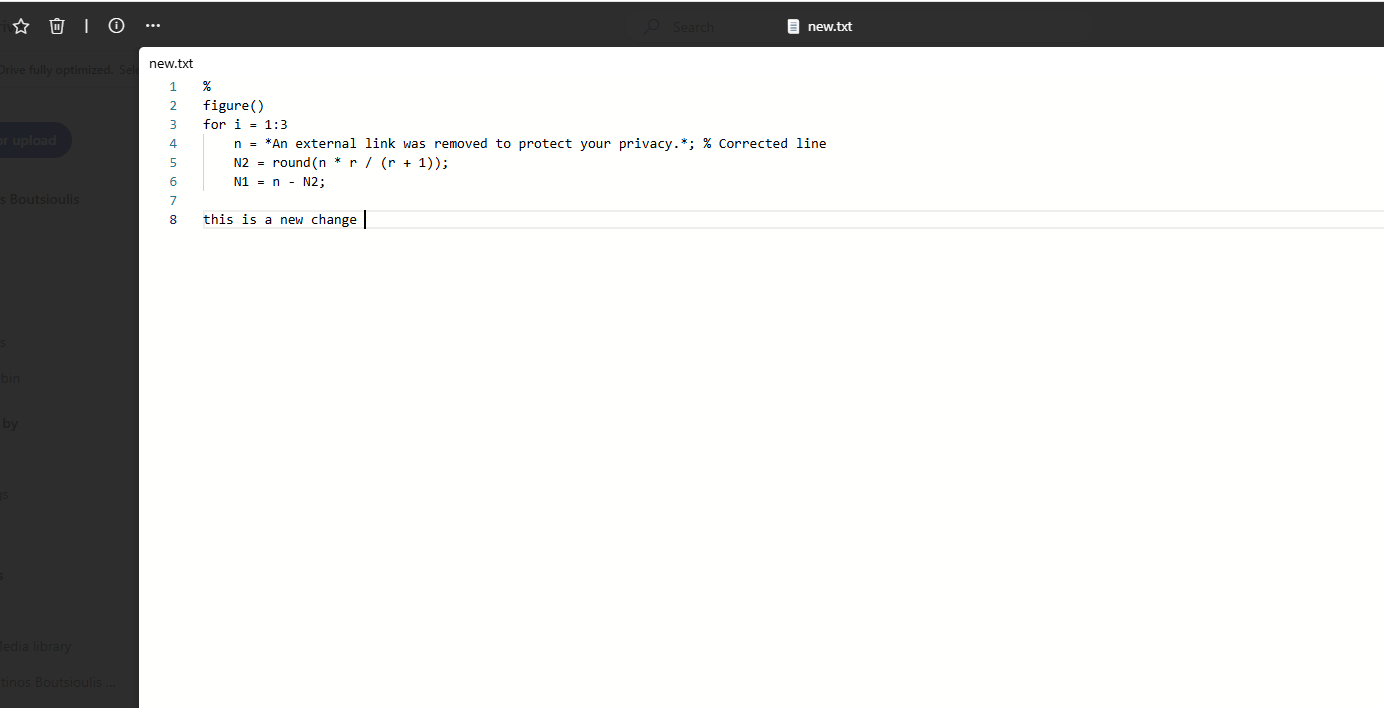
As you can see, the flow runs successfully without any issues.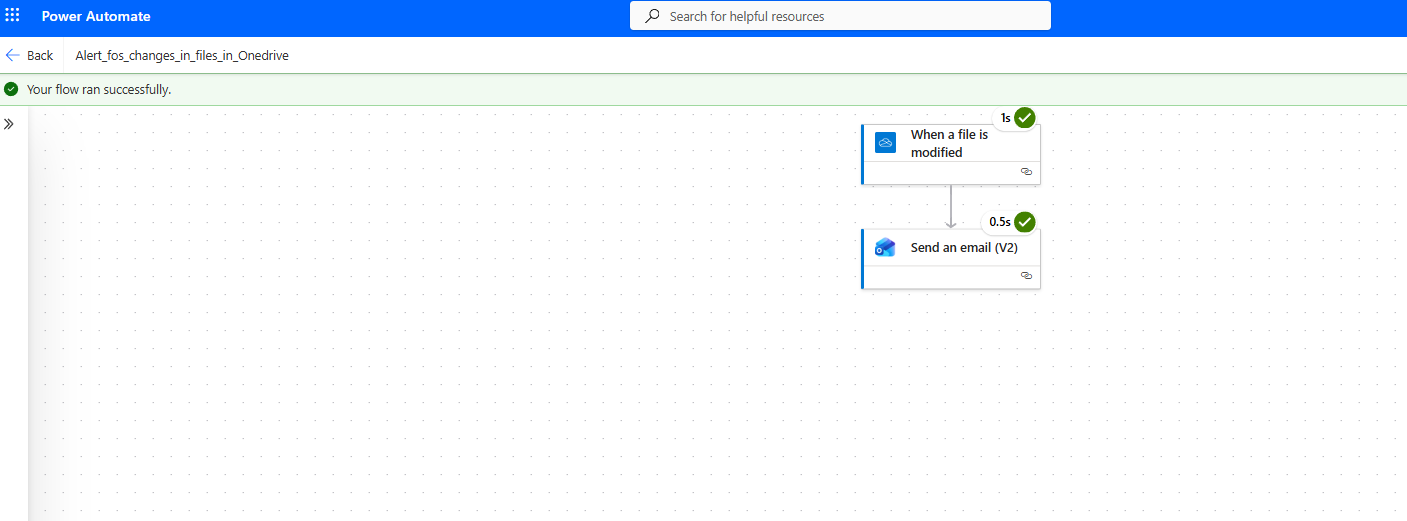
And finally, it sends us an email notifying us about the modification of the specific file.