In today’s article we will see how we can perform an access permissions check on a SharePoint site.
This is a relatively simple process when it needs to be done on a small number of sites from an end‑user environment.
However, if the number of sites is large, automated processes are required—specifically using PowerShell.
From the end‑user environment, we can select the site we want, and then from the gear icon (top right) choose Site Contents.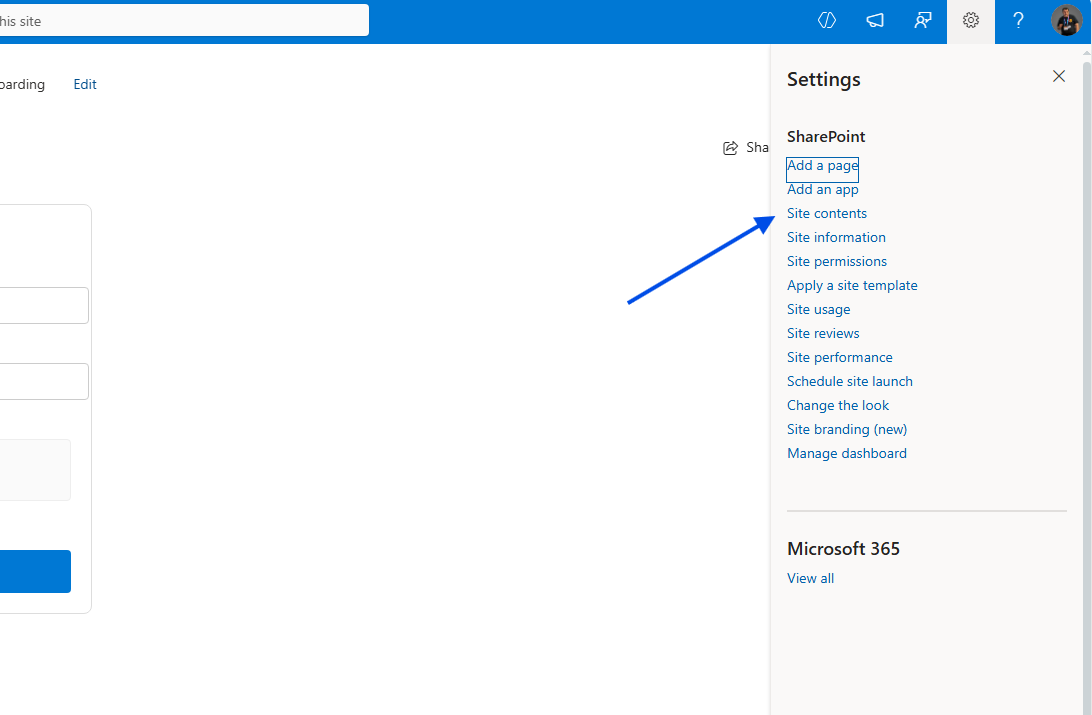
Next, we select the library we want, and again from the gear icon choose Library Settings.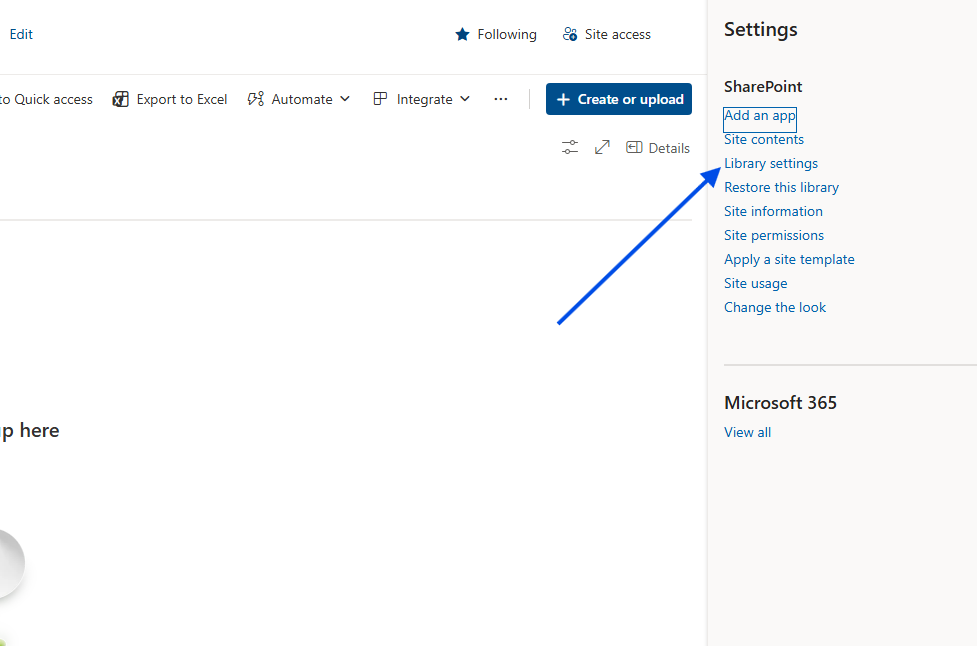
It should be noted that the user must have administrator permissions in order to have full visibility of the site’s permission management.
Then we select More library settings.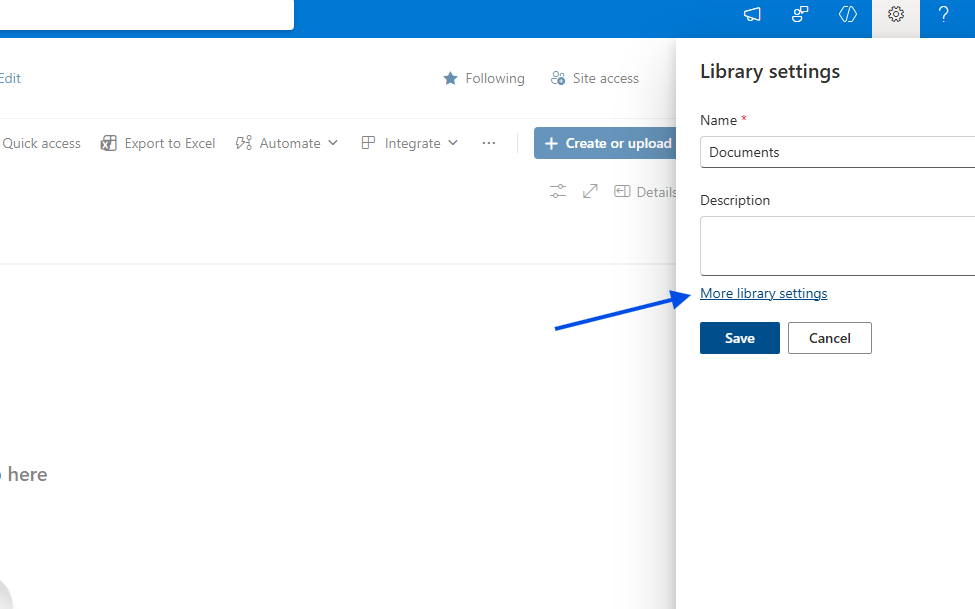
Next, we select Permissions for this document library.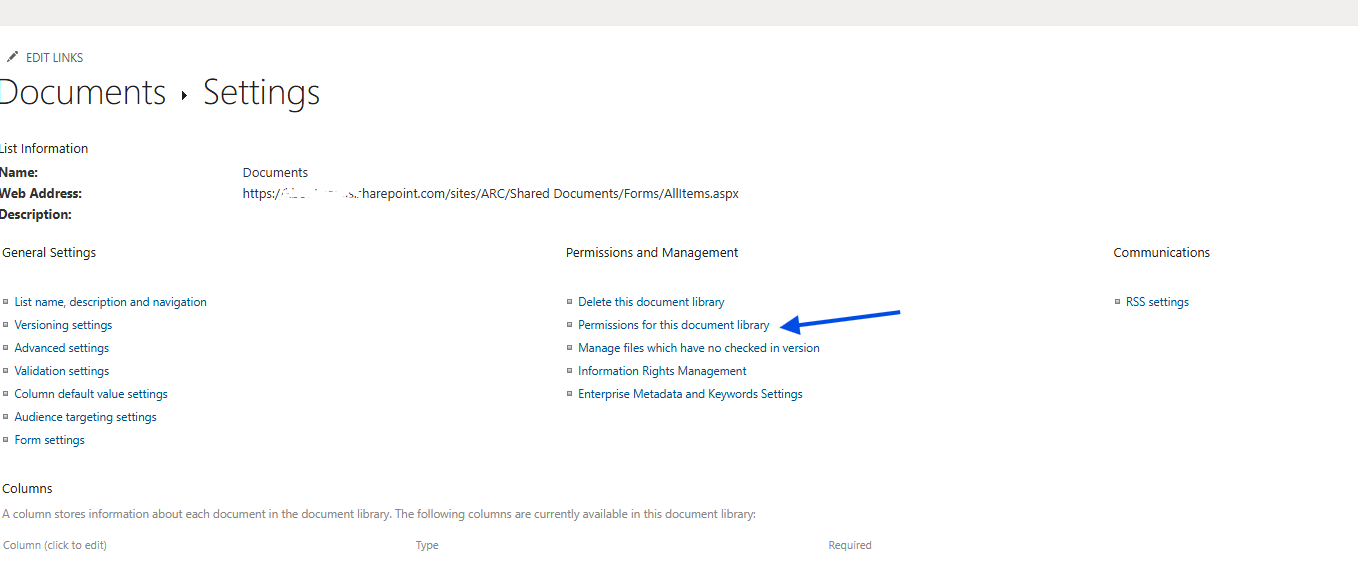
On the next page, as you can see, it displays whether the library inherits permissions from the parent, the SharePoint groups, the AD groups, and the users who have access to the page, as well as the level of permissions they have.
In this case, there is no option to export to Excel.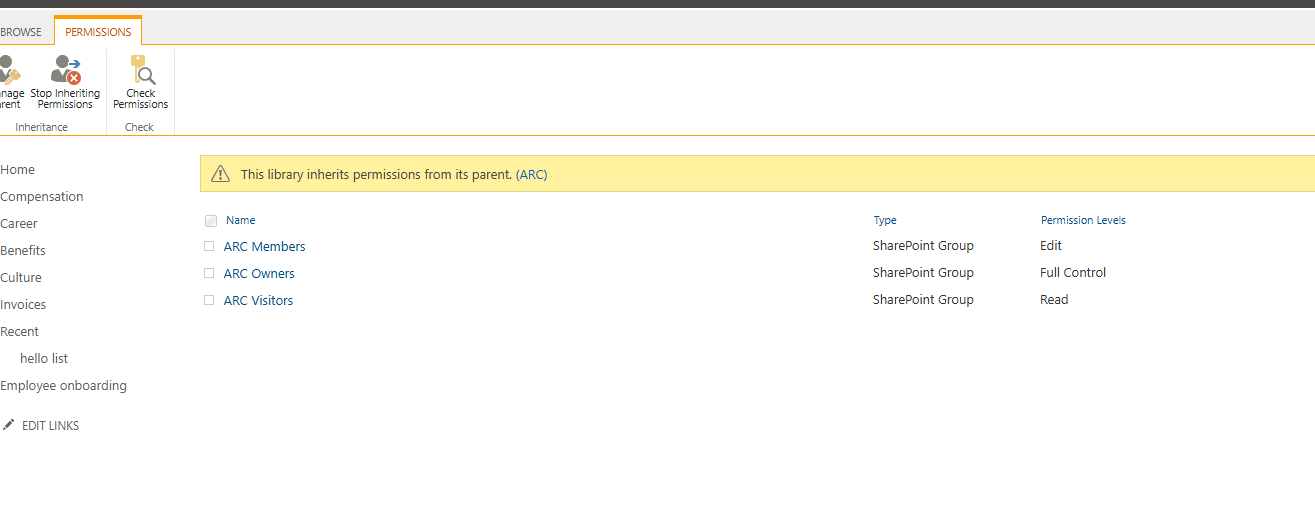
To view all permissions and export them into an Excel‑friendly format, we need to run the following PowerShell:
# --- Settings ---$siteUrl = "https://mytenant.sharepoint.com/sites/ARC"$libraryName = "Documents" # The library name$clinetId = "00000000-0000-0000-0000-00000000000"# 1. Connect to SharePoint OnlineConnect-PnPOnline -Url $siteUrl -Interactive -ClientId "00000000-0000-0000-0000-00000000000"# 2. Retrieve the Library and Permissions# Use -Includes to load RoleAssignments (permissions)$library = Get-PnPList -Identity $libraryName -Includes RoleAssignments, HasUniqueRoleAssignmentsWrite-Host "`n--- Permissions Check: $($library.Title) ---" -ForegroundColor CyanWrite-Host "Unique Permissions (Inheritance broken): $($library.HasUniqueRoleAssignments)" -ForegroundColor Yellow# 3. Process the Permissions$report = foreach ($roleAssignment in $library.RoleAssignments) {# Load Member and RoleDefinitionBindings propertiesGet-PnPProperty -ClientObject $roleAssignment -Property Member, RoleDefinitionBindings$member = $roleAssignment.Member$roles = $roleAssignment.RoleDefinitionBindings | Select-Object -ExpandProperty Name$roleNames = $roles -join ", "[PSCustomObject]@{"User/Group Name" = $member.Title"Type" = $member.PrincipalType # User, SharePoint Group, or Security Group"Permissions" = $roleNames"LoginName" = $member.LoginName}}# Display in console$report | Format-Table -AutoSize# 4. Optional Export to CSV$report | Export-Csv -Path "C:\LibraryPermissions.csv" -NoTypeInformation -Encoding UTF8``
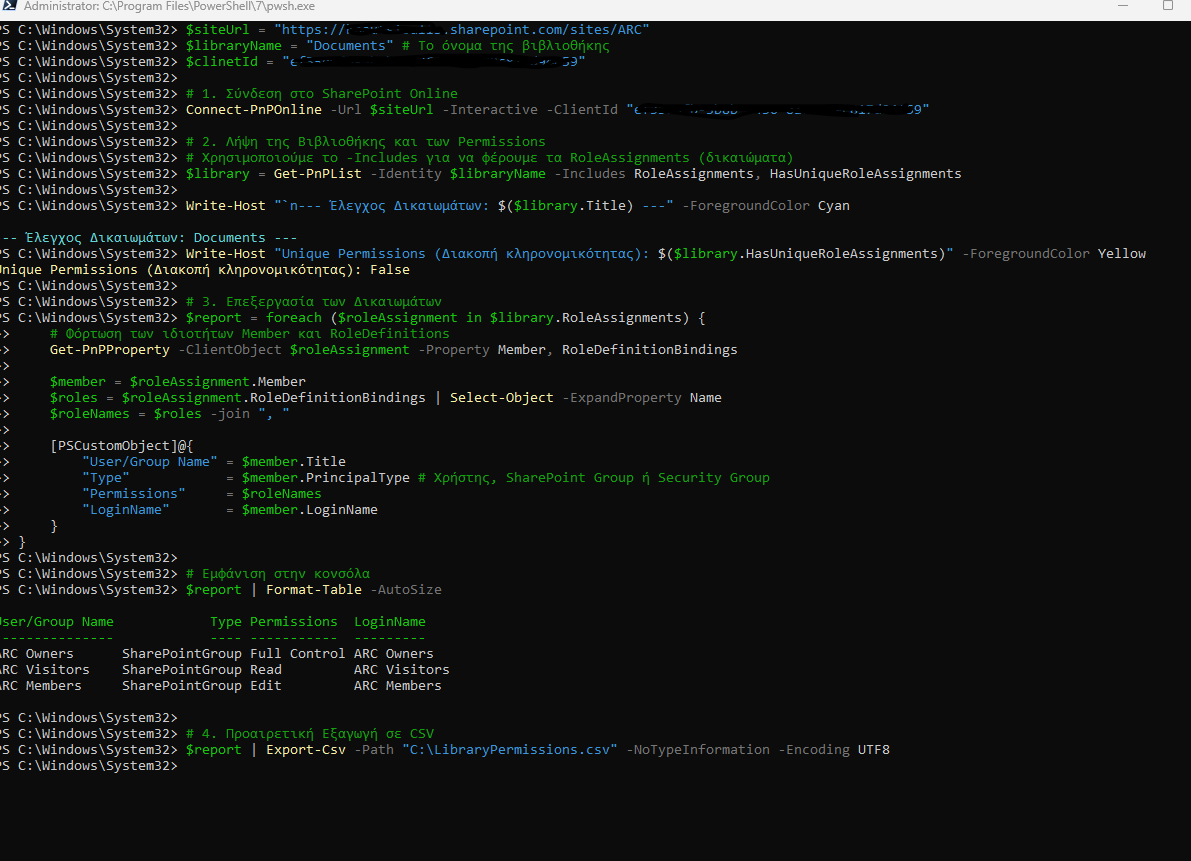
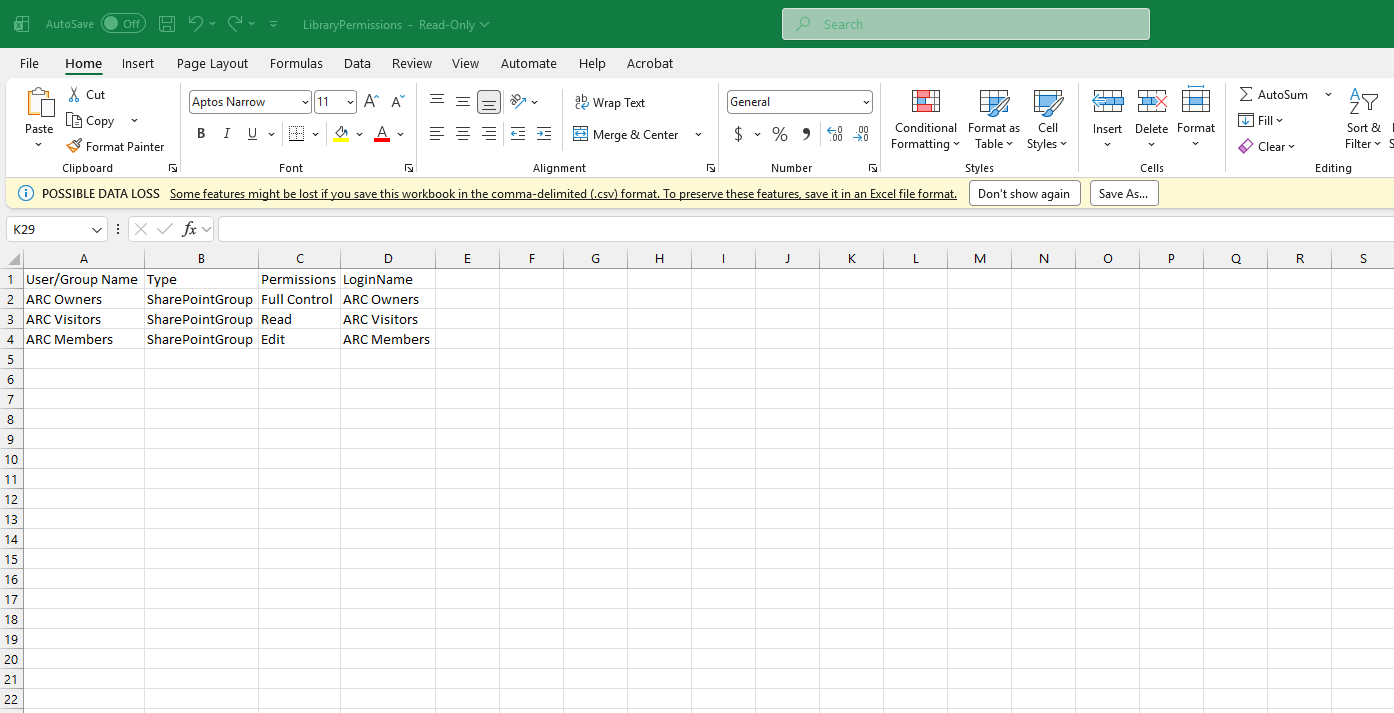
Finally, you will find the Excel export on your local disk, and it will look like the example below.