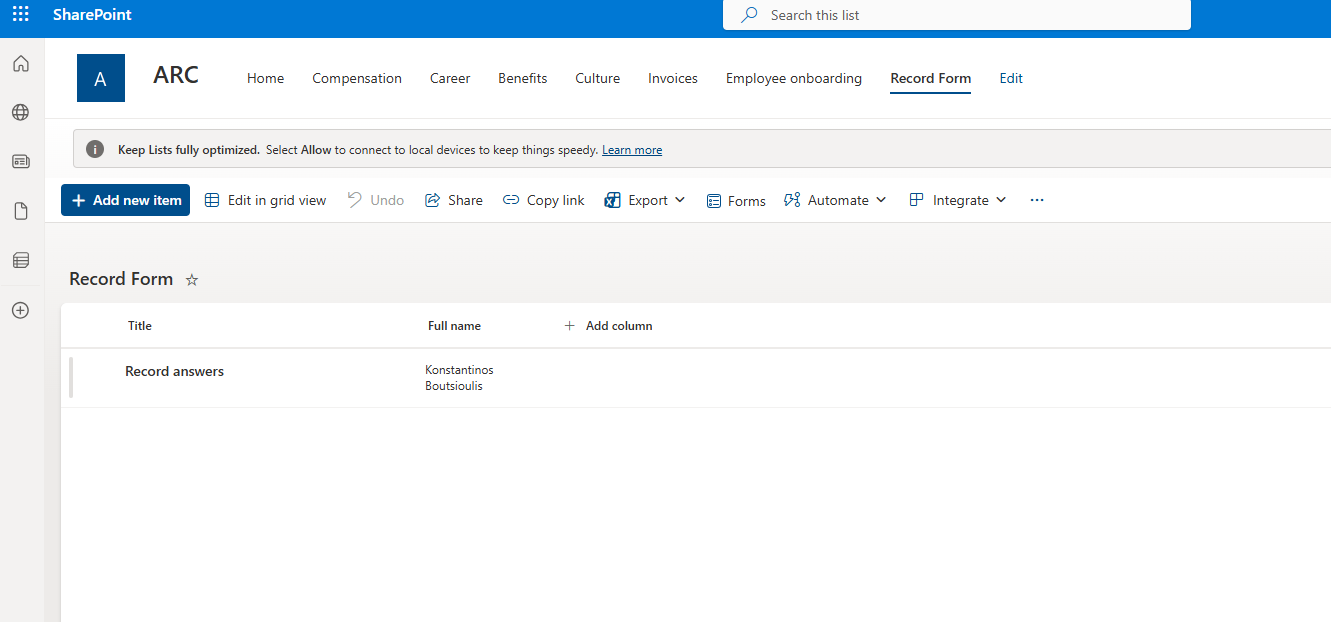
In today’s post we will see how we can record the responses from a Microsoft Form into a SharePoint List using Power Automate.
This is a very basic function, but extremely useful when you want to collect responses and then manage them as list items.
First, we will create a SharePoint list that has the same number of columns as the Form, and each column should match the field type used in the form.
For this demo, we will only use two fields: Title and Full Name.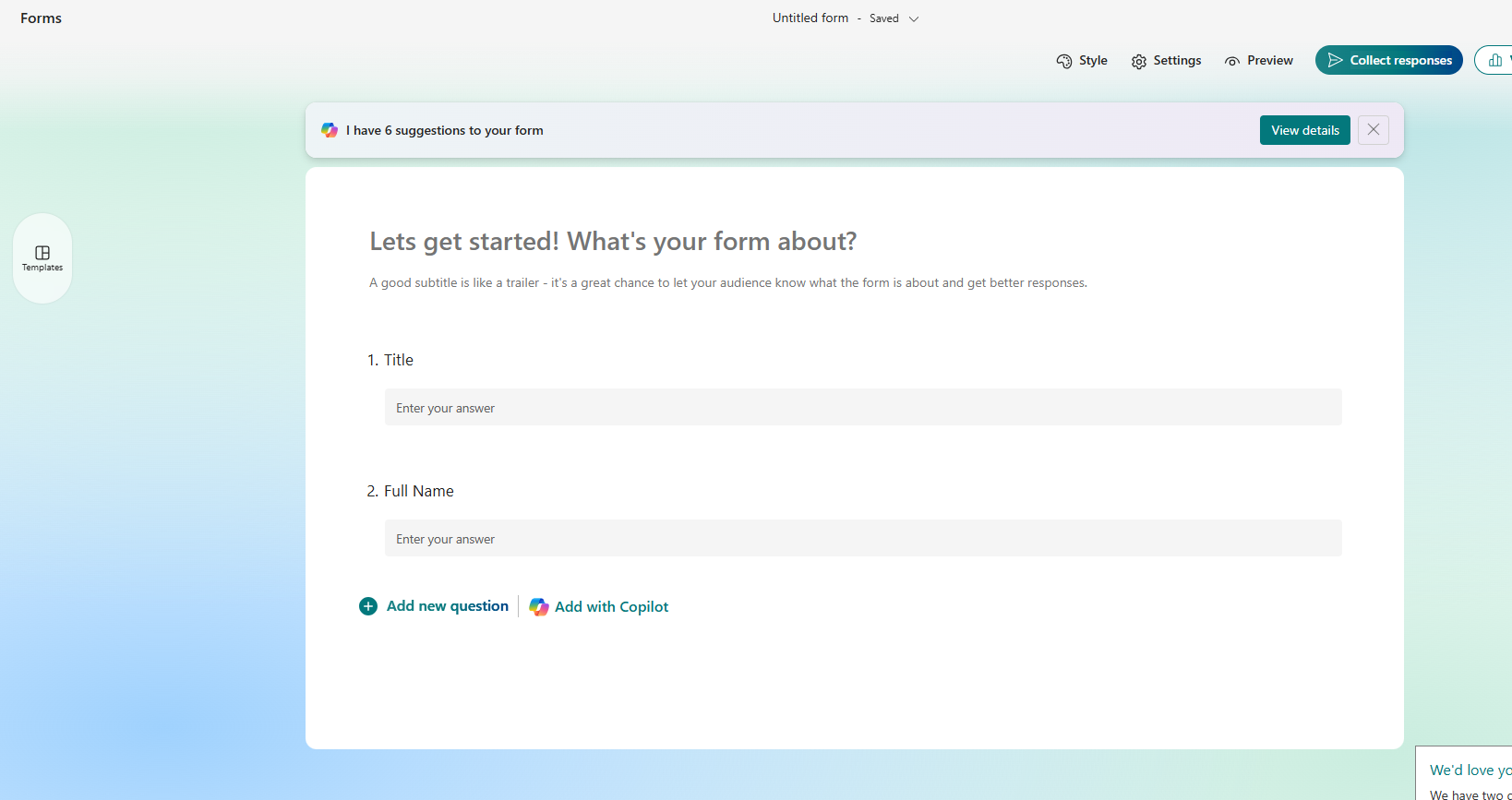
Next, we create our list with the same fields.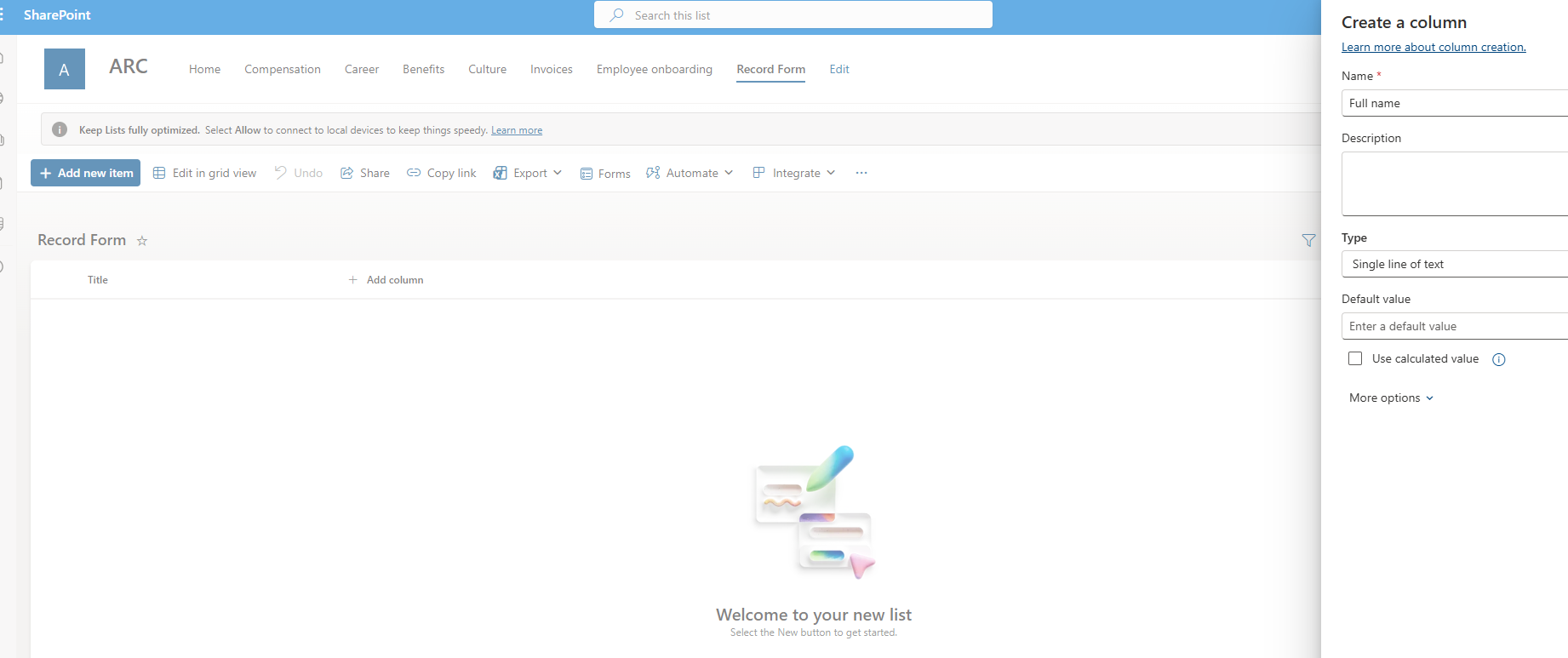
In the next step, we go to the Power Automate home page and choose Create.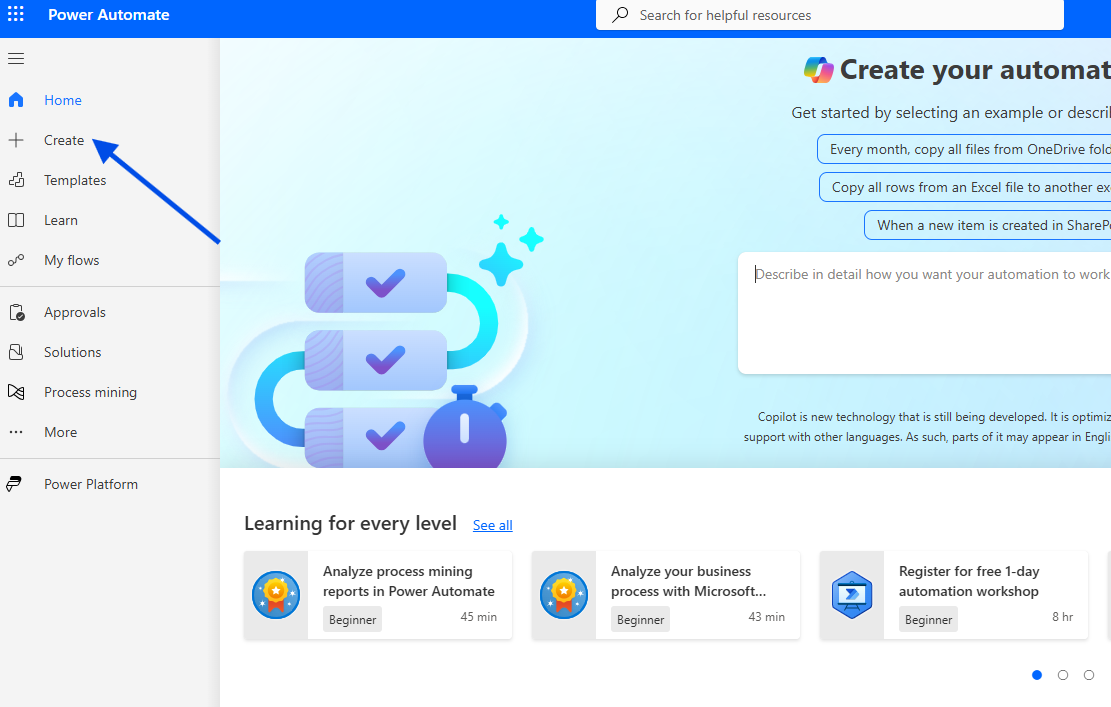
Then, we select Automated Cloud Flow.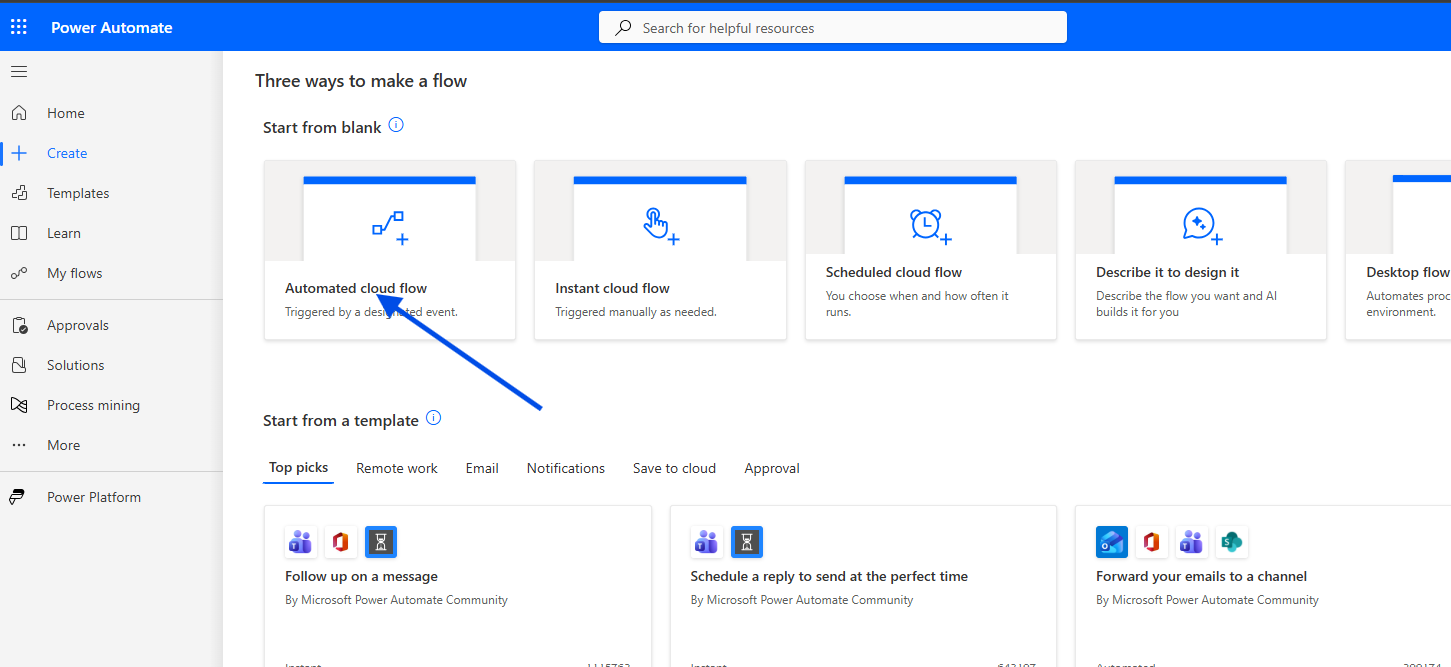
We give our flow a name and set the initial trigger to When a new response is submitted.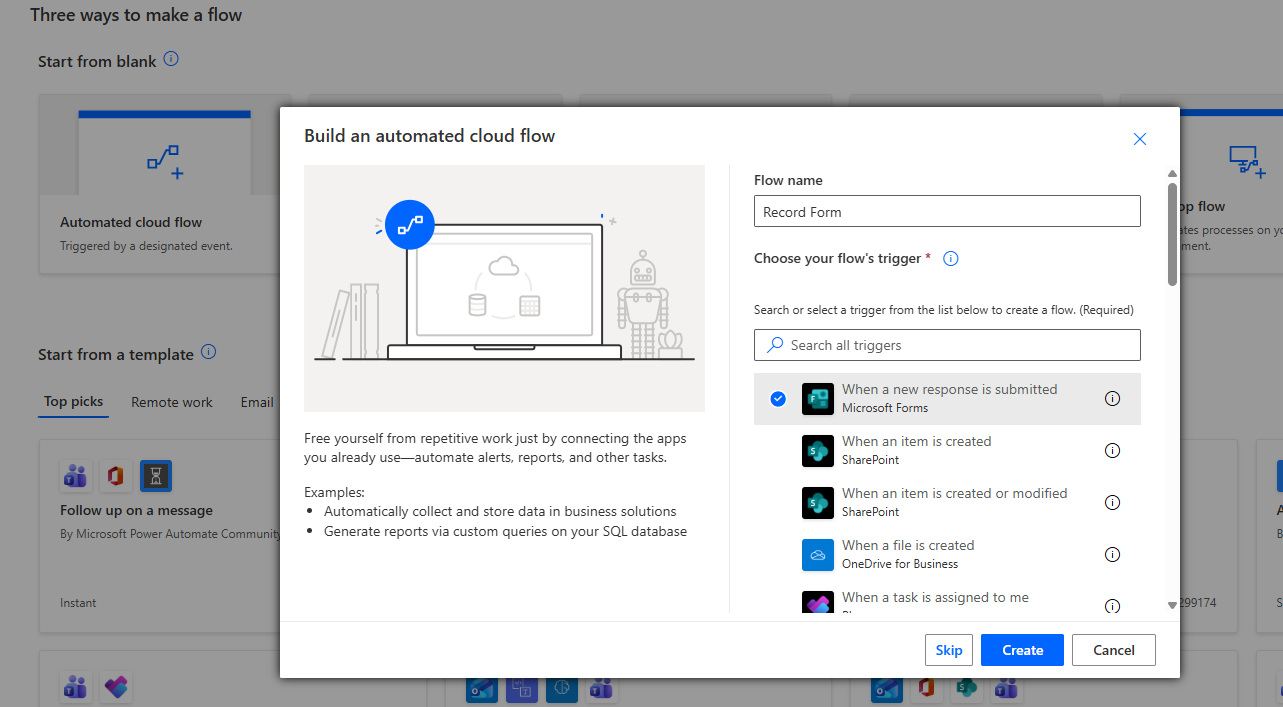
Next, we select our Form.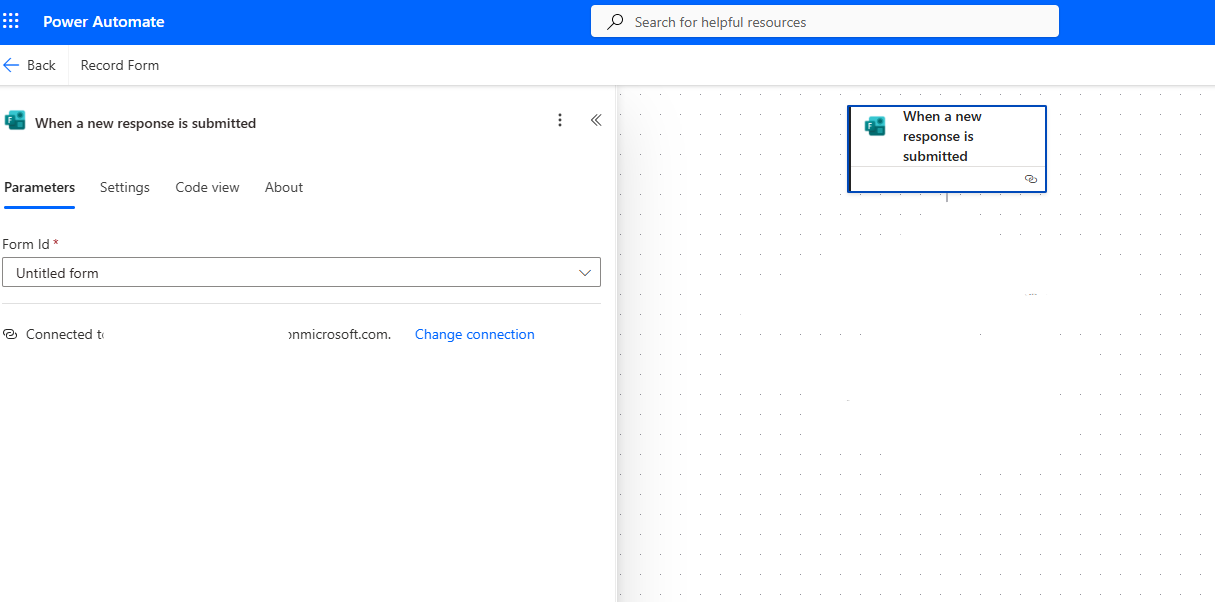
Then we add the Get response details action to extract the answers dynamically.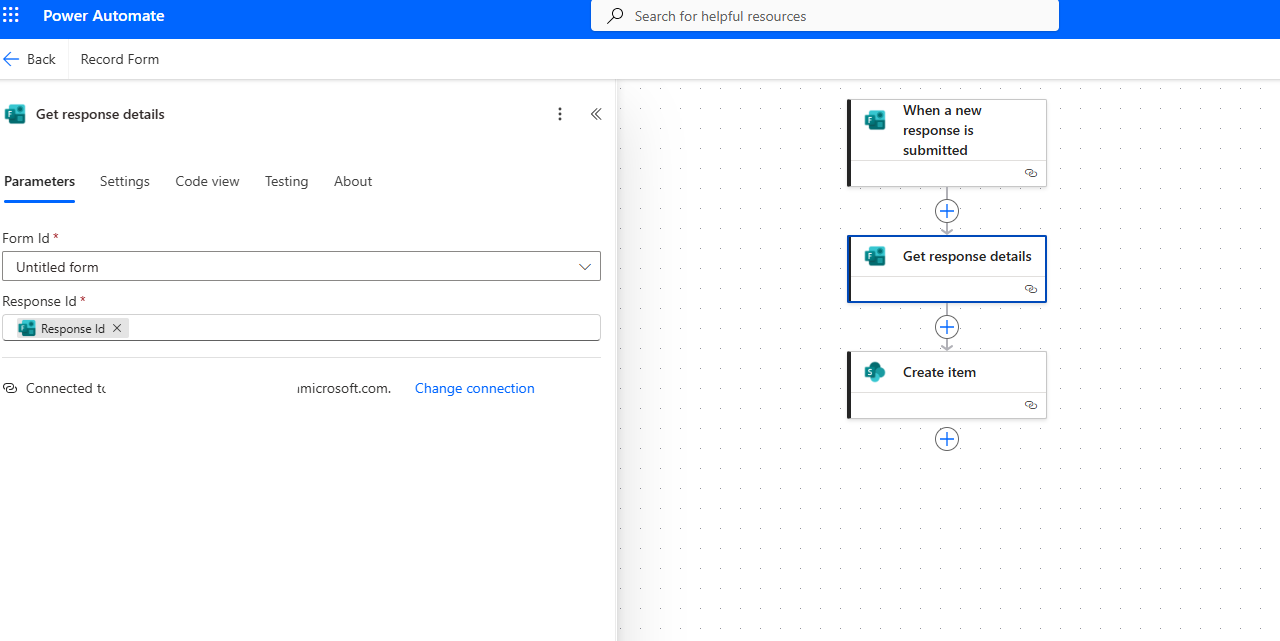
After that, we add a Create item action and map the fields dynamically using the outputs from Get response details.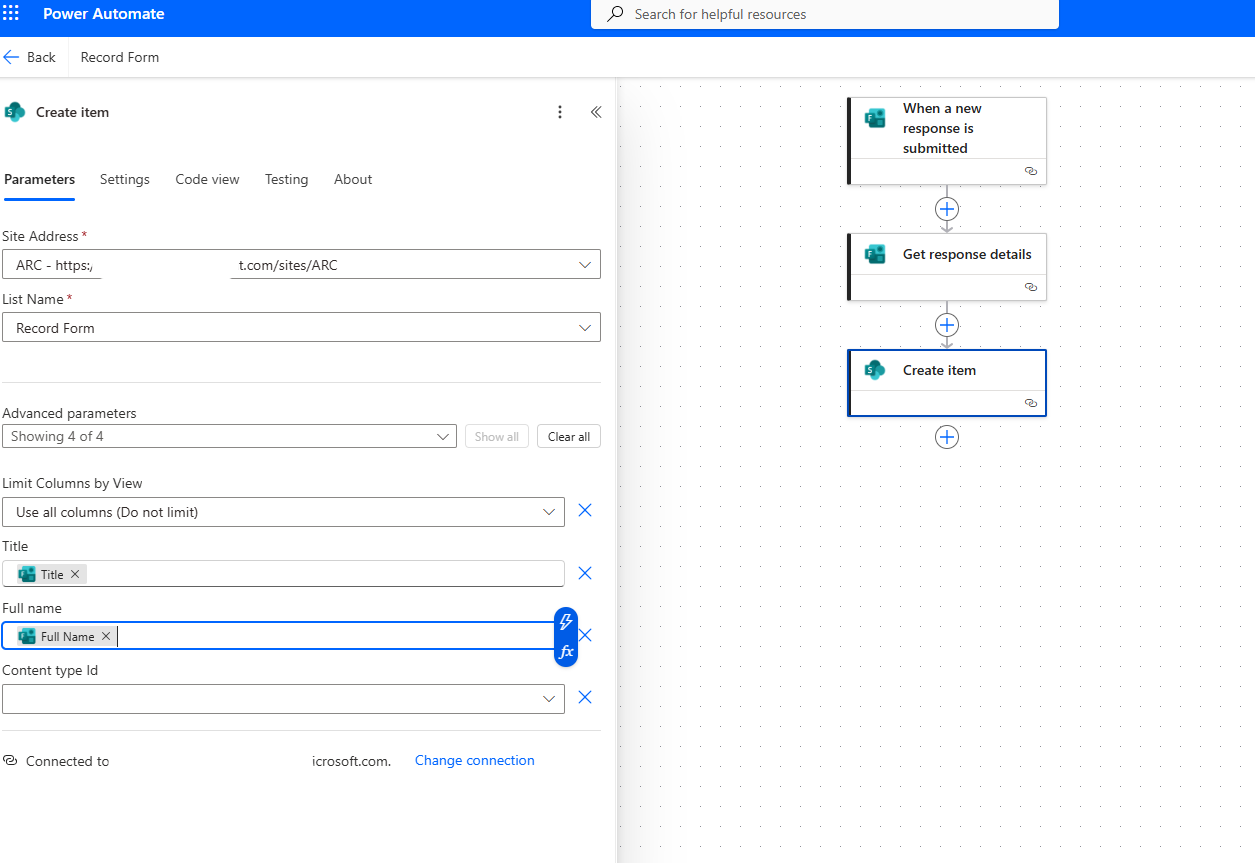
We then save the flow.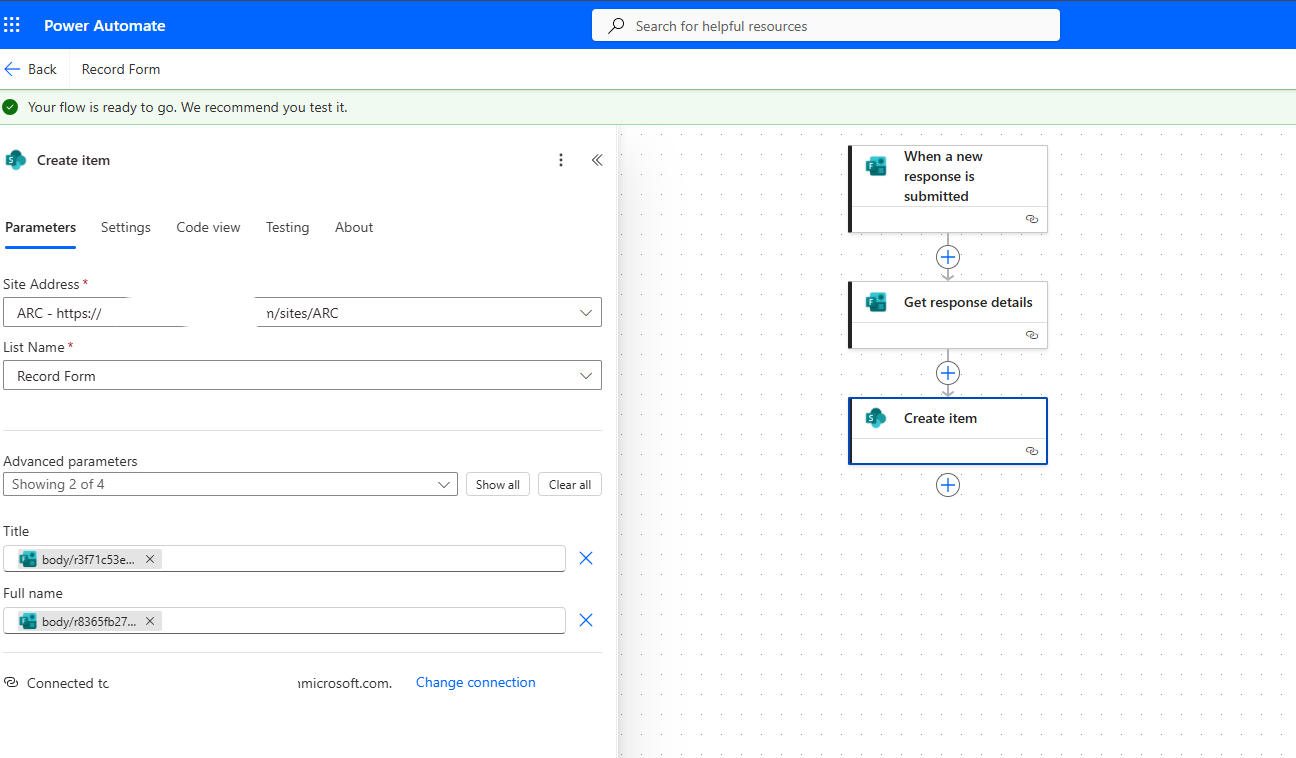
We run a manual test.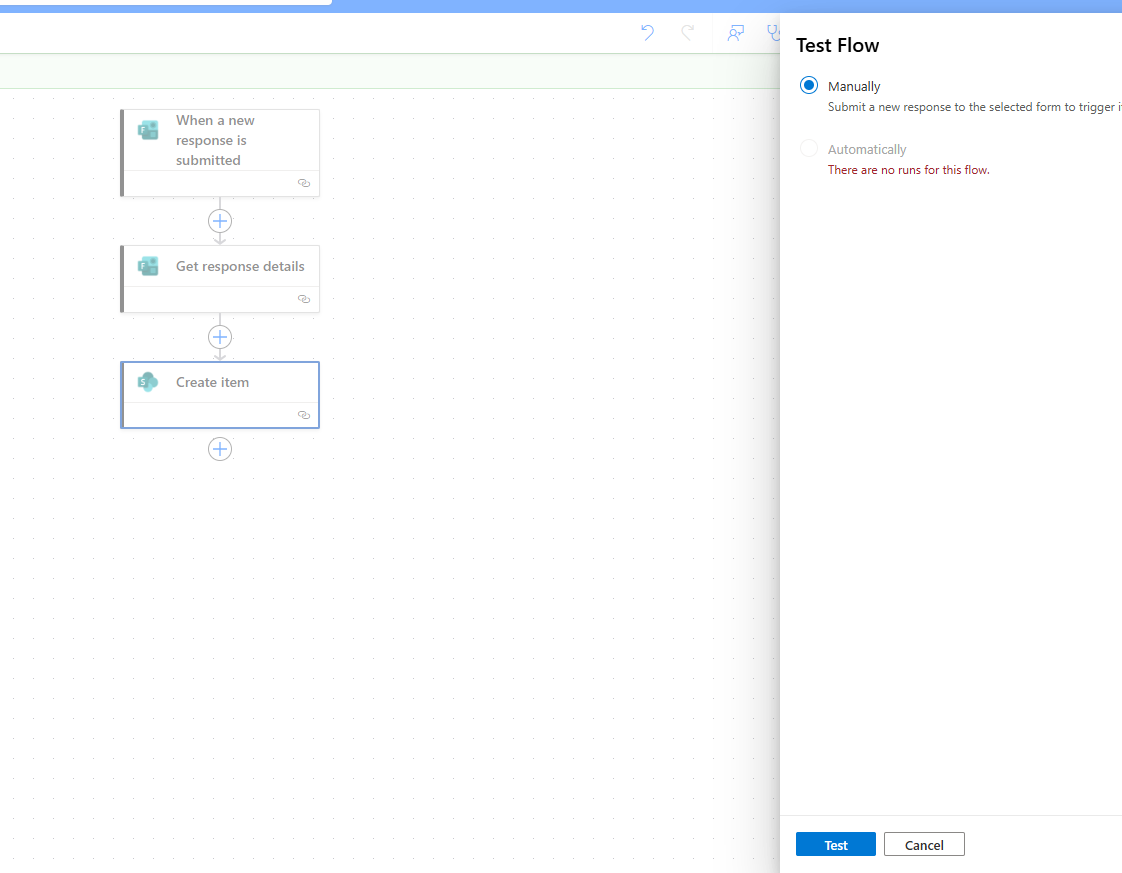
We submit a new response in the Form.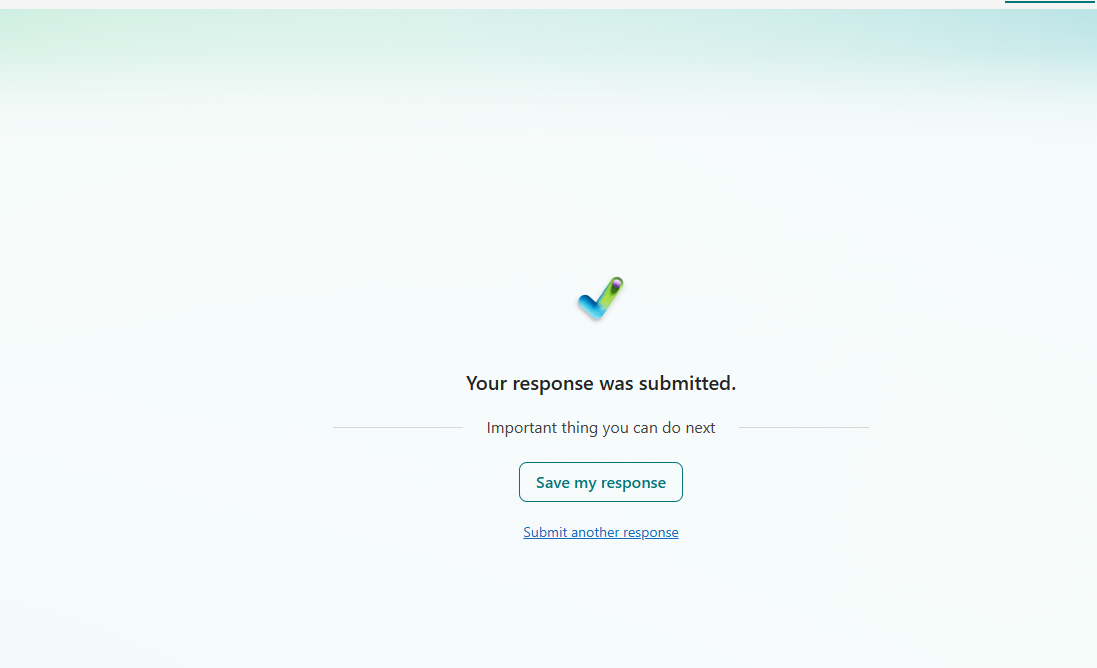
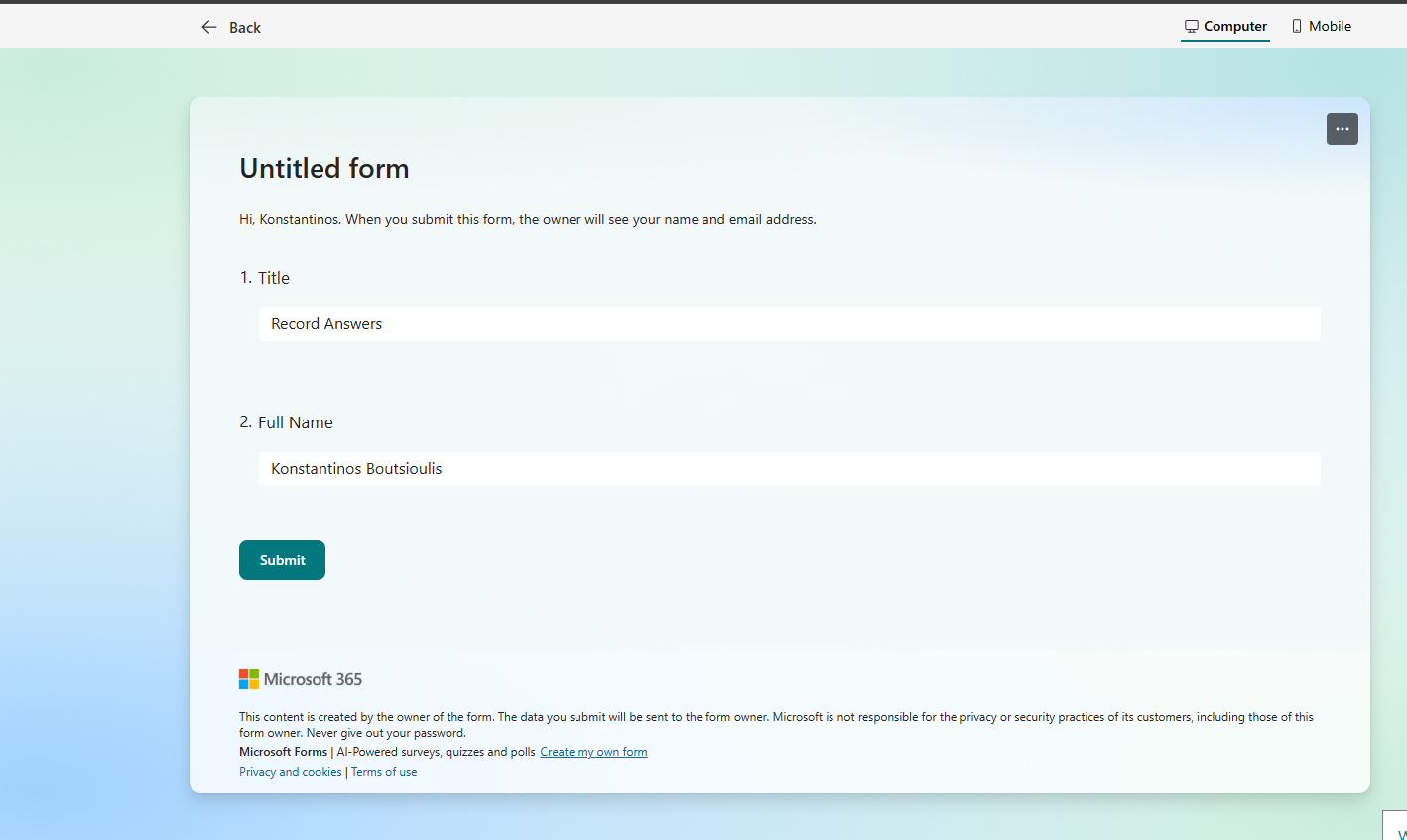
The flow ran successfully without any issues.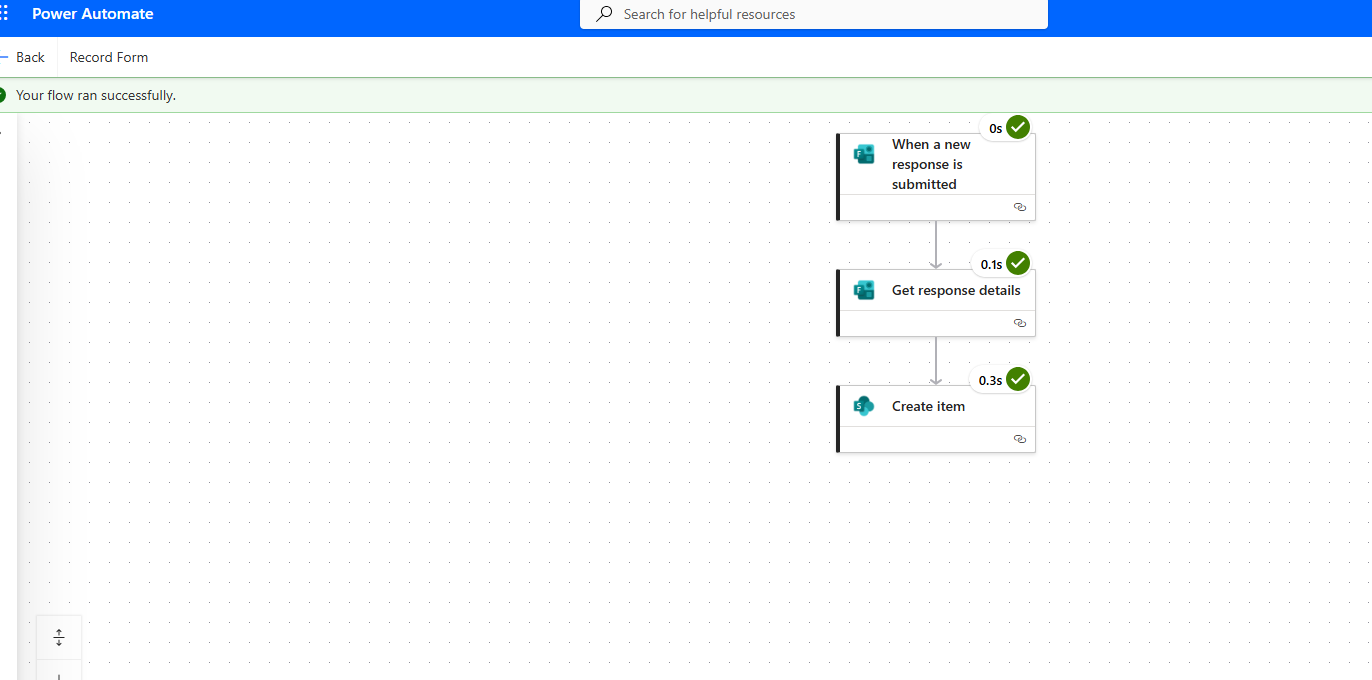
And indeed, a new item was created in our SharePoint list.