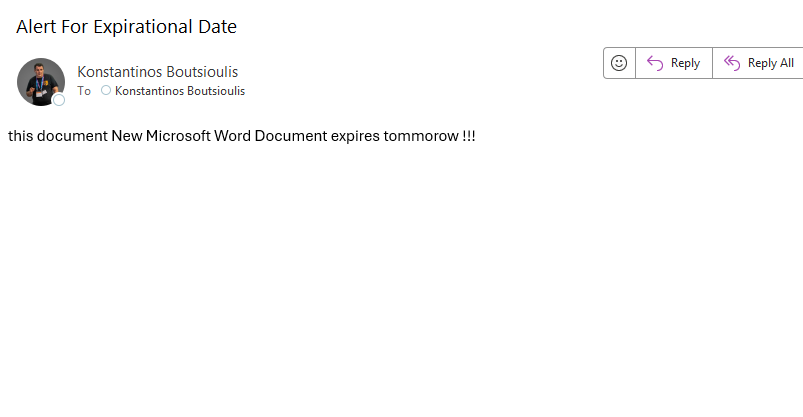
In today’s post, we will see how we can create an alert for the files of a library that contain an expirational date.
This is a process frequently required by companies not only for records management, but also for maintaining policies related to the lifecycle of documents.
First, we select the library where we want to apply an expirational date to the documents.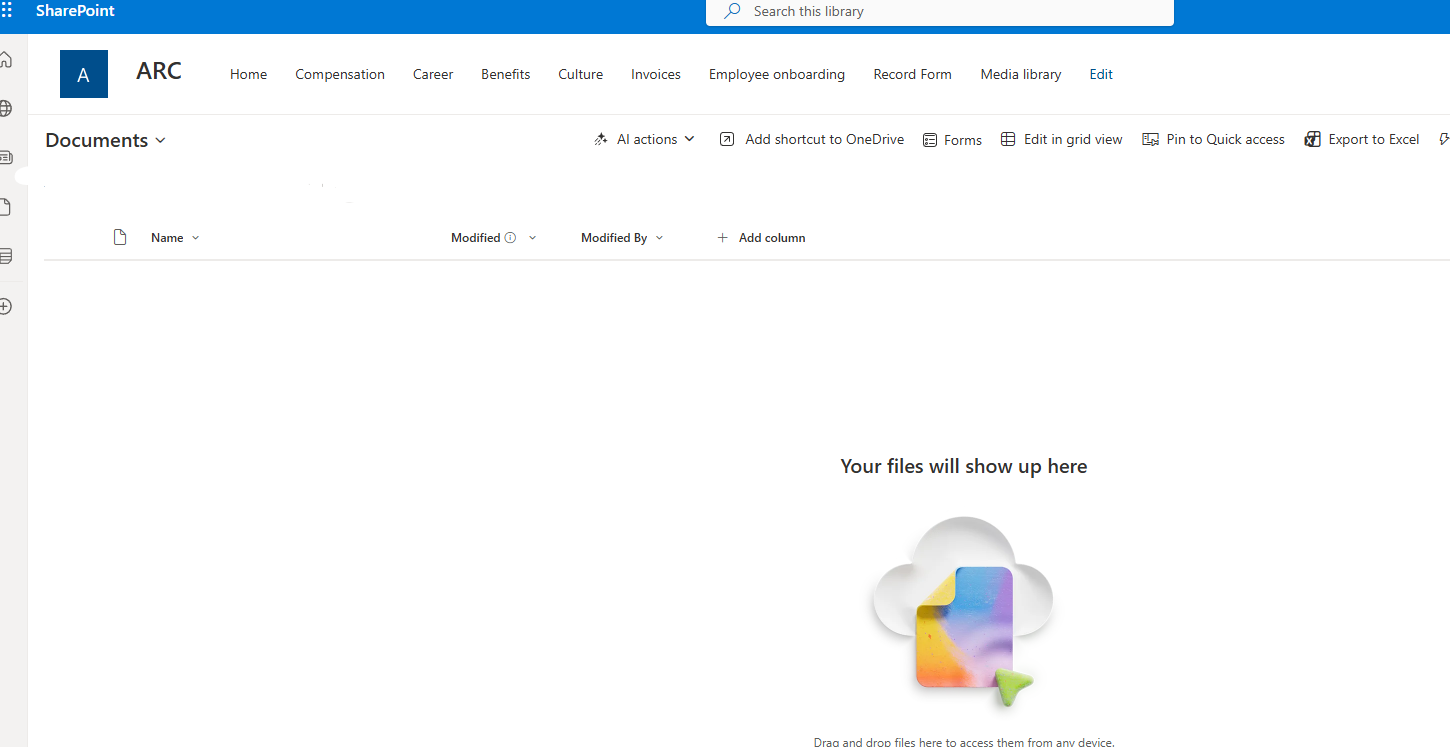
We add a column of type Date and name it Expirational Date.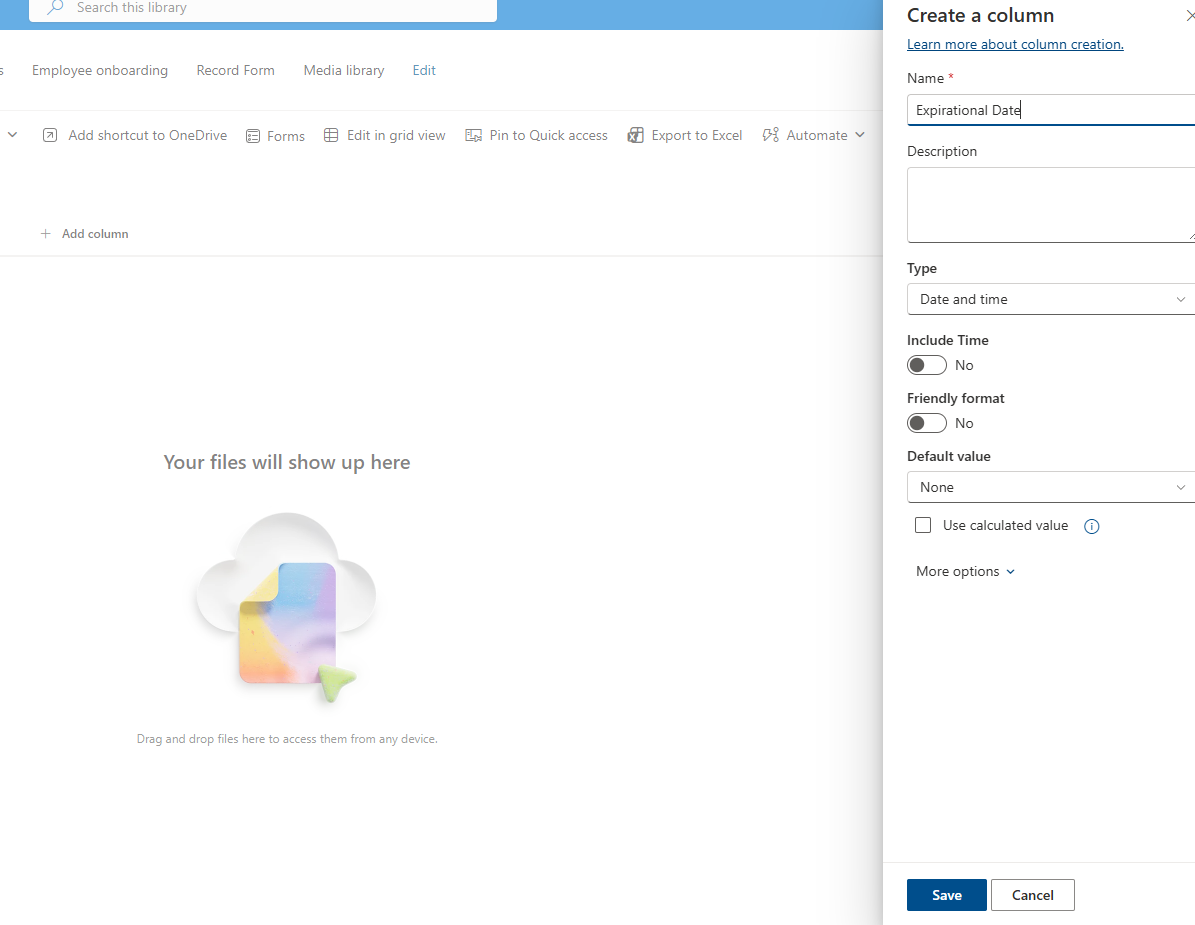
We upload a file and enter a date as the expirational date.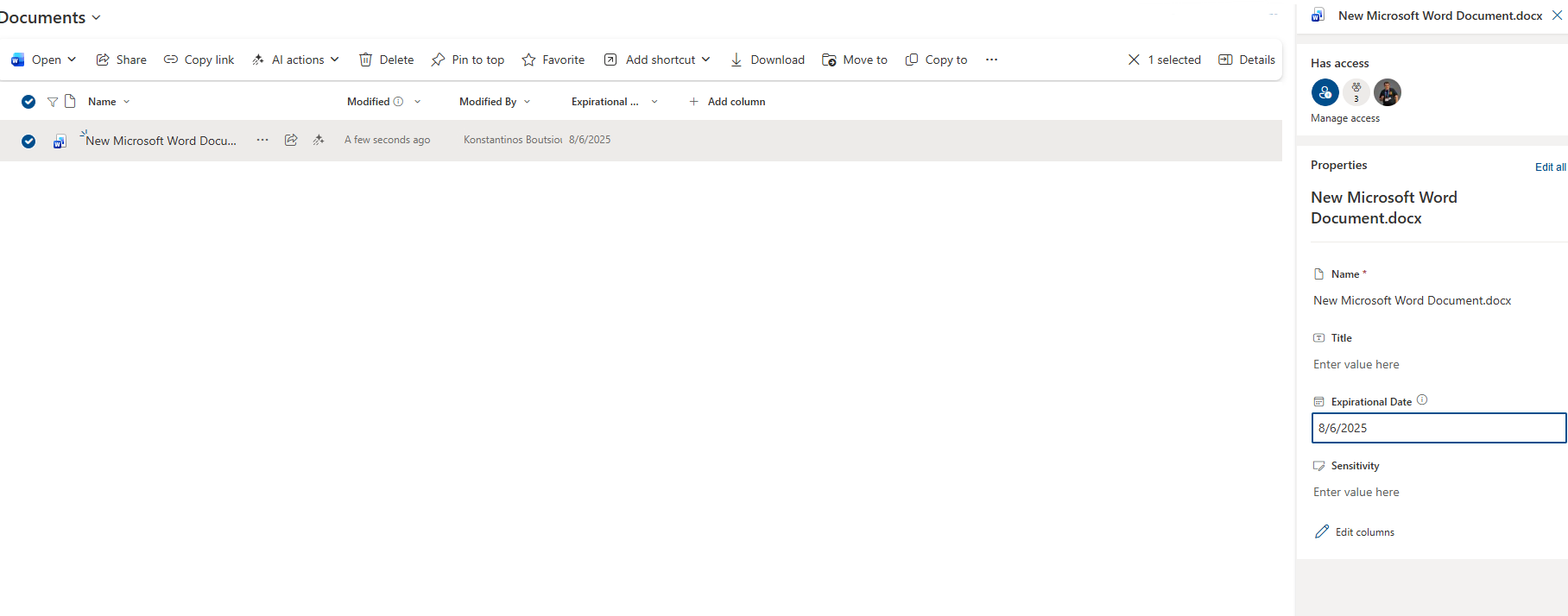
Then we go to the Power Automate page and select Create.
Next, we choose Scheduled Cloud Flow.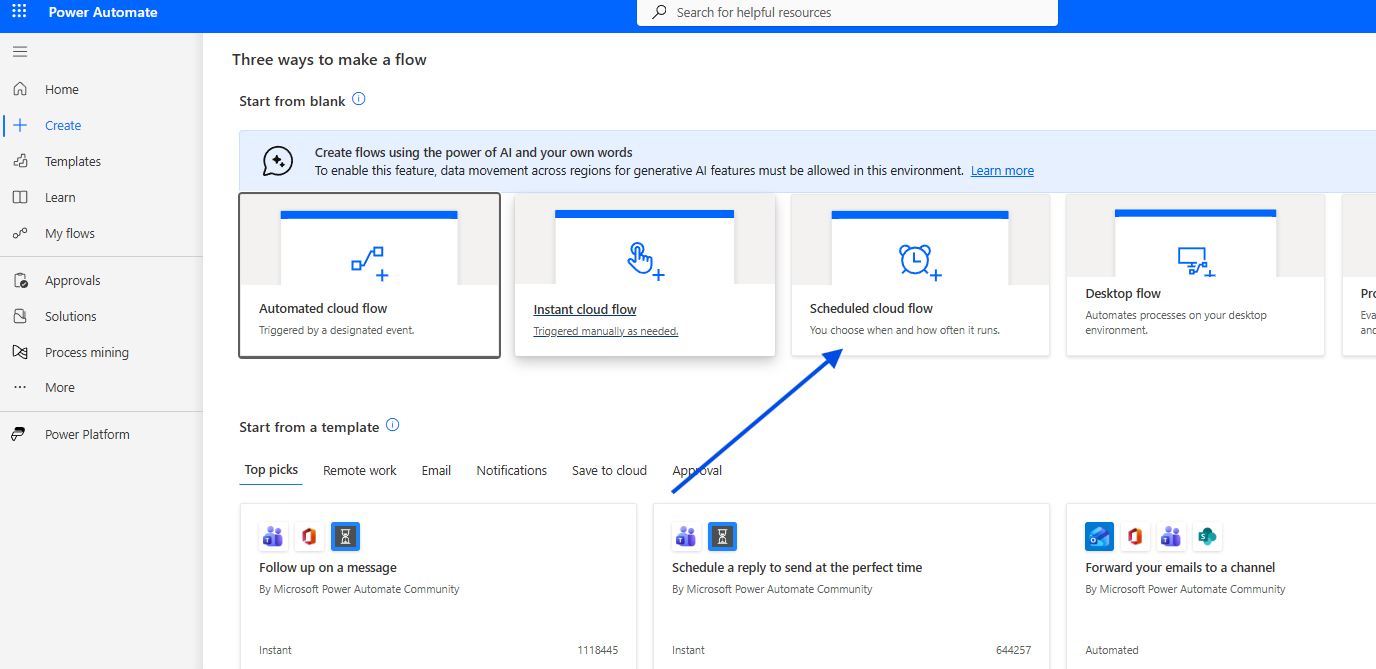
We give the automate a name and define the recurrence frequency.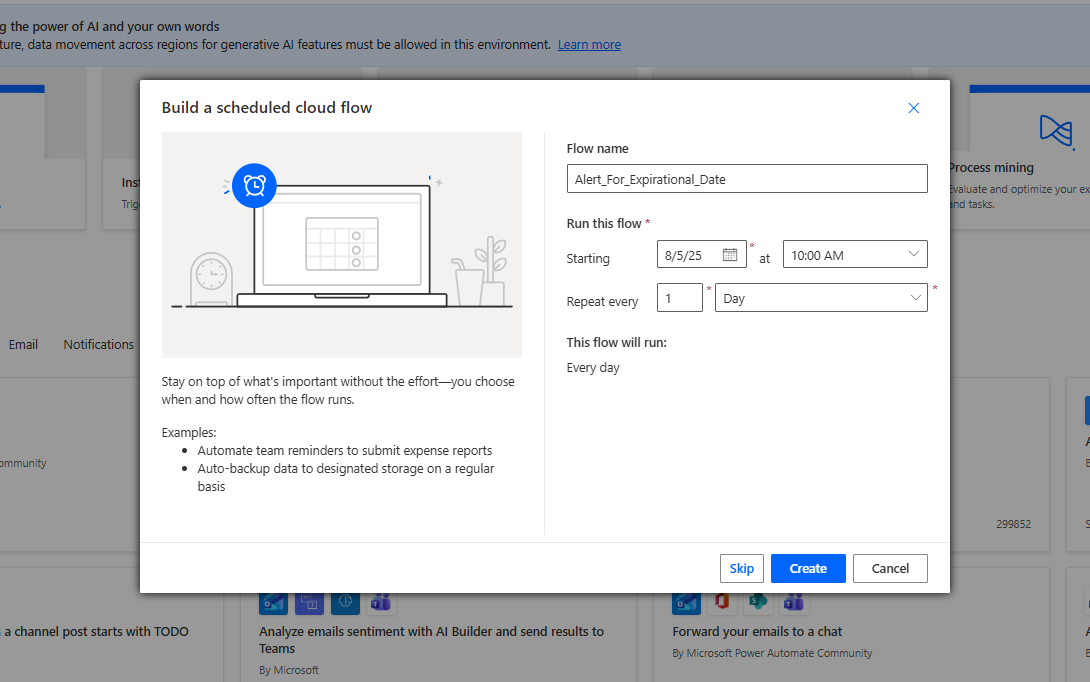
Then we add a Get items action so that we can check all items in the library.
We also set a filter query:
ExpirationalDate eq '@{addDays(utcNow(), 1, 'yyyy-MM-dd')}'
so that only the items whose expirational date is tomorrow will be returned.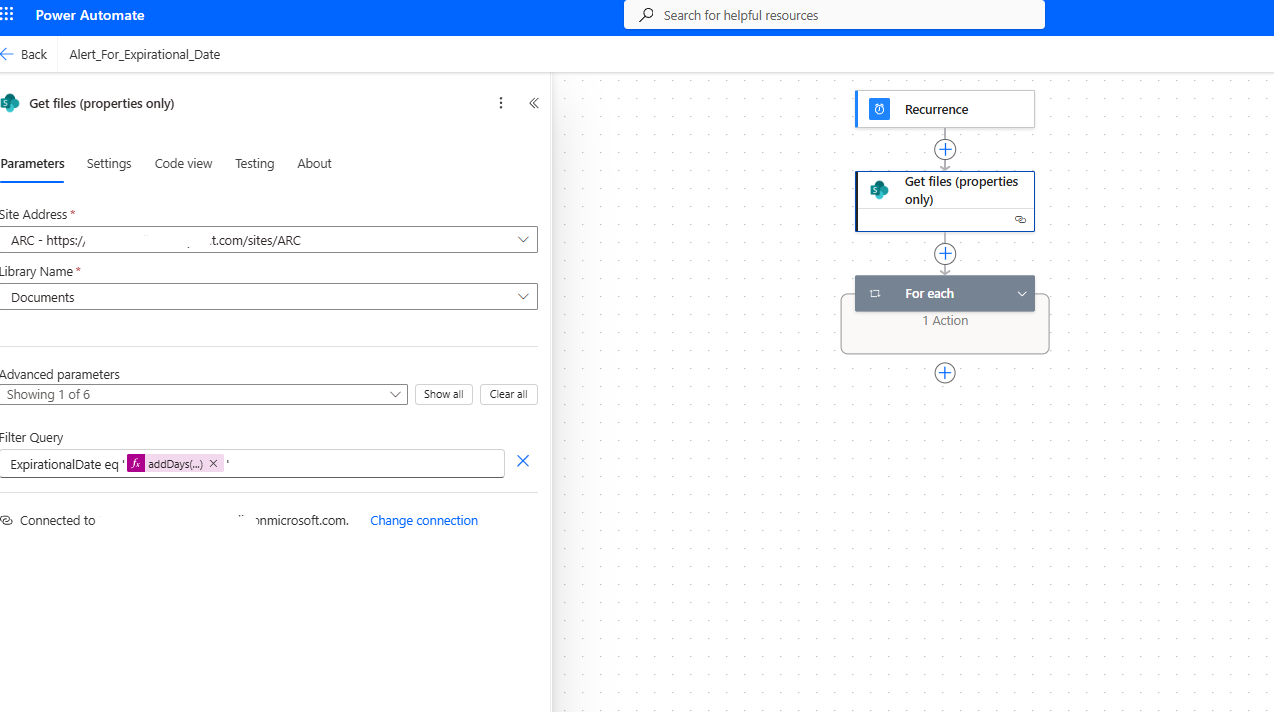
After that, a foreach loop follows to perform validation on all items.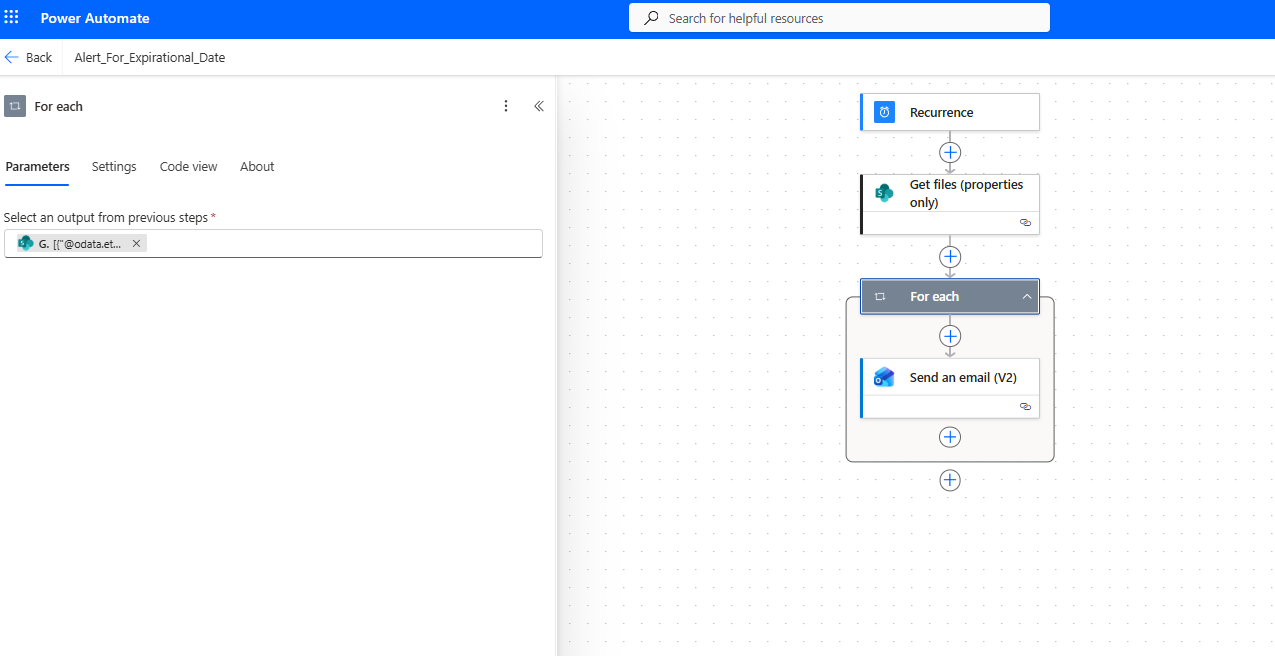
Then we add a new action, Send email v2, to send an email with the file’s information: title and expiration date.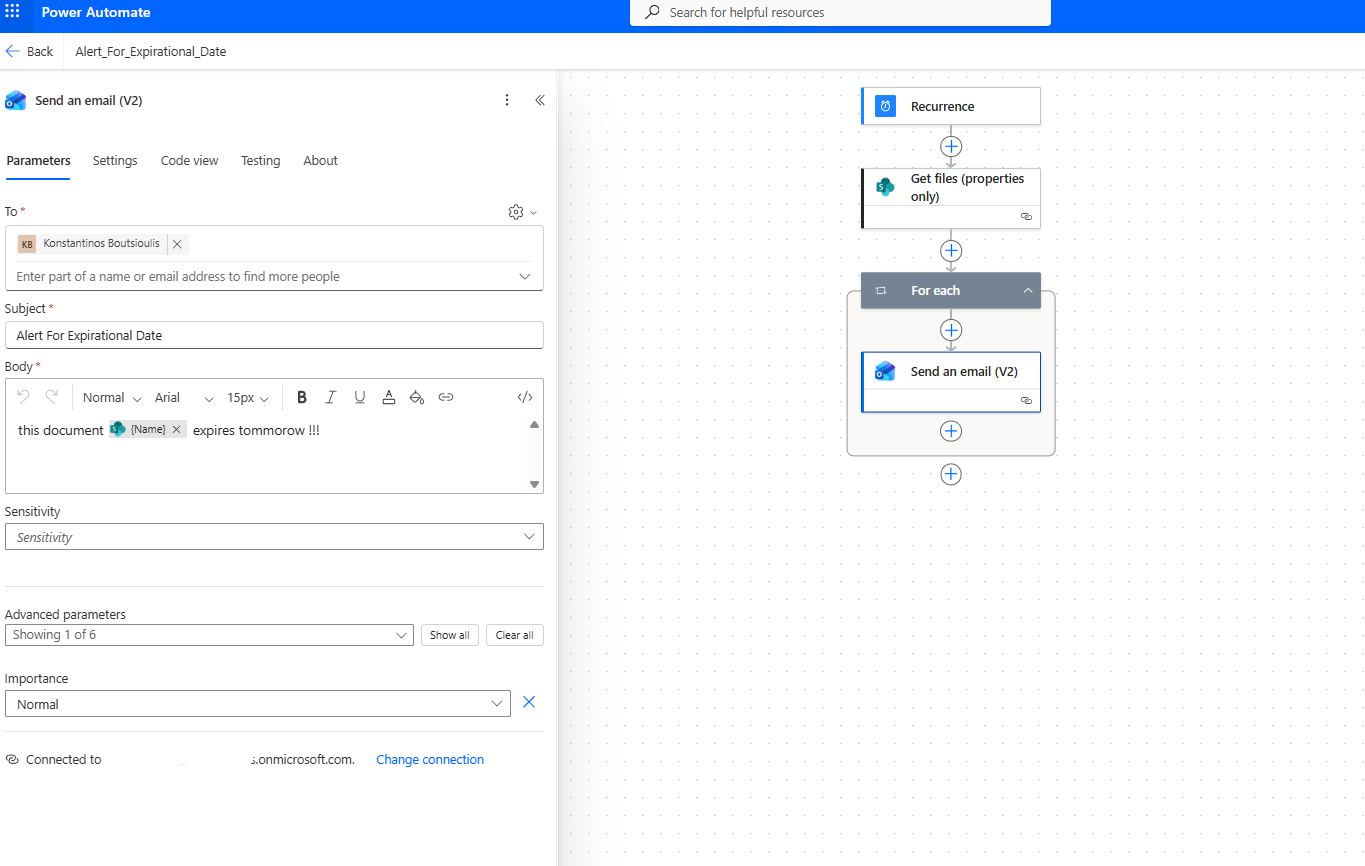
Next, we need to save the automate.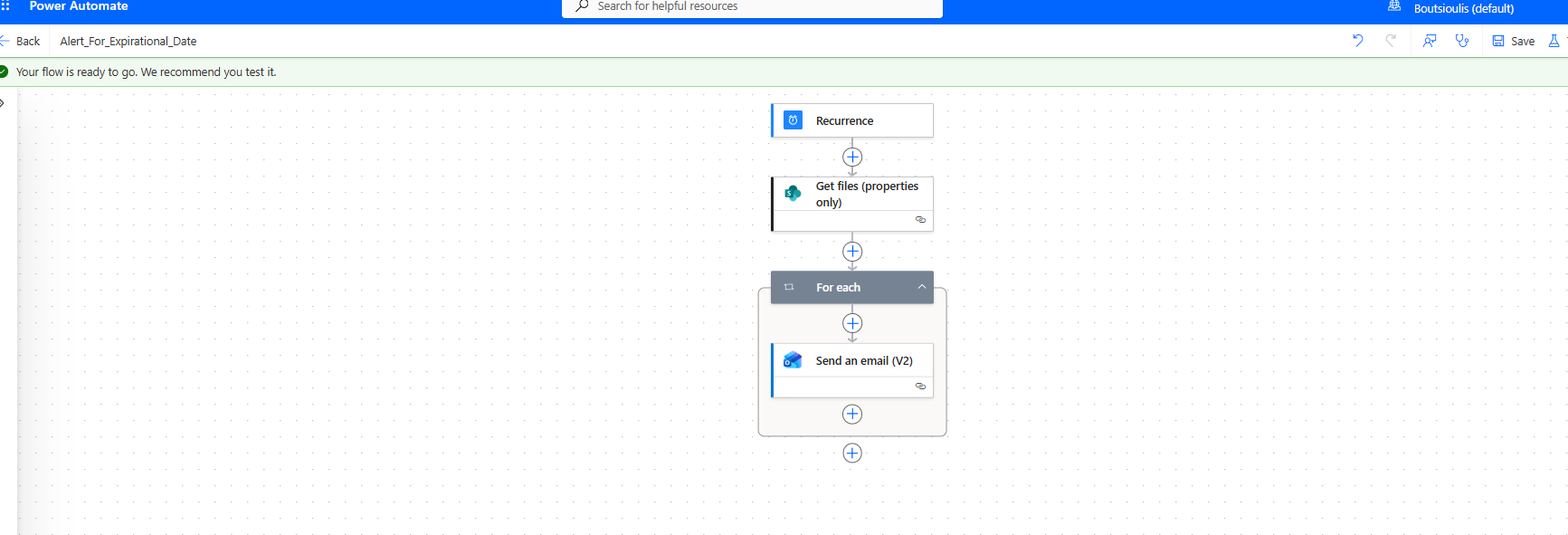
And choose to run a manual test.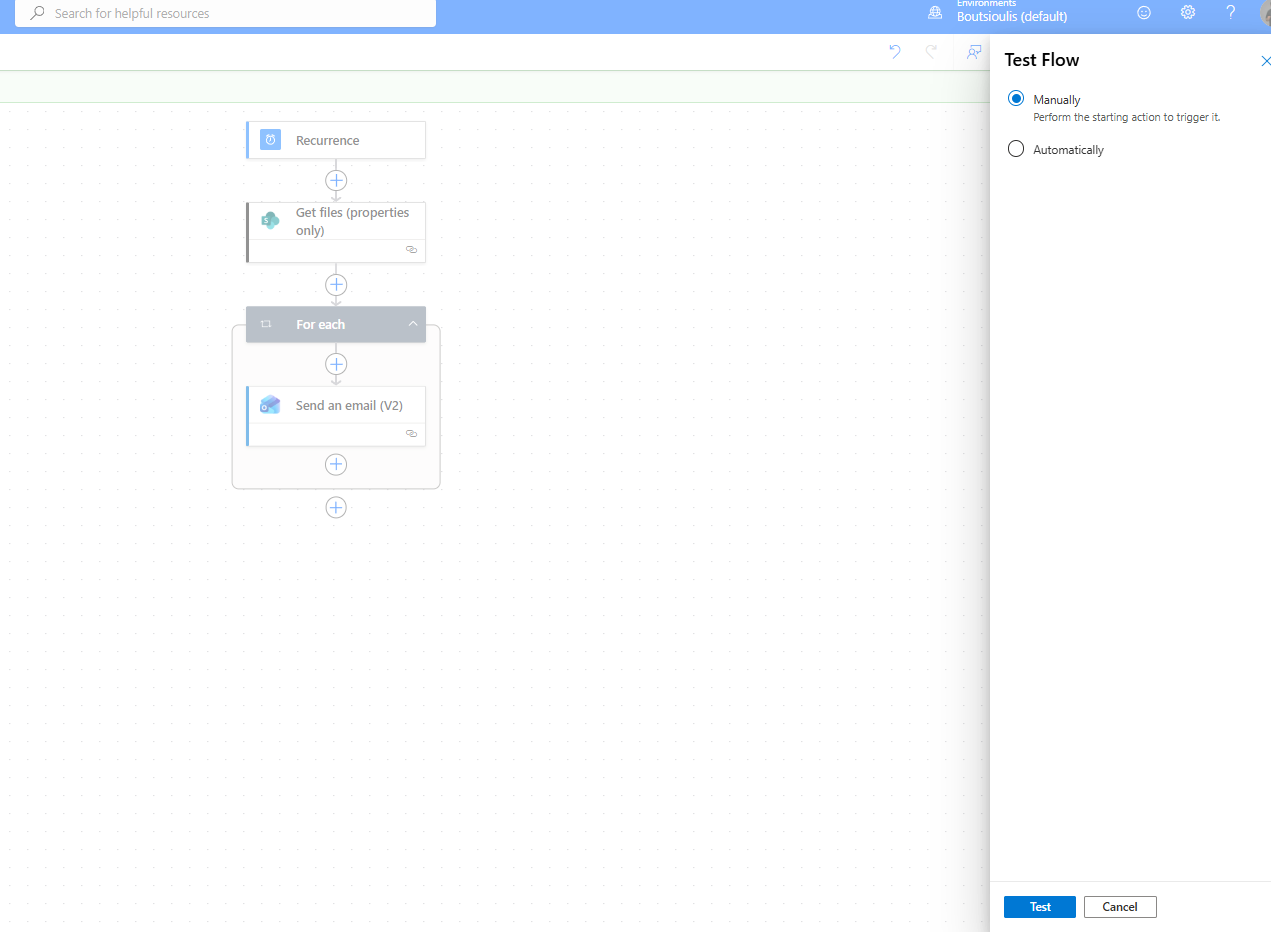
Then we select Run flow.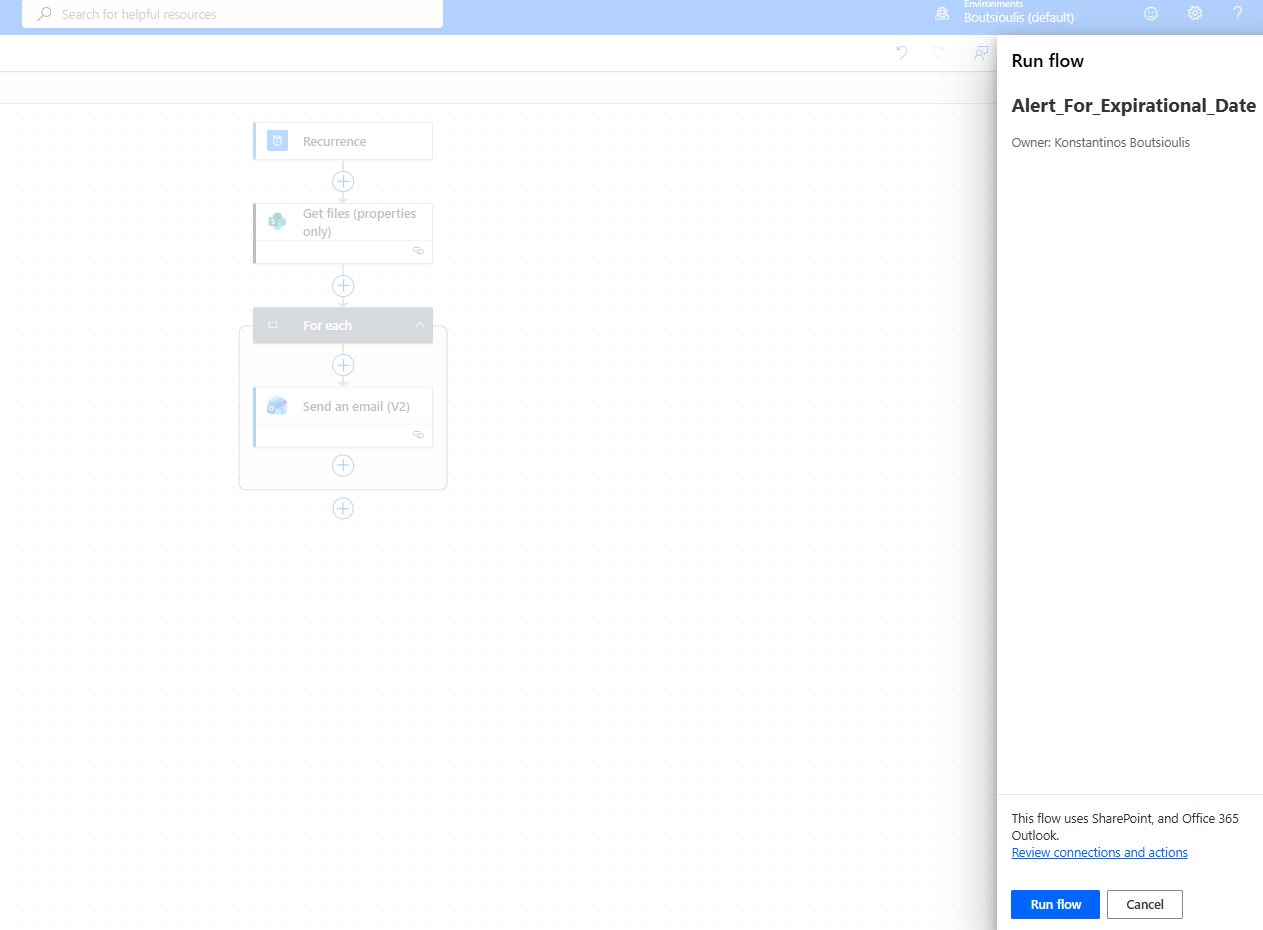
Finally, the automate has been successfully triggered.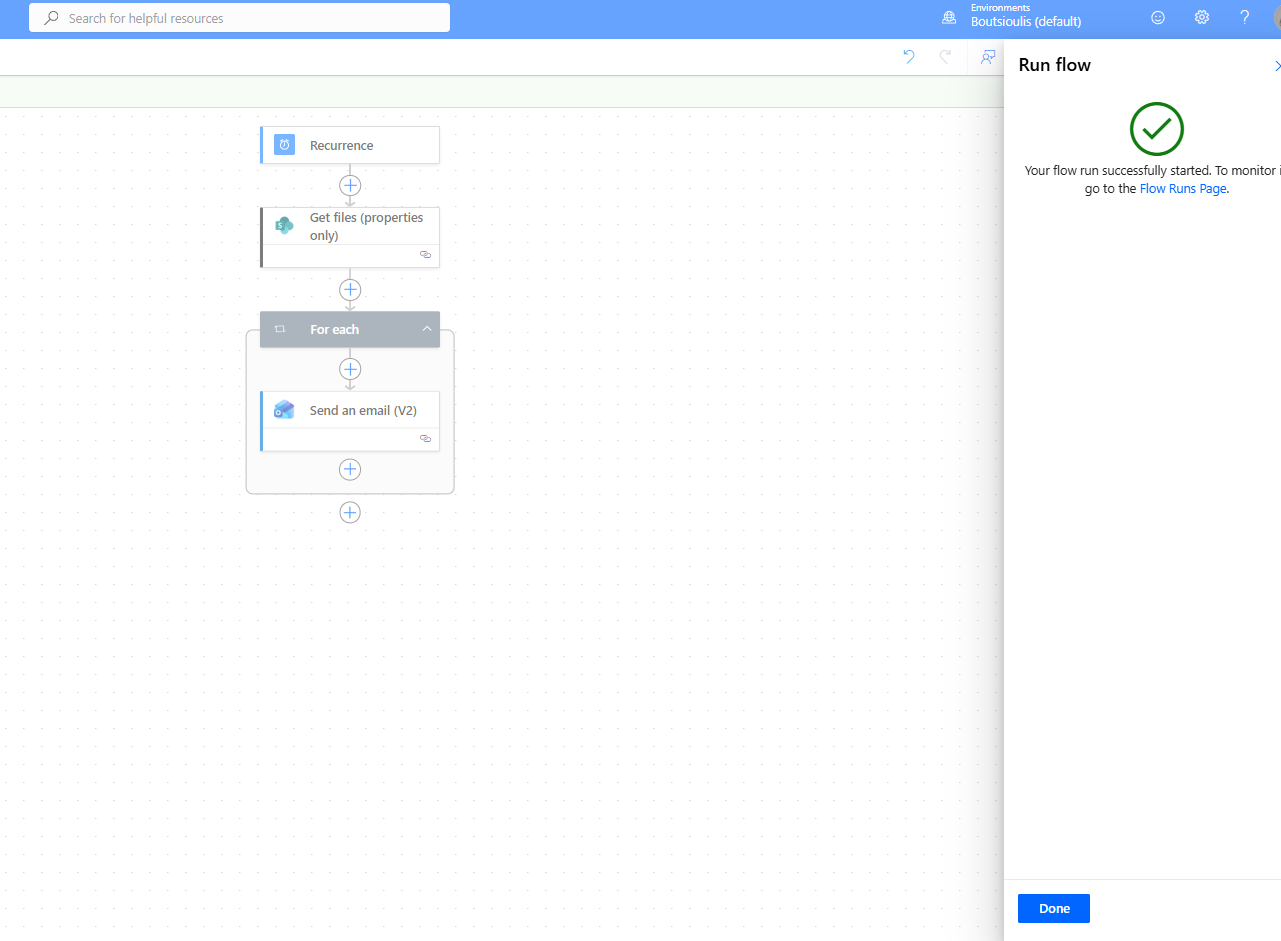
As shown, it runs without any issues.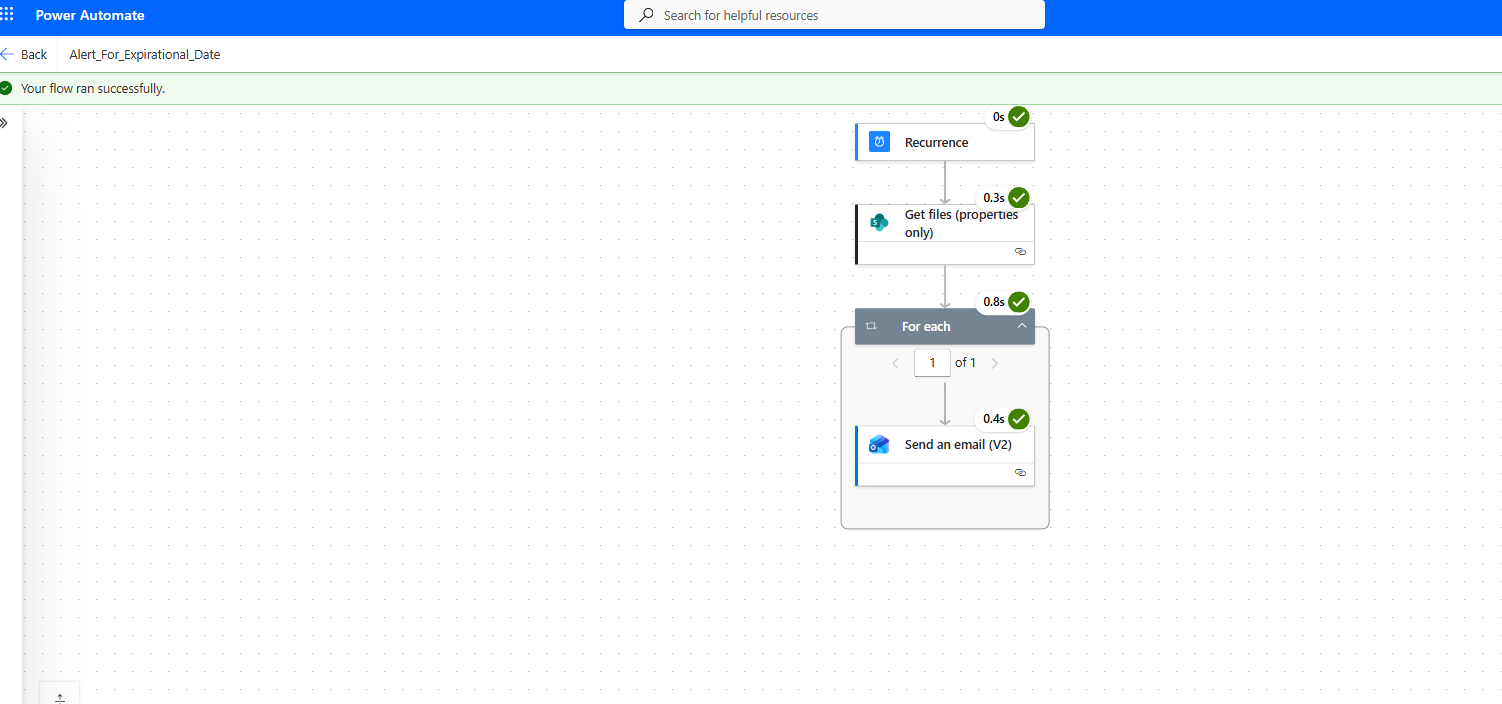
And it sends the email notifying that the document expires tomorrow.