In today’s post, we will see how we can send an email to someone who submitted a response in Microsoft Forms, as well as how to notify the manager that a new response has been received.
First, we create the form in Microsoft Forms.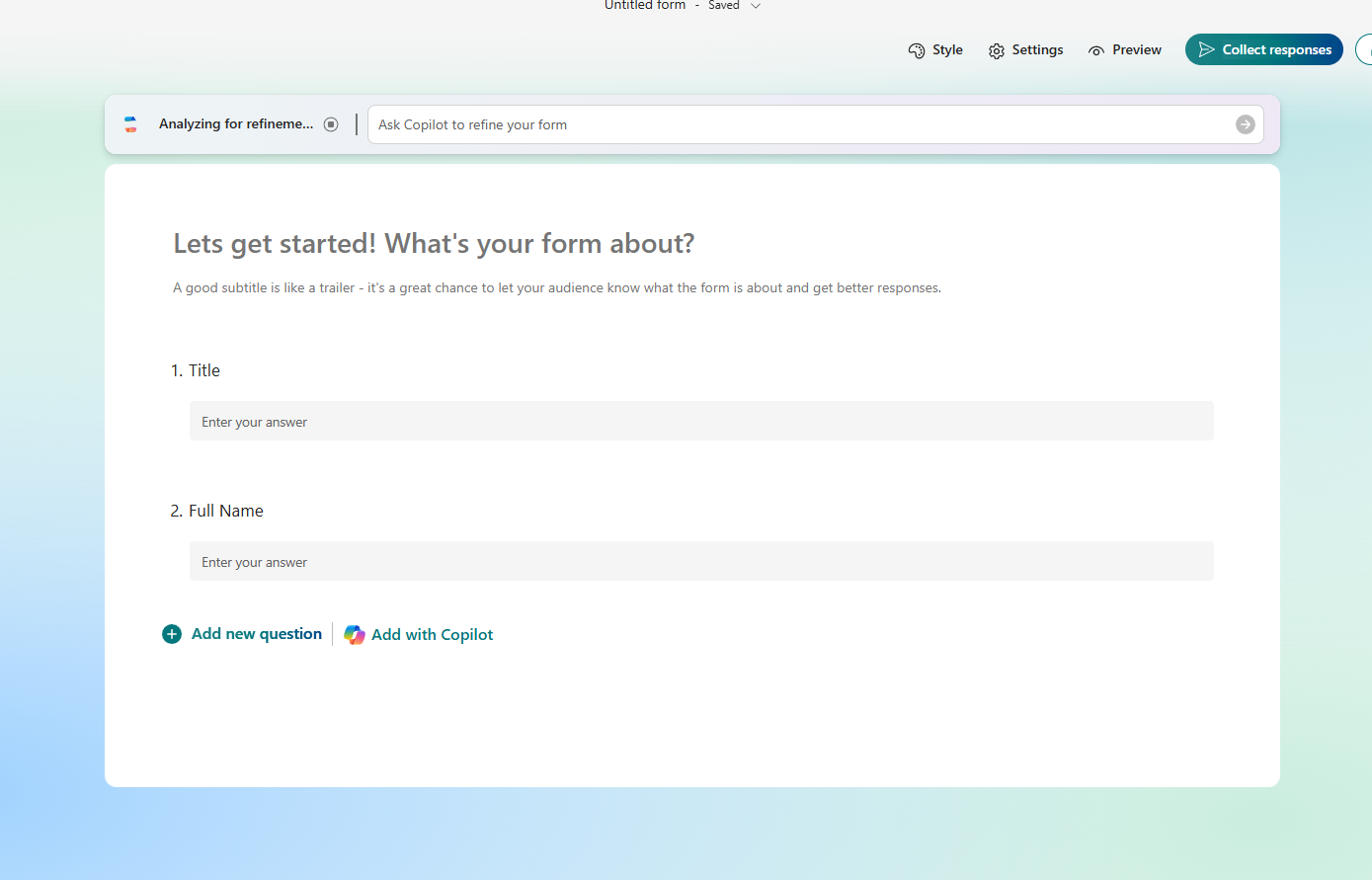
Next, we go to the main Power Automate page and select Create.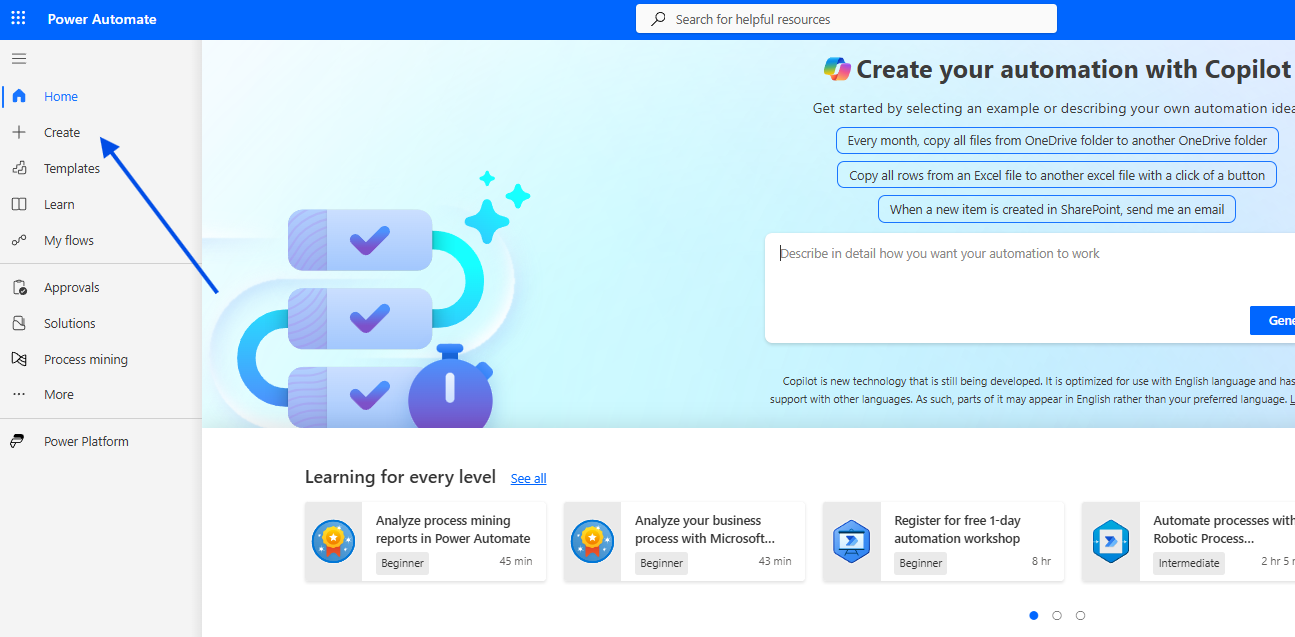
In the following step, we choose Automated Cloud Flow.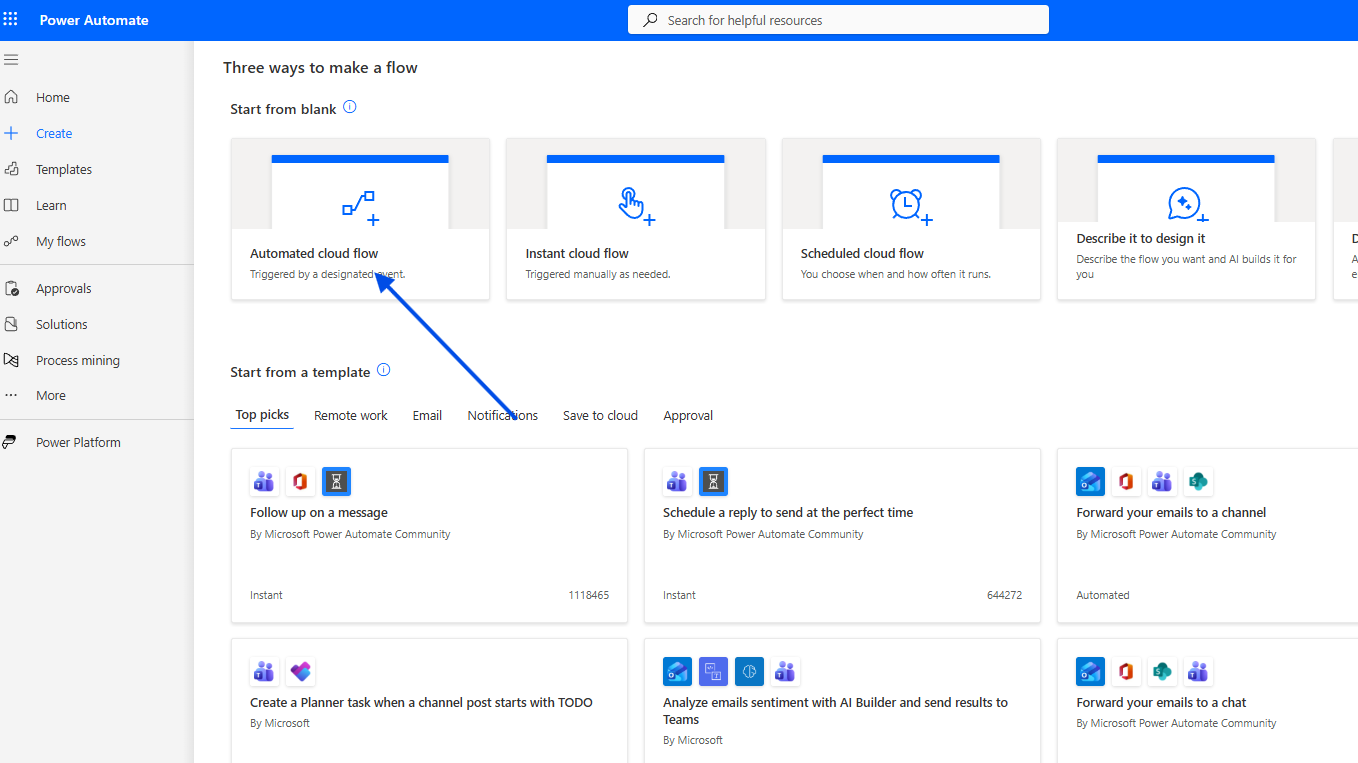
We give the flow a name and select the trigger When a response is submitted.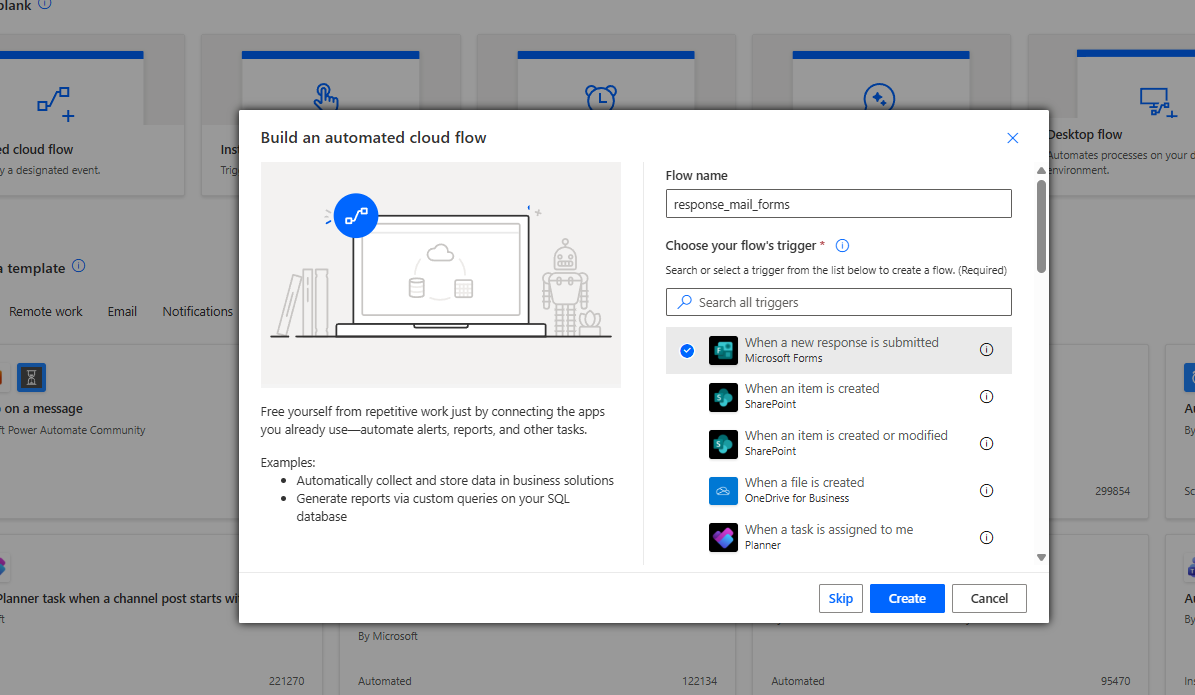
We select our form in the trigger action.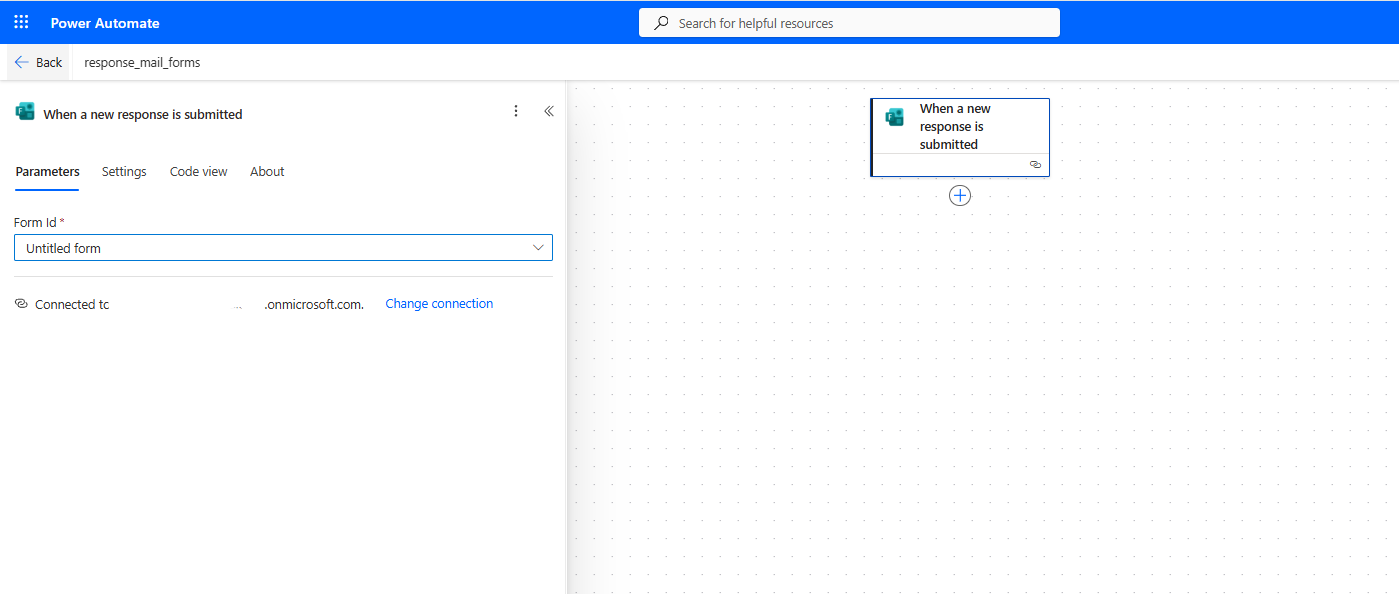
We add a new action Get response details to retrieve the information we need.
Here, it’s important to note that a form should ideally contain an Email field so that we can use that value to send a reply to the respondent.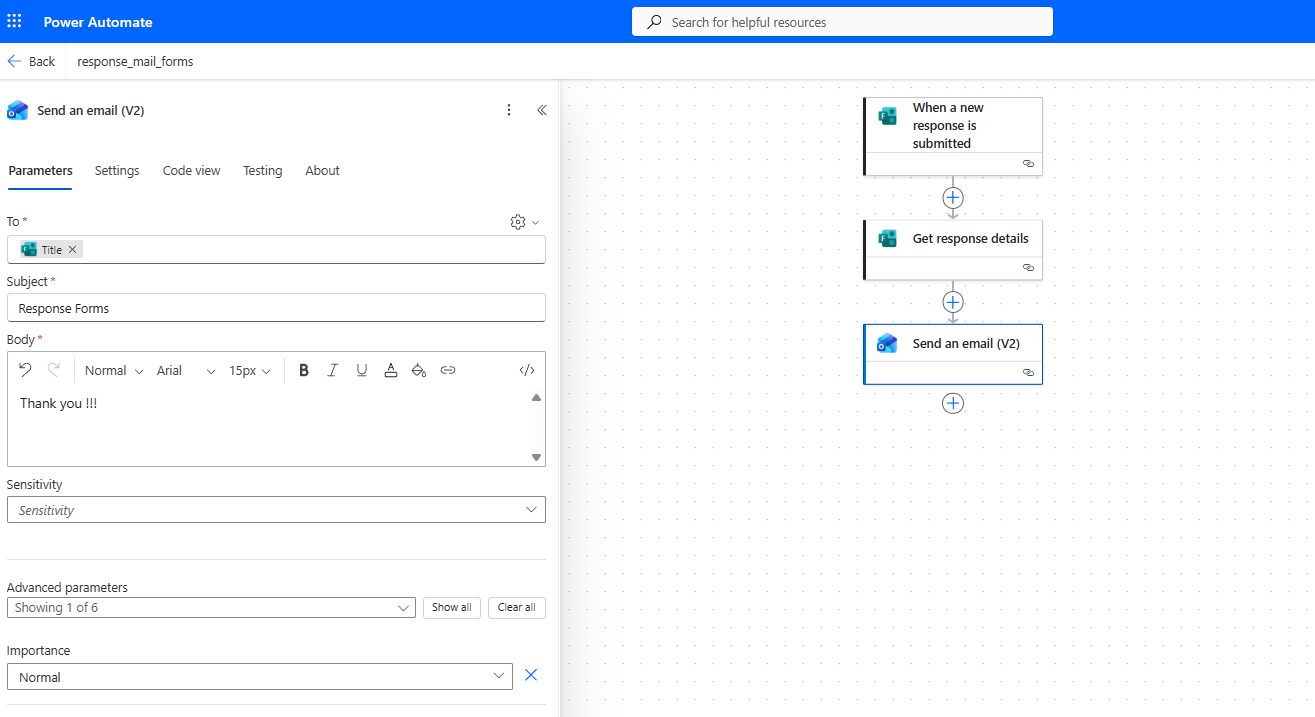
Next, we add a Send an email (V2) action, specify the recipient, and define the subject and body of the email.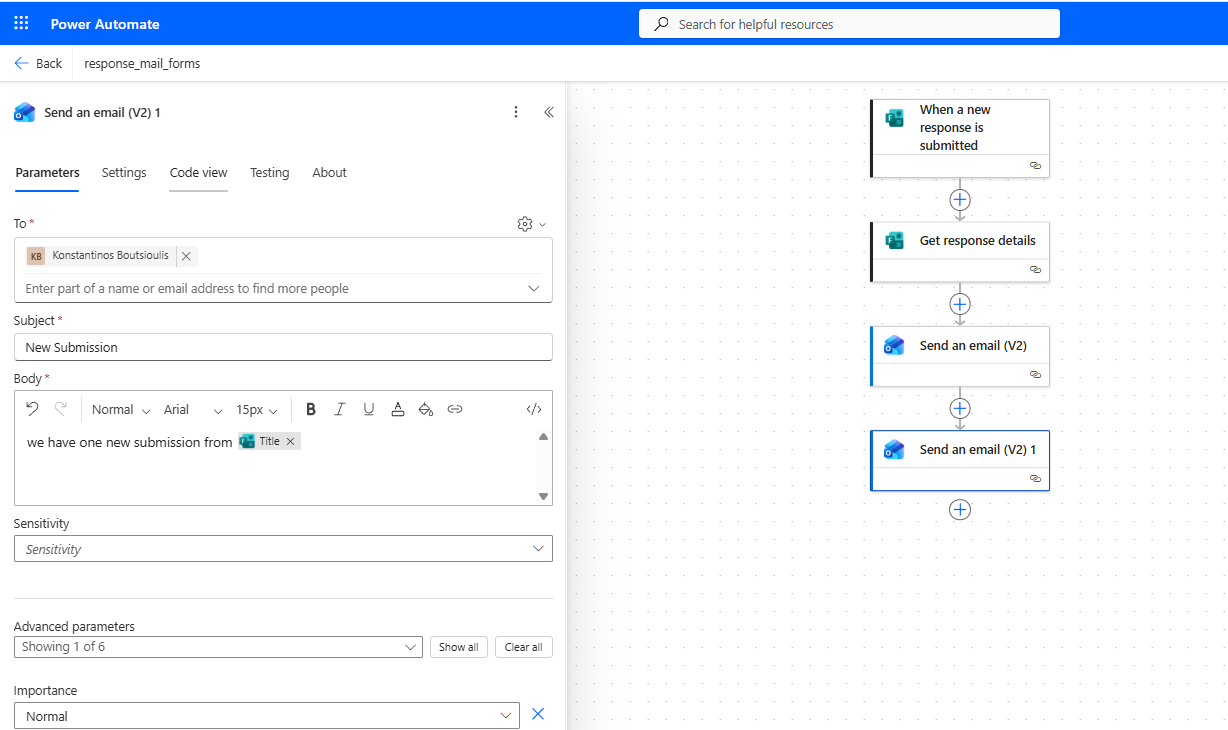
We repeat the same approach to send a notification email to the administrator for the new submission alert.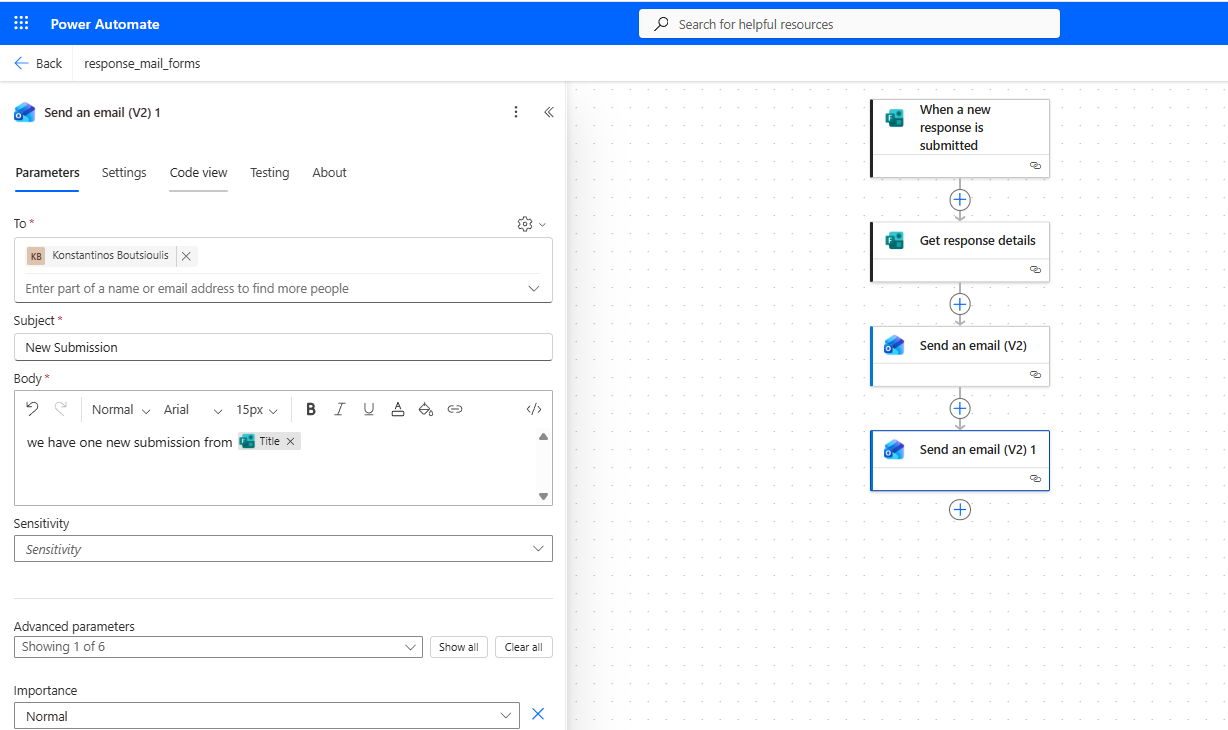
We save the flow.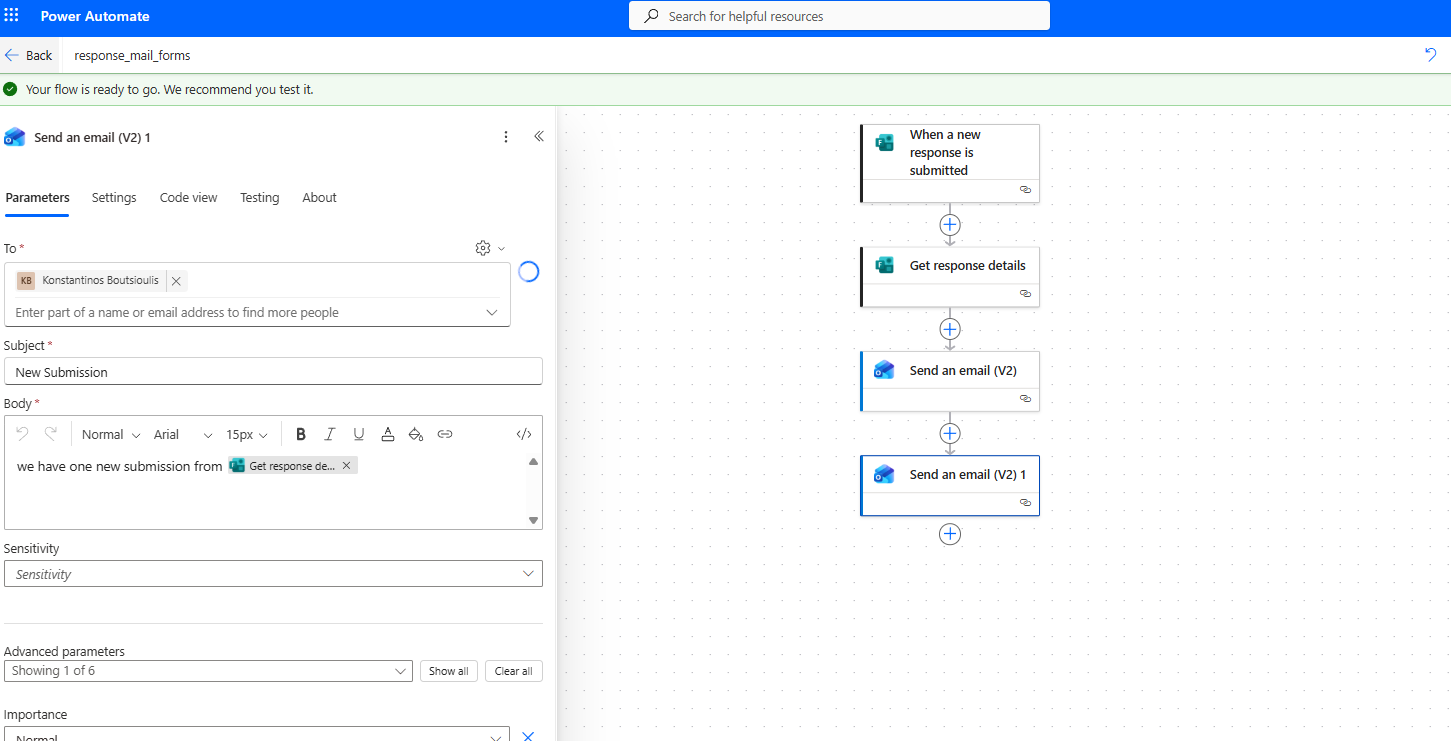
Then we choose to run a manual test.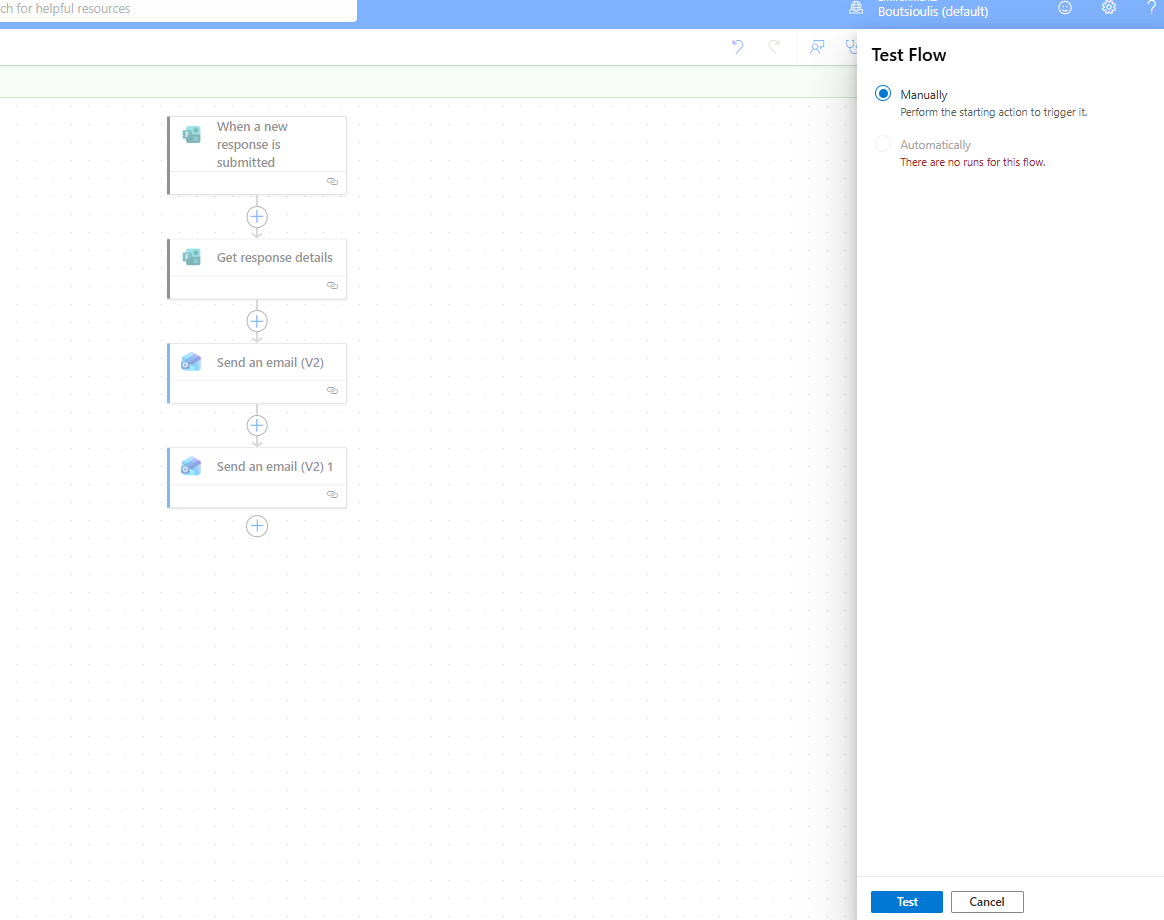
We submit a new form.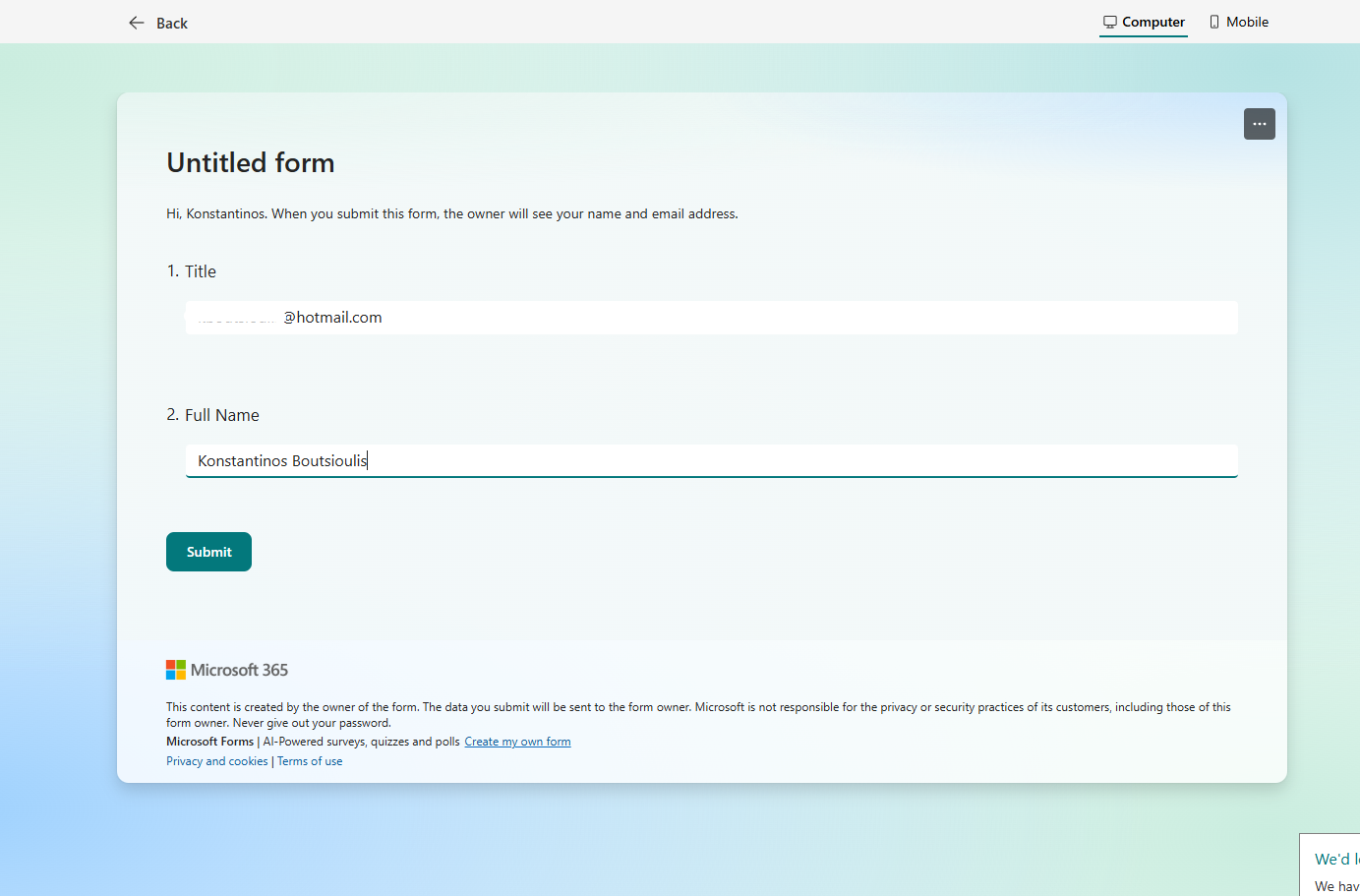
As you can see, the flow ran successfully.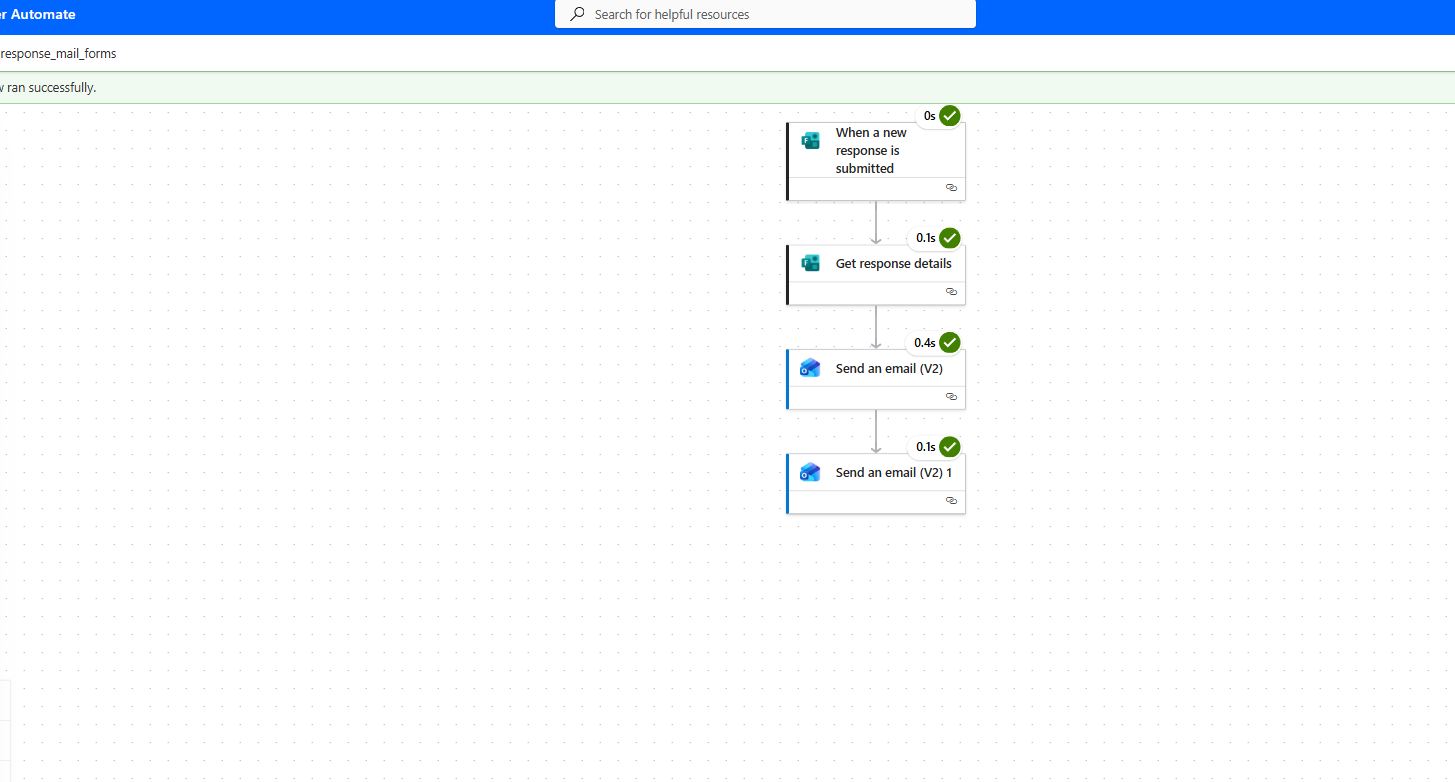
Here is the email received by the user who submitted the form.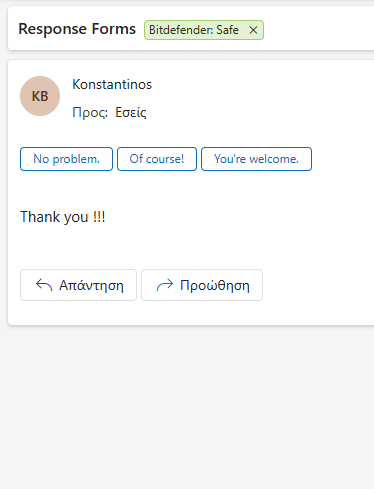
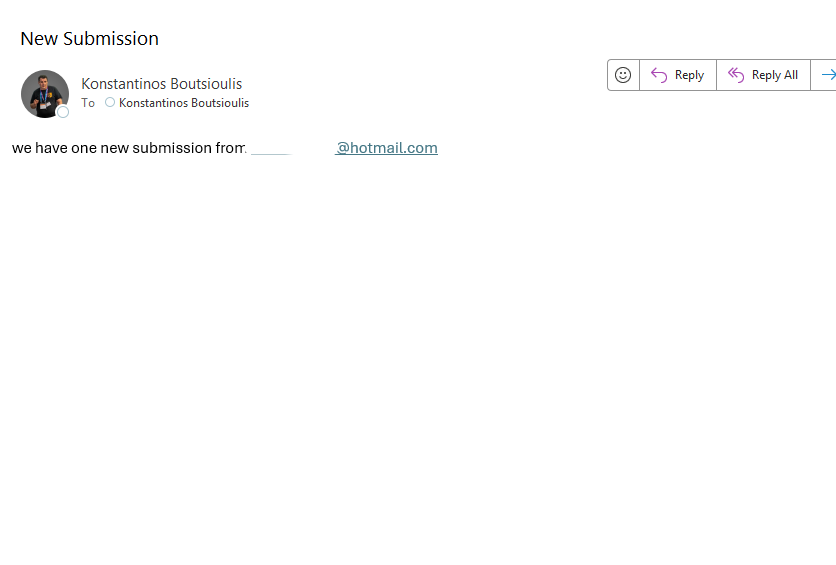
And here is the notification sent to the administrator.